AdChase: find the companies that are hiring
AdChase lists every day the companies that are hiring, from the job ads published on job boards: Hellowork, France Travail, Meteojob, Talent.com, Welcome to the Jungle, Cadremploi, Google Jobs. Each company is identified in the French SIRENE register (SIREN, NAF code, workforce, executives) and matched with your accounts.
You find the companies opening positions on the profiles you place, add them to your CRM in one click, and get notified of their new job ads.
The screenshots below show the French interface.
1. Activate AdChase
An administrator activates it once for the whole company.
- In the side menu, open Customizing > Integrations.
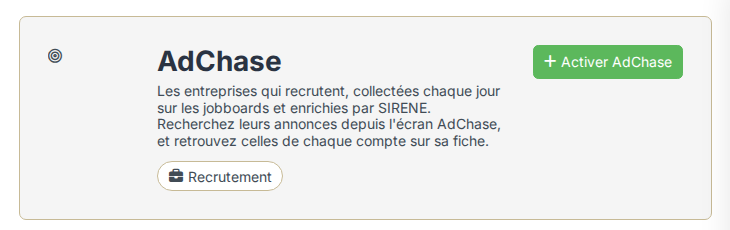
- Click the AdChase card, then Activate AdChase.
- Confirm with Activate AdChase.
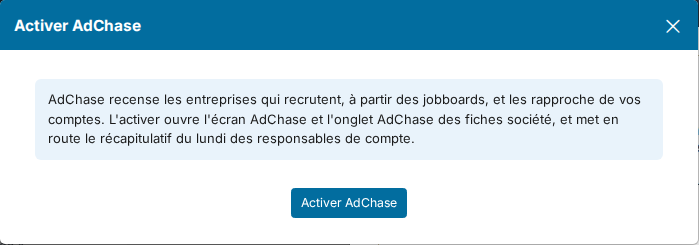
The Recruitment > AdChase menu entry appears, along with an AdChase tab on every account. Reload the page to see them.
2. Set up AdChase
The configuration opens right after activation. You find it again in Customizing > Integrations: AdChase card, then Configure.
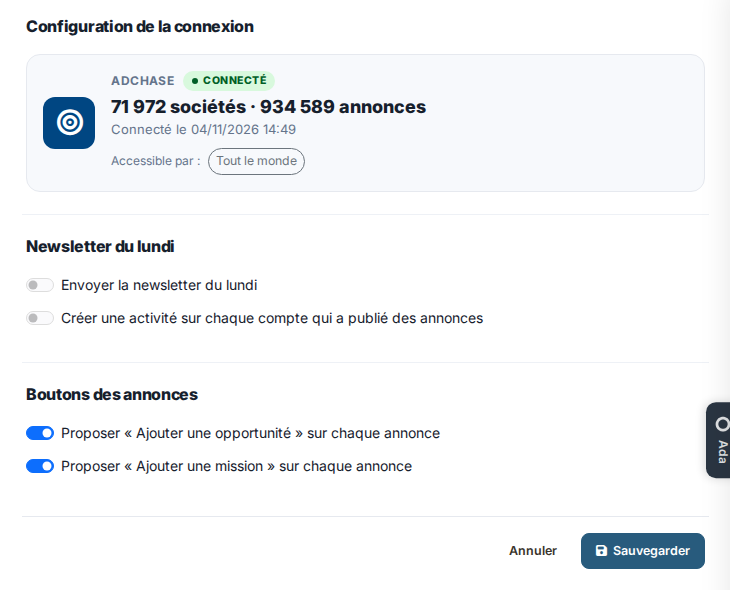
- Monday newsletter: switch on Send the Monday newsletter so that each account owner receives, every Monday, the list of their accounts that published job ads during the week. Choose who receives it in Recipients. Add an activity on each account that published job ads also keeps a record on those accounts.
- Job ad buttons: choose what each job ad offers to create, an opportunity or a job.
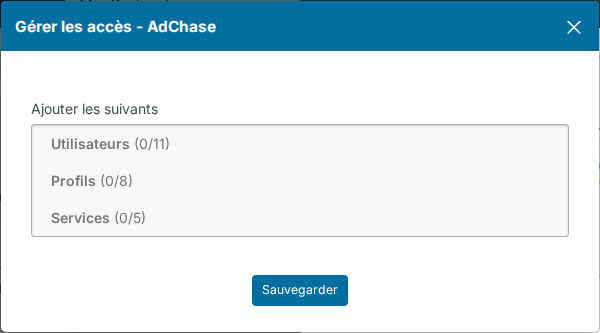
By default, AdChase is open to every user (Available for: Everybody). To restrict it, click the users badge under the connected accounts, then Manage access, and choose users, profiles or departments.
3. Search the companies that are hiring
Open Recruitment > AdChase. The left column holds the criteria: describe the job first.
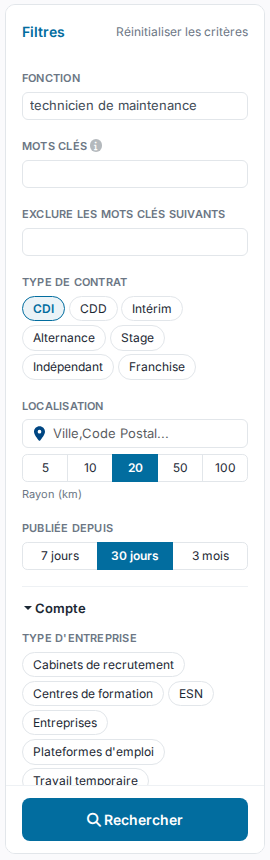
- Job title: the title of the job ad, for example "maintenance technician".
- Keywords: each word must appear in the title or the description; put a phrase in quotes. Exclude the following keywords leaves out the job ads that contain them.
- Contract type: permanent, fixed-term, temporary, work-study, internship, freelance, franchise.
- Location: a city or a postal code, and a Radius in kilometres.
- Published since: 7 days, 30 days or 3 months.
Under Account, target the company:
- Company type: Companies, Recruitment firms, Temporary staffing, IT services, training centres, job platforms. Tick Companies to keep only the companies hiring for themselves.
- Business sector: fifteen sectors, read from the NAF code. For a job ad of a recruitment firm or a temporary staffing agency, it is the sector of its client when the job ad states it.
- Workforce: one or several size bands, from 1-9 to 5000+.
- Hiring signals: described below.
- The Company name, its SIREN (Identification Number) or its NAF code (APE), and Only companies not in my CRM to see prospects only.
Click Search. The companies are listed with their number of job ads, their latest job ad and its job boards. Each criterion becomes a chip above the results: its cross removes it and runs the search again. The list at the top right changes the order.
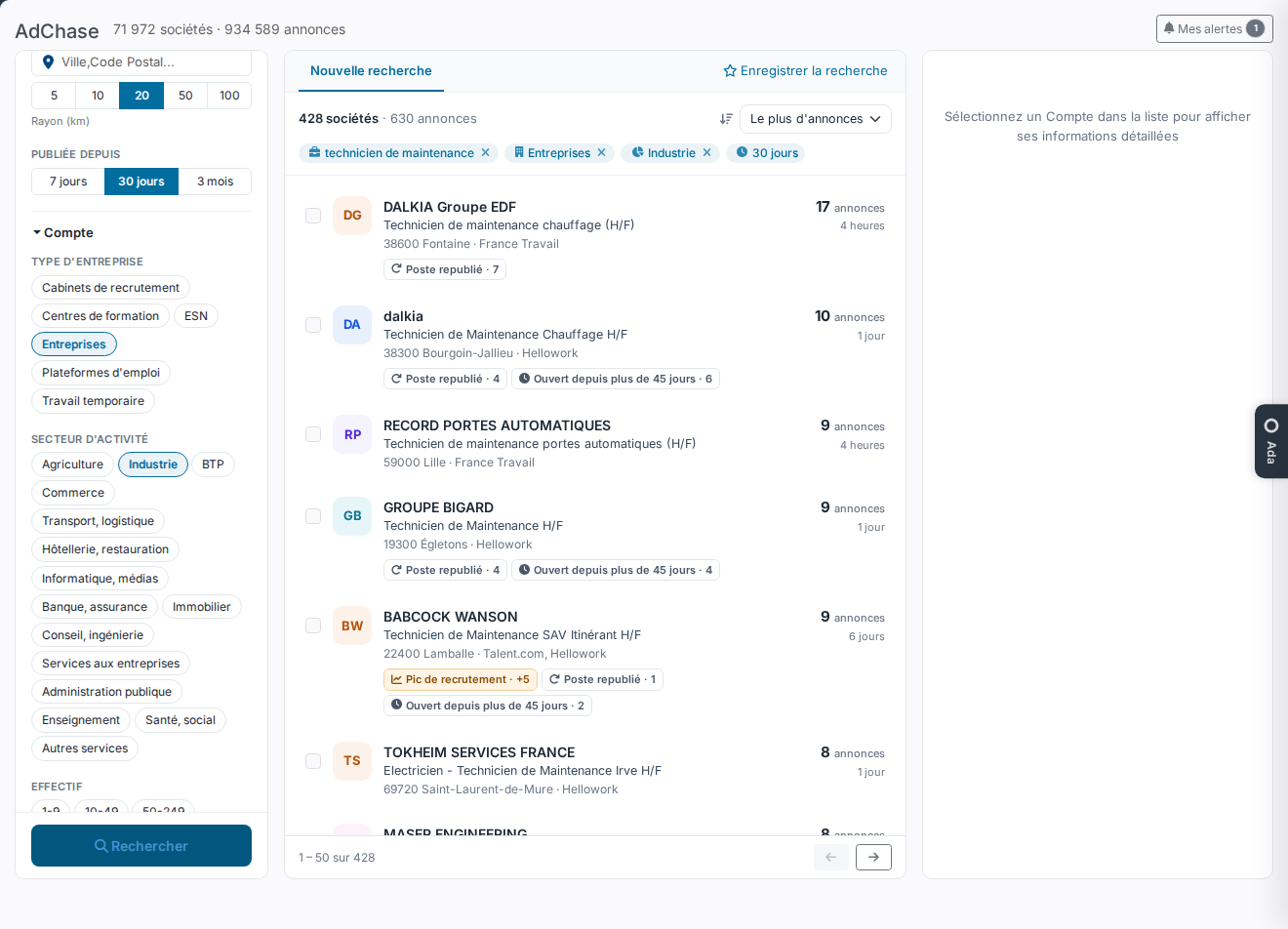
The hiring signals spot urgent needs:
- Hiring spike: more new jobs over 7 days than the average of the 4 previous weeks.
- Reposted job: a job published again at least 3 weeks after its first job ad.
- Open over 45 days: a job still online after 45 days.
A company already in your CRM shows Account. A job published on several job boards is counted once.
Tick companies to add them to your CRM at once (Create the accounts) or to download them to Excel (Export the selection).
4. A company's details
Click a company to show its details on the right: its workforce and NAF code, its website and LinkedIn page, the contact named in its job ads, its executives and all its job ads.
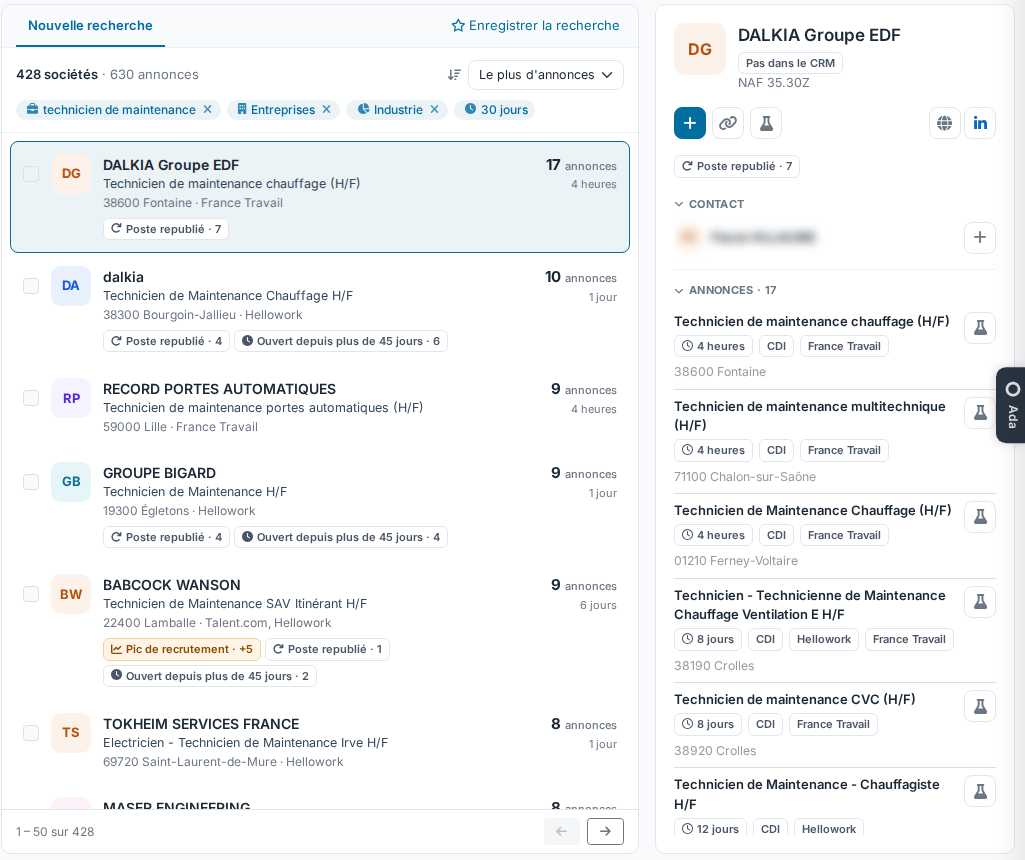
The buttons under its name:
- + creates the company in your CRM, with its SIREN and its address.
- Associate links it to an account you already have: AdChase then recognises it in its searches, its alerts and the account tab.
- The opportunity button creates an opportunity from its latest job ad.
The + of a contact or an executive creates them in your CRM. On each job ad, a button creates the matching opportunity or job, prefilled with the text of the job ad.
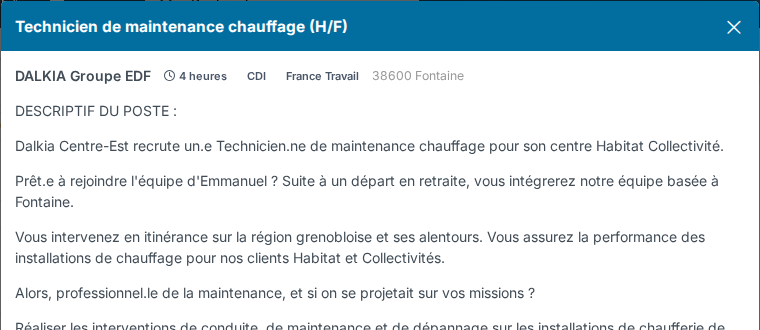
Click the title of a job ad to read it in Nicoka without leaving the screen. The View the job ad on… link at the bottom of the window opens it on its job board.
5. Save a search and get alerts
- After a search, click Save the search, above the results.
- Give it a Label.
- Choose the Scope: The new jobs of this search, or The new jobs of my accounts (the accounts you own).
- Choose the Email alert: None, Everyday or Weekly, then click Save.
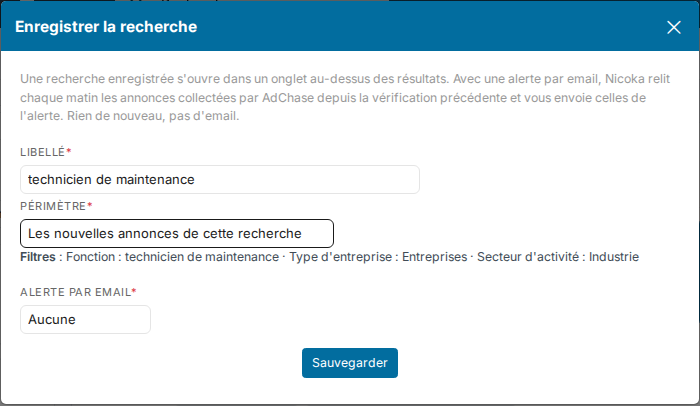
The saved search opens in a tab above the results: a star for a plain search, a bell for an alert. With an alert, Nicoka reads every morning the job ads collected since the previous check and emails you those of the search, with a notification in Nicoka. Nothing new, no email.
The My alerts button, at the top right of the screen, lists your searches and alerts so you can edit or switch them off. This is also where you unsubscribe from the Monday newsletter.

The The new jobs of my accounts scope requires your user to be linked to their employee record: it tells which accounts are yours.
6. Follow an account's job ads
On an account, the AdChase tab lists its job ads: date, job boards, link to the job ad, sector, SIRET and address. The button of each job ad creates the matching opportunity.
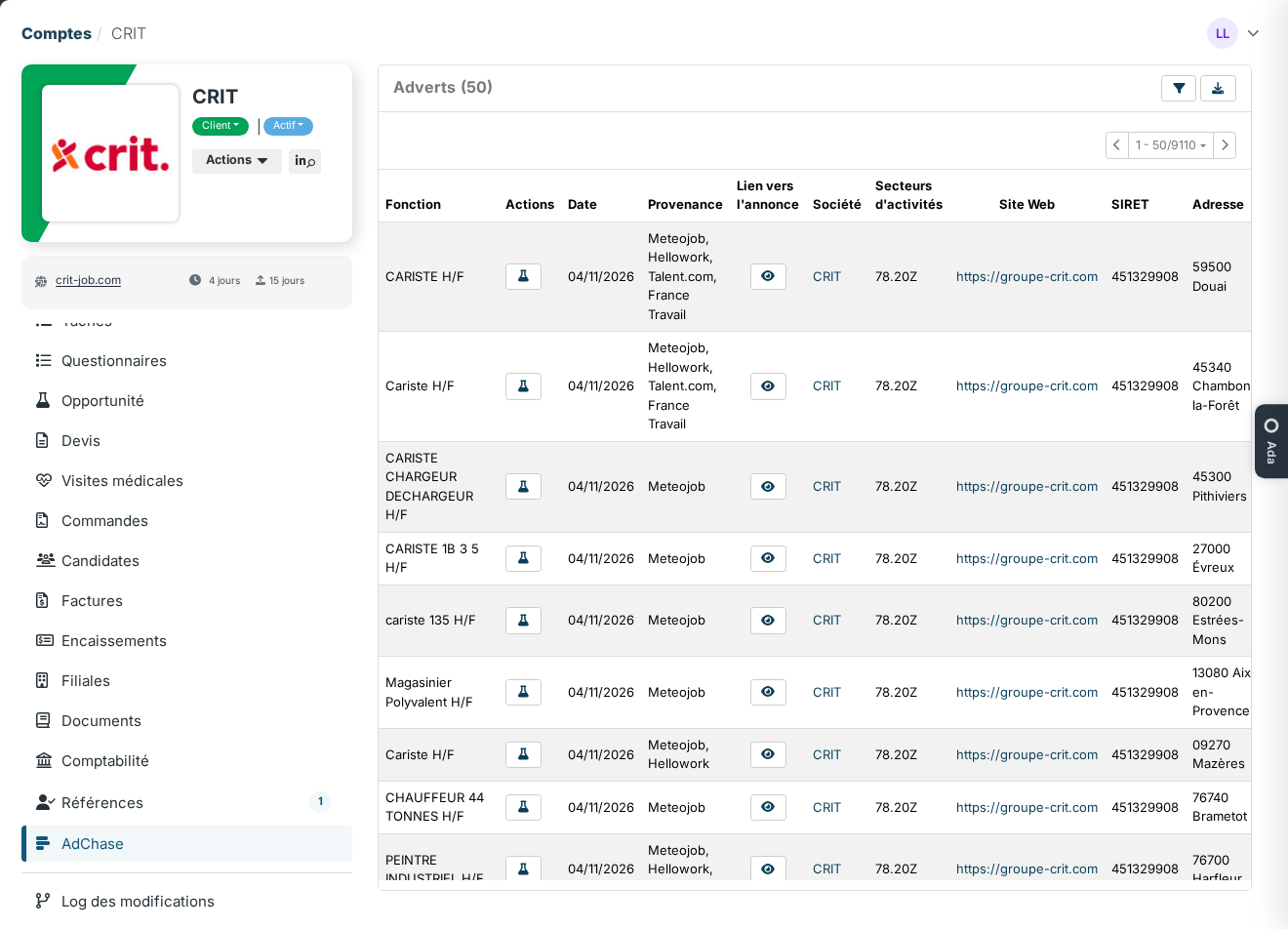
AdChase recognises an account by its SIREN or its website. If the tab stays empty for a company that is hiring, search for it in AdChase and use Associate.
Good to know
- Job ads are collected every day; an expired job ad leaves the results.
- Company information comes from the public SIRENE register.
- Deactivating AdChase (Customizing > Integrations, AdChase card, Deactivate AdChase) removes the screen and the tab, and stops the alerts and the newsletter. Its settings and access are kept.