Add your Aircall account
Aircall is a cloud telephony solution: your teams make and receive their calls from the Aircall app or a browser. Once Aircall is connected to Nicoka, every call with a candidate or a contact known to Nicoka is saved on their record, with its duration, the link to the recording and, if your Aircall plan provides them, the summary and the transcription of the conversation.
Before you start
- You have admin rights on Nicoka.
- You have an Aircall admin account: it is needed to authorize Nicoka to access your Aircall account.
- Each Aircall user is matched with their employee record in Nicoka. Nicoka first recognizes them by their email address: the email of their Aircall account must be their Email or Personal Email in Nicoka. Otherwise, Nicoka compares the number of their Aircall line with their Office Phone, Cell Phone or Mobile 2.
1. Open Aircall in the integrations
- In the side menu, open Customizing > Integrations.
- Click the Telephony category, then the Aircall card.
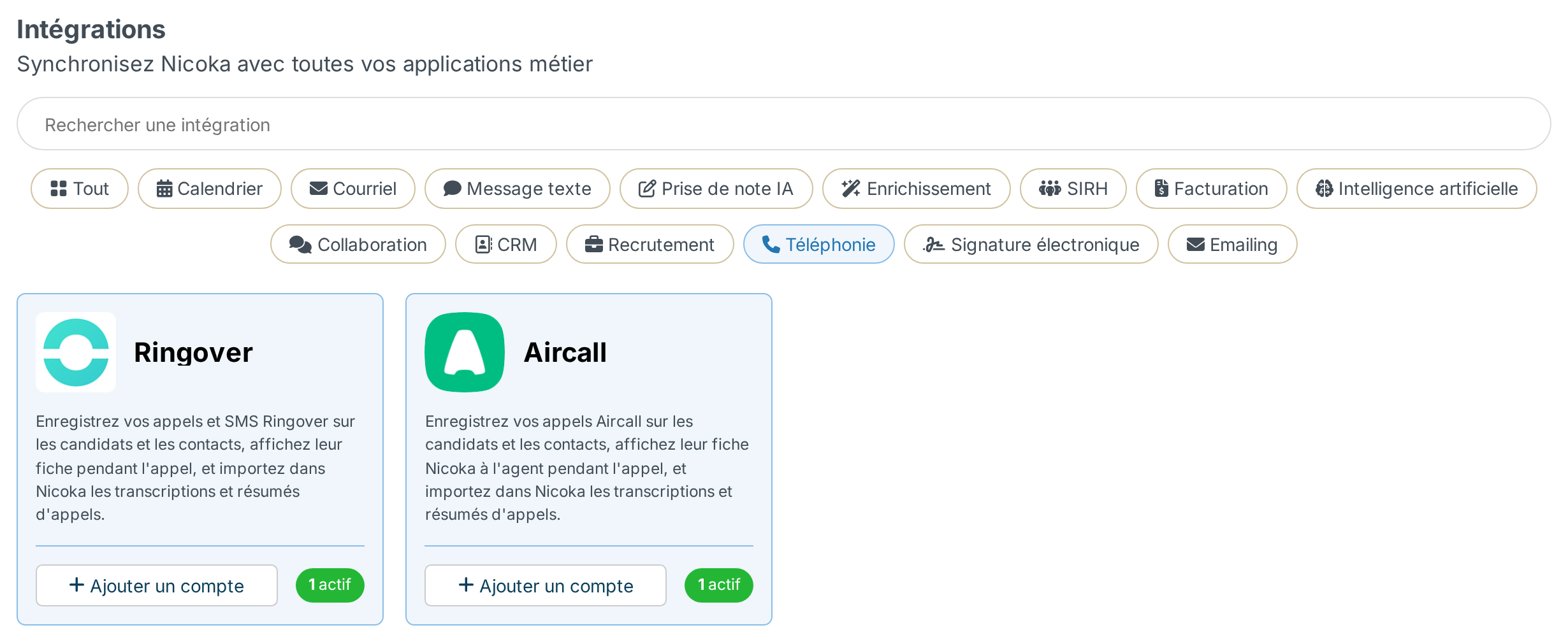
If the Aircall card does not appear, or if the panel says "Aircall is not configured on this instance", write to support@nicoka.com so that it is enabled on your workspace.
2. Connect your Aircall account
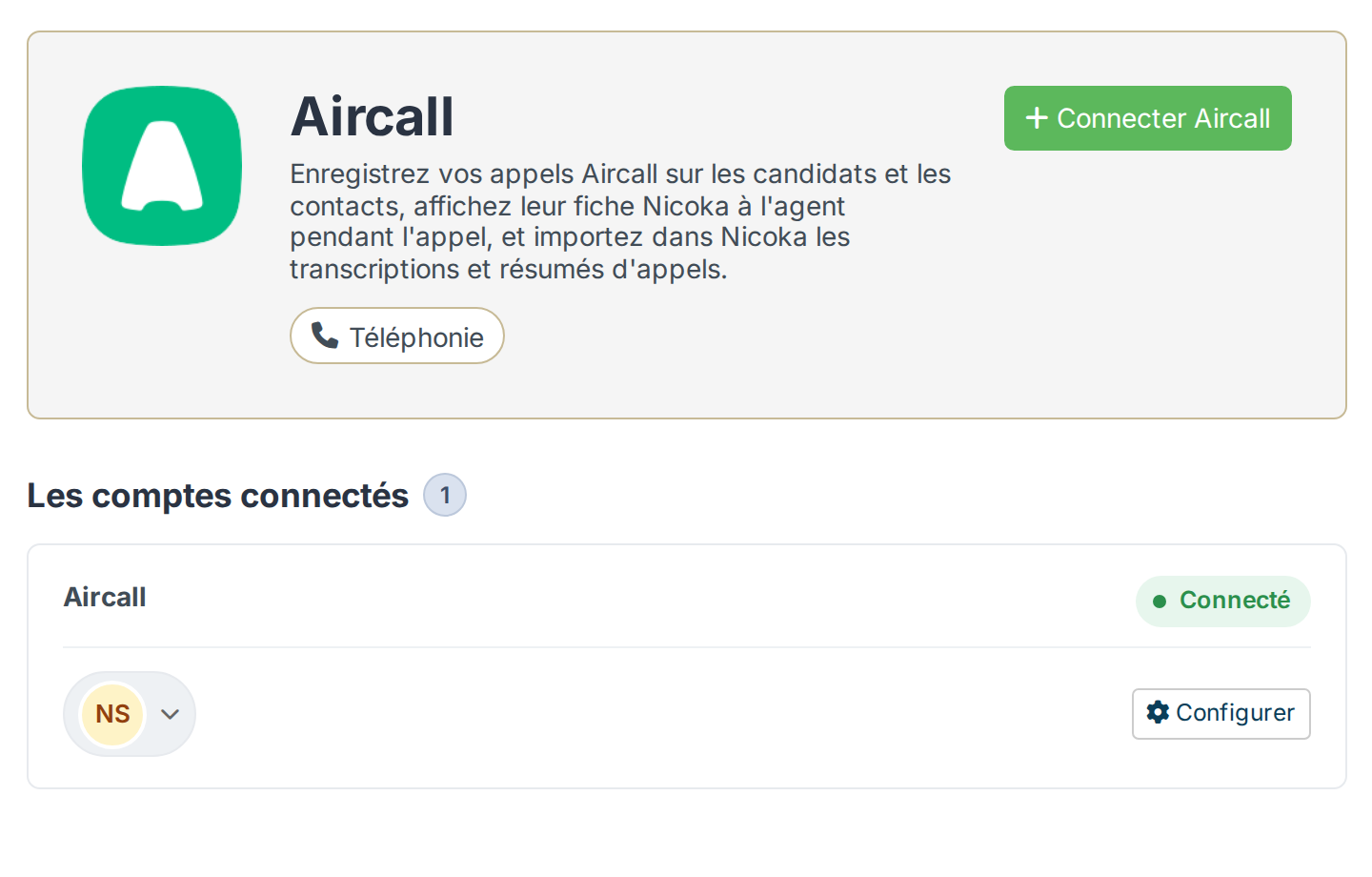
- In the panel that opens, click Connect Aircall.
- You are redirected to Aircall. Log in with your admin account if needed, then authorize Nicoka to access your account.
- Aircall then lets you choose the numbers to link to Nicoka: select those of your teams, then confirm.
- Back in Nicoka, the message "The Aircall account is now connected." confirms the connection. The account appears in the list of connected accounts with the Connected status, and Nicoka declares its own webhook in Aircall: there is nothing else to set up.
The Aircall screens belong to Aircall and may change. If in doubt, see the Aircall help.
3. Check the connection
In the list of connected accounts, click Configure. The panel shows your Aircall company, the address Aircall sends the calls to, the date Nicoka declared the webhook and the date of the last delivery received.
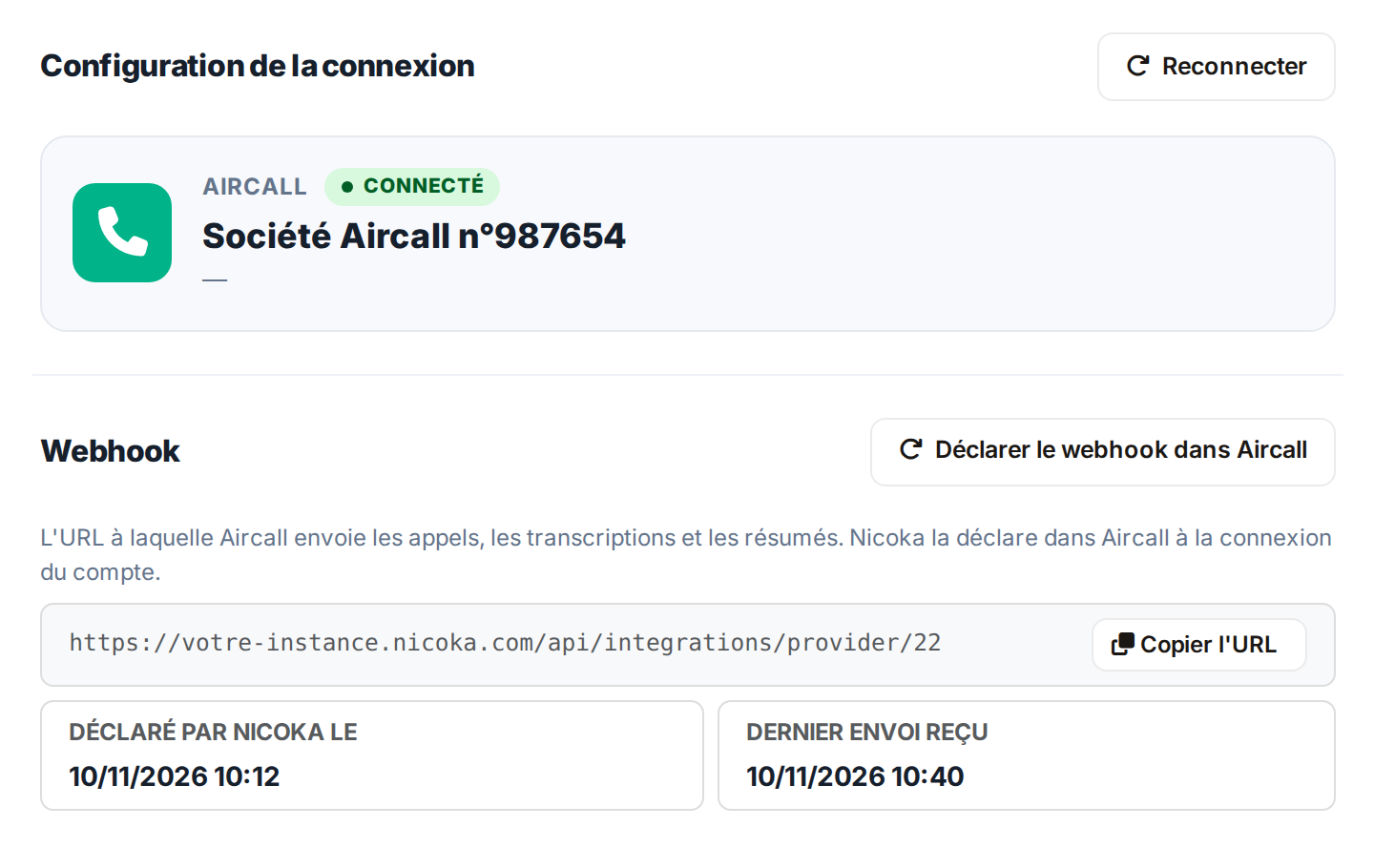
The panel also offers:
- Reconnect, to use if the account becomes disconnected (for example if Nicoka's access was removed in Aircall);
- Declare the webhook in Aircall, if the panel reports that the webhook could not be declared.
What Nicoka saves
Nicoka looks for the number of the person you are talking to among your candidates, then among your contacts. If it finds it, it creates a Call activity on their record, assigned to the employee who made or received the call:
- the date, the direction of the call (incoming or outgoing) and whether it was answered;
- at the end of the call, its duration and an Ecouter (listen) link to the recording or to the voicemail message;
- the call summary produced by Aircall, when your Aircall plan provides it;
- the transcription of the conversation, attached to the activity in a Transcription.txt file, and a summary written by Nicoka's AI at the top of the comments.
At the start of a call, Aircall also shows a card with the name of the person and their company, as Nicoka knows them.
A call with a number unknown to Nicoka is not saved: check that the phone number of the candidate or the contact is filled in on their record.