Add your Yousign account
This article explains how to connect your Yousign account to Nicoka, to send your documents for electronic signature with Yousign.
You need a Yousign account with API access, and access to the Nicoka customizing (administrator profile).
1. Create the Yousign service in Nicoka
- In the side menu, open Customizing > Store.
- On the Documents module, click Customize.
- In the module menu, click Third party services.
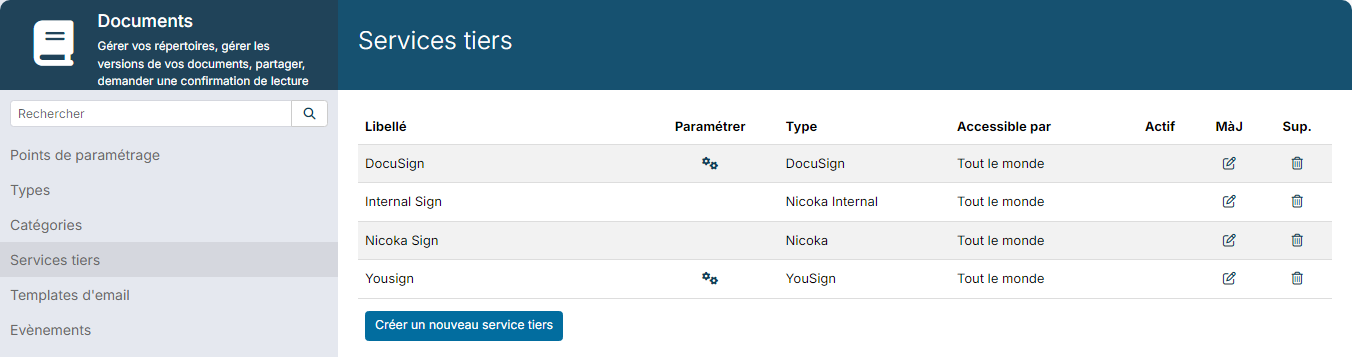
- Click Create a new third party service.
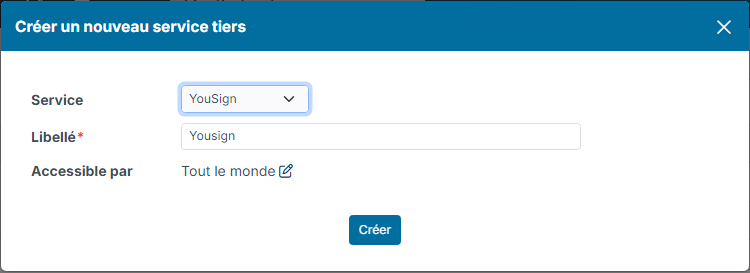
- In Service, choose YouSign, then enter a Label (for example "Yousign").
- If needed, restrict who can use the service with Available for: by default, it is available to everyone.
- Click Create. The service is created, still inactive.
2. Generate an API key in Yousign
Sign in to your Yousign administration area and create an API key for the production environment: Nicoka uses Yousign's production API, so a test (sandbox) key will not work. Copy the key as soon as it is displayed. If you cannot find this option, see Yousign's help.
This key is confidential: do not send it by email or in a ticket, and do not share it as a screenshot. Enter it into Nicoka yourself.
3. Enter the key in Nicoka
- Go back to Third party services. On the line of the Yousign service, click the gear icon in the Customize column.
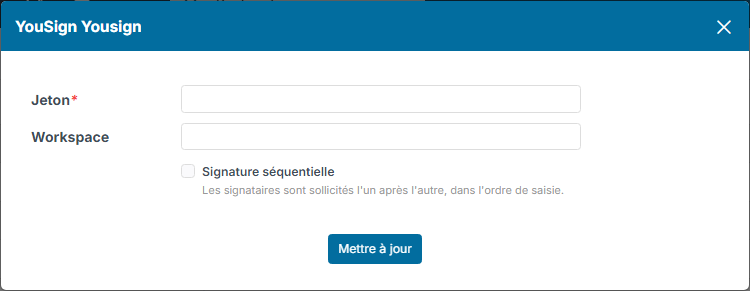
- Paste the API key into the Token field.
- Optional: in Workspace, enter the identifier of the Yousign workspace in which the signature requests sent from Nicoka should be filed.
- Optional: check Sequential signature so that signers are invited one after the other, in the order they were entered.
- Click Update.
4. Check the connection
As soon as the token is saved, the service is activated: a check mark appears in the Active column of its line. Nicoka then automatically gives Yousign the address it uses to inform Nicoka of the progress of signatures (document viewed, signed, declined…).
If the Active column stays empty, open the gear icon again and check that the token was entered.
To replace the key (for example after revoking it in Yousign), open the gear icon, paste the new key into Token and click Update.