Reminders and events
Reminders and events automate your follow-ups: Nicoka sends an email or a notification, or runs an action, without you having to think about it. They are set in the admin settings and require customizing rights.
Reminder or event?
- A reminder (alert) is triggered relative to a date stored in Nicoka: before, on or after that date. Example: notify the manager 15 days before the end of a fixed-term contract.
- An event is triggered when data changes: when a record or some fields are created, modified or deleted. Example: notify the HR manager when an employee changes their address.
Each reminder or event is linked to a Nicoka entity (Employee, Candidate, Job, Invoice…) and sends its action to targets (the line manager, the employee, chosen people…).
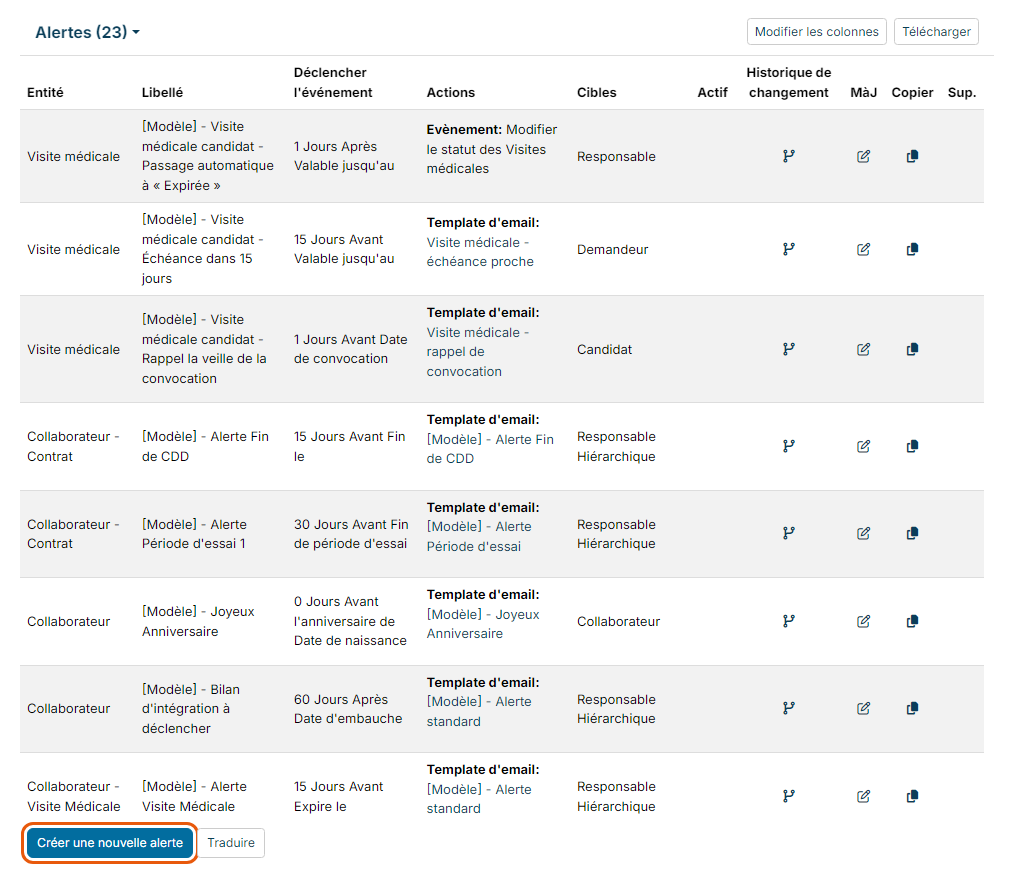
Some examples of reminders: end of a fixed-term contract, end of a trial period, expiry of a residence permit, medical visit or certification to renew, onboarding review, an employee's birthday, overdue invoice. Some examples of events: being told when the status of a job or a customer changes, or when an employee modifies their personal data.
The templates provided by Nicoka
Nicoka provides ready-to-use reminders and events: their label starts with [Modèle] (for example [Modèle] - Alerte Fin de CDD or [Modèle] - Joyeux Anniversaire). You can activate them as they are (Active box), or copy them with the icon in the Copy column to adapt them to your needs.
Set up a reminder
- In the side menu, open Customizing > Admin, then the Cross Application section > Reminders.
- Click Create a new reminder at the bottom of the list, or the icon in the Upd. column of an existing reminder.
- Fill in the window:
- Entity: the entity that holds the reference date, for example the employee's contract for the end of a contract.
- Label: a name that is clear to everyone.
- Active: tick the box for the reminder to run.
- Trigger the event: the delay (a number, then days, months or years), the direction (Before, After or Before anniversary of) and the reference date. The list offers the dates of the chosen entity. With a delay of 0, the reminder is sent on the day itself.
- Rules: the conditions the record must meet, like a filter. Add at least one rule requiring the reference date to be not empty. Click Add a rule to combine several conditions (If, Else…).
- Actions: what happens, for example sending an email template, a notification (notification model) or an event such as a status change. Add a row to chain several actions.
- Targets: click the pencil to choose the recipients.
- Click the button at the bottom of the window to save (Update for an existing reminder).
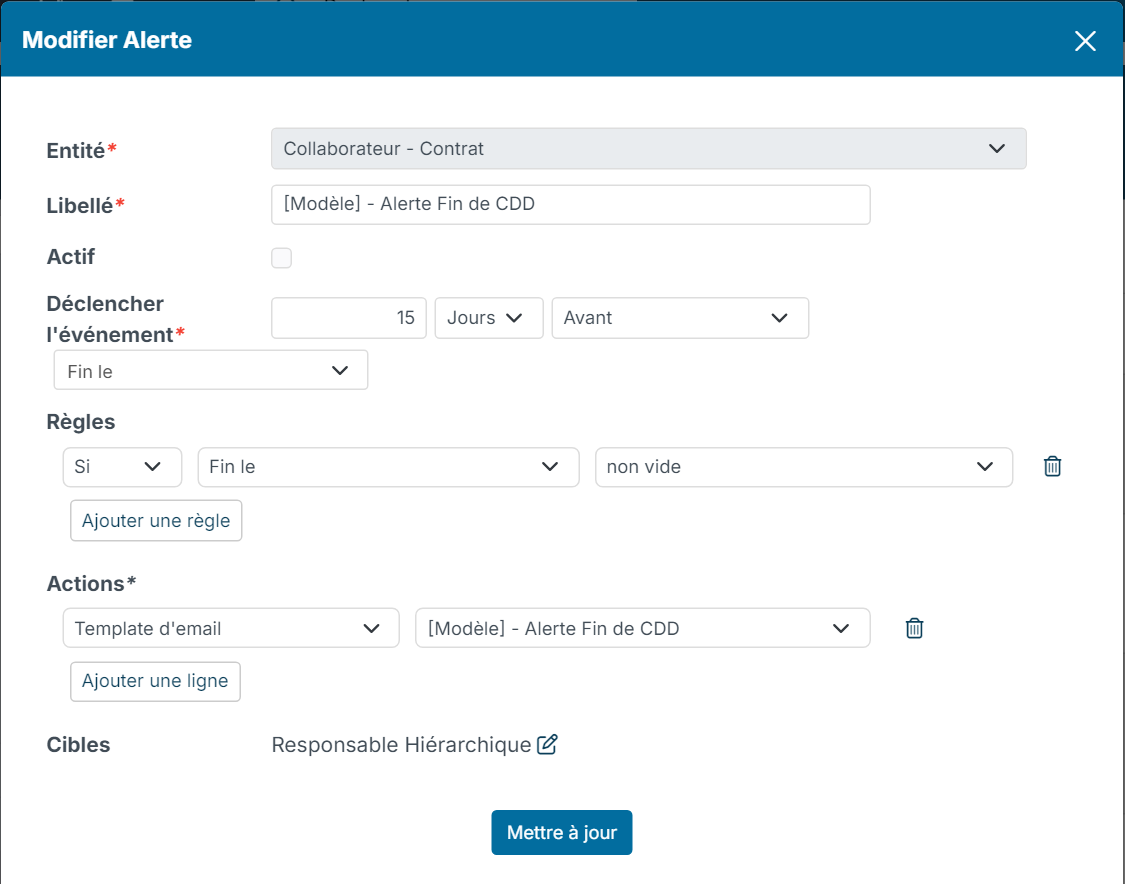
In the example above, the line manager receives an email 15 days before the end date of every contract that has one.
Set up an event
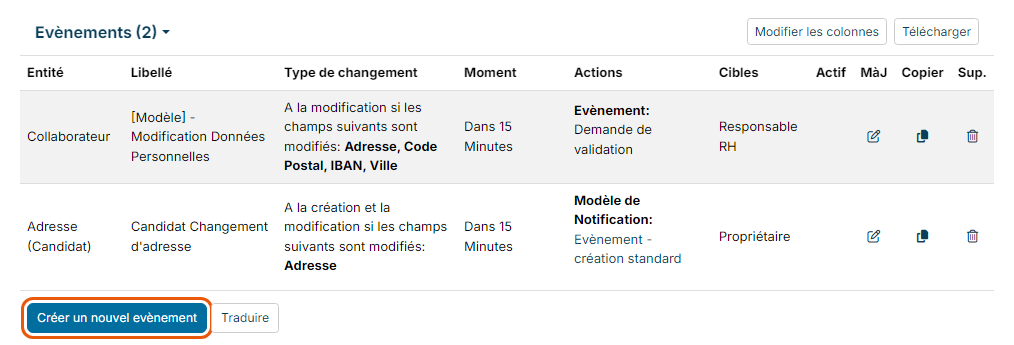
- In Customizing > Admin, open Cross Application > Events.
- Click Create a new event, or the icon in the Upd. column of an existing event.
- Fill in the window:
- Entity and Label.
- Change Type: on creation, on modification, on deletion, every time, or only when some fields are modified.
- Fields: the fields to watch, when the change type is about specific fields.
- Priority: the order in which events run when several of them concern the same entity.
- Rules: the conditions to meet, as for a reminder.
- Moment: Immediately, or In a given delay (minutes, hours, days…).
- Actions: an email, a notification, an approval request, a status change…
- Active and Targets.
- Click the button at the bottom of the window to save (Update for an existing event).
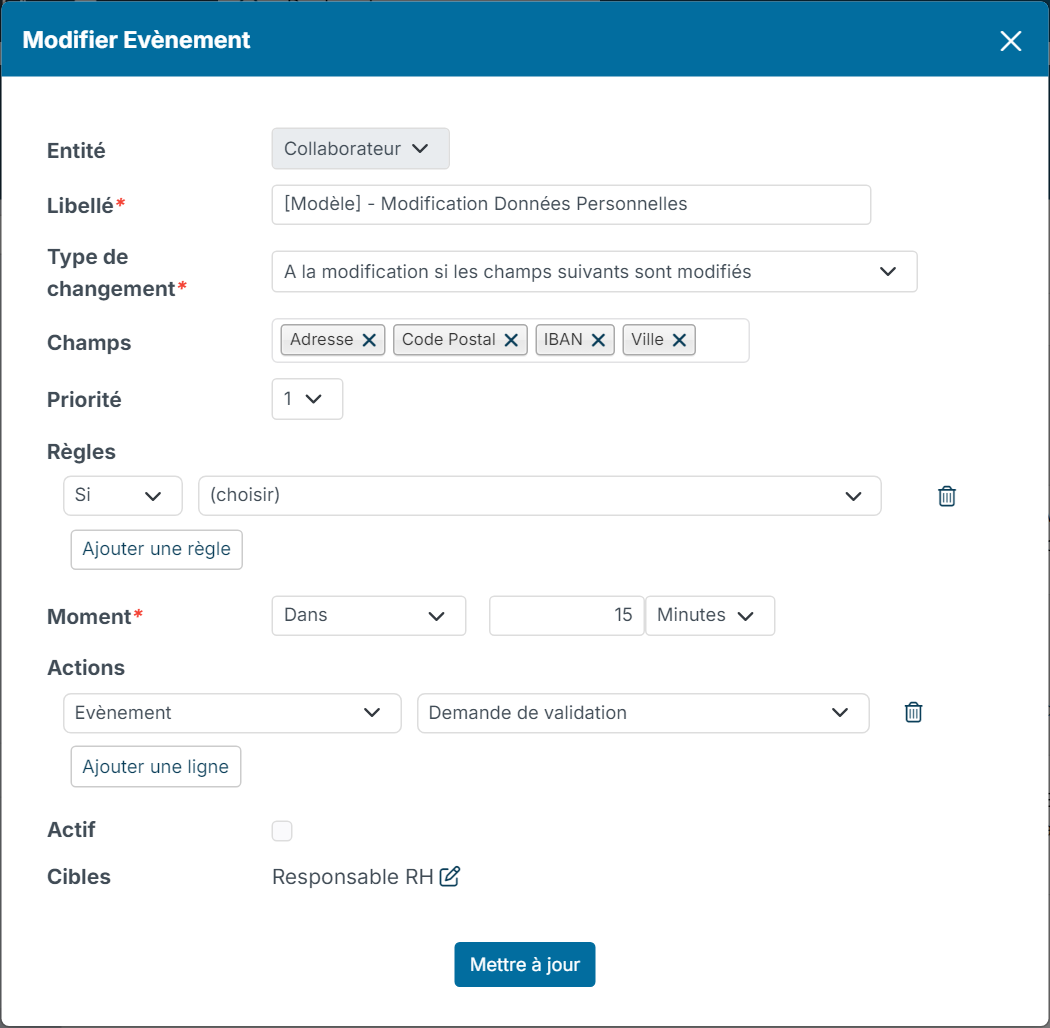
In this example, when an employee changes their address, postcode, city or IBAN, the HR manager receives an approval request 15 minutes later.
Customize the emails and notifications sent
The emails sent by a reminder or an event are email templates, and the notifications are notification models. They are managed in Customizing > Admin, Emails and Notifications section, under Email Templates and Notification Models.
- Start from an existing template (for example [Modèle] - Alerte standard) and copy it to create your own.
- Choose the right entity: the template must concern the entity of the reminder or event (for example Employee) or the Reminder entity, otherwise it is not offered in the list of actions.
- Keep the data tags (in colour): they show the information of the record concerned.
For details on the editor, see Manage Email Templates.
Test your settings
- For an event: make the planned change on a test record (for example change an address) and check that the email or notification reaches the recipient, after the delay chosen in Moment.
- For a reminder: check that at least one record meets the rules and has a reference date that matches the delay. Our support team can help you check a reminder before you activate it.