The Nicoka Mobile App
The Nicoka mobile app gives you access to the essentials of your Nicoka space from your phone, for HR, ATS and CRM. It is free: all you need is a Nicoka account. Don't have an account yet? Contact us.
Its features:
- notifications;
- global search;
- time off and absences;
- expense reports;
- documents;
- approvals;
- contacts and candidates;
- HSE;
- caller identification (beta).
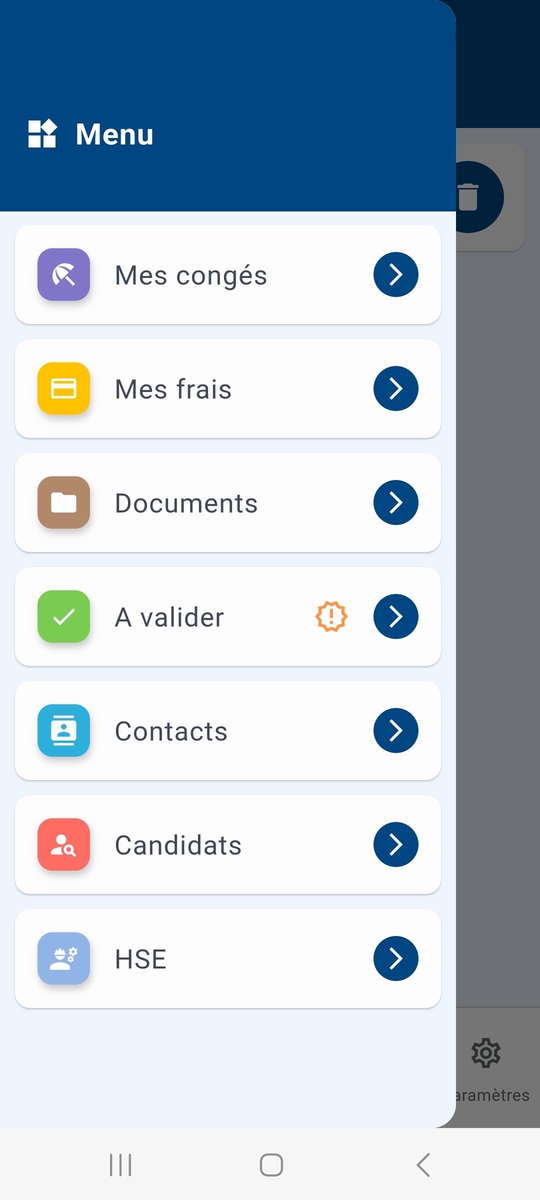
The menus shown depend on the modules of your space and on your rights. The screenshots below show the app in French.
1. Installing the app
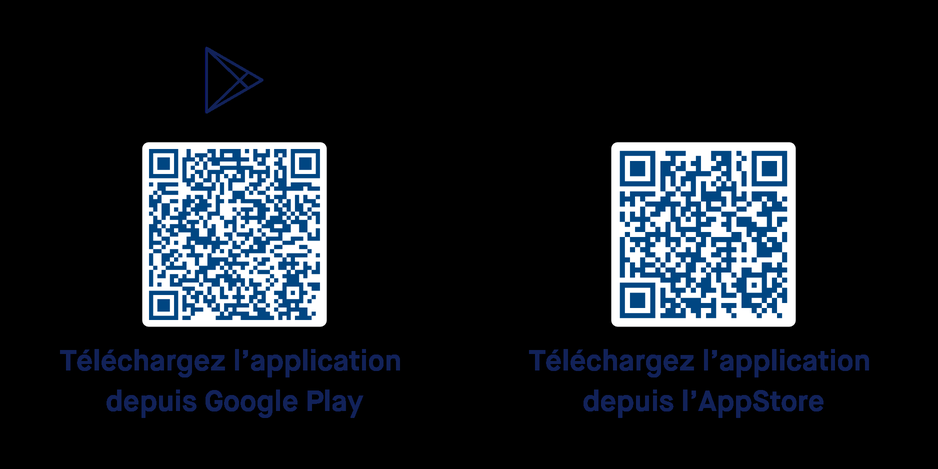
The Nicoka mobile app is available on Google Play and on the App Store: search for "Nicoka" in your phone's app store, or scan the matching QR code.
2. Logging in
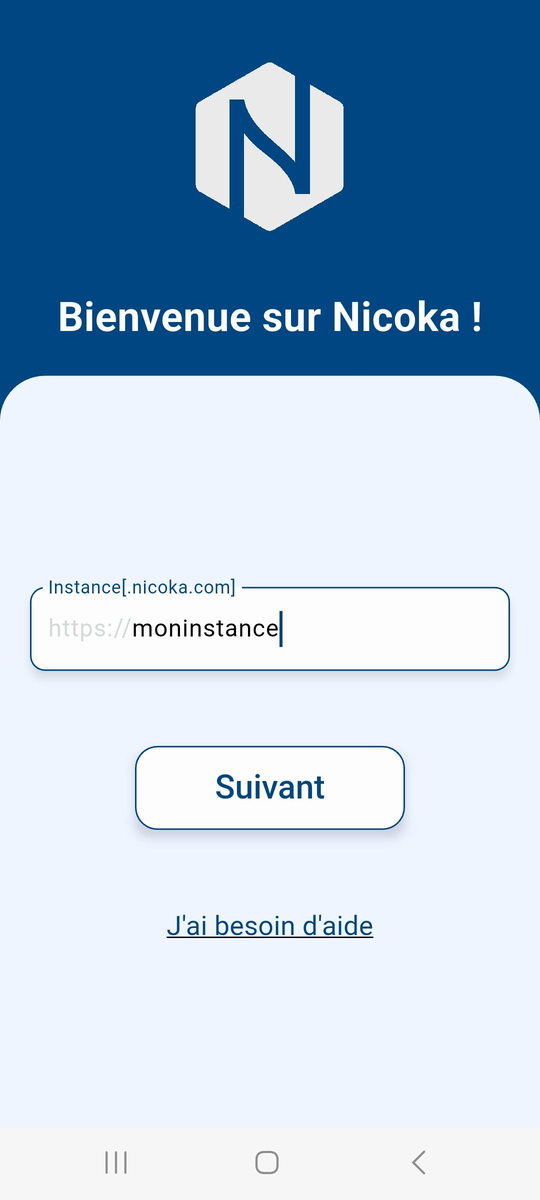
- The first time you open the app, enter your Nicoka instance, then continue. Your instance is the beginning of the address of your space: if you log in at https://myinstance.nicoka.com, your instance is myinstance.
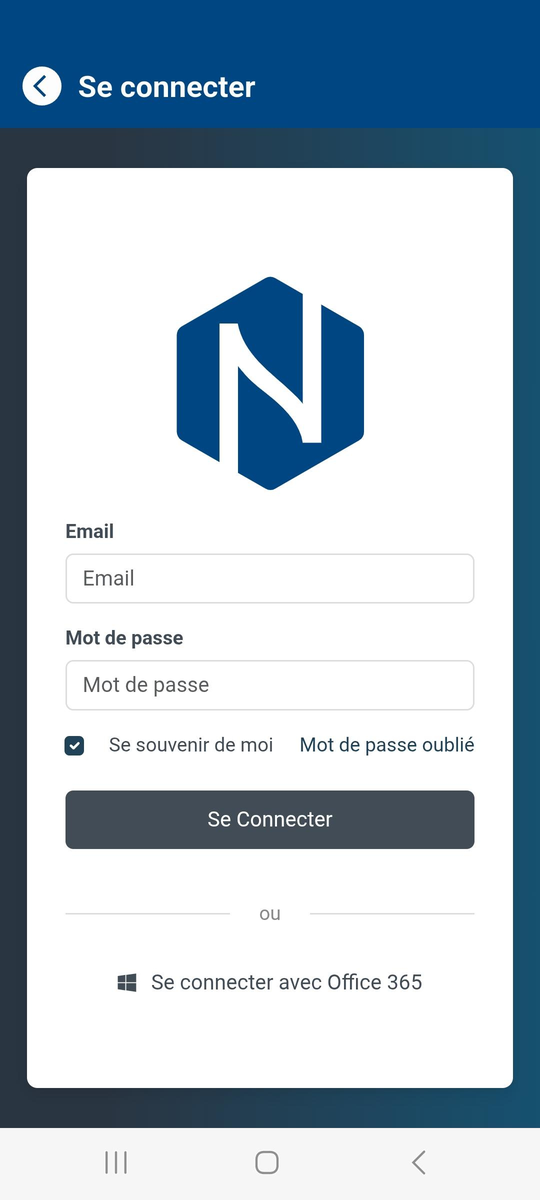
- The login screen is the same as on your Nicoka space: log in with your email and password, or with Office 365 or Google if your company uses them.
3. Settings
The settings menu shows which account and which instance you are connected to. There you can turn notifications and caller identification on or off, open the online help, send feedback if you have a problem, and log out.
4. Notifications
The notifications menu shows the same notifications as the bell of your Nicoka space. A button at the top clears the list.
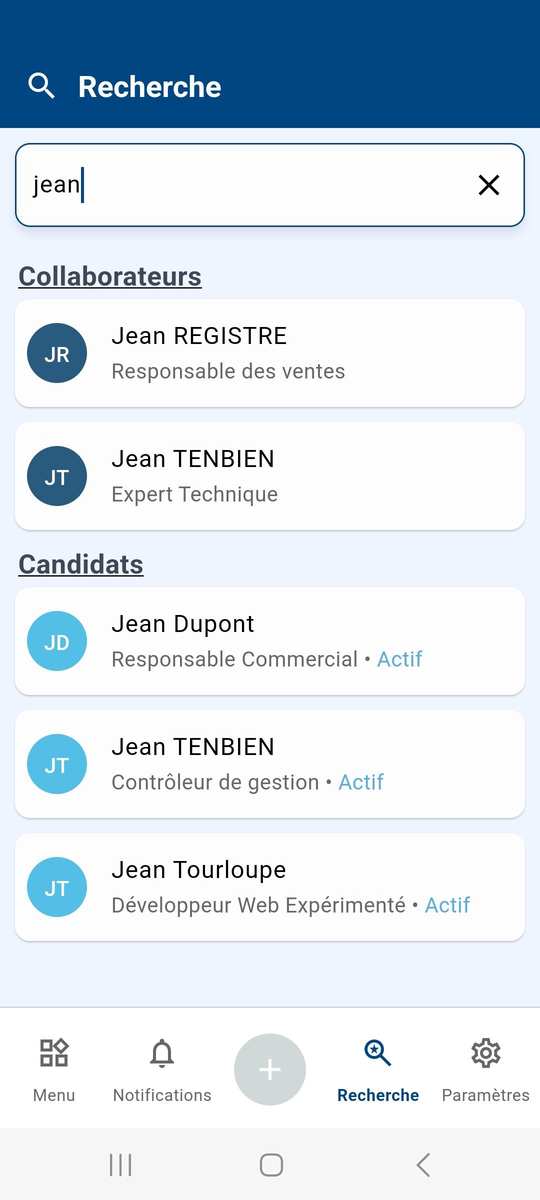
5. Global search
The search menu searches all Nicoka items (employees, candidates, contacts, jobs, tickets…), like the search of your Nicoka space.
6. Time off and absences
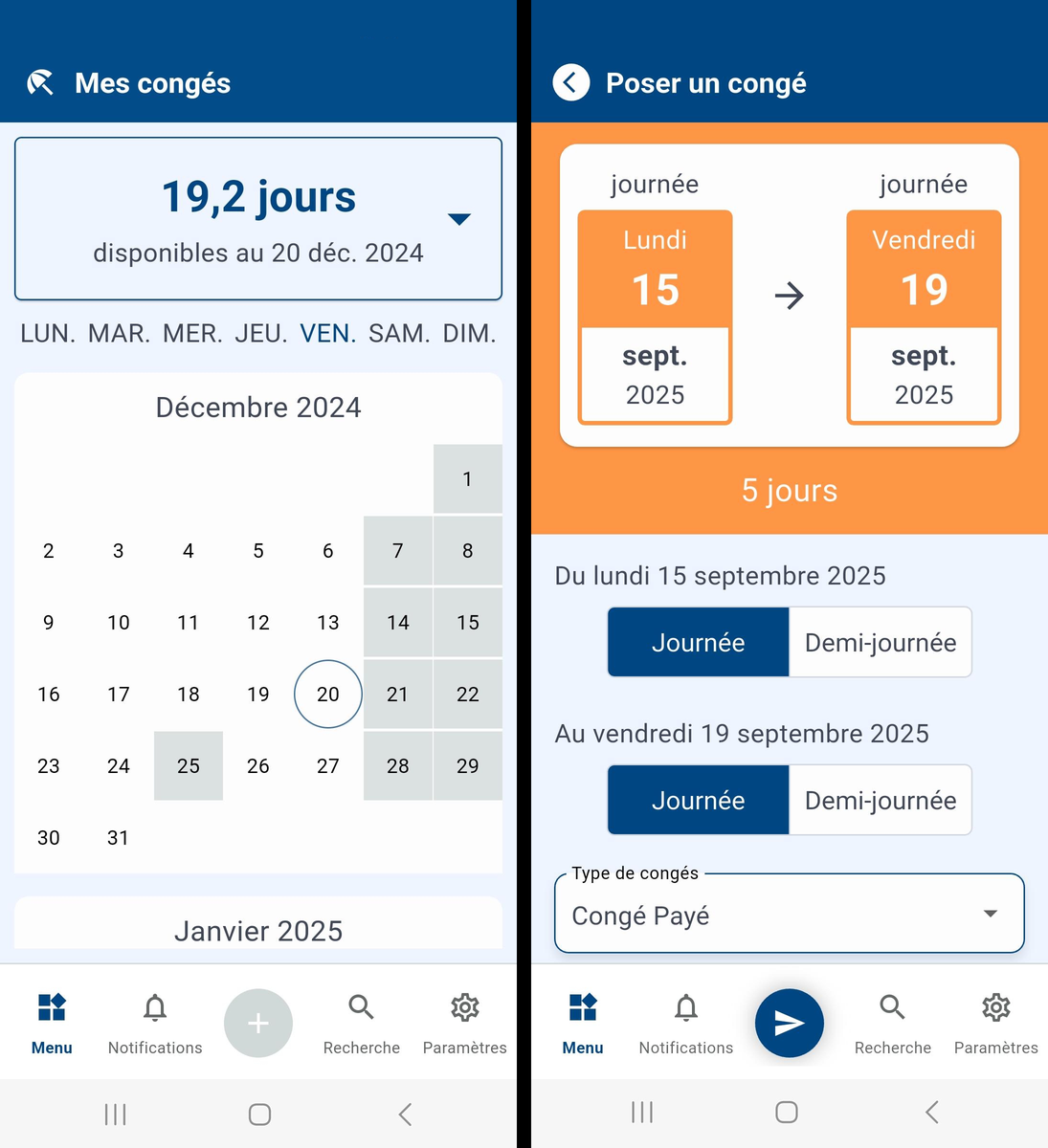
In the time off menu, check your balance and your requests, and request time off: choose the dates, full or half day, the type of leave, then send the request.
If you approve your team's requests, you will find them in the approvals menu (see below).
7. Expense reports
Creating an expense
- In the expenses menu, open the expenses tab and tap +.
- Add the receipt, for example by taking a photo of it. Nicoka analyzes the receipt and automatically fills in the amount and date of the expense.
- Complete the expense type and project if needed, then save.
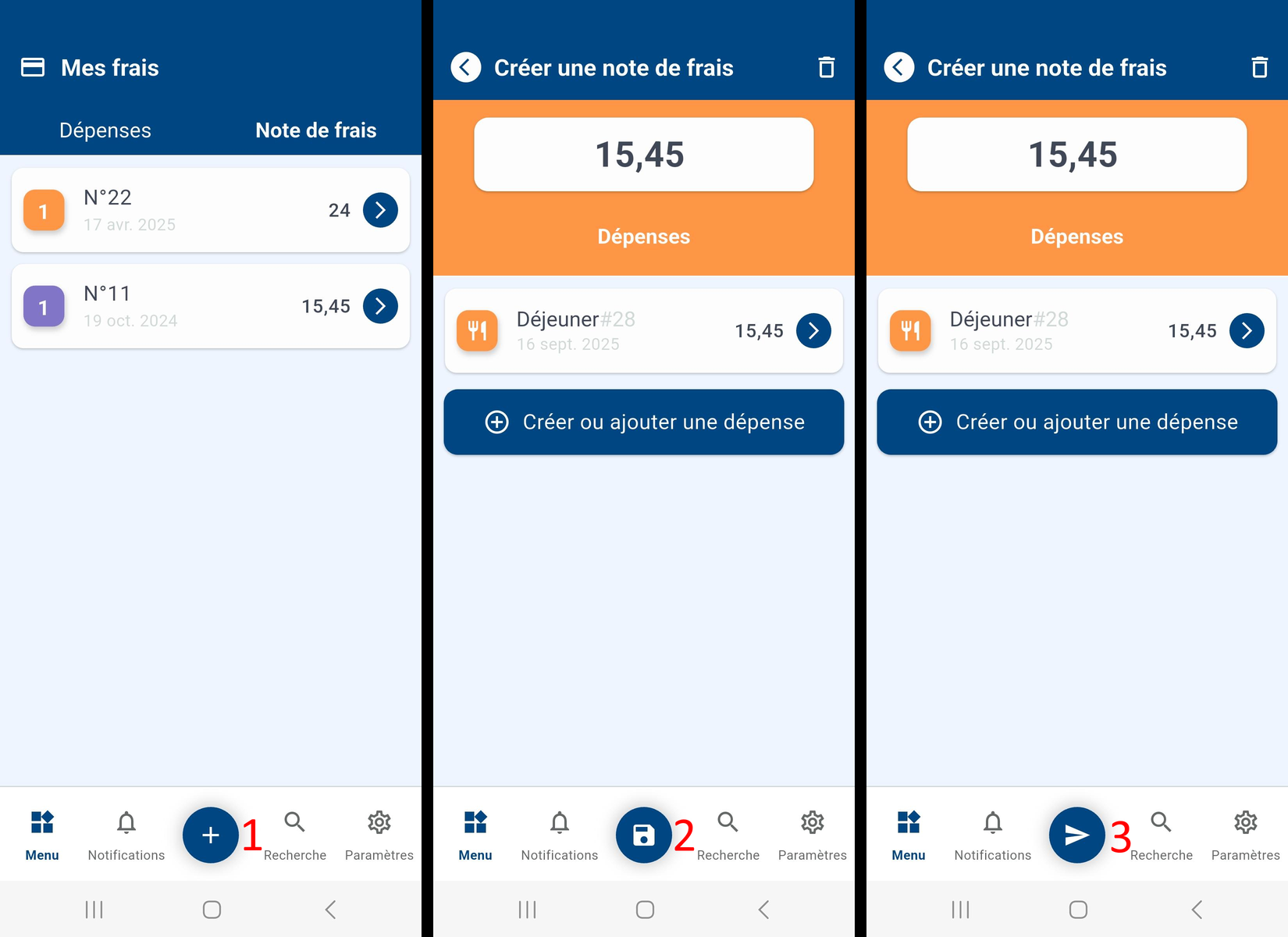
Creating and sending an expense report
- Open the expense report tab and tap +.
- Choose the project: the list of matching expenses is shown. Save the expense report.
- Send the expense report for approval.
The following video shows how to create an expense report with automatic reading of the receipt (in French):
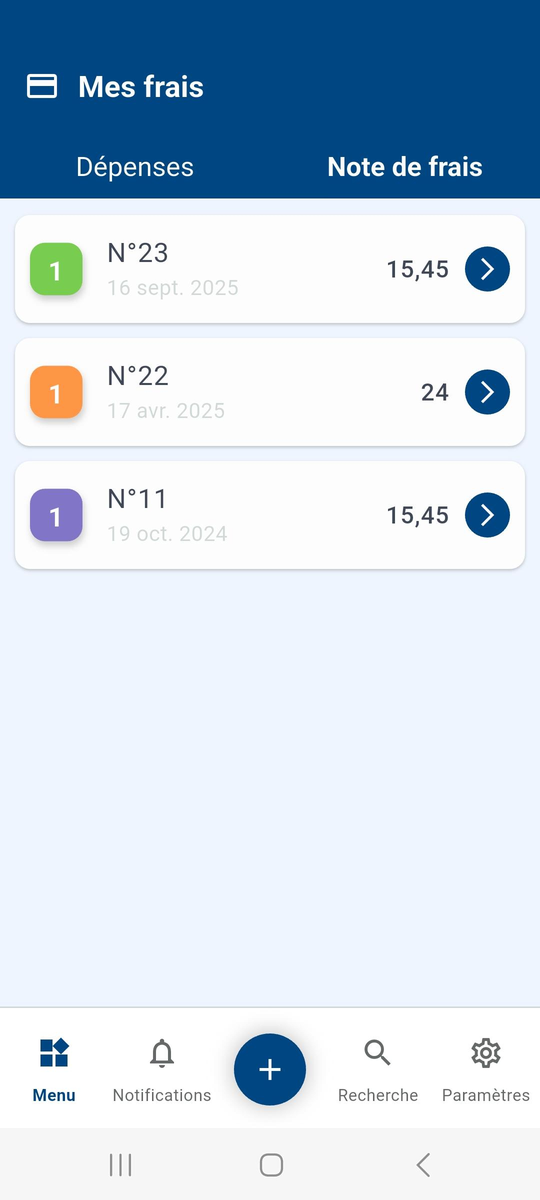
The expense report tab lists your expense reports, whether in progress, approved or refused.
8. Documents
The documents menu gives access to the documents of your space: company documents, contracts, payslips… Depending on your rights, you can add a document with the + button.
9. Approvals
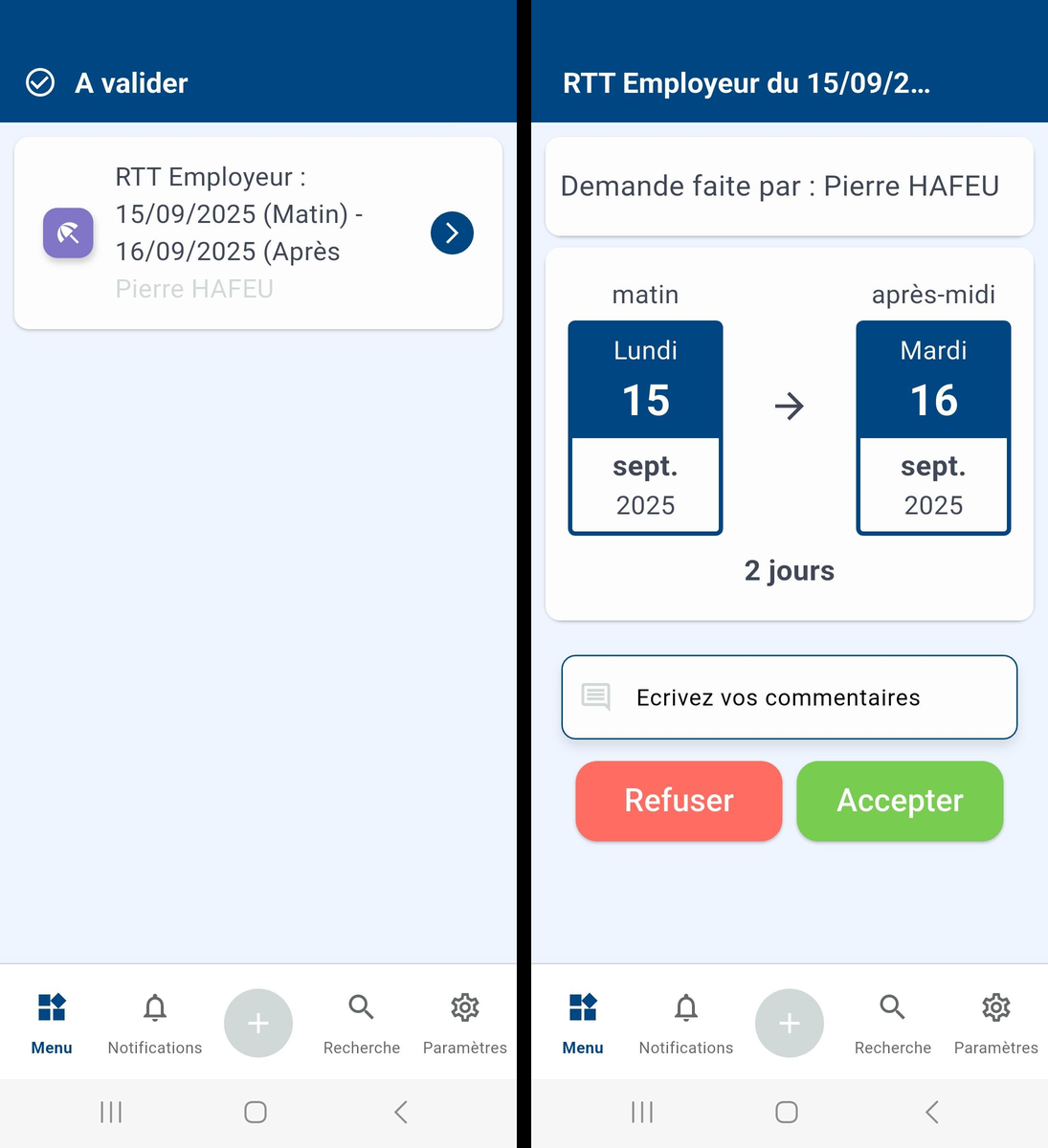
The approvals menu gathers everything awaiting your approval, for example your team's time off and expense reports. Open a request, add a comment if needed, then accept or refuse it.
10. Contacts
The contacts menu shows your list of contacts. On a contact's record:
- the history tab shows their latest activities, the profile tab their contact details;
- the top bar lets you call them, send them a message (SMS, WhatsApp…) and, with the ⋮ menu, save the contact on your phone, open their record in your Nicoka space or search for them on LinkedIn;
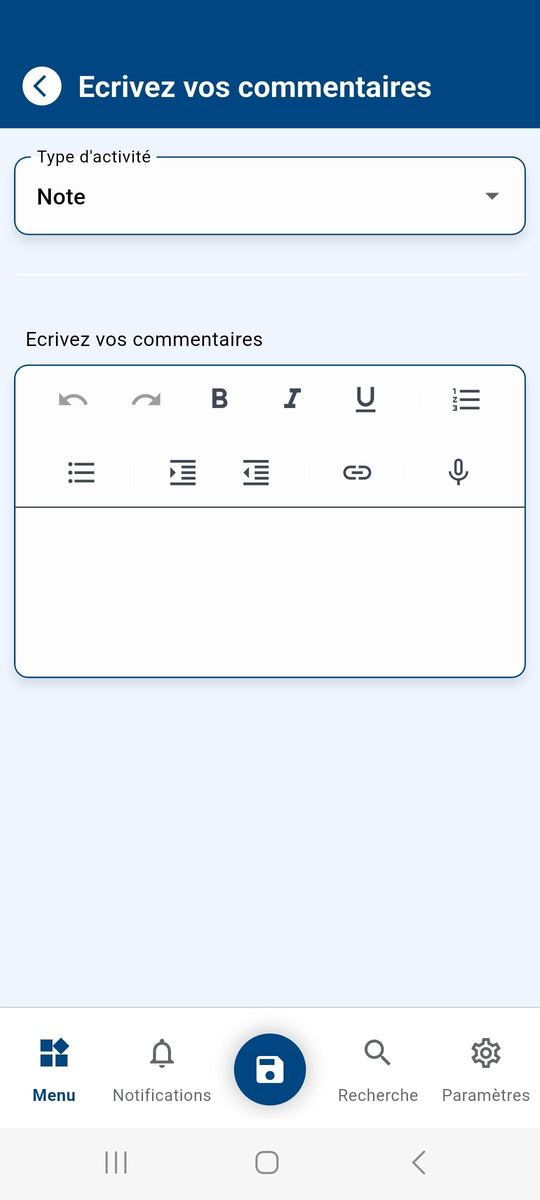
- the + button adds a comment on the contact.
11. Candidates
The candidates menu shows your list of candidates. A second tab contains the profiles submitted to you for approval. On a candidate's record:
- the history tab shows their latest activities, the profile tab their contact details, experience and education, and the jobs tab the jobs they are in;
- the top bar offers the same actions as for a contact: call, send a message, ⋮ menu;
- the + button adds a comment on the candidate.
Moving a candidate to another step of a job: in the jobs tab, tap the job, then choose the new step.
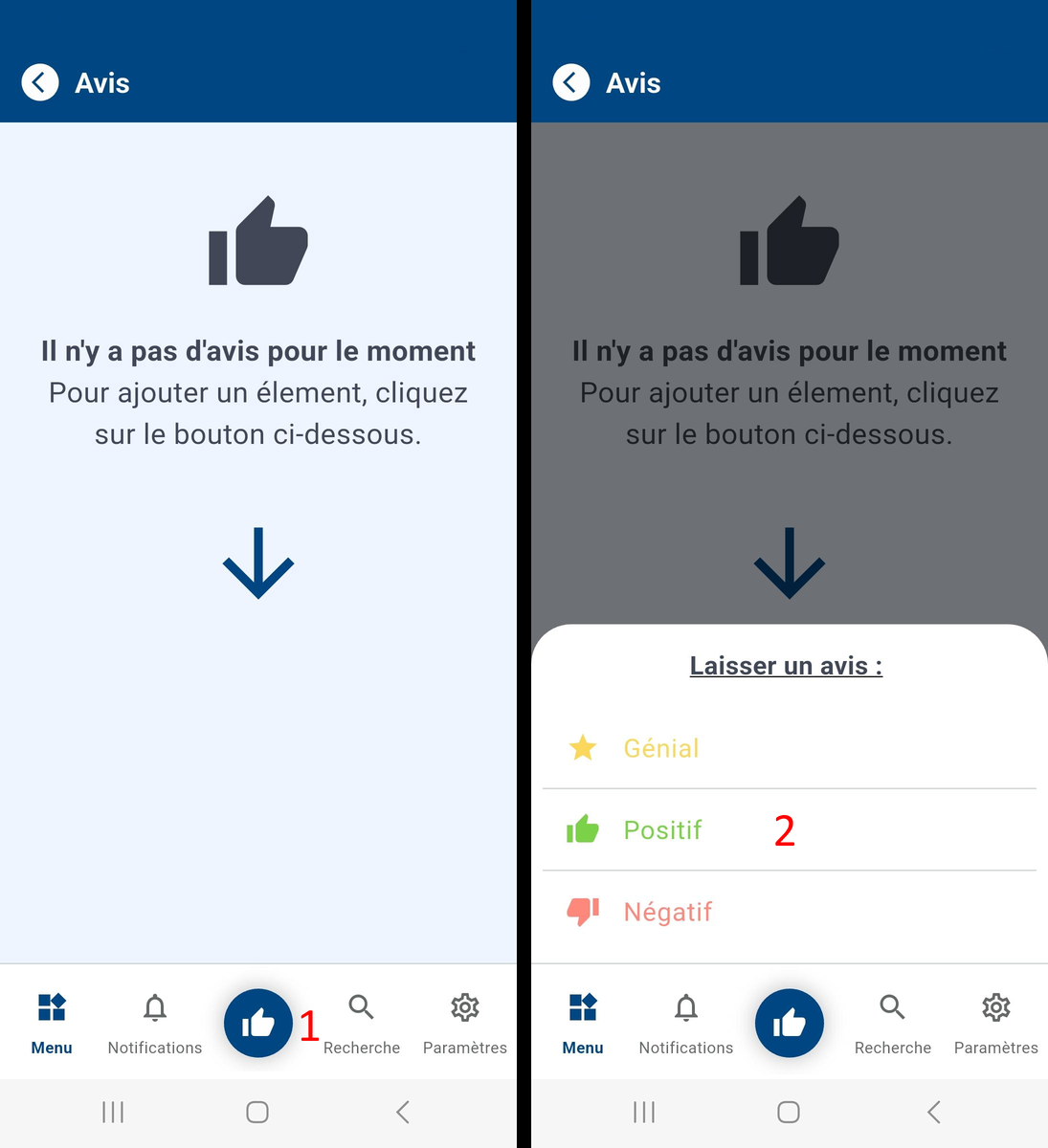
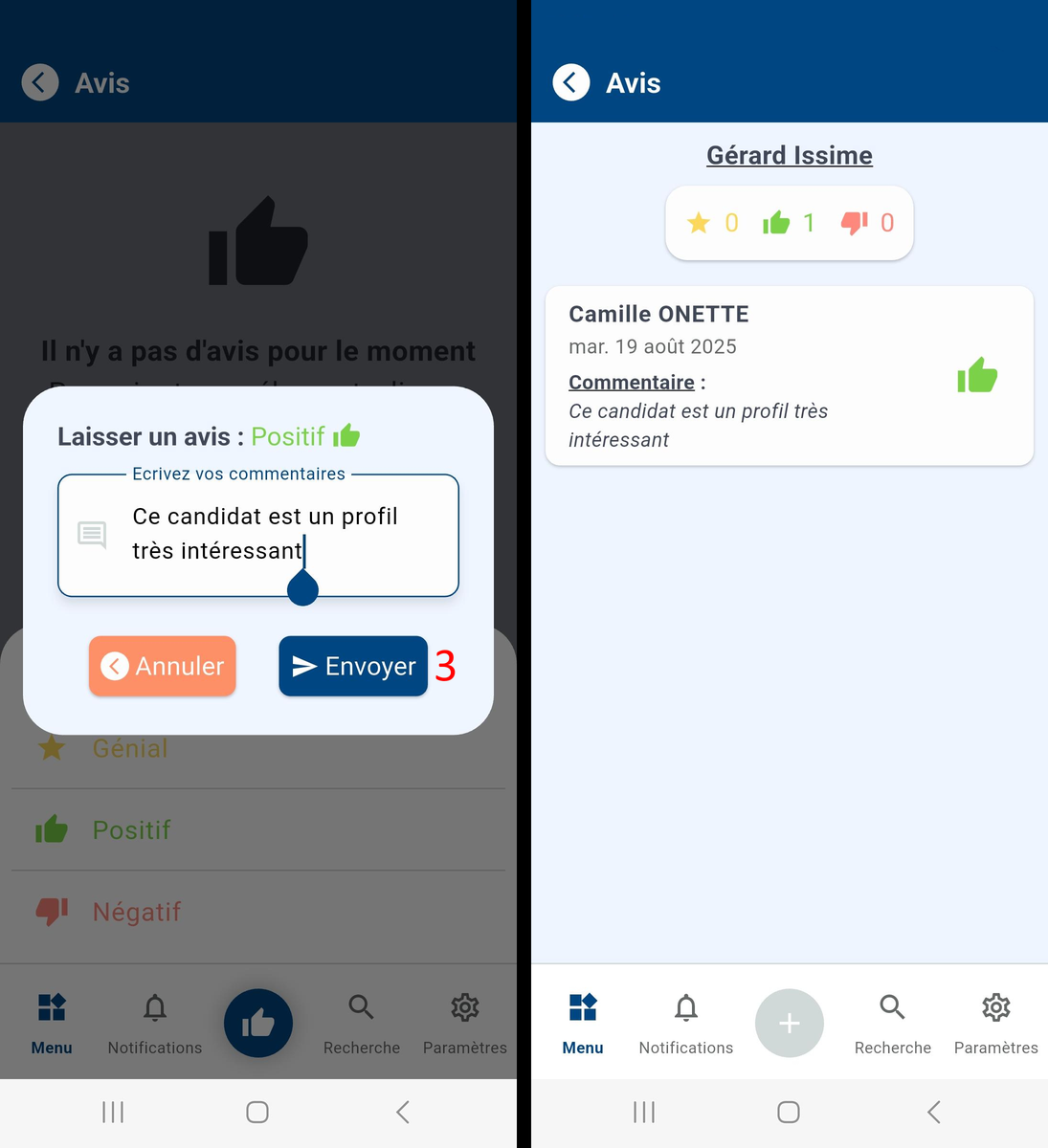
Viewing and giving feedback: tap the feedback area, below the candidate's name, to see the feedback already given. To add feedback:
- tap the button at the bottom of the screen;
- choose the type of feedback: great, positive or negative;
- write your comment, then send it.
12. HSE
The HSE menu covers the essentials of the HSE module:
- the main page shows the news feed; the + button posts a message, with a photo if needed;
- the search button searches the HSE base, and the list button opens the list of domains;
- a domain shows its documents and its referents, with their contact details and skills.
13. Caller identification (beta)
When a contact or a candidate from your Nicoka base calls you, the app shows their name. To turn it on, enable caller identification in the app settings, then grant the permissions below.
On Android
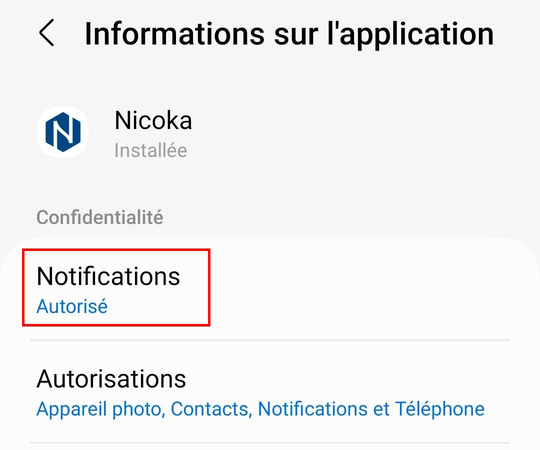
- In the phone settings, open the settings of the Nicoka app: check that notifications are allowed.
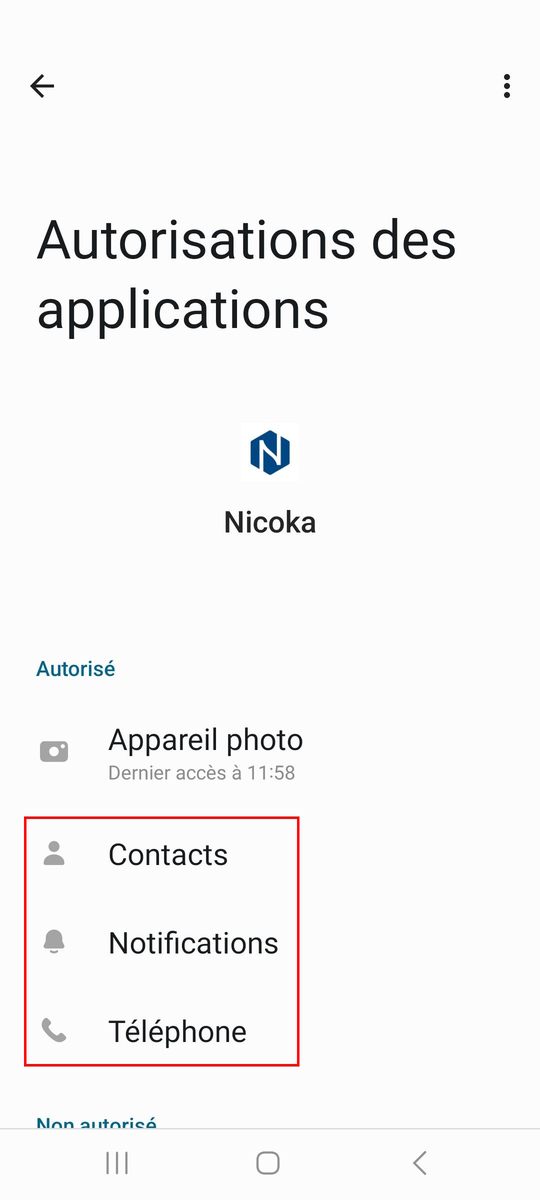
- In the app permissions, allow at least Contacts, Notifications and Phone.
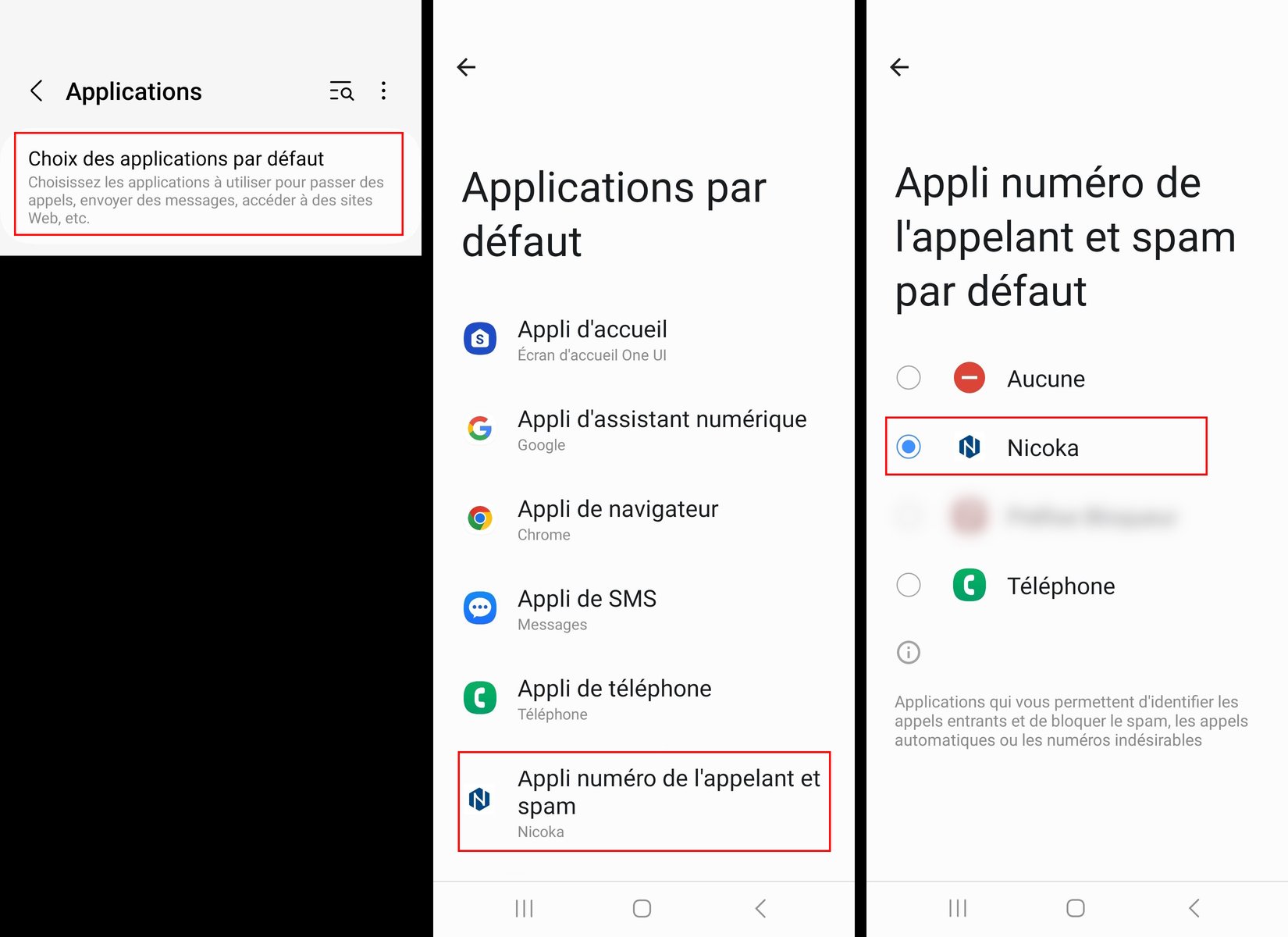
- Set Nicoka as the default caller ID and spam app. When you enable caller identification in the app, Android offers it directly: choose Nicoka and confirm. Otherwise, set it in the default apps section of the phone settings.
On iPhone
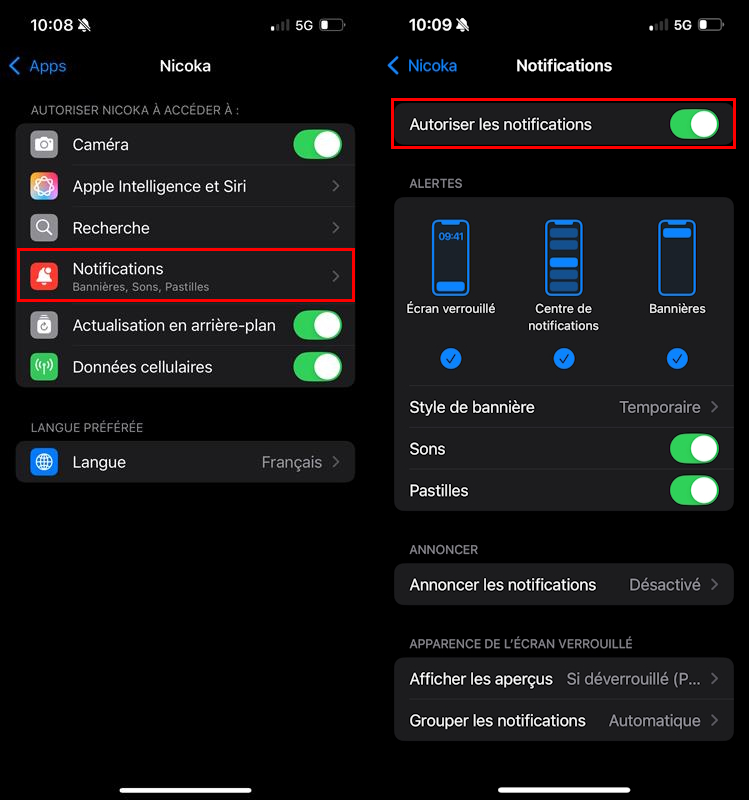
- In the iPhone settings, open the Nicoka app's notification settings, allow notifications and check the three alert types (lock screen, notification centre, banners).
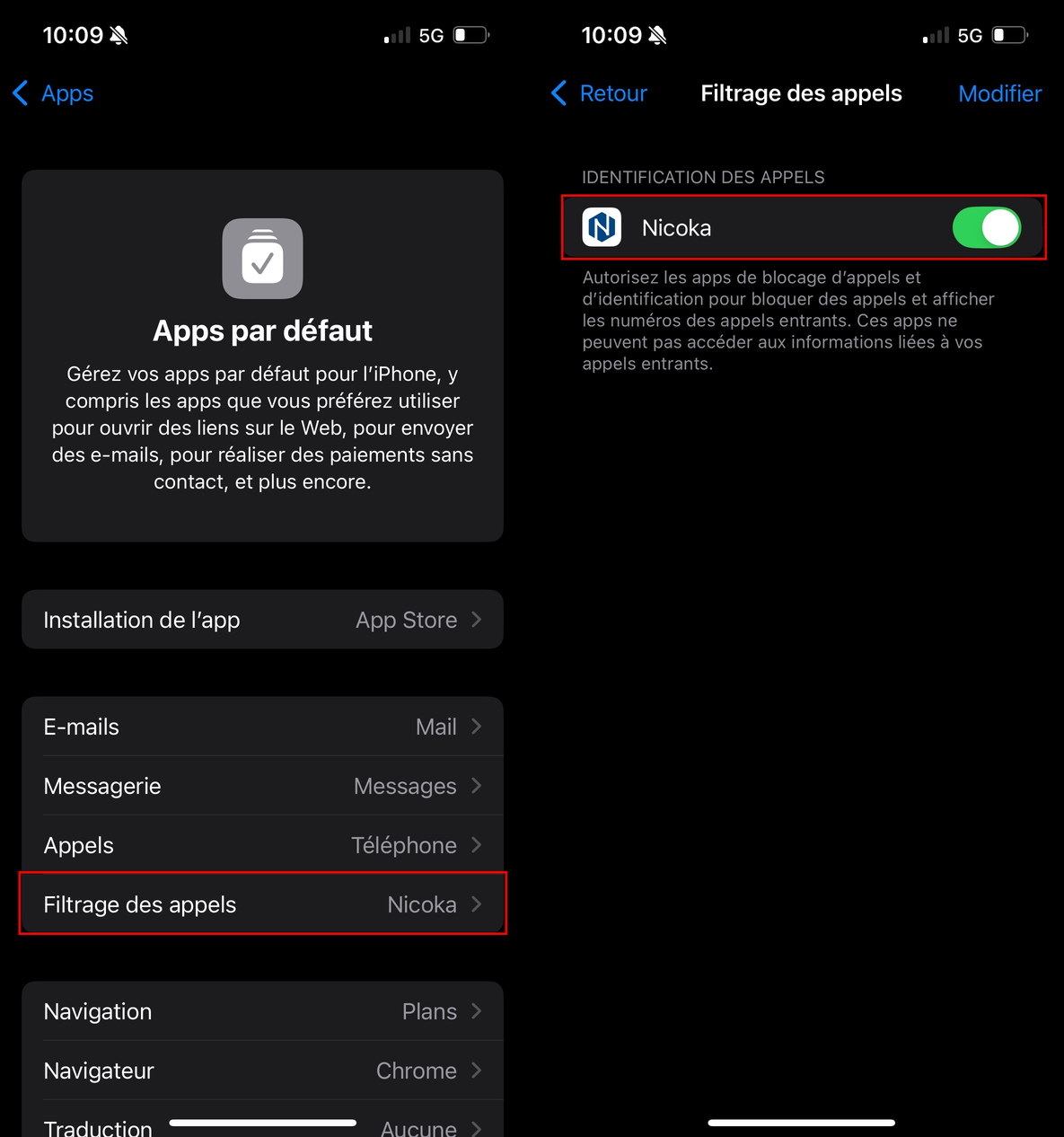
- In the default apps settings, open call filtering and turn on Nicoka.
During a call, a notification shows the caller's name and whether they are a contact or a candidate in your Nicoka base.