Create an amendment to a purchase contract
An amendment changes a purchase contract made with a supplier: an extended assignment, a new period, a new rate. In Nicoka, the amendment is a new contract created from the original one, and it stays linked to it. Sales orders work the same way.
Create the amendment
- Open the purchase contract. Depending on your settings, it may be called Purchase order or Contract.
- Click Actions, then Create an amendment.
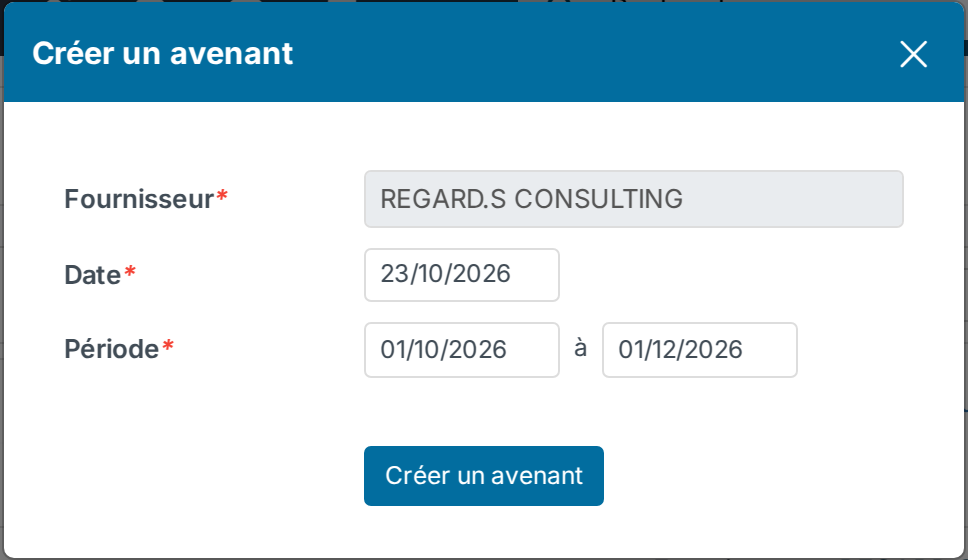
- The supplier and the company of the contract are carried over and cannot be changed. Enter the Date of the amendment and its Period.
- Click Create an amendment. The amendment opens with its own reference.
What the amendment carries over
- Every line of the contract. A line whose period follows the contract period is recalculated on the amendment period: for a line charged per day or per FTE, the number of working days is counted again.
- The project or assignment, and the sales order the contract comes from.
- The custom fields of the contract, if you tick the box offered in the window.
You can then edit, add or delete the lines of the amendment as on any contract. The amendment follows its own approval workflow and is invoiced separately.
Find the amendments of a contract
The original contract shows an Amendments tab: reference, date, period and amount excluding tax of each amendment, with their total. From an amendment, the breadcrumb leads back to the original contract.
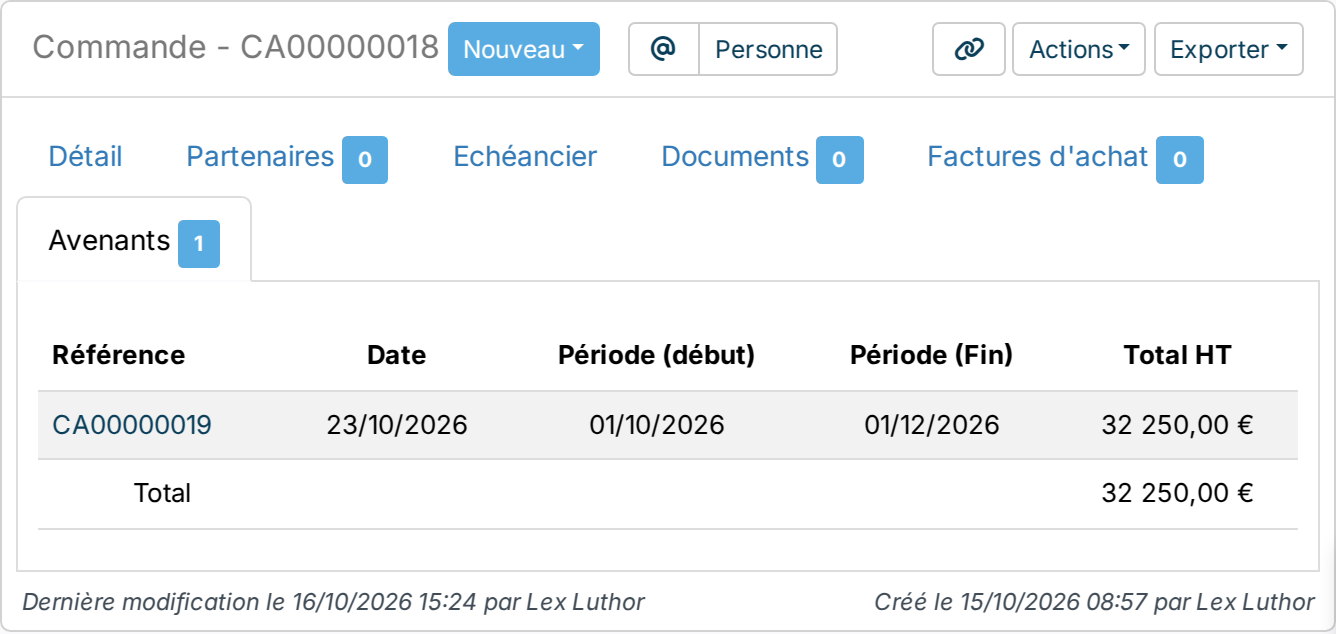
An amendment created from another amendment is linked to the original contract, which therefore lists all of its amendments.
Copy, or create an amendment?
Copy creates an independent contract, for the company and supplier of your choice, with no link to the original. Create an amendment keeps the supplier and the link to the original contract. Both actions are available to users allowed to create purchase orders.