Salary review campaign
Goals
- Run the salary review in one place: population, budget, managers' proposals and validation.
- Give each manager an envelope and a simple screen to propose the increases of their team.
- Stay in control: consumption followed in real time, mandatory justifications, validation by the N+2 then by the HR.
Before you start
- Campaigns are managed in My Team > Salary Reviews, with the right to update salary review campaigns.
- Managers enter their proposals in My Team > Salary review: their profile must give access to the My Team menu.
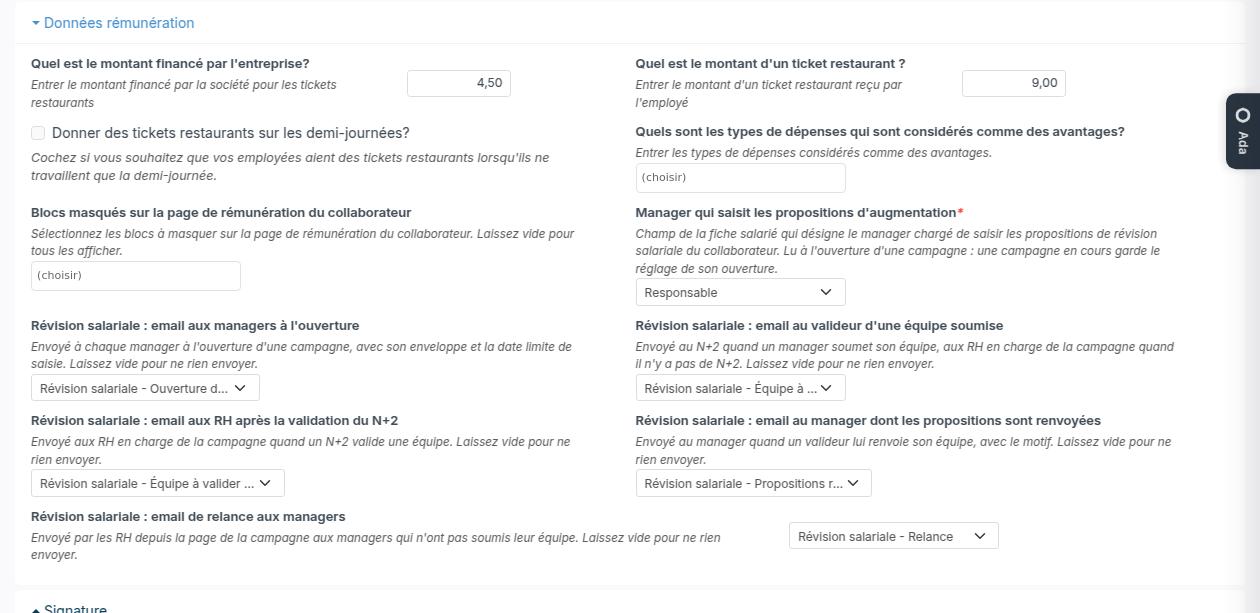
- The manager of an employee is their Manager on their record, or their Operational manager: choose it in the Manager who fills in the salary proposals setting (Settings > Modules, Resources card, Settings, Salary Information section).
- The salary used is the one on the employee record, in force on the reference date of the campaign.
Create a campaign
- Open My Team > Salary Reviews, then click Create a new salary review.
- Enter the Label, the type and the Effective date, then click Create. The campaign opens as a Draft on its five steps.
- Campaign: complete the dates, including the input deadline reminded to the managers.
- Population: filter by company, location, department, category, contract type or seniority, and exclude by name the people who are not concerned.
- Budget and rules: a rate of the payroll or a fixed amount, the HR reserve kept out of the envelopes, the increase cap, the cases that need a justification (above the cap, no increase), and whether an exceeded envelope can be submitted.
- Validation circuit: each team is validated by the manager's N+2, then by the HR. Without an N+2, the HR validate directly.
As long as the campaign is a draft, everything can be changed.
Open the campaign
The Opening step checks the population, the managers, the salaries and the budget. An employee without a manager blocks the opening: give them a manager on their record, or exclude them from the population.
Click Open the campaign and confirm. The salaries are then frozen, each manager gets their envelope (their share of the budget, pro rata of their team's payroll) and an email invites them to enter their proposals. An open campaign can no longer be deleted.
Follow the campaign
The campaign page shows the progress, the budget consumed, and for each envelope its manager, its validator, its consumption and its status. The alerts point out the exceeded envelopes and the managers who are late.
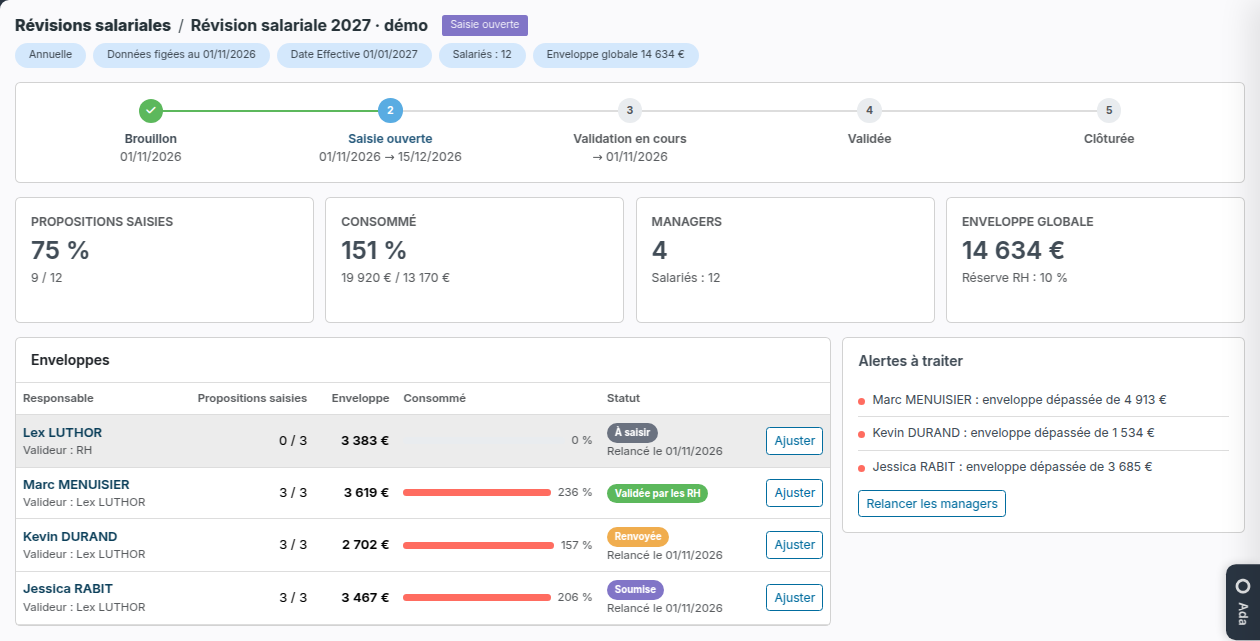
- Adjust changes the amount of an envelope, for instance with the HR reserve.
- The name of the manager opens their team.
- Remind the managers sends a reminder email to the managers whose team is not submitted yet. The date of the reminder shows under the status.
Enter the proposals (manager)
In My Team > Salary review, the manager finds their envelope and one employee per line: current salary, last increase and evaluation score. They enter the increase as a rate or as a yearly amount, depending on the campaign, directly in the table: the new salary and the envelope consumption update at each entry.
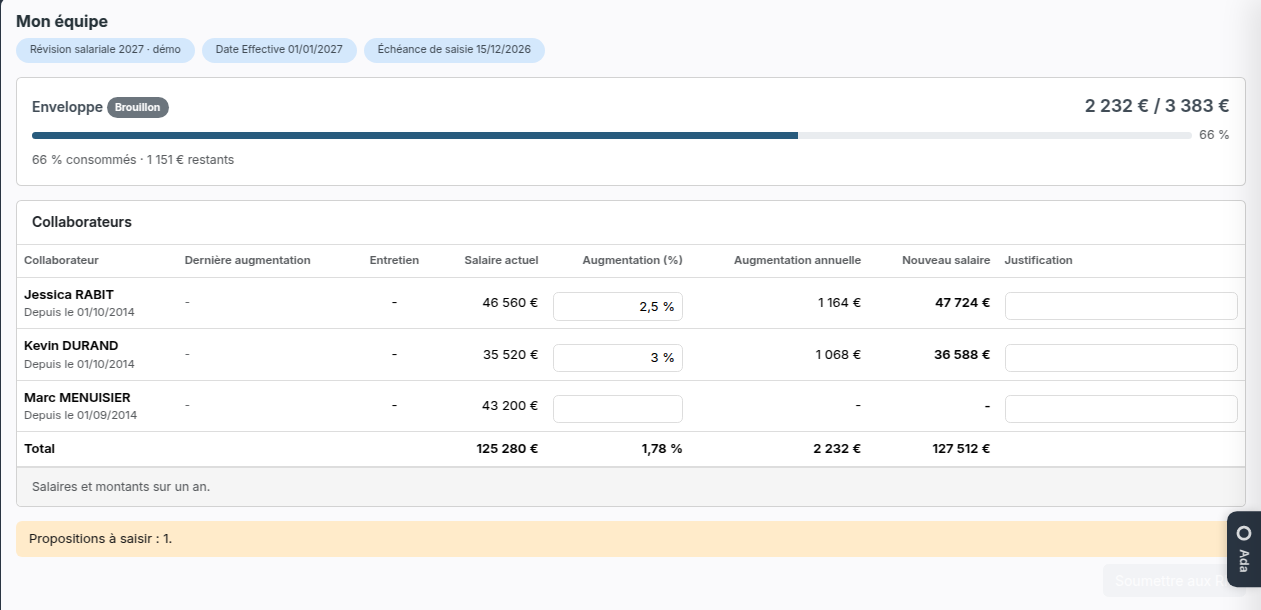
An orange line is waiting for a justification. The Submit button becomes active once every proposal is entered and justified. Once submitted, the proposals can no longer be changed by the manager.
Validate (N+2, then HR)
The validator receives an email and opens the team. They can adjust a proposal: the manager's value stays displayed, struck through, above it. They then click Validate, or Send back with a mandatory reason.
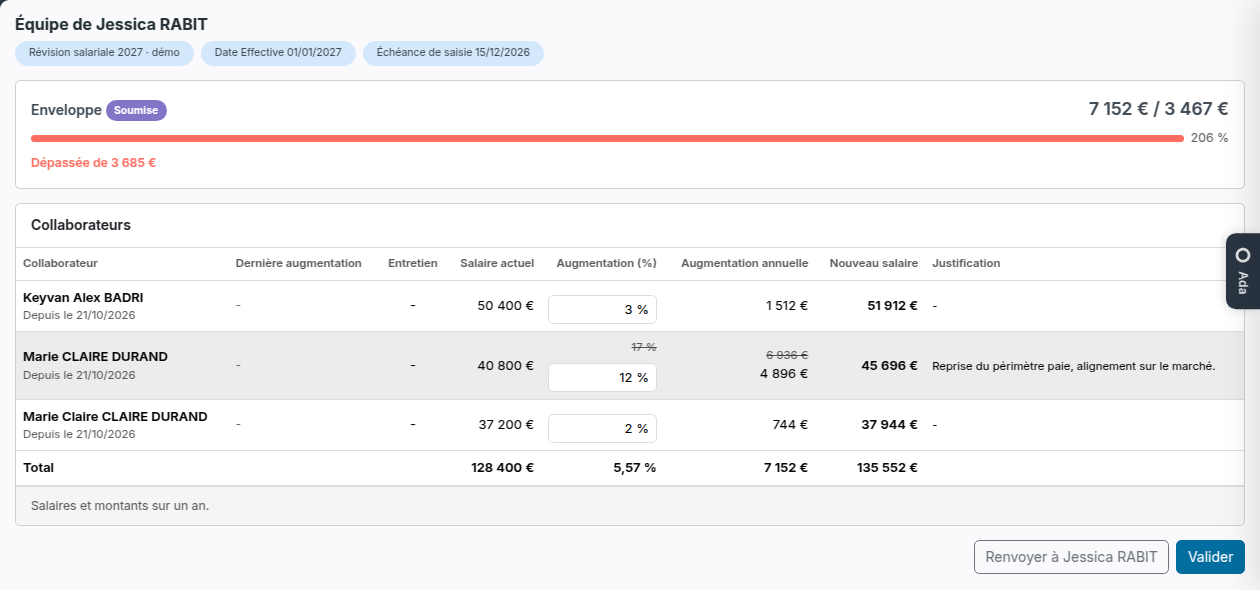
A team sent back returns to its manager, with the reason at the top of their screen. They correct it and submit it again.
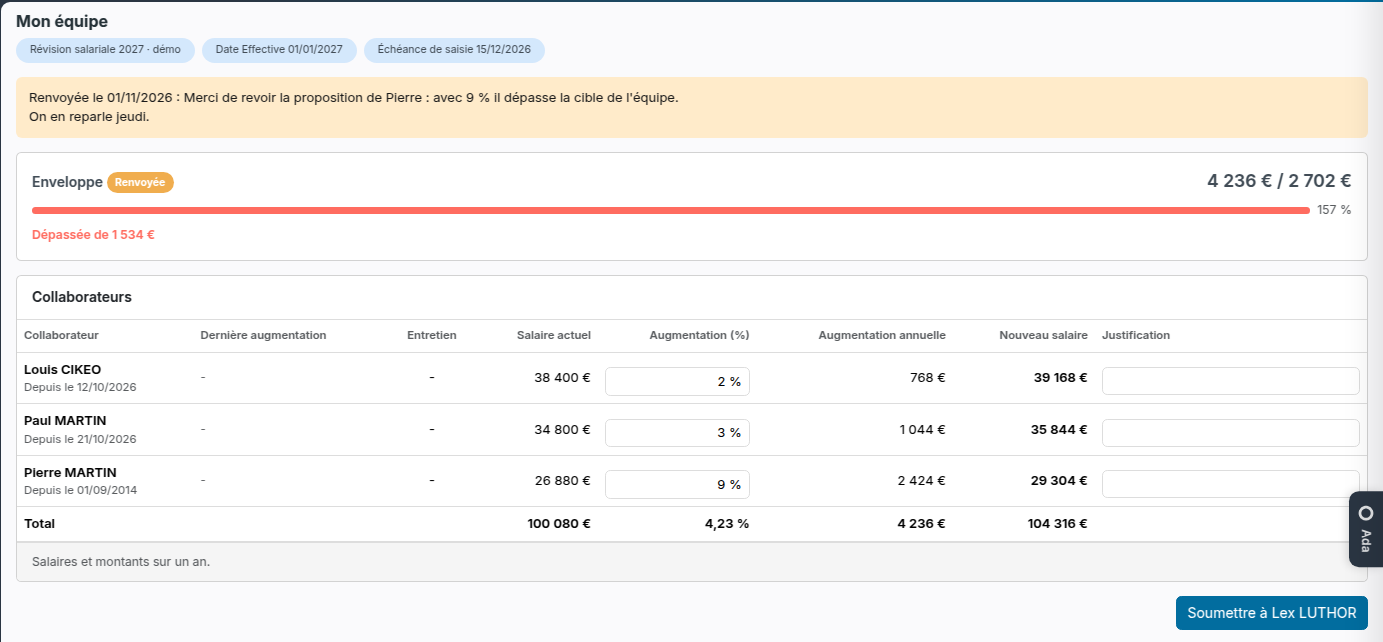
The campaign stays in Input open as long as a team is with its manager, then moves to In validation.
The emails sent
- At the opening: to each manager, with their envelope and the input deadline.
- At the submission: to the N+2, or to the HR in charge of the campaign when there is no N+2.
- After the N+2 validation: to the HR in charge of the campaign.
- When sent back: to the manager, with the reason.
- At the reminder: to the managers who have not submitted their team.
The HR in charge is the person in Assigned to on the campaign. Each email has its setting in the Salary Information section of the settings: choose another email template, or leave it empty to send nothing.