Using Central Test in Nicoka
Central Test offers psychometric assessments (personality, behavioral skills, aptitudes…) for recruitment and talent management. Once Central Test is connected to Nicoka, you send assessments to your candidates from a job and the reports land in the candidate's documents.
Step 1 — Prepare the access in Central Test
In your Central Test space, in the API access settings:
- define a login and a password dedicated to the integration. They can differ from your usual Central Test credentials;
- enter the notification address of your Nicoka workspace, which lets Central Test send the results:
https://<your-workspace>.nicoka.com/api/application/services/centraltest/notification, replacing <your-workspace> with the address of your Nicoka workspace.
If you cannot find these settings, ask your Central Test contact.
Step 2 — Create the Central Test service in Nicoka
- In the side menu, open Customizing > Store.
- On the ATS card, click Customize.
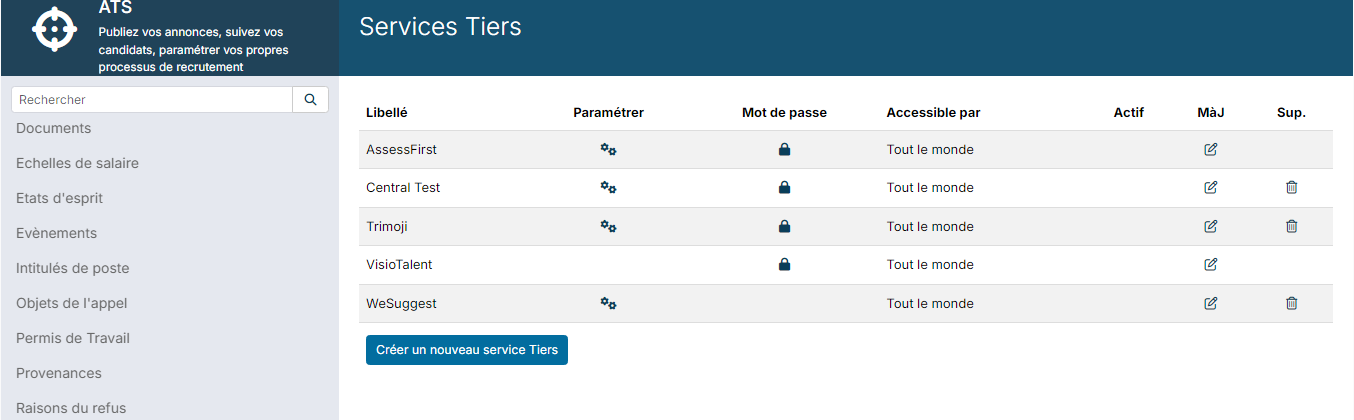
- In the left-hand menu, click External Services. You can also type "Services" in the menu's search field.
- Click Create a new external Service.
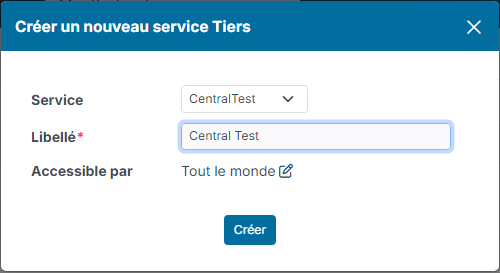
- Choose the CentralTest Service and enter a Label. In Available for, you can restrict the service to some of your users.
- Click Create.
Step 3 — Enter the login and password
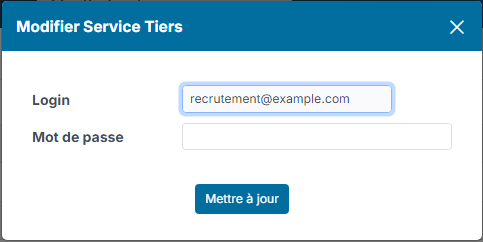
- On the Central Test row, click the padlock in the Password column.
- In Login and Password, enter the login and password defined in step 1.
- Click Update.
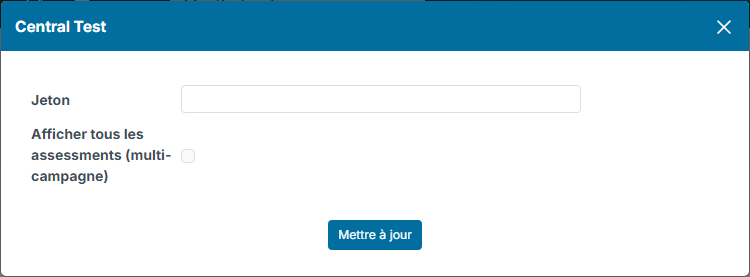
Nicoka uses them to get its own access token from Central Test: you do not need to fill in the Token field behind the gear.
Step 4 — Choose the sending mode, then activate
Click the gear in the Customize column. The Show all assessments (multi-campaign) option sets how assessments are sent:
- unticked (single campaign): each job is linked to one assessment, sent to all its candidates;
- ticked (multi-campaign): you choose the assessment each time you send one, so you can send several different assessments to the same candidate.
Choose this mode before you start sending assessments, then click Update. Finally, click in the Active column of the Central Test row: the tick appears.
Linking an assessment to a job (single campaign mode)
- Open the job, then click the Campaign CentralTest button.
- Choose the assessment among those of your Central Test account (a search field helps you find it).
- If needed, use Associate the candidate with a group and set whether The candidate can see their report.
- Click Link campaign to the Job.
You can change the campaign as long as no invitation has been sent. From the first sending on, it is locked.
In multi-campaign mode, this button does not appear on the job: the assessment is chosen at each sending.
Sending the assessment to candidates
From the job's applications:
- for several candidates: tick them, click Actions, then Add to CentralTest campaign;
- for one candidate: in the application's actions, click Send invitation CentralTest.
The candidate needs an email address. Nicoka tells you which candidates have already received the invitation for this campaign. Each sending is logged in the candidate's history.
Getting the report
When the candidate has completed the assessment, Central Test notifies Nicoka: the report is saved in the candidate's documents and an activity is added to their history. You can then open it at any time from the candidate's record.