Connect Allo to Nicoka
Allo is a cloud telephony solution: your teams make and receive their calls and SMS from the Allo app. Once Allo is connected to Nicoka, every call with a candidate or a contact known to Nicoka is saved on their record as a single activity: status, duration, summary of the conversation, link to the recording and transcription. The SMS received and sent are saved there too.
Before you start
- You have access to Customizing > Integrations in Nicoka.
- You are an administrator or a manager of your Allo team: one of these roles is needed to create an API key.
- Each Allo user is matched with their employee record in Nicoka. Nicoka first recognizes them by their email address: the email of their Allo account must be their Email or their Personal Email in Nicoka. Otherwise, Nicoka compares the number of their Allo line with their Office Phone, Cell Phone or Mobile 2.
You have no webhook to create in Allo: Nicoka declares it itself when you connect.
1. Create an API key in Allo
- In Allo, open Settings > API (https://web.withallo.com/settings/api).
- Click Create API Key.
- Select the two permissions Nicoka needs: WEBHOOKS_READ_WRITE, to declare its webhook, and CONVERSATIONS_READ, to read the calls.
- Copy the key: Allo shows it only once.
An API key gives access to a single Allo team. Allo's screens belong to Allo and may change: if in doubt, check Allo's help.
2. Connect Allo in Nicoka
- In the side menu, open Customizing > Integrations.
- In the Categories column, click Telephony, then Configure under the Allo card.
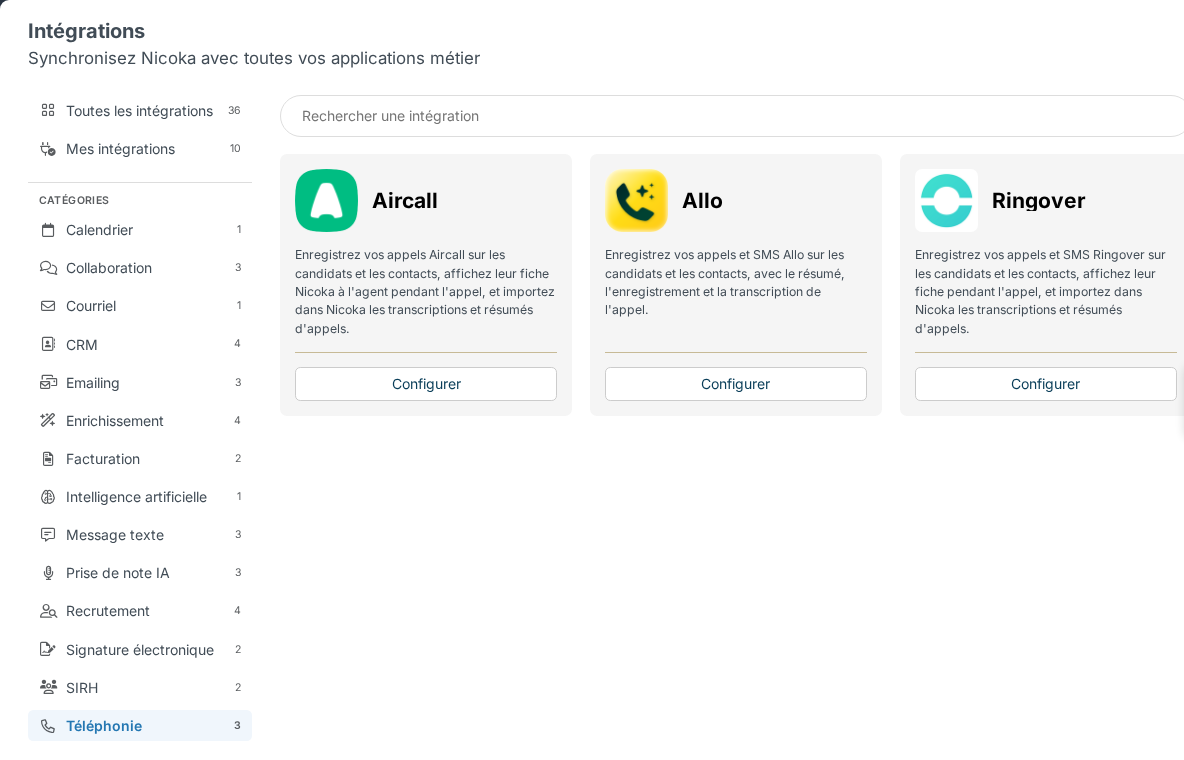
- Click Connect Allo.

- Paste the API key copied from Allo into the API key field, then click Save.
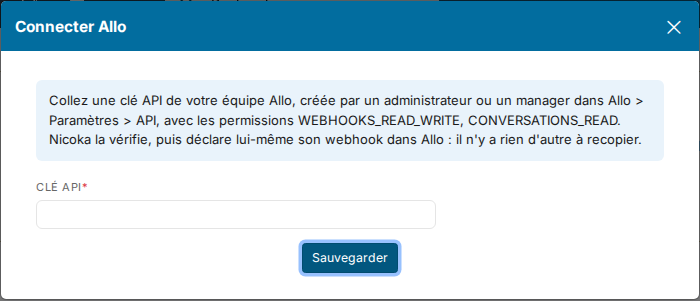
Nicoka checks the key and its permissions, then declares its webhook in Allo: this is how Allo sends the calls and SMS to Nicoka. The message Allo team … connected. confirms the connection, and the configuration panel of the account opens right away. The account appears in the list of connected accounts of the Allo page, with the status Connected.
To connect another Allo team, click Connect Allo again with an API key of that team: each team is a separate account.
3. Check the connection
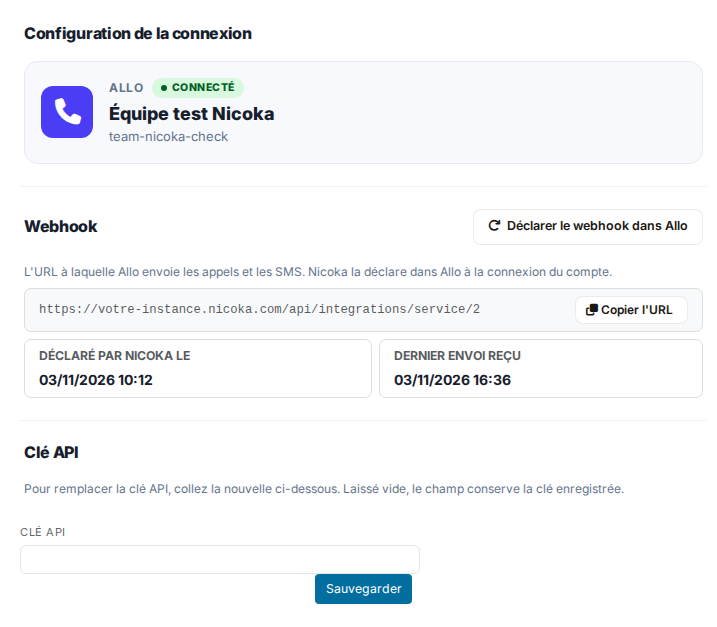
On the account line, click Configure. The panel that opens shows:
- the connected Allo team;
- the address Allo sends the calls and SMS to, the date Nicoka declared it in Allo and the date of the last delivery received;
- the Declare the webhook in Allo button, to declare it again;
- the API key field, to replace the key. Left empty, it keeps the stored key.
Nicoka does not change the webhooks your team created in Allo for other tools.
To test, make a call to a candidate or a contact in Nicoka: the activity appears on their record about 30 seconds after the end of the call. The summary and the transcription may arrive a few minutes later: Nicoka reads the call back from Allo 5 and then 15 minutes after it ends and completes the activity.
What Nicoka saves
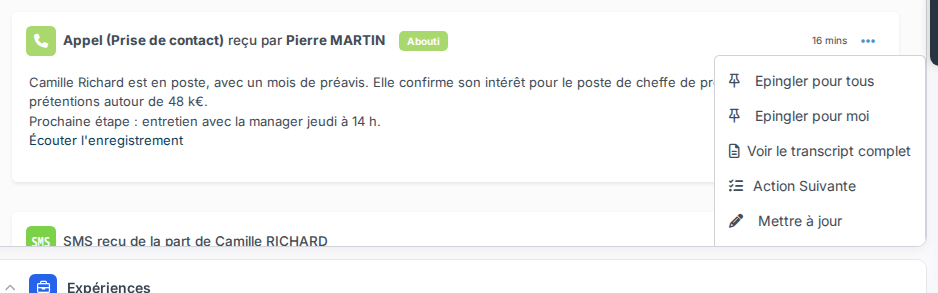
Nicoka looks up the number of the person on the line among your candidates and your contacts. If it finds them, it creates a single Call activity on their record, credited to the employee who made or received the call. If Nicoka does not recognize them, the call is credited to the employee who connected the Allo account, or otherwise to the owner of the record:
- the date, the direction of the call (made or received), its duration and its status: Success when the person answered, Answering machine when the call reached a voicemail, No Reply otherwise;
- the call summary written by Allo, at the top of the activity. If someone edits this summary in Allo, Nicoka replaces it;
- a Listen to the recording link, which opens the recording on Allo's website;
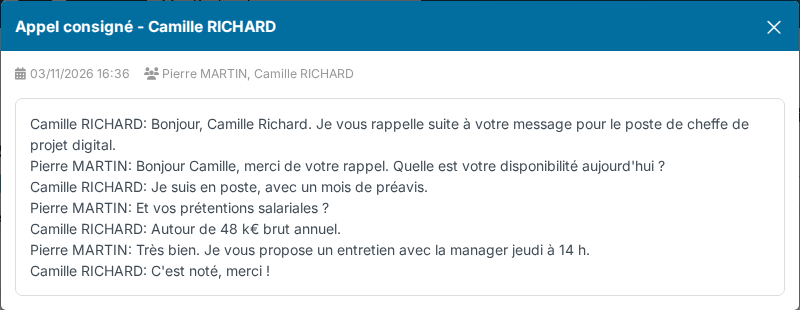
- the transcription of the conversation, available from the activity's … menu with Show full transcript.
The SMS exchanged with the candidate or the contact are added to their timeline: an SMS received in the name of the person, an SMS sent in the name of the employee who wrote it.
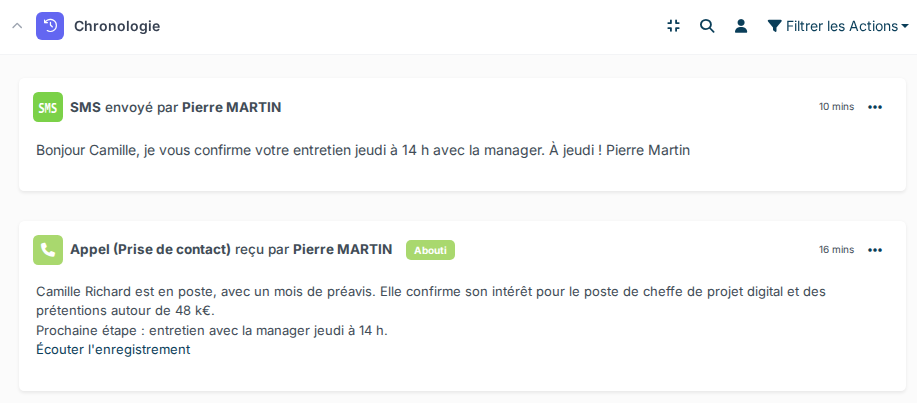
On a contact record, the activity looks the same:

A call or an SMS with a number unknown to Nicoka is not saved: check that the phone number of the candidate or the contact is filled in on their record.
Troubleshooting
- “Allo refuses this API key”: the key was revoked or mistyped. Create a new one in Allo > Settings > API.
- “This Allo API key lacks the permissions…”: create a key with the WEBHOOKS_READ_WRITE and CONVERSATIONS_READ permissions.
- “The webhook could not be declared in Allo” or “Allo cannot be reached or returned an error (status 403…)”: the key was often created by a plain member of the Allo team. Even with both permissions, Allo then refuses to declare the webhook. Create the key from an Allo administrator account, paste it into the API key field of the account panel, then click Declare the webhook in Allo. The message includes the code and the text returned by Allo: send them to support if the problem persists.
- The account is no longer shown as Connected: Allo now refuses the key, often because it was revoked. Create a new one and paste it into the API key field of the account panel.
- No call appears: check that the number of the person is on their record. In the account panel, the Last delivery received date shows whether Allo sends the calls; if nothing arrives, click Declare the webhook in Allo.
- The account reports “No webhook declared in Allo” or “Allo deliveries refused”: open the account panel and click Declare the webhook in Allo.
- The call is credited to the wrong person: the email of the employee's Allo account does not match the one on their Nicoka record.
- The calls of another Allo team do not arrive: an API key gives access to one team only. Connect each team as a separate account.