Connect AssessFirst to Nicoka
Connect your AssessFirst account to Nicoka to send AssessFirst questionnaires to your candidates and find their reports in Nicoka. The connection is set up once, by an administrator, for all users.
Before you start
Have the following at hand:
- your AssessFirst login;
- your AssessFirst password;
- your AssessFirst API token. To get it, follow AssessFirst's guide: How to activate the Nicoka integration (in French).
Opening the External Services
- In the side menu, open Customizing > Store.
- On the ATS card, click Customize.
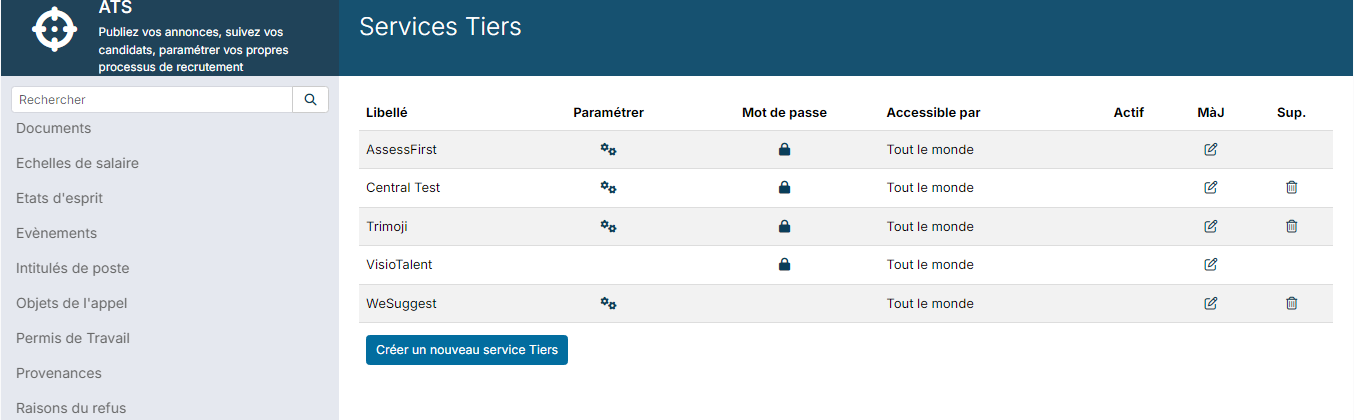
- In the left-hand menu, click External Services. You can also type "Services" in the menu's search field.
The AssessFirst row already exists: it is created with your workspace. If it is missing, click Create a new external Service, choose the AssessFirst Service, enter a Label, then click Create.
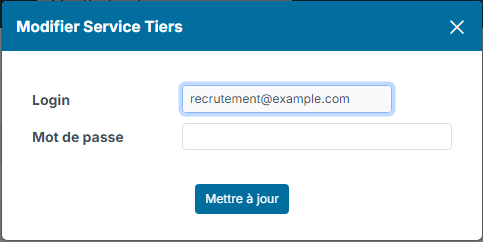
Step 1 — Enter the login and password
- On the AssessFirst row, click the padlock in the Password column.
- Enter your AssessFirst Login and Password.
- Click Update.
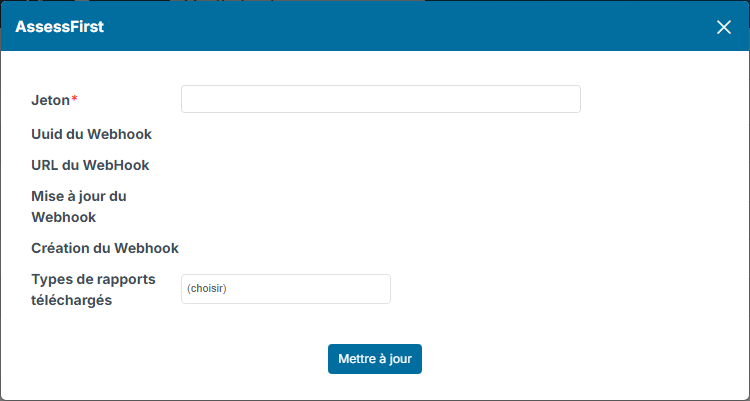
Step 2 — Enter the token and choose the reports
- On the same row, click the gear in the Customize column.
- Paste your API token into the Token field.
- In Downloaded report types, choose the AssessFirst reports Nicoka should save in the candidate's documents.
- Click Update.
When you save, Nicoka automatically tells AssessFirst where to send the results. The four webhook fields below the token fill in by themselves: there is nothing to enter there.
Step 3 — Activate the service
On the AssessFirst row, click in the Active column. Nicoka checks that the login and password are filled in, then activates the service: the tick appears in the column.
The Available for column shows who can use the service: everyone by default. To restrict it to some of your users (by company, department, location, profile or employee), click the icon in the Upd. column and change Available for.
What's next?
Once the service is active, the Send invitation AssessFirst action is available on candidate records. When the candidate already has a linked AssessFirst profile, the action becomes Show AssessFirst profile. The reports chosen in step 2 are saved in the candidate's documents.