Connect Ringover to Nicoka
Ringover is a cloud telephony solution: your teams make and receive their calls from the Ringover app or a browser. Once Ringover is connected to Nicoka, every call with a candidate or a contact known to Nicoka is saved on their record as a single activity: status, duration, link to the recording and, if your Ringover plan provides them, the summary and the transcription of the conversation. The text messages exchanged with them are saved too.
Before you start
- You have admin rights on Nicoka.
- You have a Ringover admin account with Monitoring enabled: it is needed to create the API key.
- Each Ringover user is matched with their employee record in Nicoka. Nicoka first recognizes them by their email address: the email of their Ringover account must be their Email or Personal Email in Nicoka. Otherwise, Nicoka compares the number of their Ringover line with their Office Phone, Cell Phone or Mobile 2.
- Call summaries and transcriptions depend on your Ringover plan (Empower offer).
1. Create an API key in Ringover
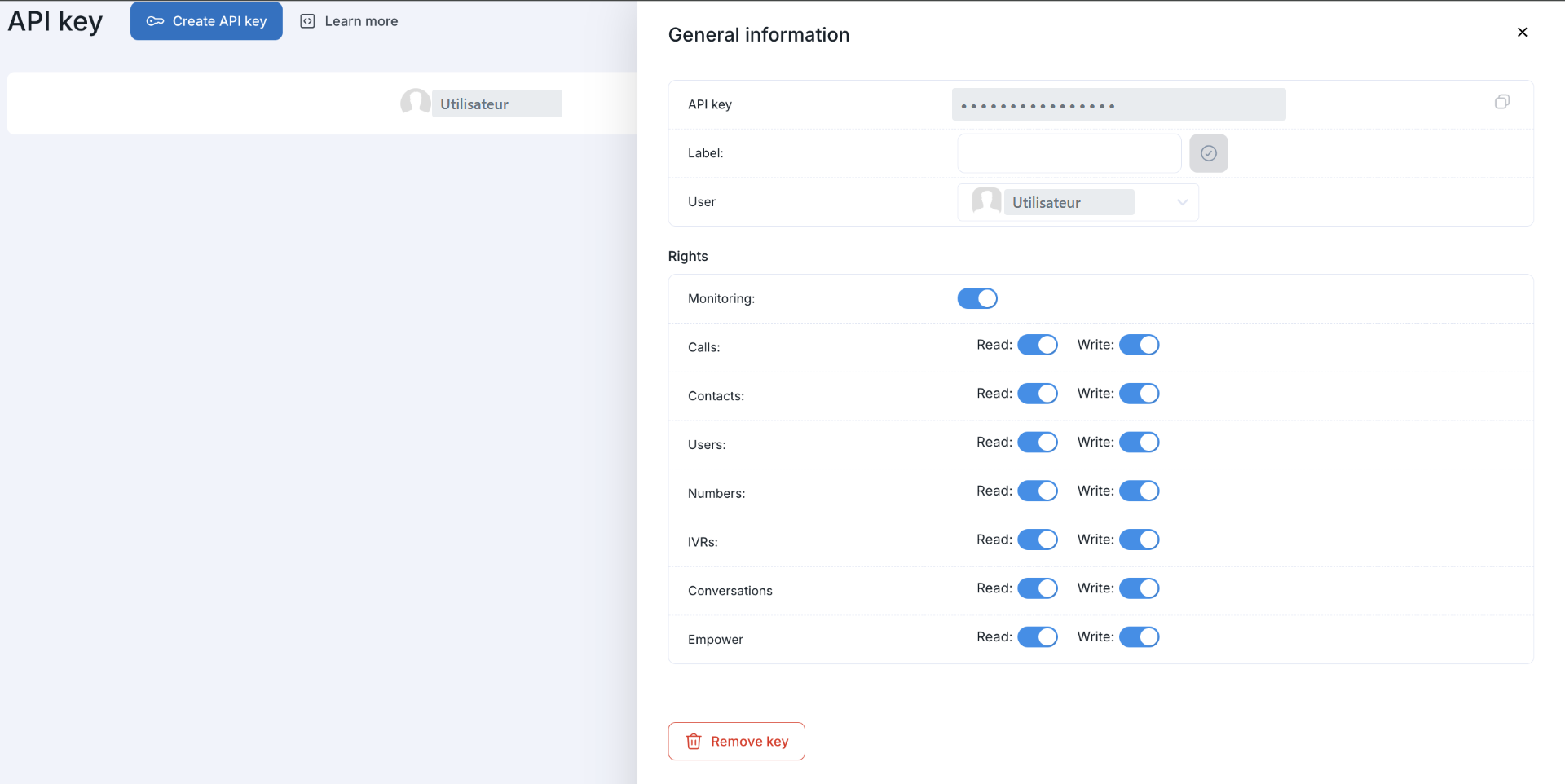
- In your browser, open https://dashboard.ringover.com/api.
- Click Create API key, select a user in the list and add a label (for example "Nicoka").
- In the Rights section, enable Read and Write for Monitoring, Calls, Contacts, Users, Numbers, IVRs, Conversations and Empower.
- Copy the key shown in API key.
2. Connect Ringover in Nicoka
- In the side menu, open Customizing > Integrations.
- Click the Telephony category, then the Ringover card.
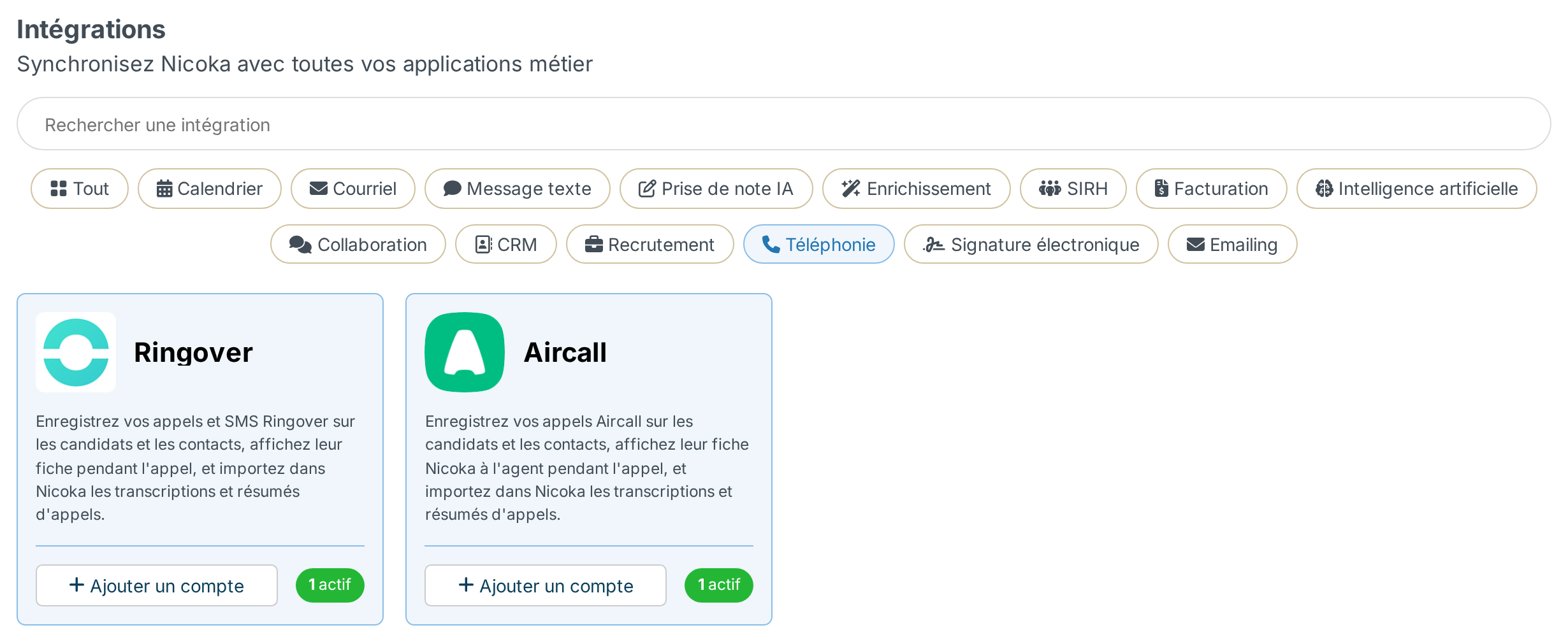
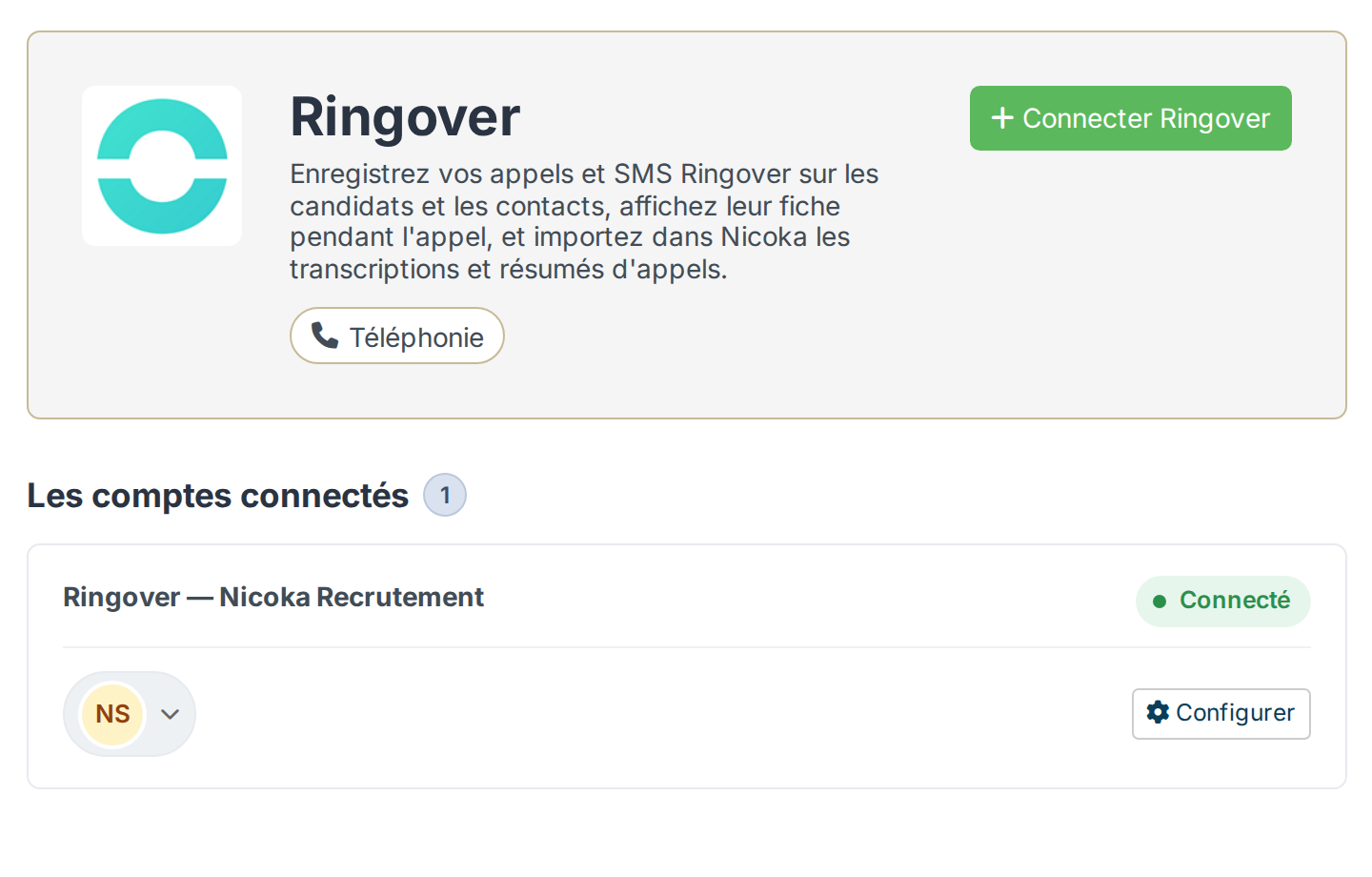
- In the panel that opens, click Connect Ringover.
- Paste the API key copied from Ringover in the Ringover API key field, then click Save.
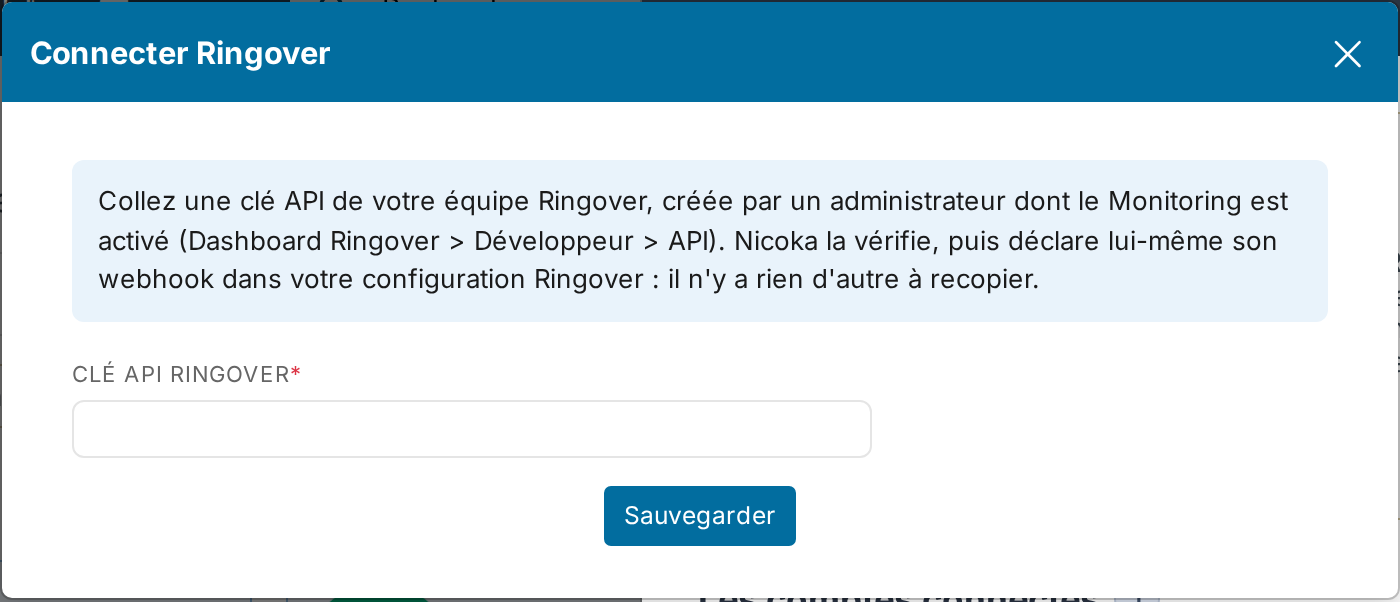
Nicoka checks the key, reads your Ringover team, then declares its own webhook in Ringover: calls, recordings, transcriptions, summaries, comments, text messages and contact search. The message "Ringover is connected to the … team" confirms the connection, and the account appears in the list of connected accounts with the Connected status. There is no key to copy and no service to activate.
If the Ringover card does not appear, write to support@nicoka.com so that it is enabled on your workspace.
3. Check the connection
In the list of connected accounts, click Configure. The panel shows your Ringover team, the address Ringover sends the calls to, the date Nicoka declared the webhook and the date of the last delivery received.
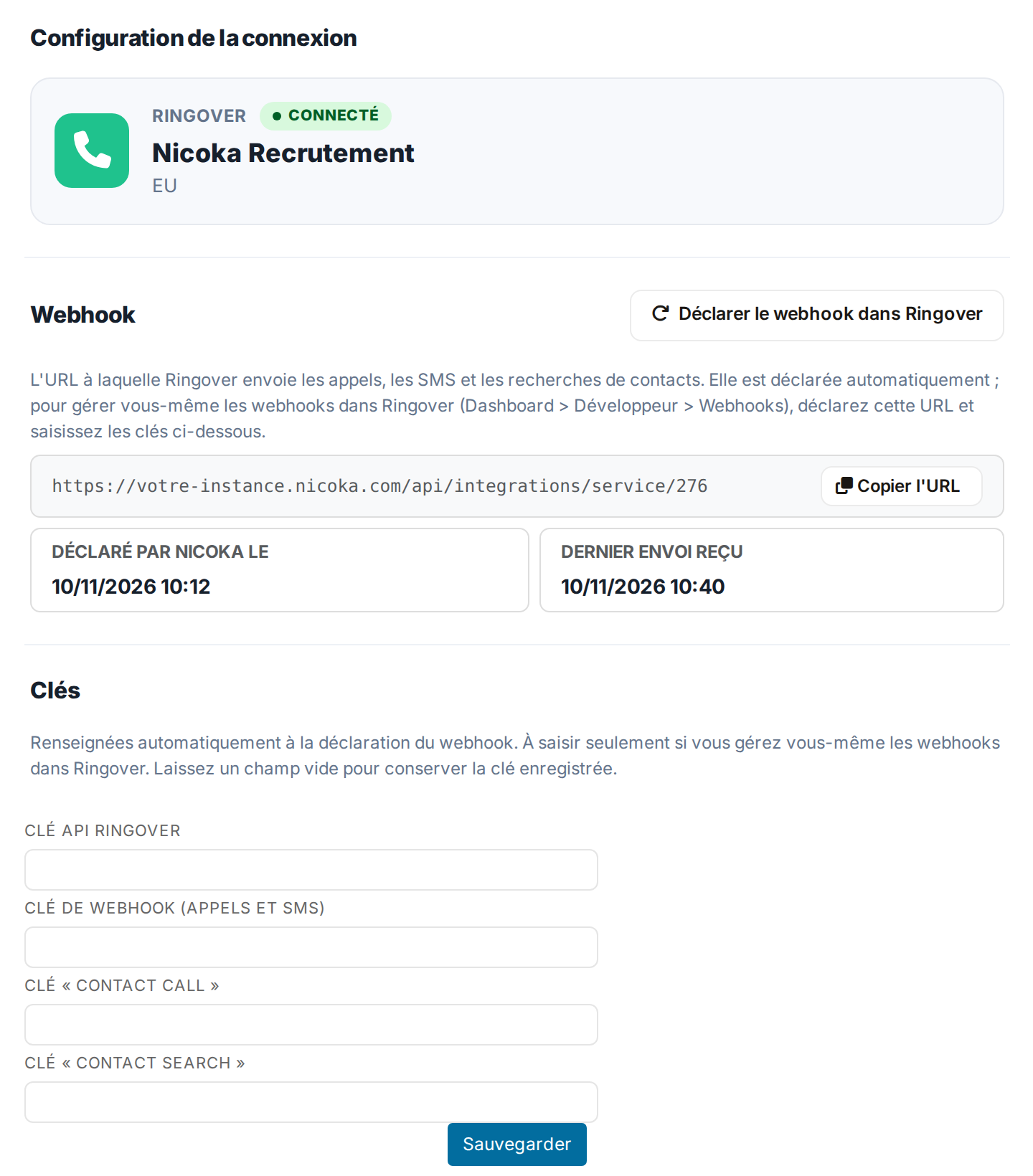
To check, call a candidate or a contact known to Nicoka: the activity appears on their record as soon as the call starts, then is completed when it ends.
Declare the webhooks yourself in Ringover (optional)
Nicoka declares its webhook when you connect. Only follow this step if you manage the webhooks yourself in Ringover, or if Nicoka could not declare them (a message then tells you so).
- In the account's Configure panel, click Copy URL. The address is specific to your account, such as
https://your-workspace.nicoka.com/api/integrations/service/123. - Open https://dashboard.ringover.com/webhooks.
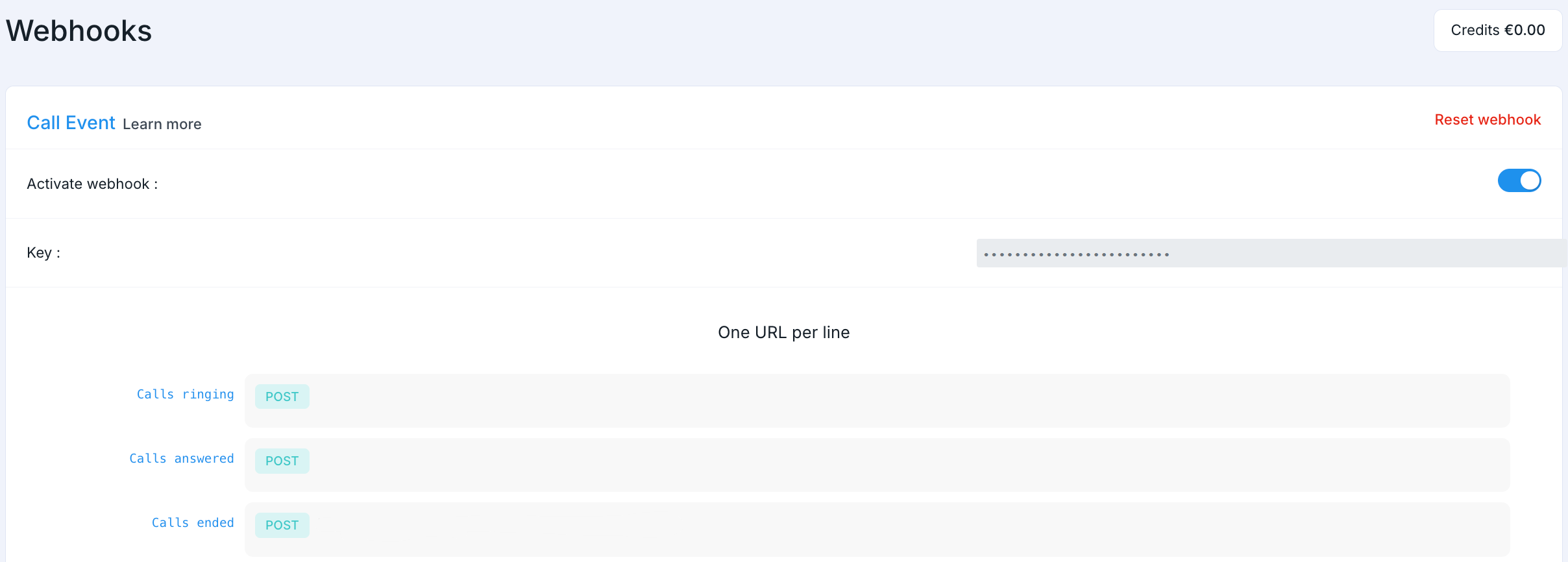
- In the Call Event section, turn on Activate webhook, then paste the address on every event line: call ringing, call answered, call ended, missed call, and the after-call lines (recording, transcription, summary, comment).
- Copy the Key of the Call Event section.
- Do the same in the Contact Event section (caller identification), then copy its Key.
- If you want to search your Nicoka candidates and contacts from Ringover, also enable the contact search webhook with the same address, then copy its Key.
- Save your changes.
- Back in Nicoka's Configure panel, paste the keys in the Keys section:
- Webhook key (calls and SMS): the key of the Call Event section;
- "Contact call" key: the key of the Contact Event section;
- "Contact search" key: the key of the contact search webhook.
- Click Save. A field left empty keeps the key already saved.
Each section has its own key. If you click Reset webhook, the key changes: copy it again into Nicoka.
Ringover's screens belong to Ringover and may change. If in doubt, see Ringover's help.
What Nicoka saves
Nicoka looks up the number of the person on the line among your candidates and your contacts. If it finds them, it creates a single Call activity on their record, credited to the employee who made or received the call, and completes it as Ringover sends its information:
- the date, the direction of the call (made or received) and its status: Success at the end of an answered call, No Reply for a missed call, with the reason given by Ringover;
- at the end of the call, its duration and a link to listen to the recording;
- the link to the message left on the voicemail;
- the call summary produced by Ringover, at the top of the activity;
- the comment the employee typed in Ringover after the call, at the end of the activity;
- the transcription of the conversation, available from the activity's … menu with Show full transcript.
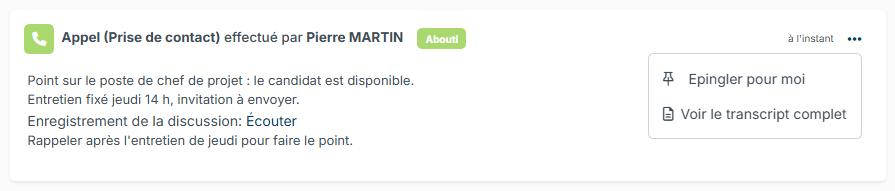
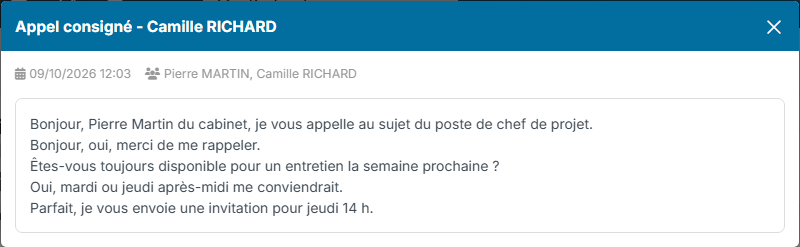
On a contact's record, the activity looks the same:

Text messages sent and received from Ringover are saved as an SMS activity on the candidate's or the contact's record.
When a call starts, Ringover also shows the name of the person on the line as Nicoka knows it.
A call with a number unknown to Nicoka is not saved: check that the phone number of the candidate or the contact is filled in on their record.
Troubleshooting
- No call appears: in Customizing > Integrations > Ringover, check that the account is Connected and that its Configure panel reports no issue, then that the number of the person on the line is on their record.
- The panel says Nicoka refuses deliveries from Ringover: a webhook key is missing or no longer matches (often after a Reset webhook in Ringover). Click Declare the webhook in Ringover, or copy the key shown in Ringover into the Keys section.
- The account is disconnected: Ringover refuses the API key (key deleted or user deactivated). Create a new key, paste it in the Ringover API key field of the Configure panel, then click Declare the webhook in Ringover.
- The record is not shown during the call, or the contact search finds nothing: Ringover sends these two events to only one tool per team, and the panel reports that another tool already receives them. Remove them from that tool in Ringover, then click Declare the webhook in Ringover.
- No summary or transcription: these features depend on your Ringover plan.
- The call is credited to the wrong person: the email of the employee's Ringover account does not match the one on their Nicoka record. Without a match, the call is credited to the user who connected Ringover.