Connect your own AI to Ada (My AI)
By default, Ada runs on the artificial intelligence provided by Nicoka. With My AI, you run it on your own account with an AI provider, OpenAI (GPT) or Anthropic (Claude): Ada's requests go out with your API key and are counted on your account with that provider.
Prerequisites
- An API key created in your AI provider's console, with available credit.
- Access to the Customizing > Integrations menu.
The connection applies to the whole instance: once My AI is connected, every Ada user goes through your provider. The key is stored encrypted and is never displayed again. Do not send it by email or in a ticket: type it into Nicoka yourself.
1. Connect your AI
- Open Customizing > Integrations, then click Configure on the My AI card (Artificial intelligence filter).
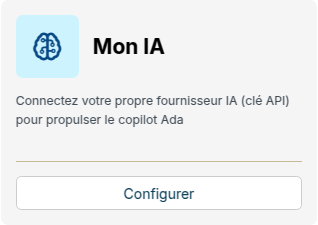
- Click Configure my AI.
- In the Connect your AI window, pick the Model from the list and paste your API key.
- Click Save.
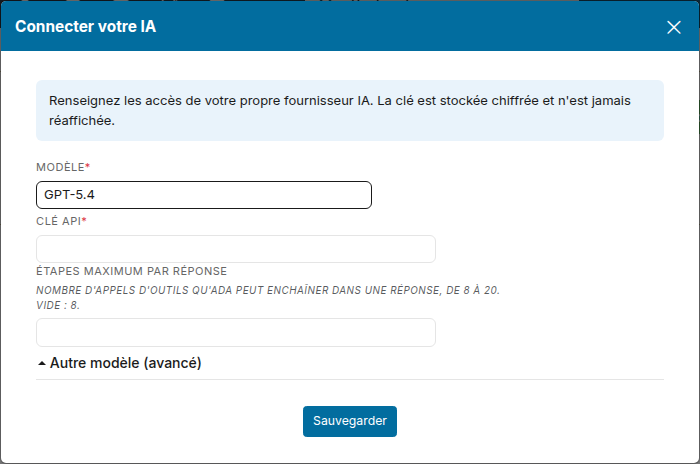
Before saving, Nicoka checks with OpenAI or Anthropic that the key is accepted and gives access to the chosen model. Otherwise the window stays open and shows the reason, for instance "The API key was rejected by the provider" or "The provider does not recognise the model".
The Maximum steps per answer field is optional: it sets how many tools Ada can chain in a single answer, from 16 to 20 (16 when left empty).
The Web search box, ticked by default, lets Ada look up public information on the web with your key: a company's website, the format of its email addresses, recent news. Ada cites the sources it used. Web search is only available with an OpenAI model. Untick the box to keep Ada on Nicoka data only.
2. Check the connection
Your AI's card appears on the page, with the chosen model and the Connected state. Ada now answers with your model.

3. Change the model or replace the key
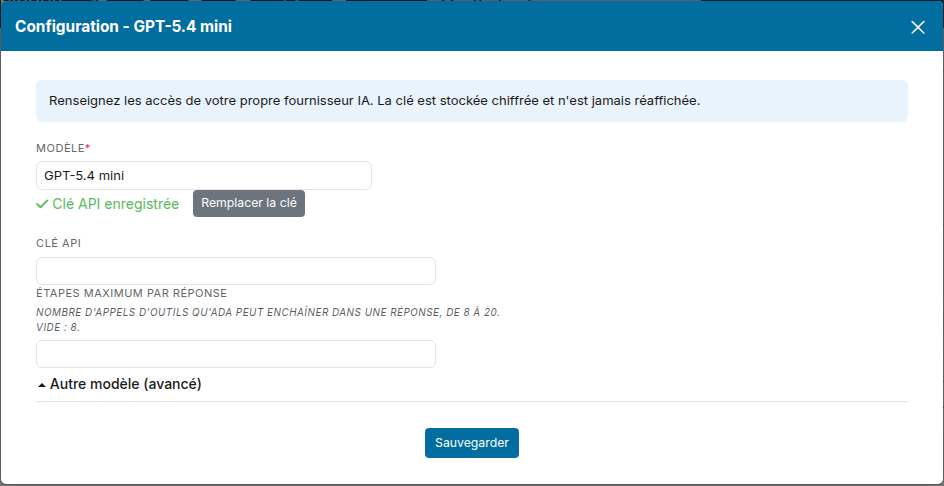
- Click Configure my AI at the top of the page, or Configure on the card.
- To change the model, pick another one from the Model list.
- To change the key, click Replace the key and paste the new one. API key saved means a key is already in place: if you only change the model, leave the key alone, it is kept.
- Click Save.
4. Use a model that is not in the list
Pick Other model or OpenAI-compatible provider in the Model list, then fill in the Other model (advanced) section:
- Provider type: OpenAI, Anthropic, or an OpenAI-compatible provider (Chat Completions API).
- Model identifier: the technical identifier expected by the provider's API, for instance
gpt-5.4-mini, not the commercial name shown in its interface ("GPT-5.4 mini"). - API URL: the address of your OpenAI-compatible provider. For OpenAI and Anthropic, it is filled in automatically.
5. If Ada stops answering
When your provider rejects the key or the model, Ada says so in its answer: "Your AI provider does not recognise the model … set up in My AI" or "Your AI provider rejected the API key set up in My AI (expired or invalid)". Your AI's card switches to Sync error, and the same message shows at the top of the configuration window.
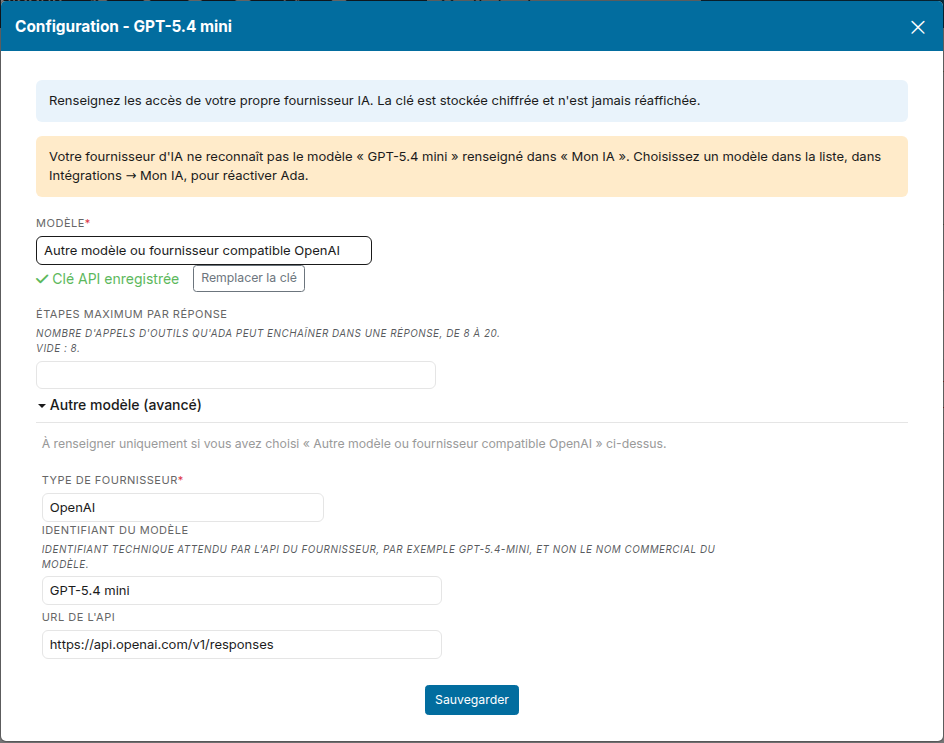
- Model not recognised: pick a model from the Model list, leave the key alone, and save.
- Key rejected: create a new key with your provider, click Replace the key, paste it and save.
Once the configuration is saved, the card goes back to Connected (reload the page if it still shows the previous state).
6. Go back to Nicoka's AI
Click Remove on your AI's card: Ada runs on the artificial intelligence provided by Nicoka again. Only the user who connected My AI can remove it.