Convene a candidate by email from the event window
When a candidate is one of the attendees of an event, they receive a calendar invitation. With a connected Outlook or Google calendar, that invitation carries the Accept / Decline buttons. For a convocation (interview, medical check-up, test), you can replace it with a plain email: the candidate receives your email template and your documents, without a calendar invitation, and the event stays in your calendar and on their sheet.
Convene the candidate
- From the candidate's sheet, schedule an event: the candidate is added to the attendees. Leave them in the list.
- Open the Invitation tab. Pick your email template and, in Attach existing documents, the documents to attach (a document of the candidate or a document template, for instance the convocation as a PDF).
- Tick Convene the candidate by email, without a calendar invitation.
- If needed, add people in copy in the Cc field, then click Create and invite.
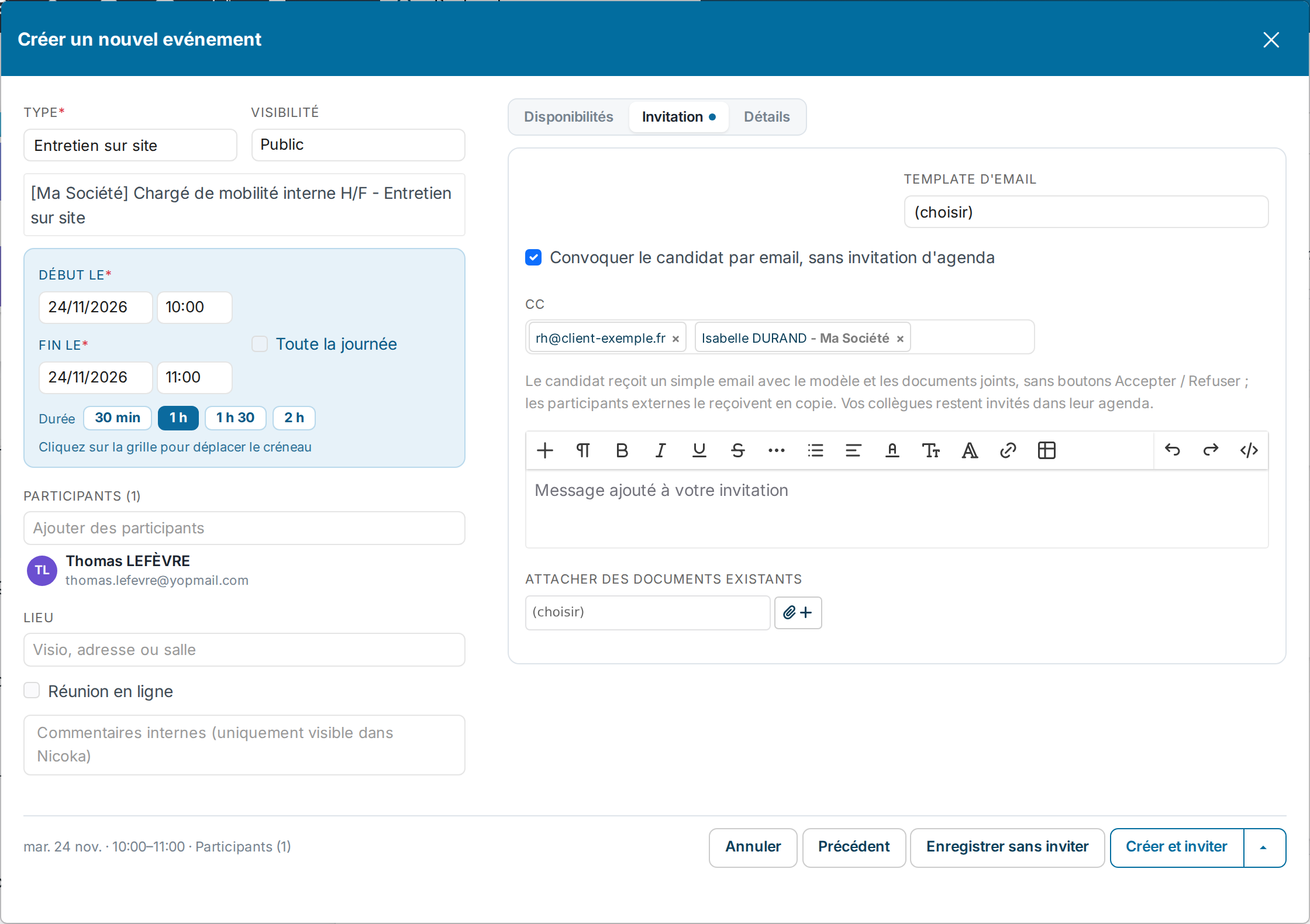
The box shows when a candidate is among the attendees and an invitation is sent. With a connected calendar, the « Notify » line is no longer displayed once the box is ticked: the candidate is the recipient of the convocation.
Who receives what
- The candidate: a plain email with your template and the attached documents, without a calendar invitation or Accept / Decline buttons. The email is sent from the organizer's mailbox when it is connected to Nicoka.
- The people in copy: the same email, in copy.
- Your colleagues among the attendees: the invitation in their calendar, as usual.
- Attendees outside your company (a customer contact, for instance): the same email as the candidate, in copy, instead of the calendar invitation.
Put people in copy
The Cc field takes a contact, a colleague or an address typed as is (type the address, then Enter). These people do not become attendees: they receive no calendar invitation, are not counted in the event, and the calendar of a colleague in copy is not marked busy.
When you reopen the event, the people in copy are back in the Cc field. Remove one with its cross, add others, then save.
Move or cancel the appointment
- Move: change the date in the event window and click Save and invite. The candidate and the people in copy receive a new email. A document generated from a document template is generated again with the new date. The text of the email stays the one shown in the Invitation tab: read it again if you had typed the date by hand.
- Cancel: when the event is deleted, the candidate and the people in copy receive a cancellation email.
- Save without inviting: no email is sent, the people in copy are kept.
- Untick the box: the candidate is invited through the calendar again and the people in copy are removed.
Tick the box by default
If your team always convenes its candidates by email, an administrator can have the box already ticked on every new event.
- Open Customizing > Administration, Agenda section > Customizing Points.
- Tick Convene candidates by email by default.
- Save.
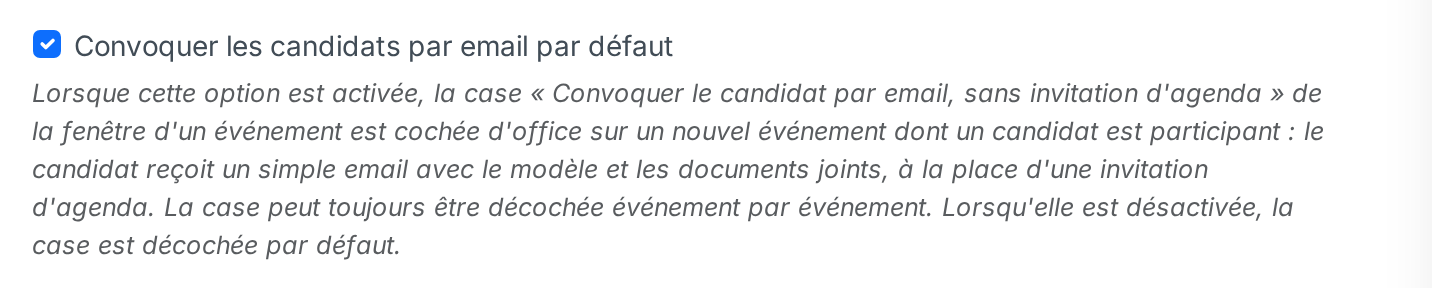
The setting applies to the whole instance and to new events. The box can still be unticked event by event.