Create and duplicate job templates
A job template stores the standard content of a job ad: job title, process, description, requirements, benefits, details (contract, salary, education…) and custom fields. When you create a job, the Fill with a template icon copies this content into the form.
Where to find templates
Templates are managed in Settings > Modules > ATS card > Settings > Jobs > Templates, if you have rights on the settings. The Jobs section may have another name in your workspace (Job ads, Assignments, Positions…).
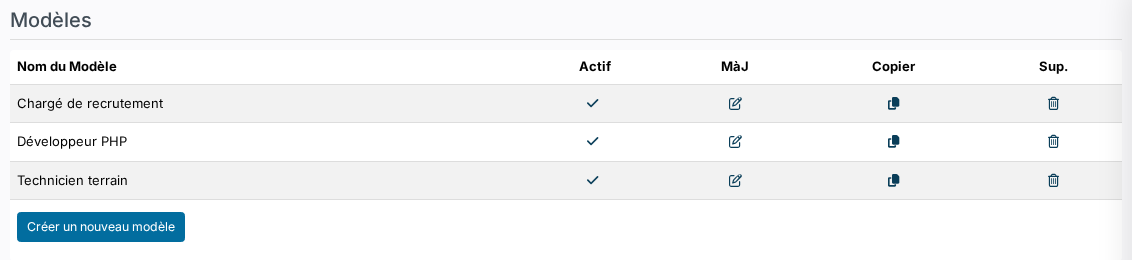
Create a template
- Click Create a new template.
- Enter the Name, shown in the list and when picking a template, then the Label, the job title copied into the job ad.
- Fill in the content, then click Create.
Duplicate a template
To create a template close to an existing one, without typing everything again:
- In the list, click the icon in the Copy column of the template to reuse.
- The creation form opens, pre-filled with the content of the original template, custom fields included. Its name is followed by "(1)", the label is kept as is.
- Rename the template, adjust what changes, then click Create.
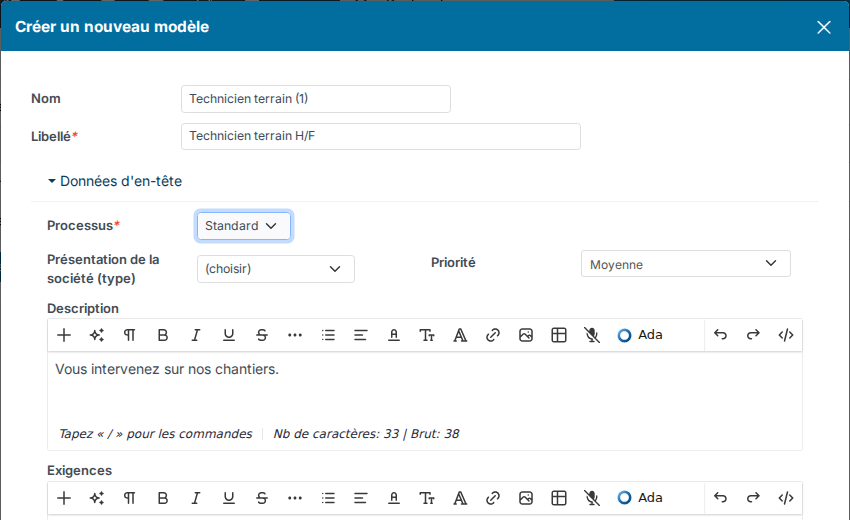
The original template is not changed, and nothing is saved until you click Create.
Use a template
On the job creation form, click the Fill with a template icon, next to Generate with AI, then pick the template. Only active templates are offered: untick Active in the list to withdraw a template without deleting it.
Learn more: Generate job offers with AI.