Create a candidate from a resume received by email
When a candidate refers a relative, or a client passes on someone else's resume, that resume arrives in an email linked to the sender's file. Nicoka does not file it there, and you create the right person's file directly from the message.
When a resume is left out
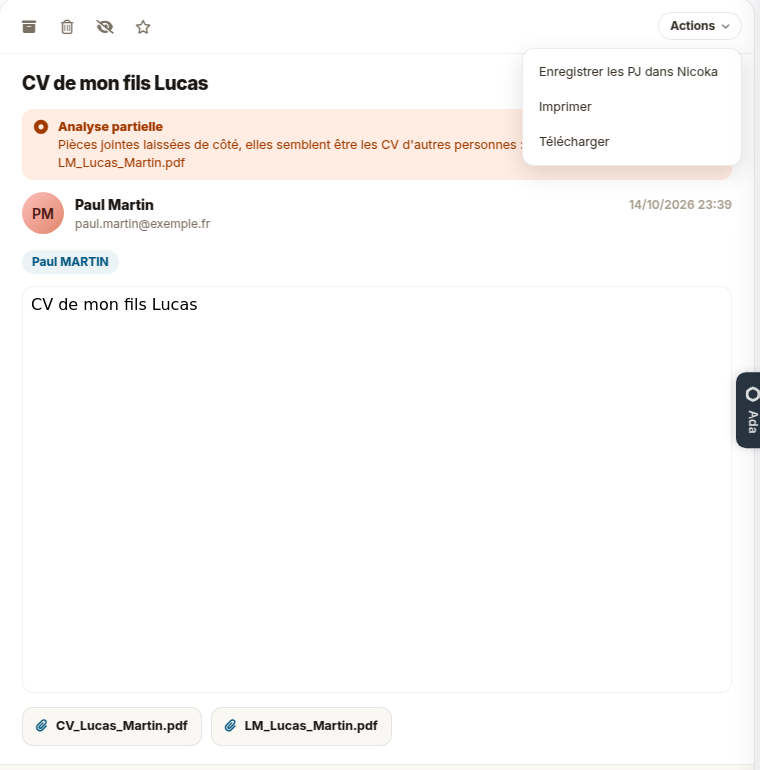
When a known candidate writes to you, their attachments are filed on their candidate file. One of them becomes their resume when its name says so (“CV_Paul_Martin.pdf”) or, for a document sent alone under any name (“French (1).pdf”), when its content carries the email address the candidate wrote from. Otherwise it is filed in the Documents tab without a type: choose the Resume type to make it their resume. A resume or cover letter is left out when it clearly names someone else: its file name and its content name another person, without the candidate's first name, email or phone. The message is then marked Partial parsing, with the list of files left out. An updated resume that a candidate sends you themselves is still filed on their file.
Create the file from the message
- Open the message in your mailbox.
- Click Actions, then Save attachments in Nicoka.
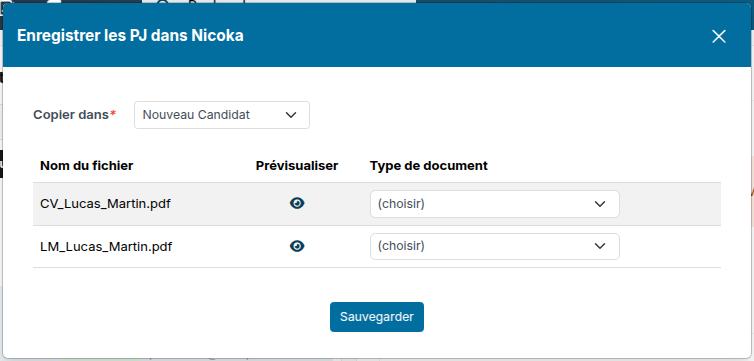
- In Copy in, choose New Candidate. A file whose name says it is a resume ("CV_Lucas_Martin.pdf") is taken; for a resume named otherwise, pick the CV document type on its row when it is offered. Cover letters are not taken.
- Click Save. The message "1 resume added to your import queue" appears, with a link to Upload Resumes.
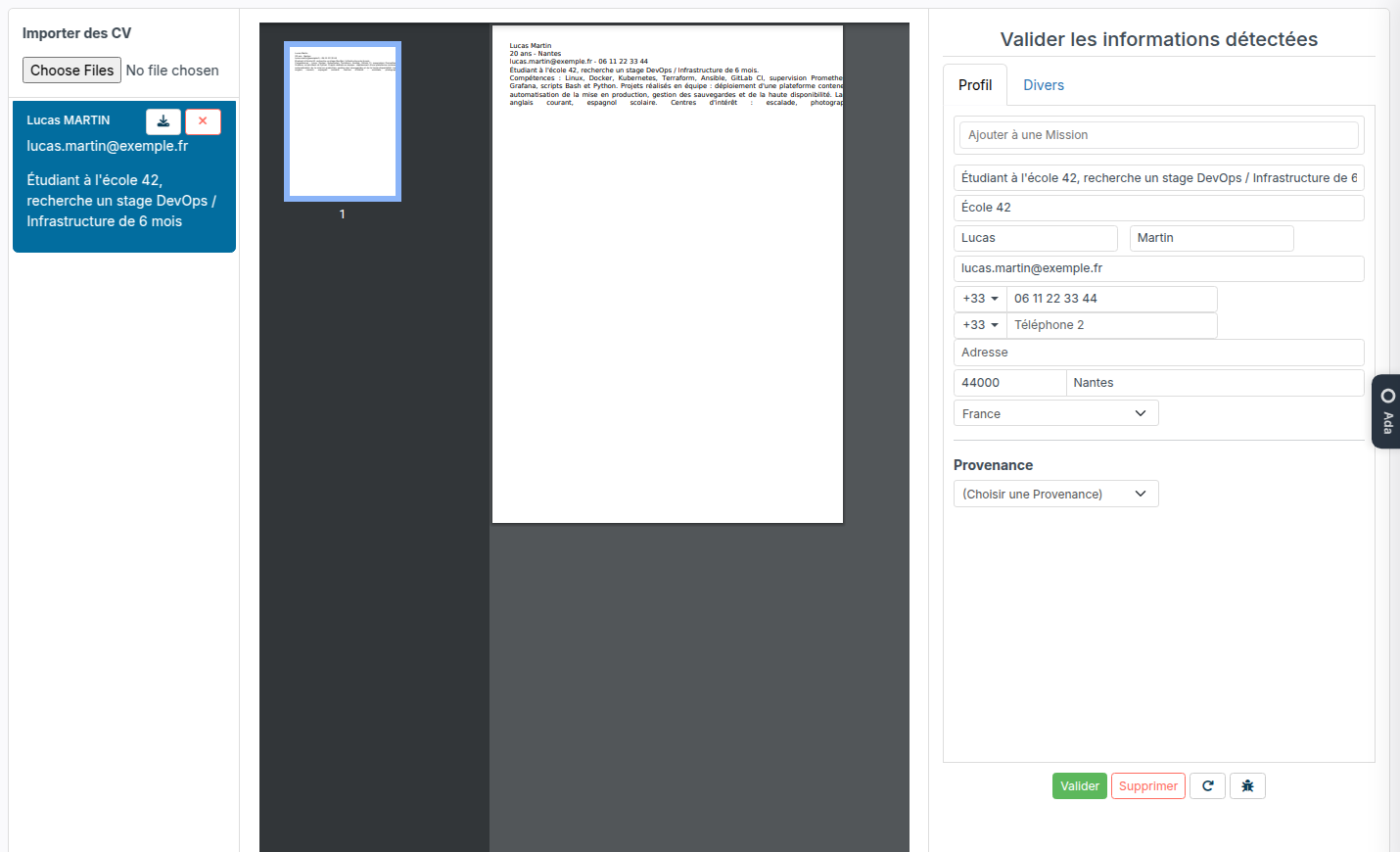
- In Upload Resumes, select the candidate: Nicoka has read their identity and contact details from the resume. Check them in Validate parsed information, add them to a job if needed, then click Validate.
If the person already exists in Nicoka (same document, same email or same phone), you are told so instead of getting a duplicate.
A resume already filed on the wrong candidate
Only the attachments that are not already on the file linked to the message are offered. If someone else's resume was filed on the sender's file, first delete it from the Documents tab of that file: it becomes available again from the message.