Create a custom field
Nicoka records (contacts, accounts, candidates, employees…) already hold a lot of information. If you need to track more, specific to your business, you can add custom fields. They are grouped into sections and shown on each record, just like the standard fields.
In this article, we use the contact record as an example: we add a "Suivi" (follow-up) section with three fields (a "Notoriété" list, a date and a checkbox). The principle is the same for the other records.
Opening the custom field settings
- In the side menu, open Customizing > Store, then click Customize on the CRM card.
- In the left-hand menu, expand Contacts and click Custom fields.
The Custom fields customizing screen opens. Fields are grouped by section. Each field shows its type (Picklist, Date, Checkbox…).
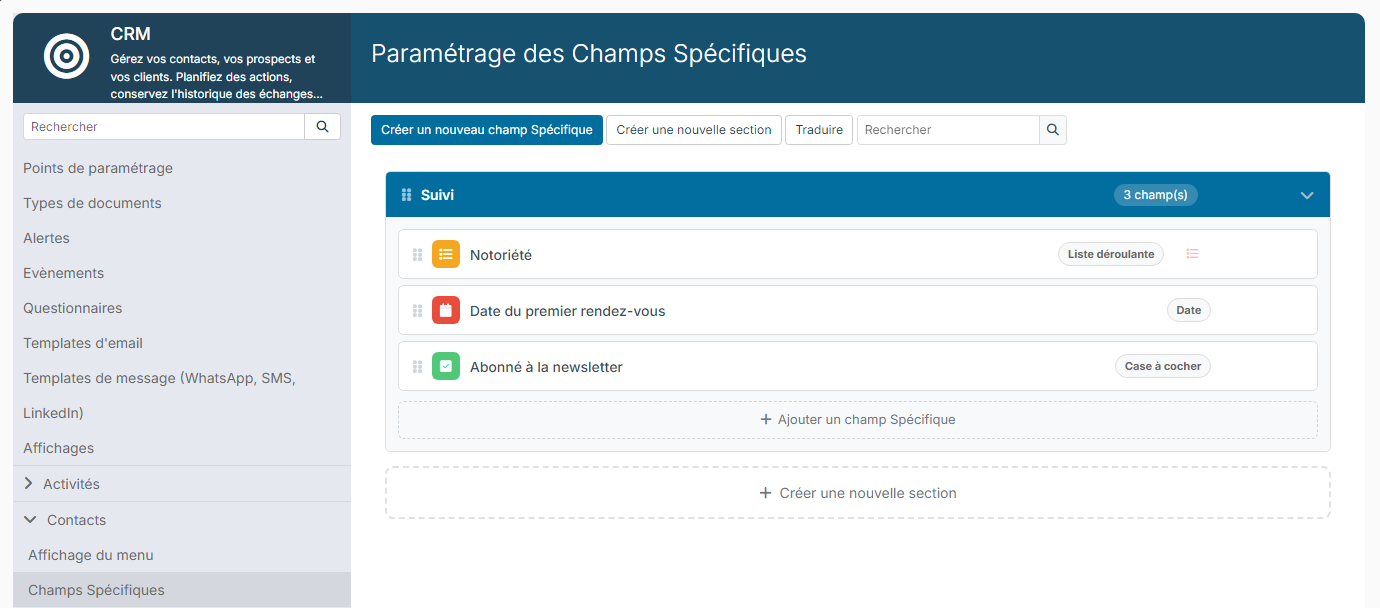
At the top of the screen:
- Create a new custom field and Create a new section;
- Translate: enters the labels in the other languages of your Nicoka space;
- Search: finds a field by its name.
As long as there is no section, the screen shows "There are no Section for the moment": start by creating one.
Creating a section
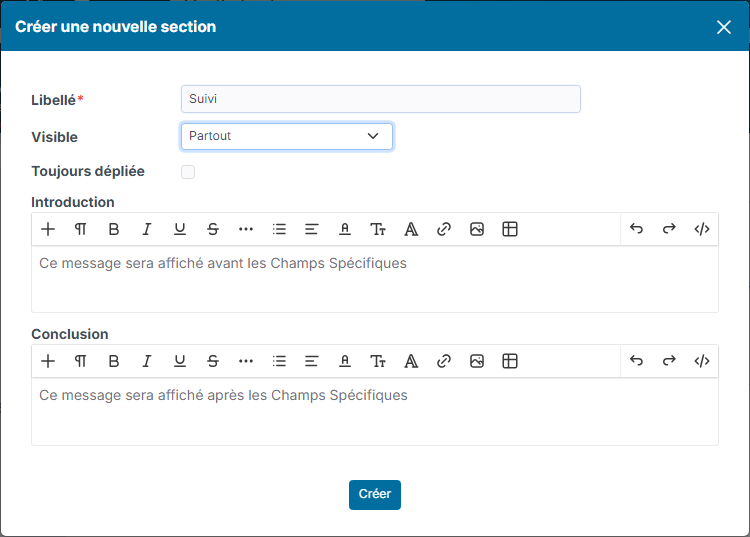
- Click Create a new section.
- In Label, enter the name of the section, for example "Suivi".
- If needed, set the other options:
- Visibility: Everywhere, or only for some types of records (for example some contact types);
- Always expanded: the section is always shown expanded on the record;
- Introduction and Conclusion: a text shown before or after the fields of the section.
- For employee sections, the window also asks which part of the employee record shows the section: Personal Info., Professional Info. (with contracts and positions) or Resume Info. Page layouts such as "My Info" or "My Resume" show whole parts of the record: to show your fields on their own, put them in a section attached to Resume Info and add that part to the layout.
- Click Create.
Creating a custom field
- In the section, click Add a custom field (or Create a new custom field at the top of the screen).
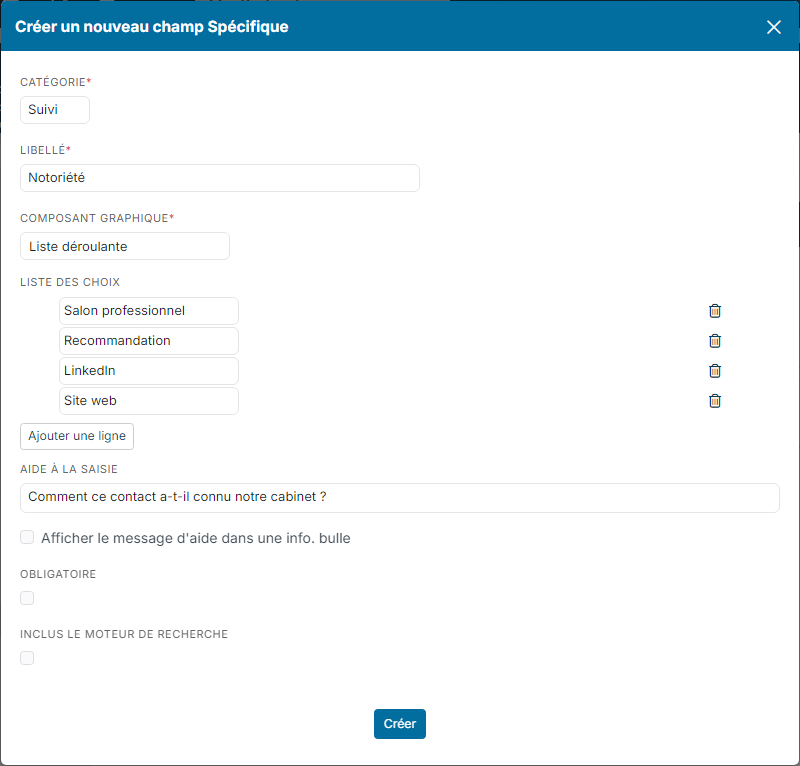
- Fill in the Create a new custom field window:
- Category: the section in which the field is shown. The "category" in this window and the "section" on the screen are the same thing.
- Label: the name of the field on the record.
- UI component: the type of field, for example Input, Date, Checkbox, Picklist, Picklist (Multiple), Number, Amount, Email, Phone or Base On (based on an existing field).
- For a picklist, Liste of choices: enter one value per row, and click Add a new row to add another one.
- For a text field, Size (maximum number of characters) and Input Pattern Rules: rules on the characters accepted (digits only, digits and letters, separator…).
- Input Help: a greyed-out text shown in the empty field, to guide the user. Check Show help message in a tooltip to show it in a tooltip instead.
- Required: the field must be filled in to save the record.
- In search engine: the content of the field is taken into account by the search.
- Click Create.
The options shown in the window depend on the UI component chosen. Once the field has been filled in on records, its UI component can no longer be changed.
Taking the value from another record
The Base On component links the field to a field of another record: in Based On, choose the record, then the field (standard or custom). The field takes over its type and, for a picklist, its choices.
When the record is created from the source record, the field is prefilled with the source value and stays editable. For example, a "Gross margin rate" order field, based on the job field of the same name, is filled with the job's rate when you create the order from the job.
This prefill applies when creating:
- an order, from a job, an opportunity or an account;
- an invoice or a quote, from an account;
- an opportunity, from an account;
- a project, from an opportunity;
- a job, from an opportunity, an account or a job request;
- an employee, from a candidate and their job (hiring).
Once the field holds values on records, the field chosen in Based On can no longer be changed.
Organizing and changing fields
Hover over a field to show its actions:
- the list icon (for a picklist) manages the values offered;
- the eye activates or deactivates the field: a deactivated field is no longer offered on records;
- the pencil opens the field to change it;
- the bin deletes it.

To change the order of the fields, drag them by the handle to the left of their name. A choice already used on records cannot be removed from a list.
The result on the record
The section and its fields appear on each contact record, in the Info tab. Fill them in like the other fields, then click Update.

Like other information, custom fields can be shown as columns and used as filters in your variants: see Display and Variants.
Where can you create custom fields?
You will find the Custom fields entry in the settings of most modules. For example:
- CRM: contacts, accounts, opportunities;
- ATS: candidates, jobs;
- employees;
- sales: quotations, orders, invoices;
- purchasing: suppliers, purchase orders and purchase invoices;
- and also projects, tickets, trainings and assets.
The entries available depend on the modules activated for your company.