Create an API user and generate its access token
An external tool (Power BI, Zapier, Make, a script…) that reads or writes Nicoka data through the API connects with an API user: a technical account, linked to no employee, contact or candidate, that identifies itself with an access token. This article explains how to create this user, give it the right to receive a token, then generate the token.
Step 1: prepare the API user's profile
What the API user can read or change depends on its profile. Pick an existing profile or create one dedicated to the tool, with only the rights it needs (see Define access profiles in Nicoka).
This profile needs the Create right on API Access Token. Without it, the Generate an access token button does not appear on the user's sheet, and the user cannot call the API, even with an existing token.
- Open Settings > Profiles, then the chosen profile.
- In Modules & rights, type Token in the search: the API Access Token row appears.
- Tick the read and create rights on this row, then click the save button in the bar that appears at the bottom of the screen.
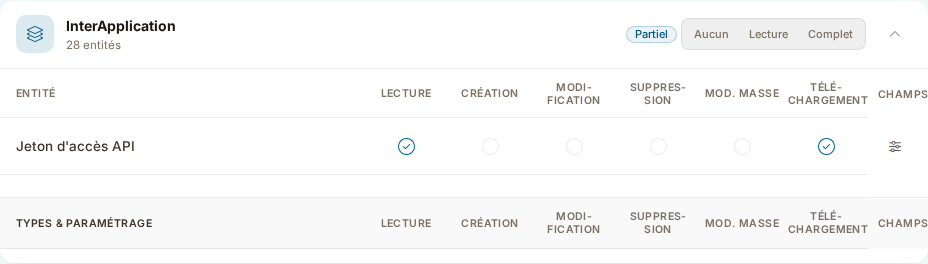
A recently created profile often has this right unticked: it is the first thing to check when the button is missing.
Step 2: create the API user
- Open Settings > Administration, expand Users in the left menu and click API Users.
- Click Create a new user.
- Fill in the First name, the Last name (for example the tool's name), the Email, the Profile prepared in step 1, the Language and the Password, then click Create.
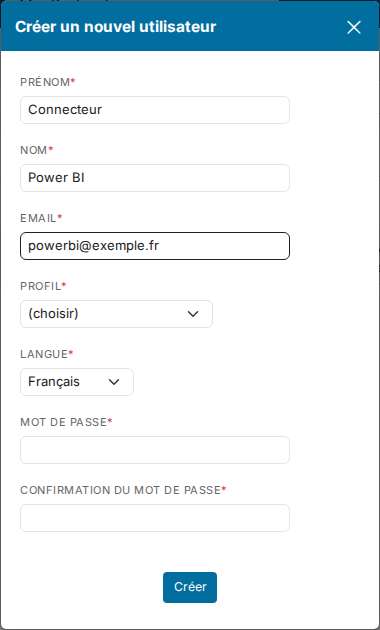
Step 3: generate the access token
- In the API Users list, click the user's name.
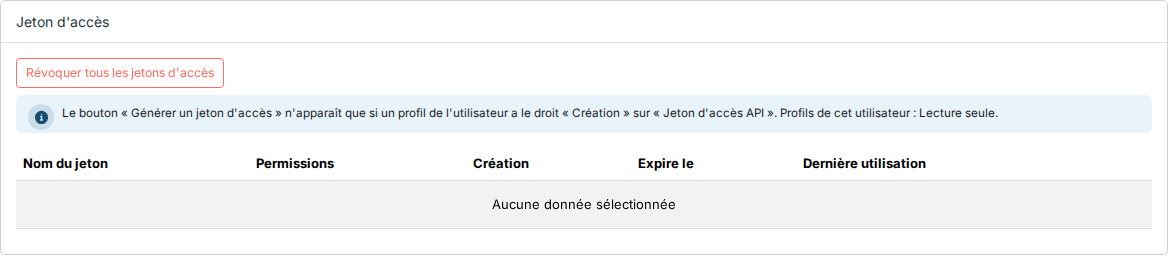
- In the access tokens section, click Generate an access token. Enter the token name, choose the validity period and the permissions (read and write, or read only), then click Generate.
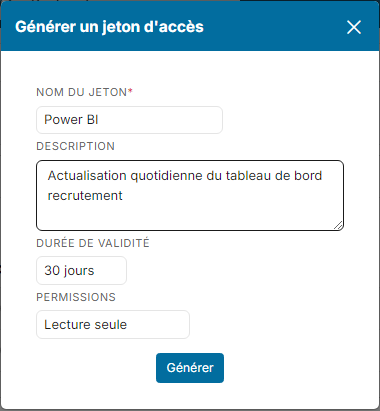
- The token is shown only once, with a message asking you to copy it now. Click Copy and paste it into the external tool.
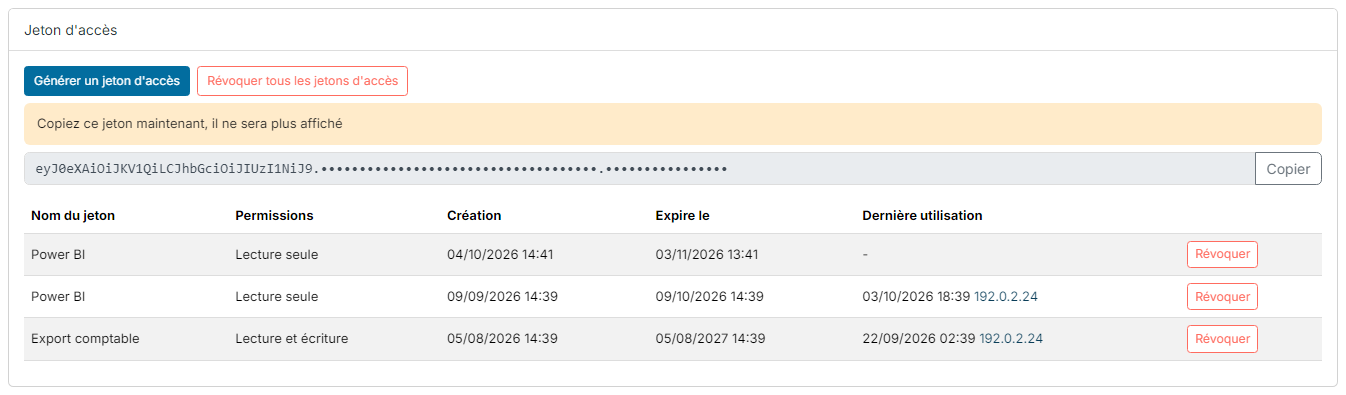
The Generate an access token button is missing
The button depends on the API user's profile, not on the profile of the administrator who opens the sheet: even a super administrator does not see it when the API user's profile lacks the Create right on API Access Token. In place of the button, a message names the user's profiles: complete one of them as in step 1, then reopen the sheet.
To renew a token that is about to expire, see Access token expiry.