Track the documents required from employees
Identity document, driving licence, social security certificate, residence permit… Nicoka knows which documents each employee must provide and tells you which ones are missing or about to expire, without typing the dates again in separate fields.
Choose the required documents
- In Settings › Employees › Settings points, open the Documents block.
- In Required documents of an employee, select the document types expected from everyone still in the company, then save.
Document types are created and configured in Settings › Documents › Types: give them a validity period (6 months, 1 year…) so that Nicoka computes the expiry at each upload. A type without a period is considered valid as soon as a document is filed.
As long as the list is empty, nothing is tracked. The documents already filed in the sheets are taken into account at once: no need to upload them again.
Read the state of a sheet
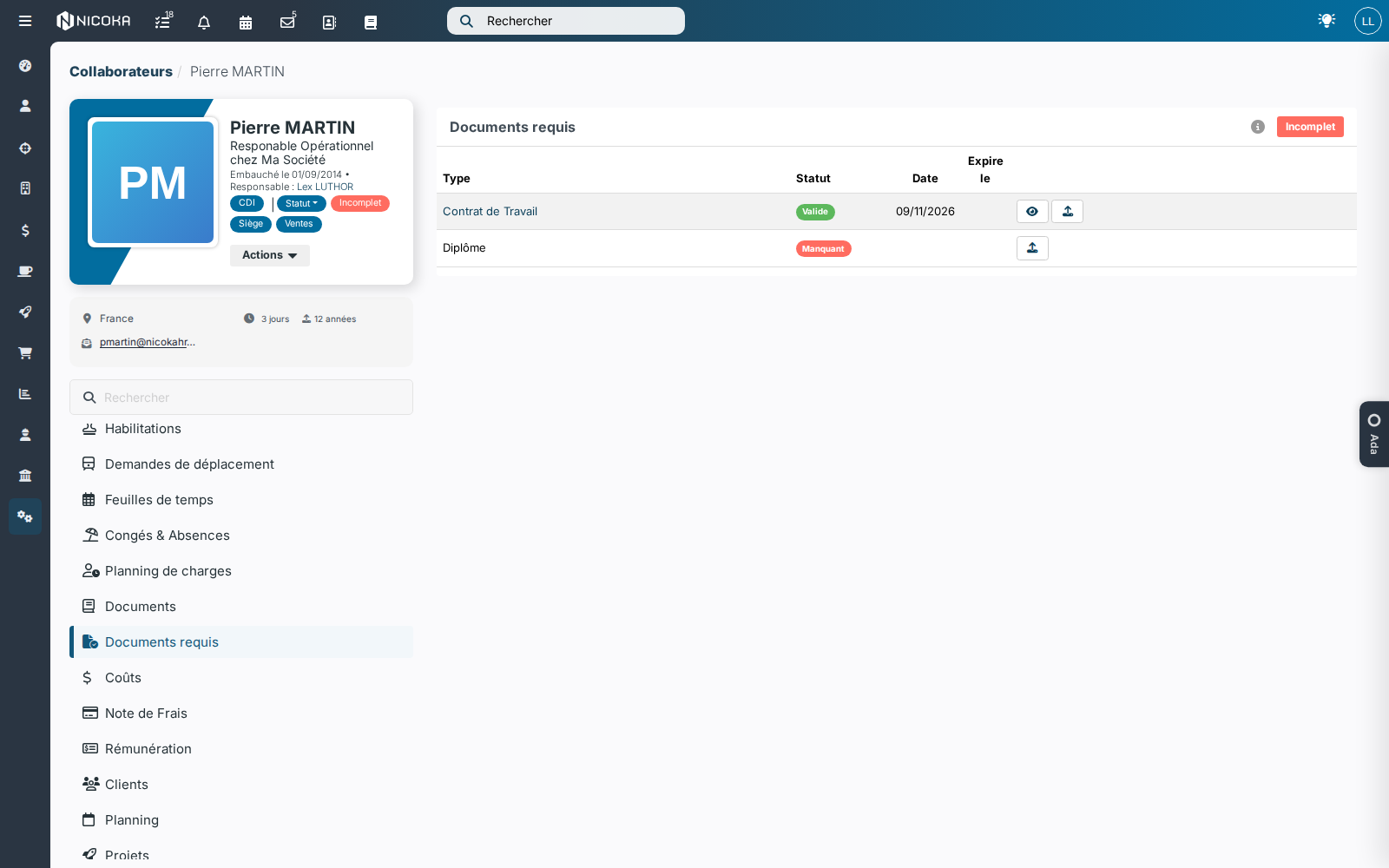
The Required documents tab of the sheet (also in its summary) shows one line per expected document with its state:
- Missing: no document of this type in the sheet;
- Expired: the end of validity has passed;
- Expires soon: less than 30 days left;
- Valid otherwise.
The status of the file follows: Incomplete as soon as a document is missing or expired, To renew when one expires within 30 days, Complete otherwise. A person whose leave date has passed is no longer concerned. When an action is expected, the status also shows in the header of the sheet.
The upload icon of a line opens the add window with the right type already selected; the eye opens the filed document. The latest document of each type counts: uploading a renewed document is enough.
Find the people to remind
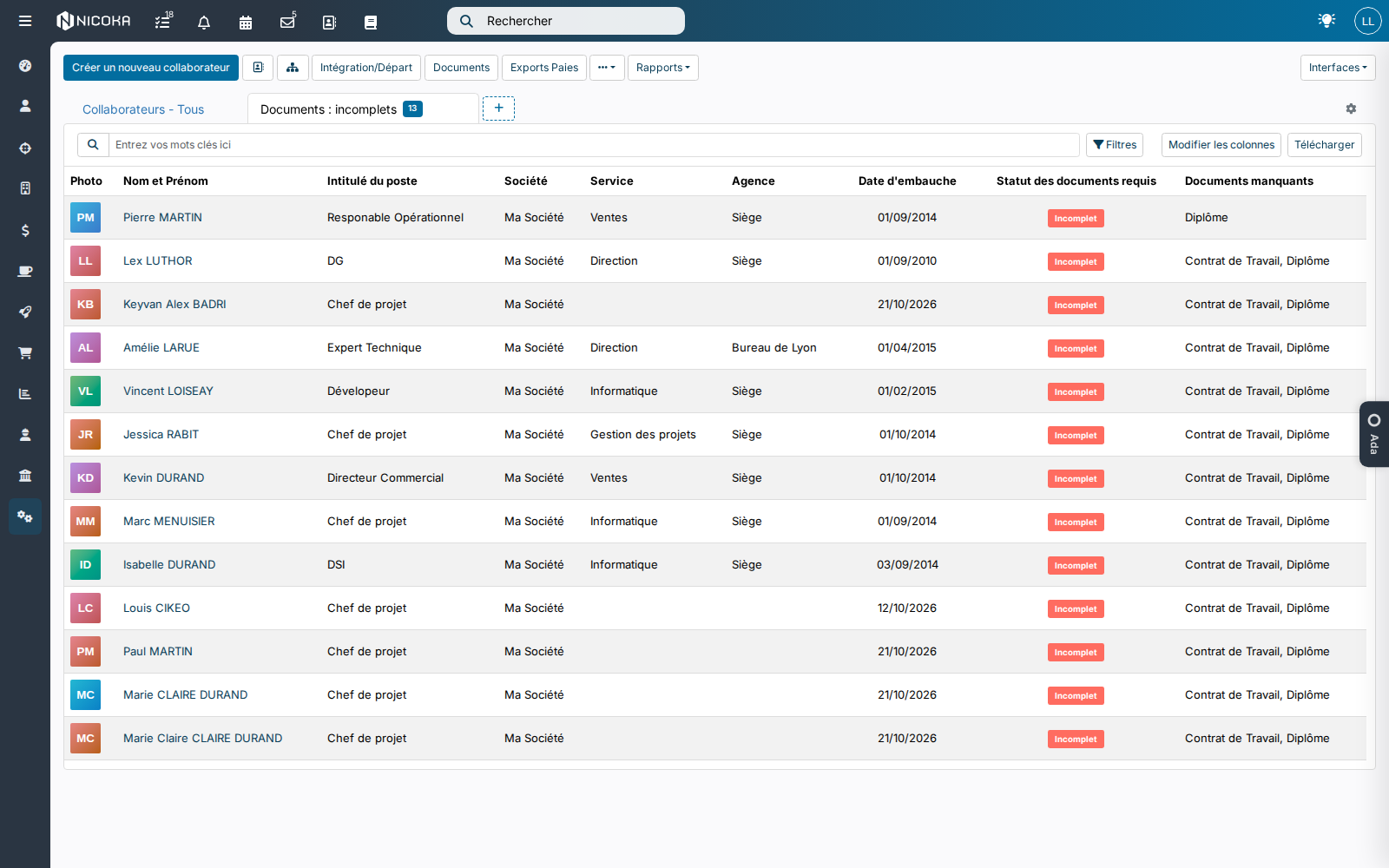
The employee list offers three views in the views menu: Documents: incomplete, Documents: to renew and Documents: complete, to pin as tabs. The Required documents status and Missing documents columns can be added to any view and go into the Excel export: this is the list of people to remind, with what they still have to provide.
What about alerts?
The document expiry alerts (Settings › Alerts) remain the way to warn in advance: they are set per document type, at D-30 or D-15 for instance. To copy an expiry date into a field of the sheet, use the Feeds record field option of the document type.