The E-learning module: create an online training and follow the attendees
The E-learning module extends the Training module: HR write an online training course themselves (lessons, videos, documents, final quiz), enrol employees, then follow their progress and results. Employees follow the training from their own space, on a computer or a smartphone, and receive a certificate when they pass.
Before you start
- The E-learning module comes on top of the Training module. If it does not appear in your menu, ask your Nicoka contact to activate it.
- Courses are managed in My Team > E-learning, with the right to edit the training catalogue.
- A course is attached to a catalogue training: every session of that training reuses the same course.
Create a course
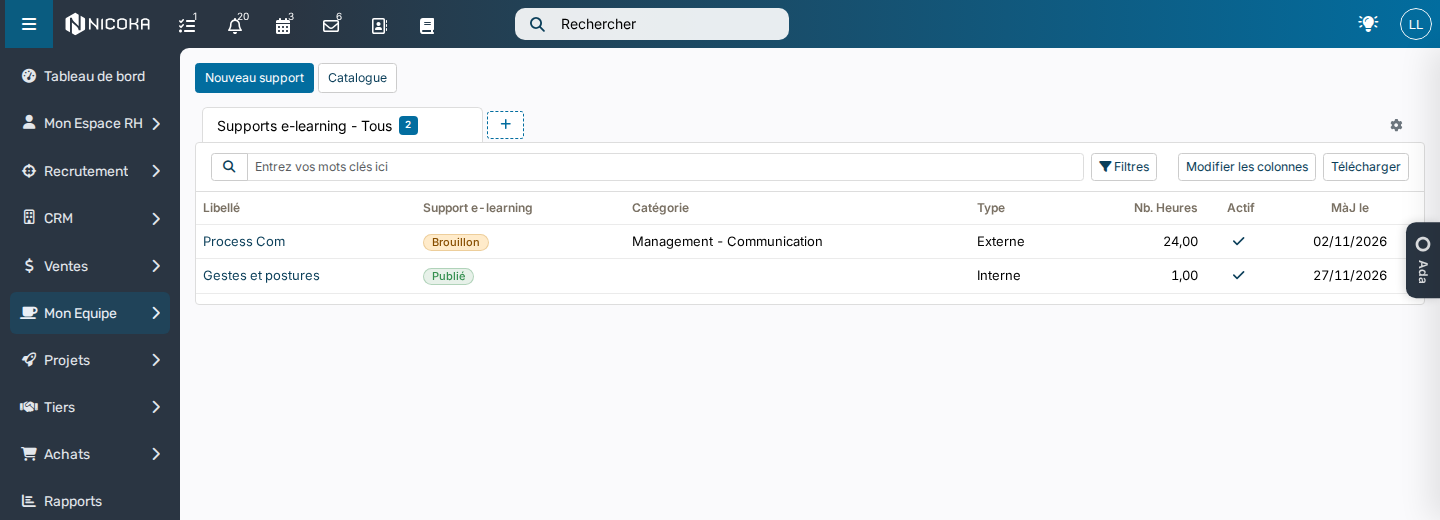
- Open My Team > E-learning, click New course and choose the catalogue training. From a catalogue training sheet, the E-learning course button also opens the editor.
- Click Add a chapter to structure the course, then add lessons with the Page, Video, Document or Quiz tiles.
- For each lesson, enter the Lesson title, its Estimated duration (min), and tick Mandatory lesson when it counts in the progress. The Move up and Move down arrows change the reading order.
The four lesson types:
- Page: formatted text, with headings, bulleted lists, tables, images, and a choice of text colour, size and font. Ada can rewrite the text.
- Video: paste the Video link. YouTube, Vimeo and Dailymotion videos play inside the lesson; any other link (SharePoint, Stream…) opens in a new tab.
- Document: a file, for example a PDF reminder sheet the employee can download.
- Quiz: a practice quiz along the course. Choose a scored Quiz questionnaire: its choice questions are asked in the lesson, and the correction shows as soon as the employee clicks Check my answers, with no score nor attempt. The lesson is done once the quiz is answered.
Add the final quiz
The final quiz is optional. Without a quiz, the training is passed at the last lesson.
- In the Assessment section of the editor, click Create the quiz, then Edit the questions: the questionnaire editor opens in a new tab. You can also pick an existing scored questionnaire in Quiz questionnaire.
- Write single-choice, multiple-choice or yes / no questions, with their right answer(s): only these questions are kept in the quiz.
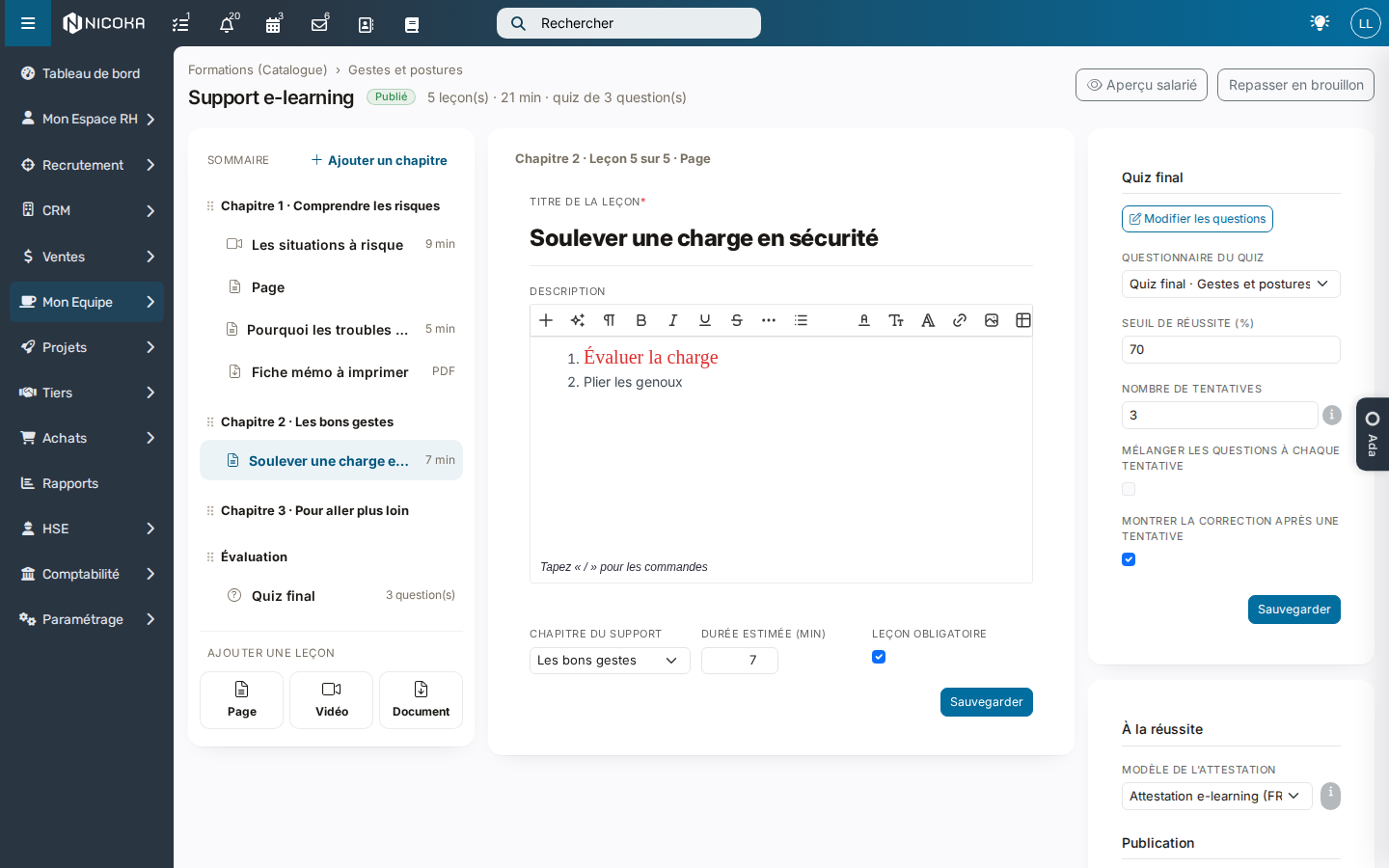
- Set the Pass score (%) (70% by default), the Number of attempts (empty for unlimited attempts), Shuffle the questions at each attempt and Show the correction after an attempt.
Writing the questions requires the right to edit questionnaires.
Certificate and publication
- On success: choose the Certificate template. The PDF certificate is generated when the employee passes and stored in the attendee's documents. The refresher follows the one of the catalogue training.
- Skills acquired: Add a skill picks a skill of the referential and its Target level. On success, each skill joins the profile of the employee at this level, or is raised there when they hold it at a lower level; a higher level is never lowered. The trainer of the training is named as the assessor.
- Publication: Visible in the catalogue and Free enrolment from the catalogue. With free enrolment, an employee joins the latest planned, unfinished session of the training by themselves, with the Follow online button of the catalogue.
- Lessons in order: a lesson opens only once the mandatory lessons before it are done. Without this box, the employee follows the lessons in any order.
- Employee preview shows the course as the employee will see it, without recording anything.
- Click Publish: the course needs at least one lesson, and a right answer for each quiz question. Back to draft hides the course from the attendees.
Enrol employees
- In My Team > Trainings, create a training on this catalogue training (Plan/Enter a training), with the Teaching mode set to Remote (or Blended) and a planned status. Its end date is the deadline.
- Add the attendees in the Attendees tab.
- Click Notify attendees of their registration: an email opens, whose subject and text you can edit before sending.
On the employee side
In My HR Space > My Trainings, the E-learning to follow block shows each training in progress, with its progress, its deadline and the Start or Continue button.

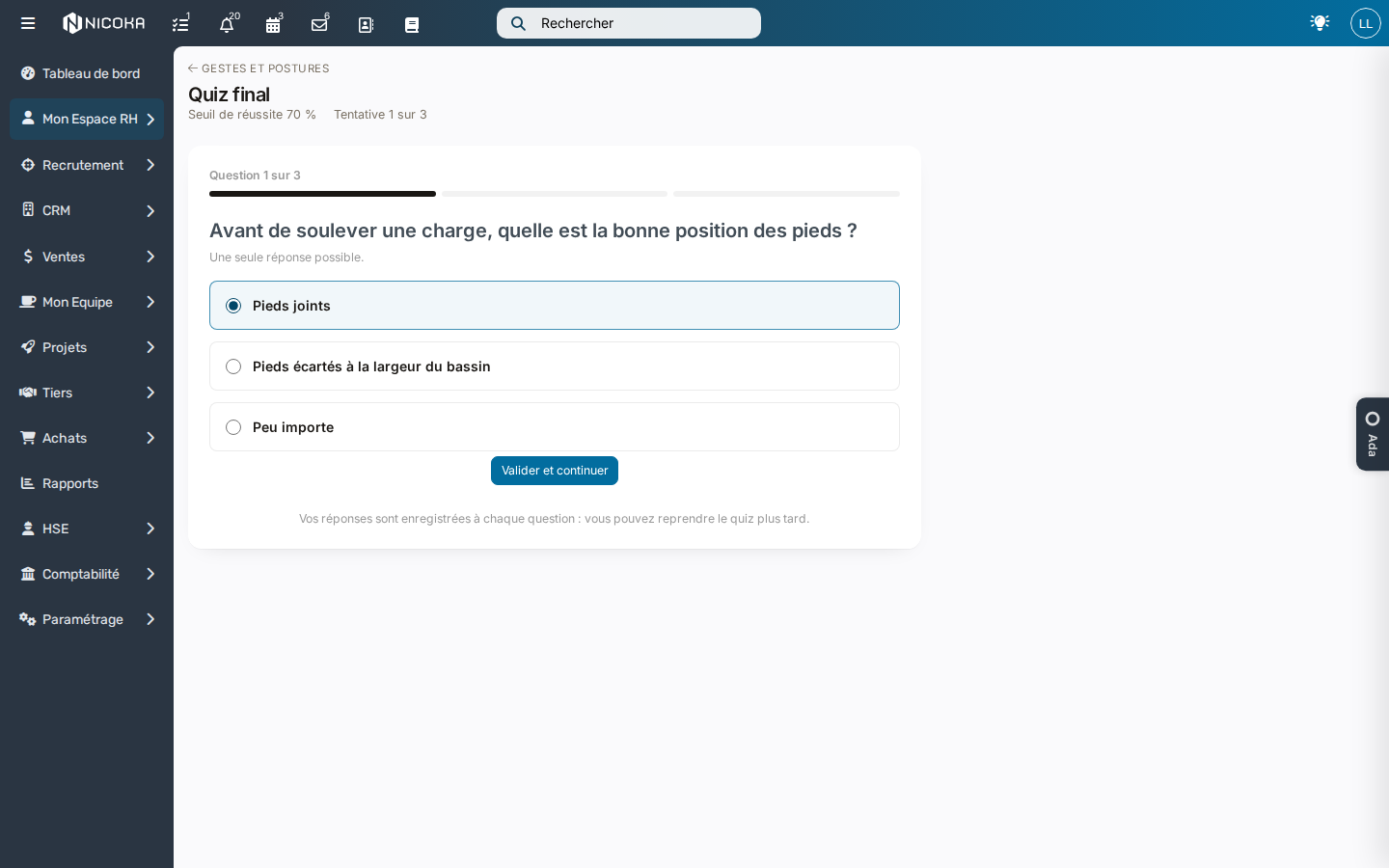
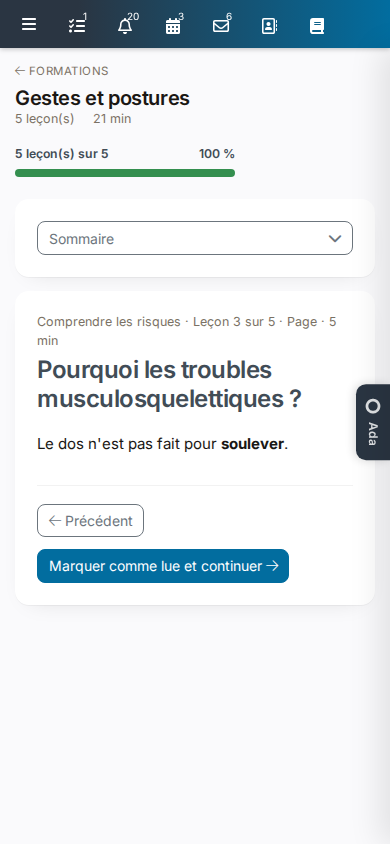
The employee reads the lessons in the order of the Outline and moves to the next one with Mark as read and continue, and picks up where they left off. With lessons in order, the next lessons show a padlock until the previous ones are done. The final quiz opens once every mandatory lesson is read.
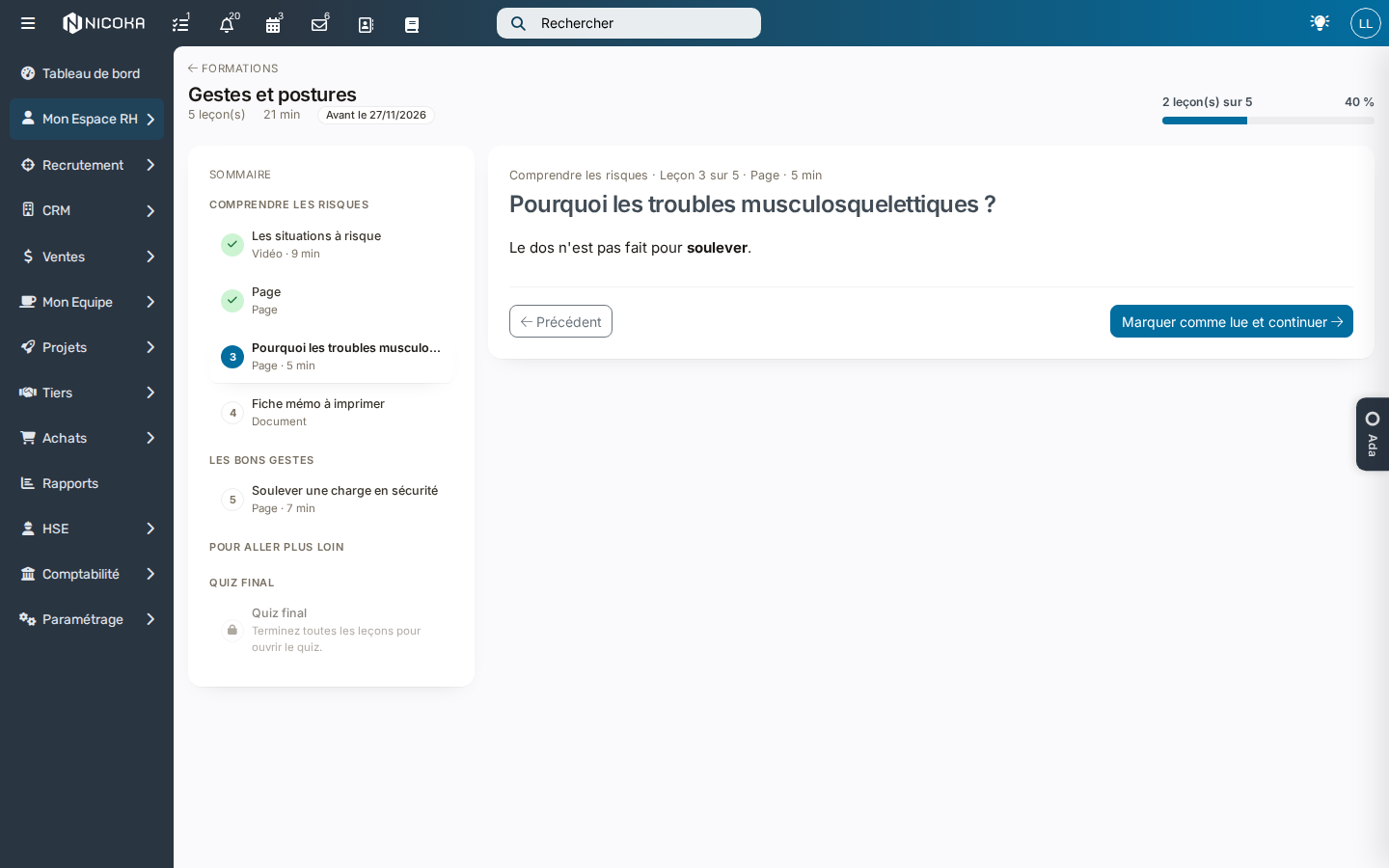
The quiz shows one question per screen. Answers are saved at each question: the employee can resume the quiz later.
At the end, the score is shown with the correction (the right answer to each missed question) when it is enabled, and the Retake the quiz button while attempts remain.
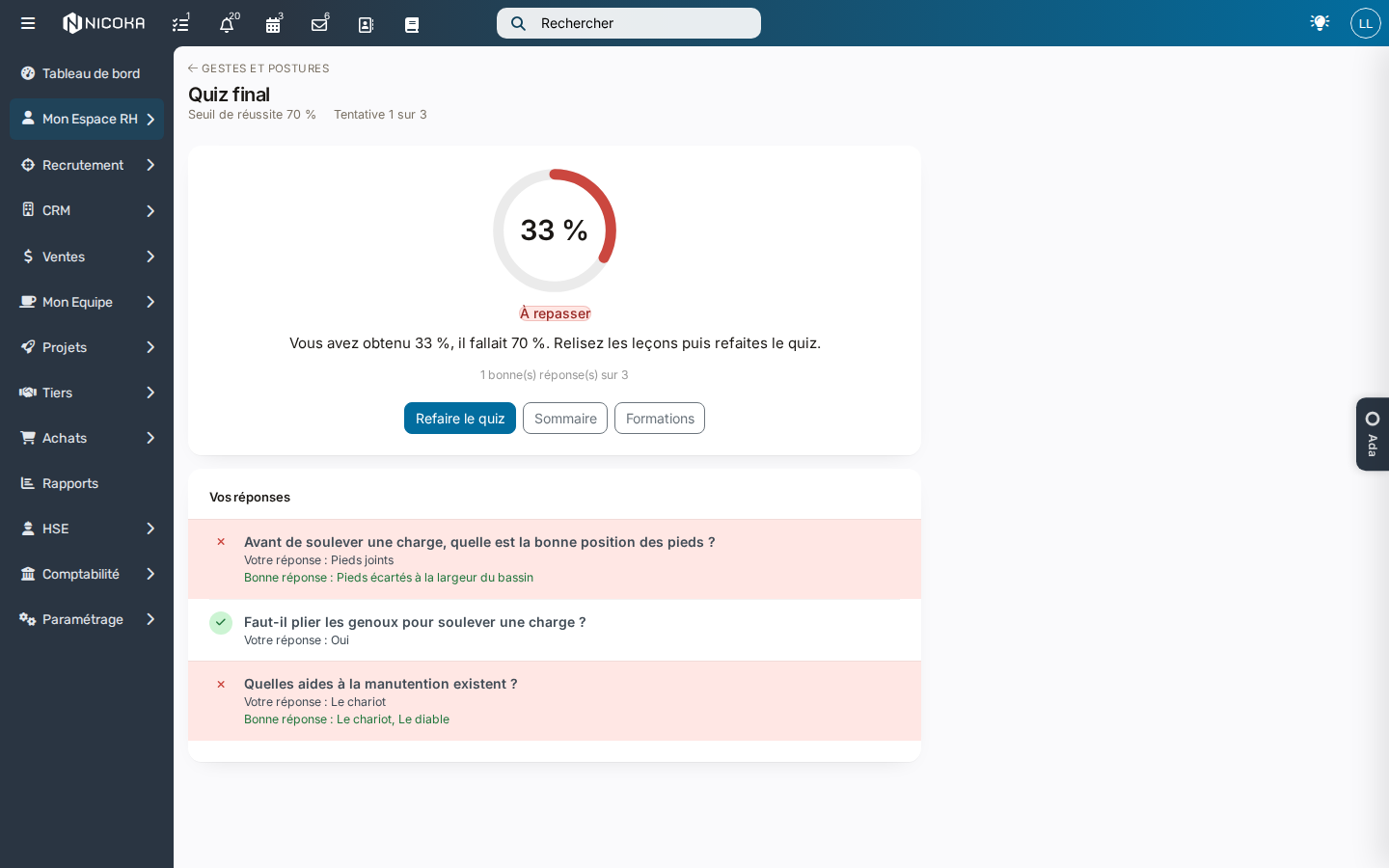
When the employee passes, the attendee is marked present with the hours of the training, the session becomes Done in Sessions attended, and the employee can Download my certificate and View the training again from the session panel.
On a smartphone, the training is followed in the browser: the outline folds behind its title to leave room for the lesson.
Follow the attendees
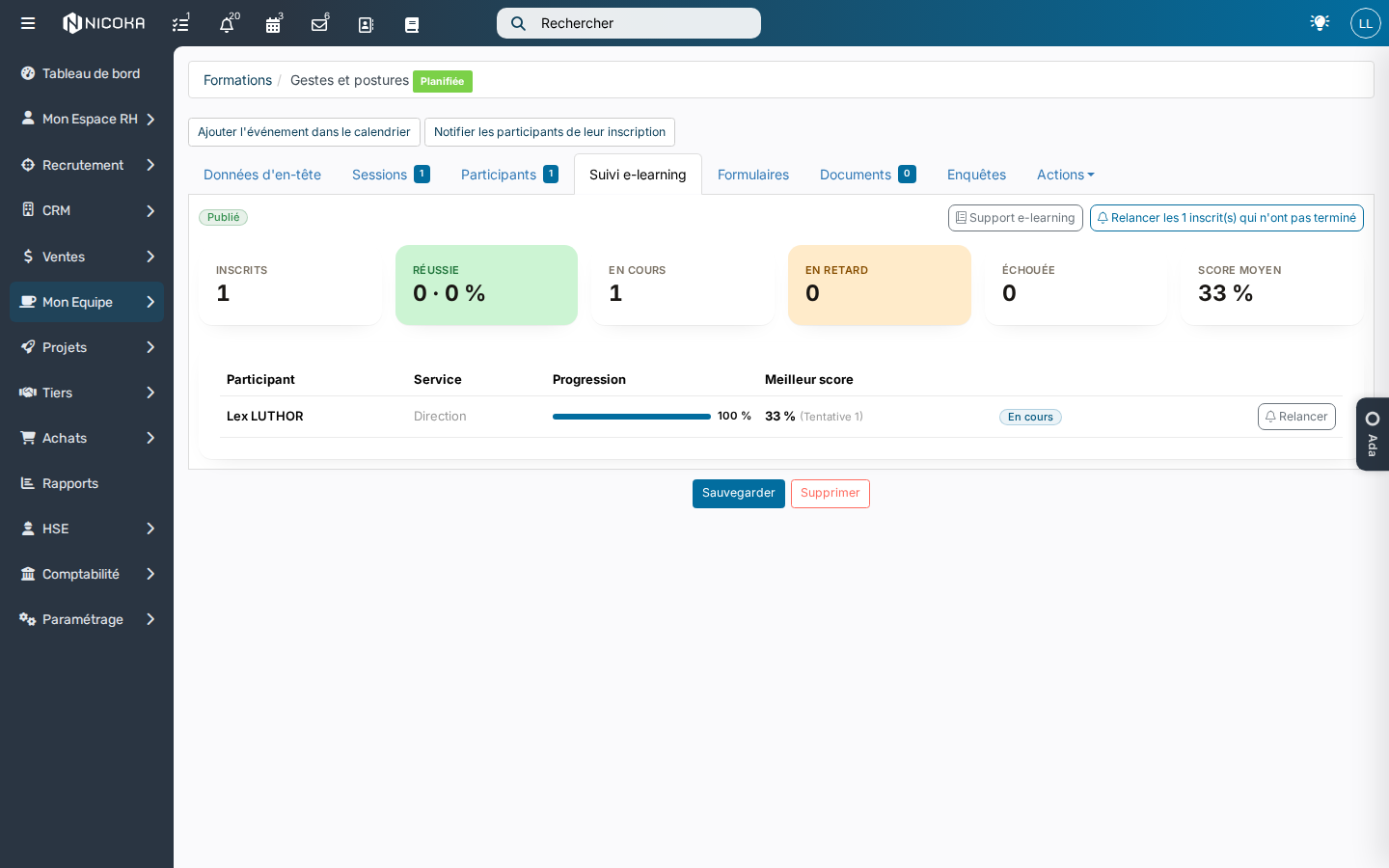
On the training sheet, the E-learning follow-up tab gives the enrolled attendees, the passes, the trainings in progress, late or failed, the average score and, from two departments onwards, the progress by department. The table details the progress, best score and time spent of each attendee.
- Remind sends a reminder email to an attendee; the button at the top reminds everyone who has not finished.
- Grant an attempt gives one more try to an attendee who failed the quiz.
- The certificate of an attendee who passed can be downloaded from their row.
The Attendees tab of the training shows the same information for each attendee (E-learning follow-up, Progress, Best score, Time spent (min), Completed On): its Download button exports it to an Excel file, with the realized hours and the costs.
Reminders are also sent automatically, every morning, to the attendees who have not finished: 7 days and 1 day before the end date of the training, then 1 day and 7 days after.
Configure the module
In Customizing > Store, the Customize button of the E-learning card groups three tabs: Certificate templates, Reminder emails and Scored questionnaires (quizzes).