Edit your career site menu
The menu shown at the top of your career site is set in the Website Editor. Each menu link can open a page of the career site (the job list, the open application…) or any web address, for instance your company's main website.
1. Open the menu in the editor
- Open your career site editor, as described in Customise your career site.
- Click Structure, then the menu component in the Header group (Career site Top Menu by default). You can also click the menu directly in the preview.
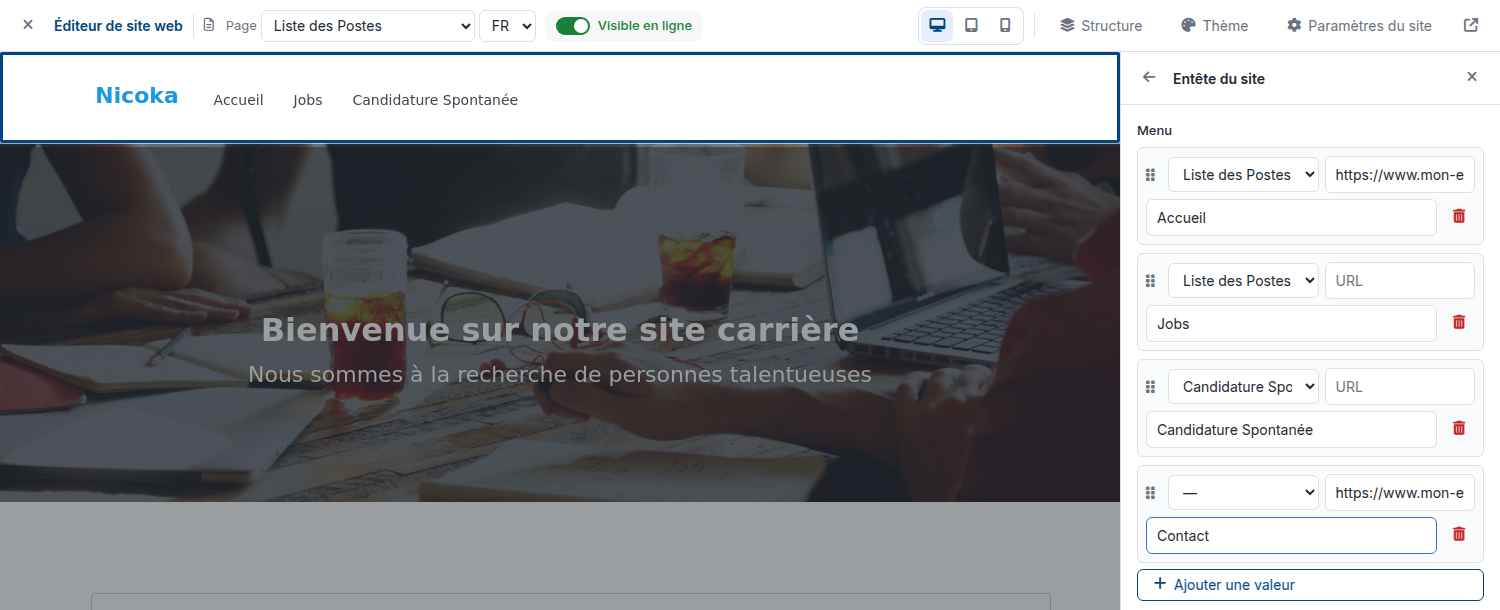
- The Menu section opens on the right, with one row per link.
2. Set a link
Each row contains:
- the career site page the link points to;
- a URL box: enter a full address (starting with https://) to send the visitor to another website. When it is filled in, the URL replaces the selected page;
- the label shown in the menu.
For example, to make the Home link go back to your company's website, enter its address in the URL box of the Home row.
Click Add a value to create a link, the bin to remove one, and drag the handle on the left of a row to change the order of the links. Then click Publish: the menu is online straight away.
3. Good to know
- If the Menu section is empty, your site shows the default menu: Home, the jobs and the open application. As soon as you add a row, this default menu is replaced: recreate every row you want to keep.
- If your career site exists in several languages, the menu is set per language: pick the language in the editor's top bar before editing the menu.
- The logo at the top left already links to your company's website, as set in your account settings.
Were this information helpful?