Export expenses to Sage or Cegid
What this page is for
If your accountant works with Sage or Cegid, Nicoka produces the entries of your expense claims directly in the format of their software. Both interfaces share the same screen and the same basic settings. Cegid adds a TRA file, the import format of Cegid Expert, which can carry the receipts.
For the standard Nicoka export and for the sales and purchase exports, see Accounting Exports.
1. Activate the interface
- In the side menu, open Settings > Modules, then click Settings on the Expenses card.
- In the Expenses section, click Interfaces.
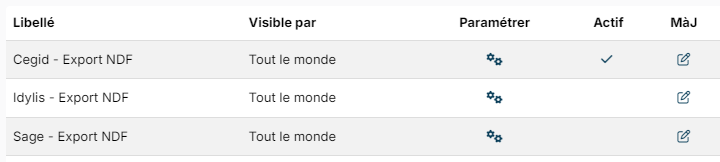
- On the Sage - Export Expenses or Cegid - Export Expenses line, click the icon in the Edit column, tick Active, then click Update.
2. Configure the entries
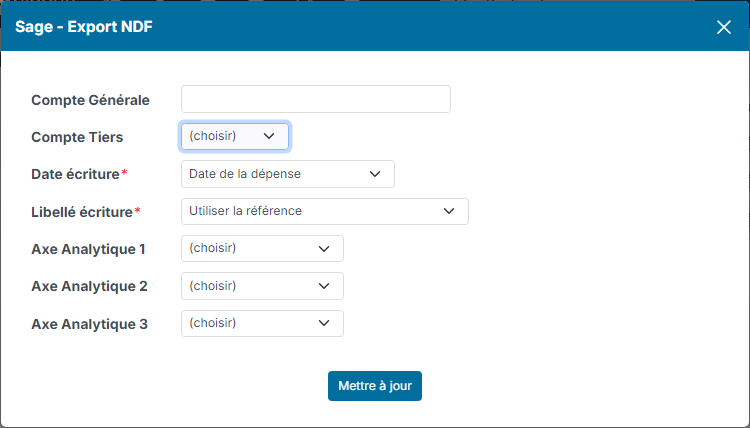
Click the icon in the Configure column of the interface. The following settings are shared by Sage and Cegid:
- Fixed Employee Account: the employee account that receives every expense claim, for example 421000. When empty, Nicoka uses the account entered on each employee's record.
- Third Party Account: the employee record field holding their auxiliary account (Employee number, Account Number or a custom field). Leave it empty if your accountant uses a single 421 account, without auxiliary accounts.
- Document Date: the expense date, the validation date, or a date chosen at export time.
- Document Label: the reference of the expense claim, its label, or the journal code followed by the reference.
- Analytic Axis 1 to 3: optional. They add analytic lines from the employee's analytic account or the project reference.
Expense accounts come from the expense types: each type must carry its expense account for the exported company.
3. Cegid-specific settings
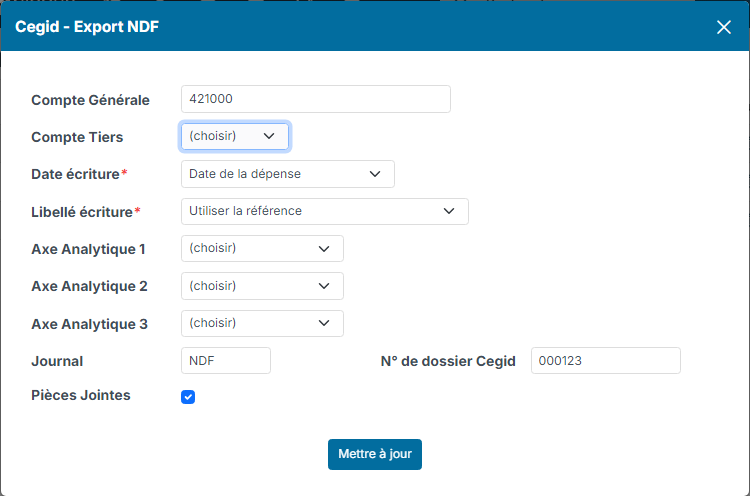
The Cegid - Export Expenses interface adds three settings:
- Journal: the code of the Cegid journal that receives the expense claims, three characters at most (for example NDF). When empty, Nicoka uses the journal of the expense accounting document type.
- Cegid folder number: your folder number at your accounting firm, six characters at most.
- Attachments: tick to deliver the receipts with the entries.
4. Run the export
- In the side menu, click My Team, then Expenses.
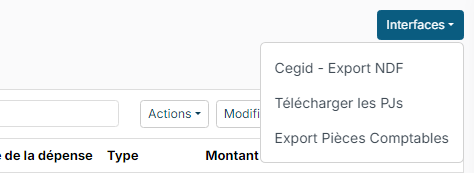
- Click Interfaces, then Sage - Export Expenses or Cegid - Export Expenses.
- Choose the Company and the Period. For a single expense claim, enter its reference in Expense.
- Choose the Mode, then click Generate.
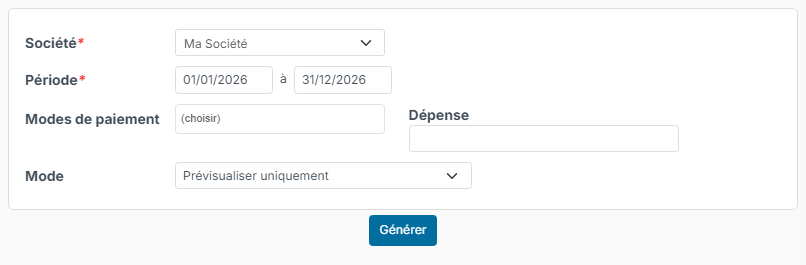
Three modes are available:
- Preview Only: shows the entries and flags errors, without saving anything in Nicoka.
- Generate Accounting Documents: also saves the entries as accounting documents in Nicoka. The expense claims involved no longer appear in later exports. This mode requires the accounts used to exist in the Nicoka chart of accounts.
- Show Already Generated Accounting Documents: to export again expense claims already generated.
If your accounts are kept only at your accounting firm, use the preview. Messages about an account missing from the Nicoka chart of accounts do not block the export. Then export each period only once, so that it is not imported twice.
5. Get the file
With Sage, the Download button of the accounting documents list gets the entries as a spreadsheet. In Generate Accounting Documents mode, the file downloads automatically.
With Cegid, click Download (TRA) above the list of entries. You get:
- without receipts, the .tra file alone;
- with receipts, a zip file holding the .tra file and the receipts. Your accountant unzips it into a folder, then imports the TRA file from that same folder: each entry finds its receipt.
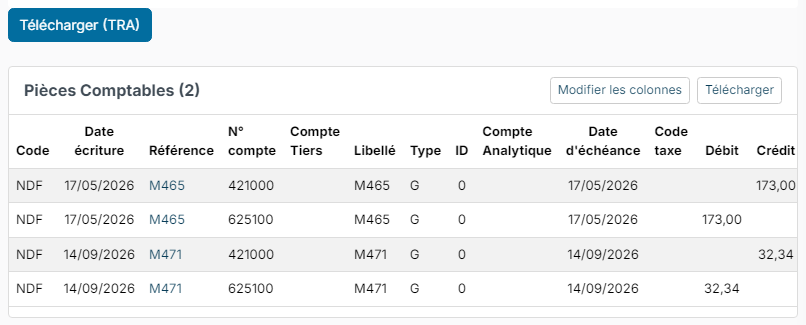
Note: the Download (TRA) button stays hidden while an entry is incomplete, for example an expense type without an expense account, an employee without an auxiliary account, or a missing journal. The error list tells what to complete, expense claim by expense claim.