Choose the fields shown in the candidate Summary tab
The Summary tab of a candidate's profile shows, below the email and social networks, a selection of profile fields: age, salary, availability, languages… You choose these fields and their order, and the choice applies to every user.
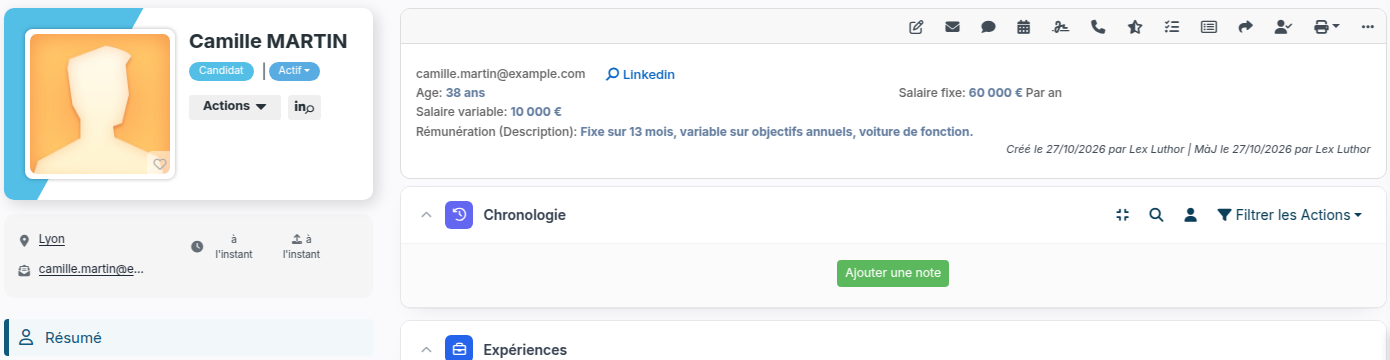
Choosing the Summary fields
This setting is for administrators. Go to Settings → Modules, ATS card → Settings: the Customizing Points page opens.
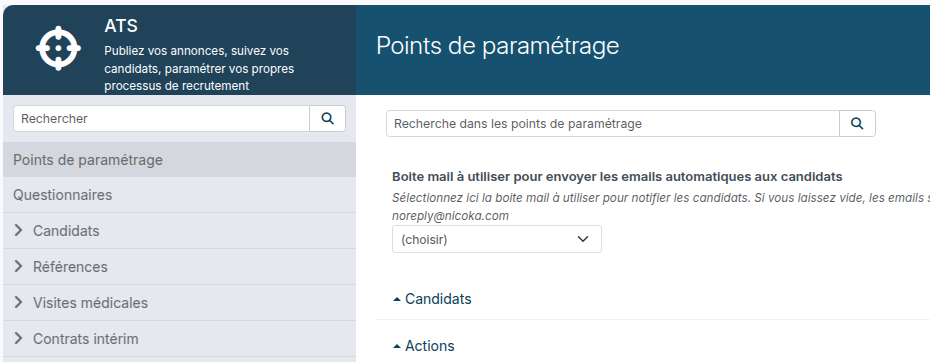
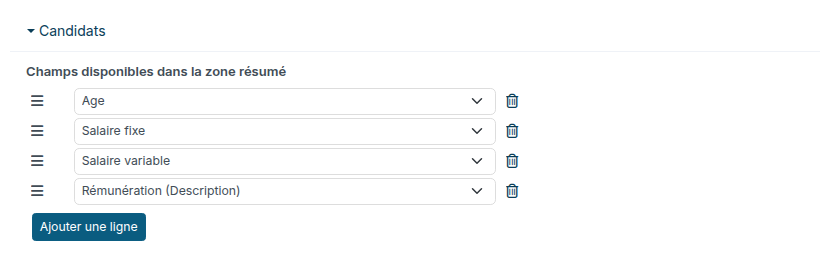
- Expand the Candidates section. Its first setting, Available Fields in Summary, lists the fields shown, one per row.
- To add a field, click Add a new row and pick it from the list. To replace one, change the field of its row; to remove it, click the bin.
- Drag the rows by their ☰ icon to order them: the order of the list is the order of the Summary.
- Click Save, at the bottom of the page.
Good to know
- Each field shows as “label: value”, two per row. A long text, such as the compensation details, takes the whole row. The salary unit (per year, per month…) follows the first of the Salary (Total) and Fixed Salary fields shown.
- The same choice applies to the candidate summary shown next to the list, in the pipeline of a job in Columns view.
- A field that a user's profile does not allow them to see does not show in their Summary.
- The sections shown below this block (Timeline, Experiences, Skills…) are set elsewhere: Settings → Candidates → Layouts, Candidate Profile layout.
- Removing a field from the Summary does not remove it from the profile: it stays in the Edit Info tab.
Were this information helpful?