Fit Nicoka to the way you recruit with a usage template
A usage template sets Nicoka up in one go for a way of recruiting: it tidies the menu, hides the fields and record sections you do not use, picks the columns of the candidate and job lists, the buttons offered on a pipeline and the wording (for example « Positions » instead of « Jobs »). The template applies to every user, and the last template applied can be undone in one click.
Who can apply a template
Only the application administrators. The Usage templates screen opens at https://<your-instance>.nicoka.com/?route=application/customize.
Choose a template
- Click Choose a template.
- Pick the card that looks like your business. Each card shows the entries the template puts at the root of the menu.
- Click Next.
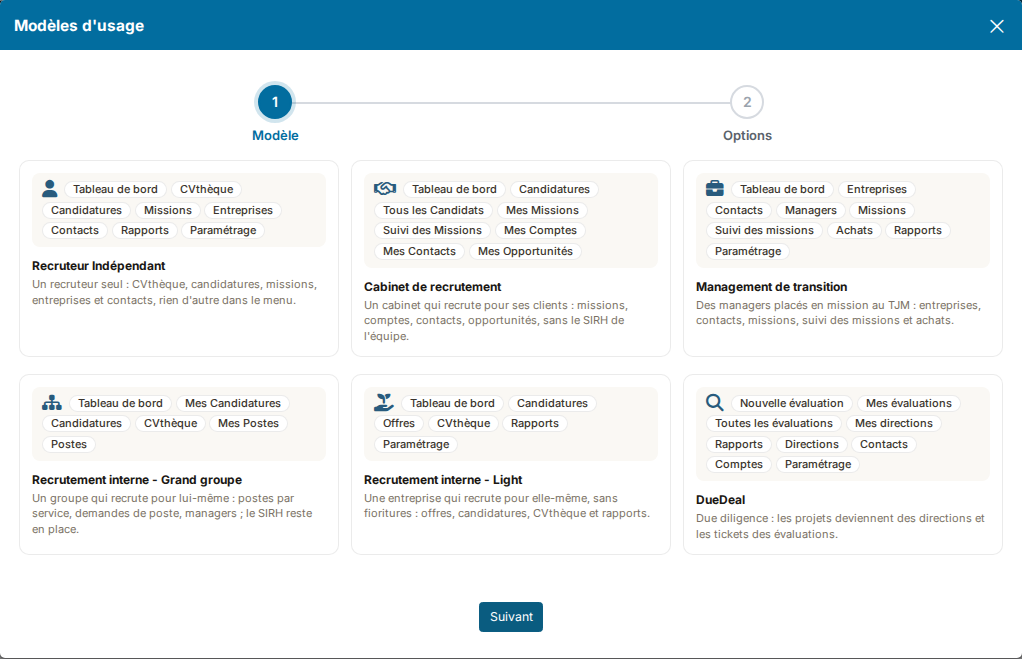
- Independent Recruiter: a recruiter on their own. Resume database, applications, assignments, companies and contacts, nothing else in the menu.
- Recruiting Agency: an agency hiring for its customers. Assignments, accounts, contacts, opportunities, without the team's HR suite.
- Interim Management: managers placed on assignments at a daily rate. Companies, contacts, assignments, assignment tracking and purchases.
- Internal Recruitment - Large Group: a group hiring for itself. Positions by department, job requests, managers; accounting, sales, CRM and tickets leave the menu, HR and purchases stay.
- Internal Recruitment - Light: a company hiring for itself, no frills. Jobs, applications, resume database and reports.
- DueDeal: due diligence. Projects become departments and tickets become assessments.
Set the options and apply
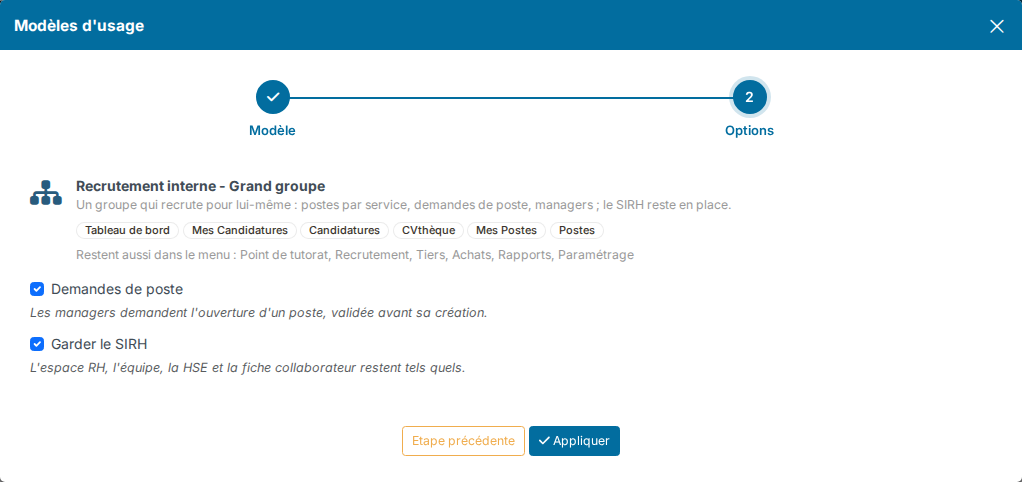
Depending on the template, the Options step offers:
- Job requests: managers ask for a position to be opened, approved before it is created.
- Keep HR: the HR space, the team, HSE and the employee record stay as they are. For the Large Group template, projects, which go with timesheets, stay too.
- Sales and invoicing: quotations, orders and invoices stay in the menu.
Under the preview, the line Also left in the menu lists the entries the template does not touch, whatever the options. Menu entries created for your company (a link to the time clock, for example) are among them. Then click Apply and confirm.
What the template does not change
A template only changes what it plans to. The entries of the « Also left in the menu » line keep their state: hide them if needed from Settings > Administration > Profiles, Menu tab. Profile rights do not change.
Undo
The page keeps the history of the templates applied, with the options chosen, the date and the author. While a template is in place, the Undo button restores exactly the settings from before that template. The history line then reads « Undone on … by … ».
