Generate a reference or automatic numbering for jobs
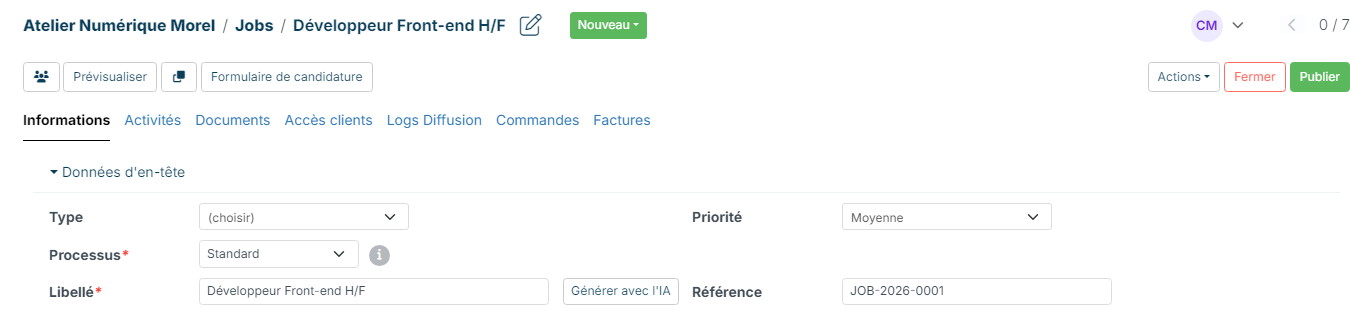
Each job can have a reference. By default, Nicoka does not impose any format: you type the reference yourself in the Reference field of the creation form, or leave it empty. You can also define a numbering format: Nicoka then generates the reference of every new job automatically, for example JOB-2026-0001, JOB-2026-0002…
Opening the job numbering
- In the side menu, open Customizing > Store.
- On the ATS card, click Customize. The Customizing Points screen opens.
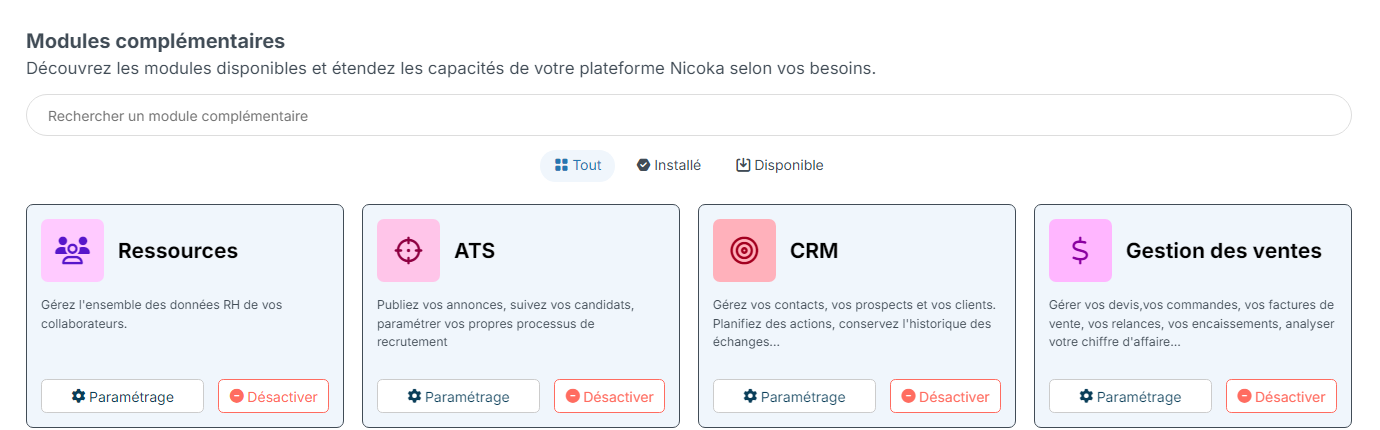
- In the list of sections on the right, expand the section named after your jobs (Jobs in the screenshots). Its first point is Job Reference format.
Do not confuse it with the section of the same name in the left-hand menu: the numbering is set in the section of the Customizing Points.
Defining the format
A format is a series of elements, placed end to end in the order of the list.
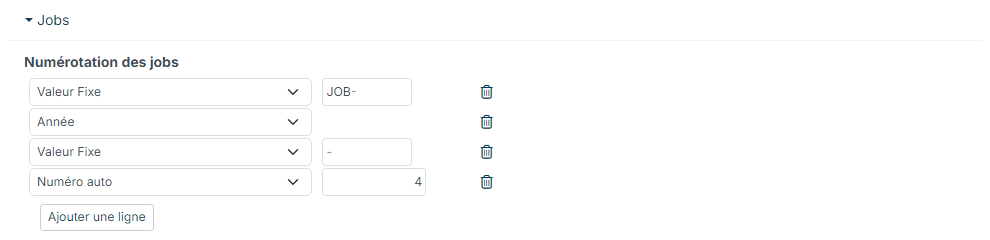
- Click Add a new row to add an element, then choose its type in the drop-down list.
- Fill in the value some types require: the text of a Fix value, the number of digits of an Auto Number, the field of a Dynamic element.
- Repeat for each element. The bin icon removes a row.
- Click Save at the bottom of the page.
Nicoka does not add any separator between elements. To get a hyphen, add a Fix value containing "-".
Example: Fix value "JOB-", Year, Fix value "-" and a 4-digit Auto Number give JOB-2026-0001, then JOB-2026-0002, and so on.
Element types
The most useful ones:
- Fix value: a text that does not change, for example a prefix or a separator.
- Year (2026), Year short (26), Month (01 to 12) and Day (01 to 31): the job's creation date.
- Auto Number: the counter, on the number of digits you choose, padded with zeros, for example 0001 on 4 digits.
- Auto Integer Number: the counter without leading zeros (1, 2… 10, 11…).
- Dynamic: the value of a job field, or of a customer field if you use the CRM.
- Company Code, Location Code, Department Code and Division Code: the code of the job's company, location, department or division. When the job has none, Nicoka uses the location, department or division of the person creating the job.
- Owner Initials and Assign To Initials: for a job, the initials of the person creating it, for example CM for Camille MARTIN.
The other types, Document Day, Document Month, Document Year and Document Year (Short), are mainly meant for numbering dated documents (quotations, invoices…). For a job, use Day, Month, Year or Year short instead.
Creating a job with the numbering
As soon as a format is defined, the Reference field disappears from the creation form: there is nothing to type.

The reference is generated when the job is saved. You find it in the Reference field of the job sheet, where you can still change it.
To work out the next number, Nicoka looks for the highest existing reference that follows the format, then adds 1. As a result, if the format contains the year or the month, the numbering restarts at 1 when the year or the month changes. A job created by copying another one also gets a new reference.
Continuing an existing numbering
Are you moving from an older reference system to Nicoka and want to continue the current series?
- Define the format as above.
- Create your first job. Nicoka gives it a reference, for example JOB-2026-0001.
- On the job sheet, replace this reference with the last number of your previous series, in the same format, for example JOB-2026-0150, then save.
The next job gets JOB-2026-0151: Nicoka continues from the highest number it finds.
Good to know
- Put the Auto Number at the end of the format.
- The format only applies to new jobs: existing jobs keep their reference.
- To go back to manual references, delete all the rows of the numbering and save: the Reference field comes back in the creation form.