Manage internal departments
In Nicoka HRIS, departments describe how your company is organised: Management, HR, Sales, IT… Each employee belongs to a department. The department is then used as a filter in your lists and reports, and can be used to grant rights.
Set up your departments
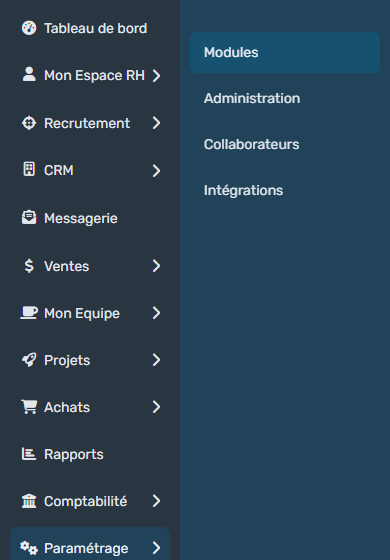
- In the side menu, open Customizing > Store, then click Customize on the Resources card.
- In the Professional Info. section, click Departments.
The list shows each department with its Responsible, its number of employees (click the number to see them), its Email and, if you use cost centres, its Cost Center.
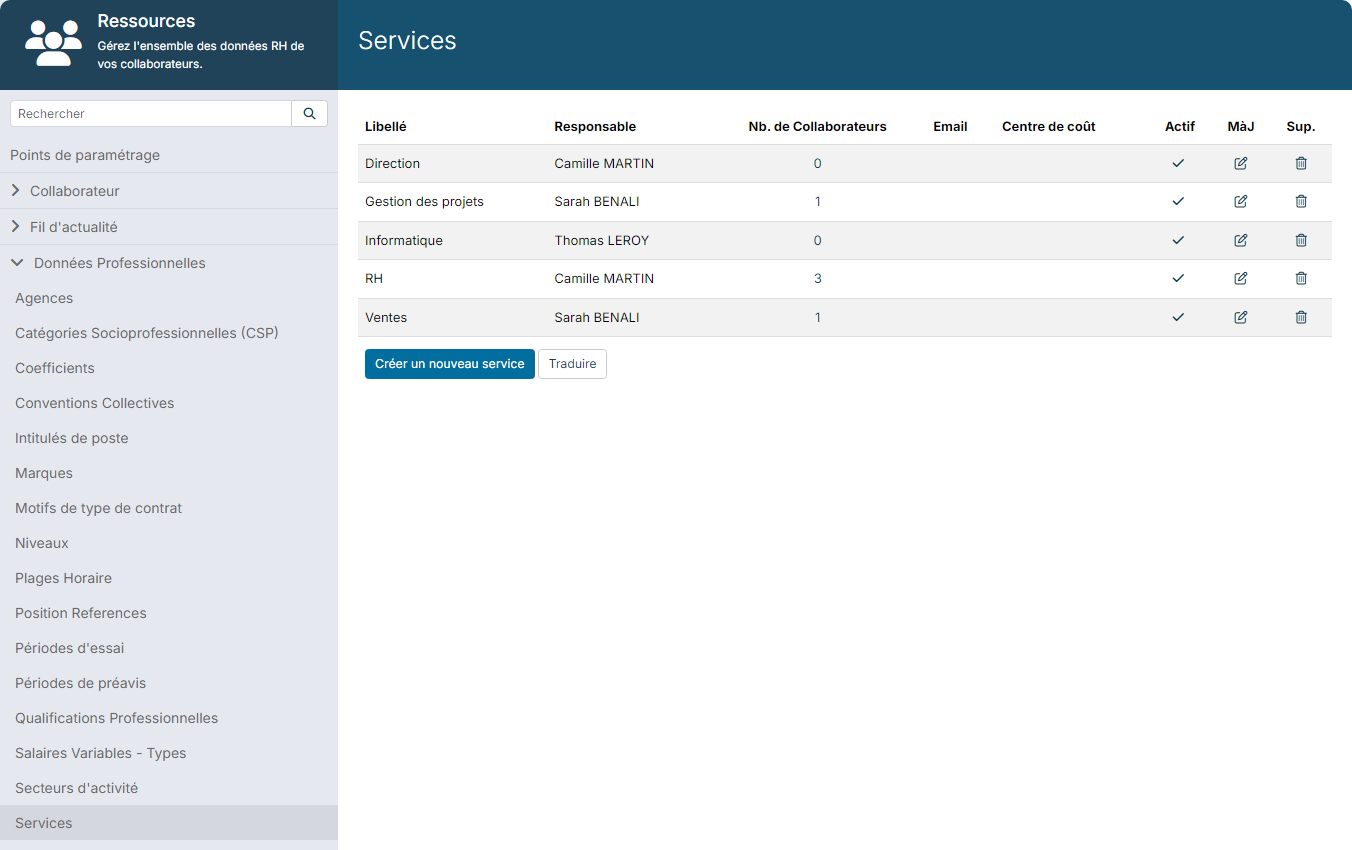
- Click the button to create a new department below the list, or the pencil icon of an existing department.
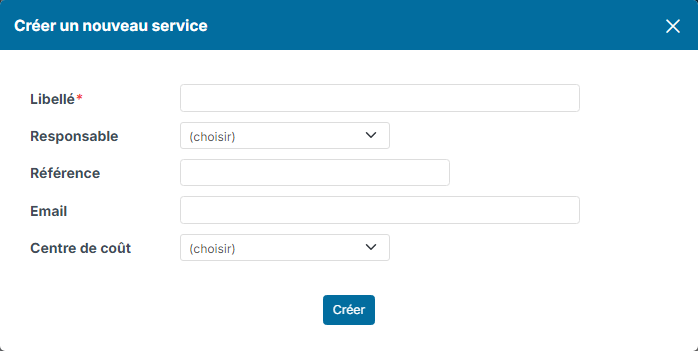
- Fill in the fields. Only the Label is required:
- Label: the name of the department, as used in your company. If possible, keep the same names as in your payroll software;
- Responsible: the employee who manages the department;
- Reference: your internal code, if you have one;
- Email: a generic address shared by the department, useful for instance to assign tasks to it;
- Cost Center: this field appears if the Accounting module is active and you have created cost centres. The Profit Center field appears the same way.
- Click Create.
The translate button below the list lets you enter the department labels in other languages.
Assign an employee to a department
The department is chosen when the employee is created, in the department field of the form. If you want to make this field mandatory, contact Nicoka support.
Change an employee's department
The department is part of the employee's position. To keep track of previous assignments, add a new position rather than editing the current one.
- On the employee's sheet, click Professional Info.
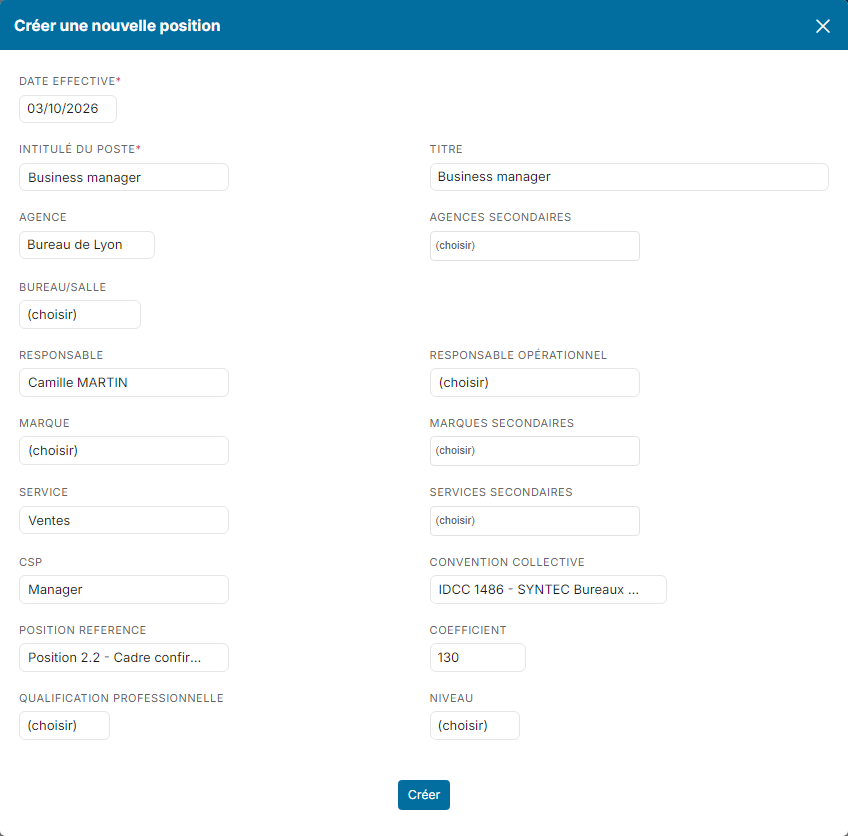
- In the Positions block, click Add a new position.

- The new position window is pre-filled with the current position. Enter the Effective Date of the change, choose the new department and update the other information if needed (job title, location, manager…). The secondary departments field lets you attach the employee to other departments.
- Click Create.
Successive positions remain visible in the Positions block. If the department column is not displayed, add it with the Edit Columns button.