Managing your favorite candidates
Favorites let you keep the candidates you follow closely at hand. They belong to each user: only you can see the candidates you have added to your favorites, and your colleagues have their own. In Nicoka, this information is called Favorite and is shown as a heart.
Adding a candidate to your favorites
- Open the candidate record.
- Click the heart at the bottom right of the candidate's photo. The heart turns red: the candidate is now one of your favorites.
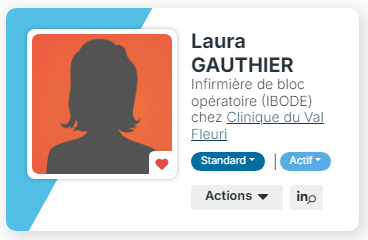
To remove the candidate from your favorites, click the heart again.
Finding your favorites
Nicoka provides a My favorite variant that lists your favorite candidates. Simply add it to your tabs, once and for all:
- In the Recruitment menu, open All Candidates.
- Click the + button to the right of the tabs.
- Choose My favorite.
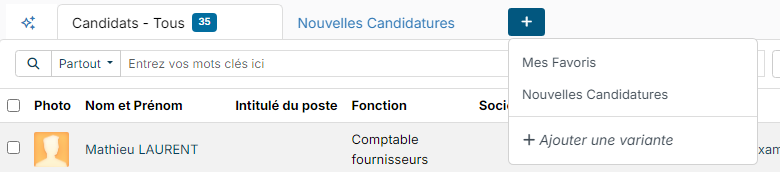
The My favorite tab is added next to your other tabs, with the number of candidates it contains. It stays in place on your next visits.
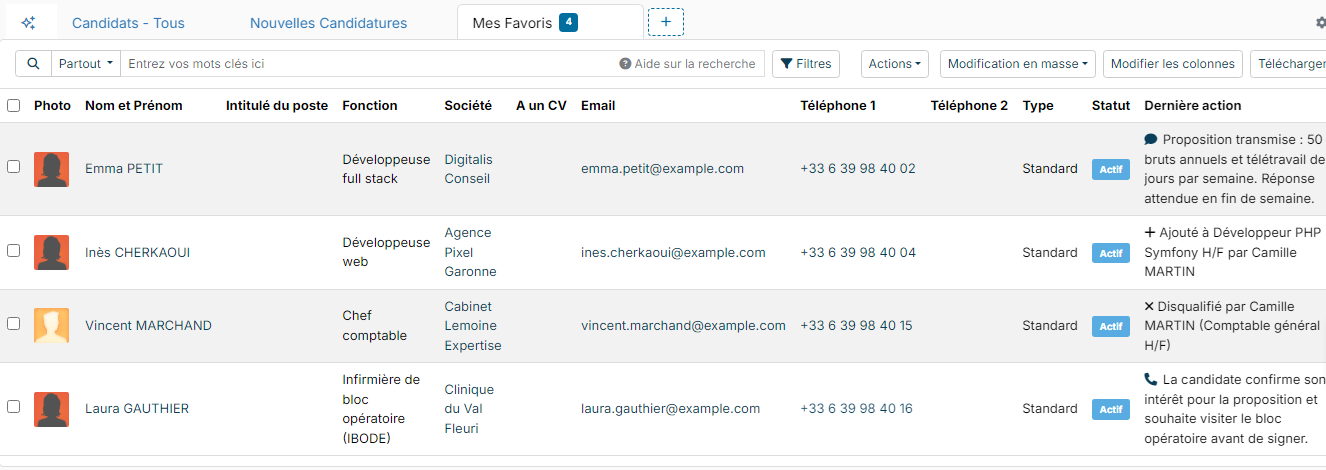
To remove this tab, hover over it and click the Remove from tabs cross. Your favorites are not lost: you can add the tab again later with the + button.
Using the Favorite information in your variants
You can also use the Favorite information in your own variants of the candidate list:
- Show a Favorite column: click Edit Columns and add the Favorite column. The heart is shown on each row, and you can click it to add or remove a favorite directly from the list.
- Filter on your favorites: add the Favorite filter to your variant.
To modify a variant, hover over its tab, click the ⋮ icon, then Change.
