Managing duplicate candidates
To keep your candidate database clean, Nicoka limits duplicates at two levels: an automatic check when a record is saved, then a screen that lets you spot and handle potential duplicates.
The automatic check when a record is saved
When a candidate record is saved, Nicoka checks two pieces of information:
- the email address: on every creation or update, whatever the channel (manual entry, resume parsing, import, plugin, API), it must not already belong to another candidate;
- the LinkedIn profile and other social network links: when a candidate is imported (plugin, import, API), Nicoka looks for an existing candidate with the same link.
If an existing candidate matches, Nicoka does not create a second record and shows you the existing one, with a link to open it.
The phone number is deliberately not a blocking criterion: recruitment agencies often send resumes that carry their own number, and several different candidates would then have been taken for the same person.
The Potential Duplicates screen
Two candidates can still end up duplicated, for example with two different email addresses. To spot them:
- In the Recruitment menu, open All Candidates.
- Click the Potential Duplicates button at the top of the list.

The screen lists the candidates who have exactly the same first name and last name.
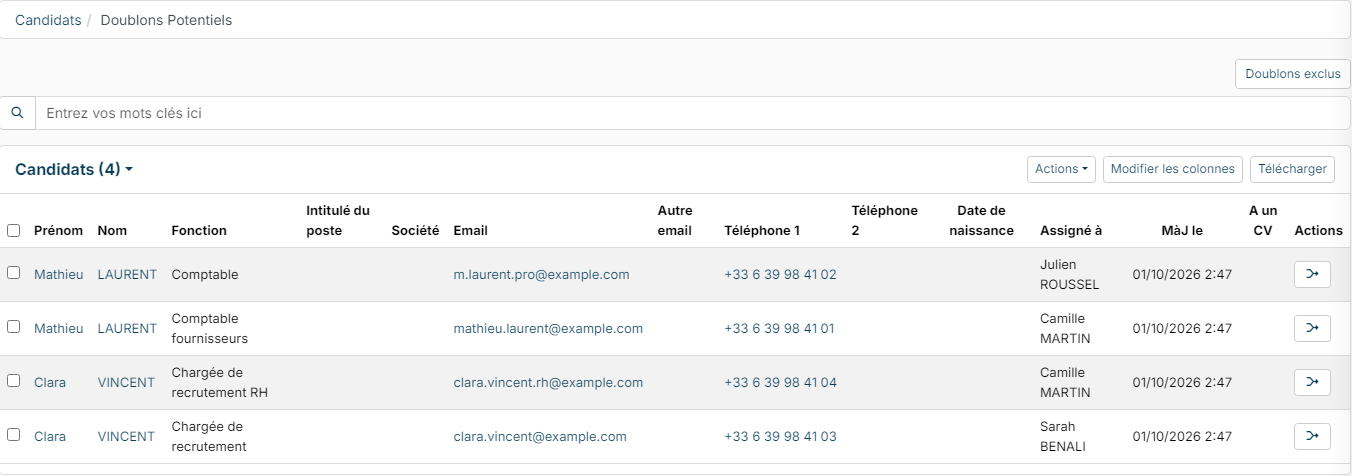
To handle a candidate, click the button on their row, in the Actions column. A Potential Duplicates window opens and lists the records that look like it: same email address, same phone number or same name.
You also come across potential duplicates during recruitment: when you open a candidate from a job page, or in a candidate's preview, an orange badge shows that they have potential duplicates. Click it to open the same window.
Merging two records
If both records are about the same person, click the row's Merge button, then confirm. All the data of both records is combined (documents, jobs, notes…) and only one record remains. Check both records carefully before confirming.
Indicating that it is not a duplicate
If the two records are about different people (namesakes, for example), click the row's It's not a duplicate button (ban icon). Nicoka will no longer suggest these two candidates as duplicates of each other.
Cancelling an exclusion
If you indicated by mistake that two records were not duplicates:
- On the Potential Duplicates screen, click the Excluded duplicates button at the top right.
- Find the pair of candidates concerned and click the icon in the Del. column to remove the exclusion.
The two candidates can be suggested as duplicates again. In a candidate's Potential Duplicates window, the Excluded duplicates tab also lists their exclusions, with a Cancel button on each row.
Good practices
- Create your candidates through Nicoka's channels (resume parsing, plugin, import, manual entry) and always fill in the email address: it is what prevents duplicates at the source.
- Check the documents and information of both records before merging.
- Do not hesitate to exclude a duplicate when the records are about two different people: the screen stays easy to read.