View the login history of users
Nicoka records every login to the user accounts of your workspace: the date and time, the IP address and the browser used. This history is kept since your workspace was opened. It lets you check, for instance, that an account has not been used from an unusual place.
Who can see it?
The administrators of your workspace. The detail of the logins and the search by IP address require the right to update users.
Open the history
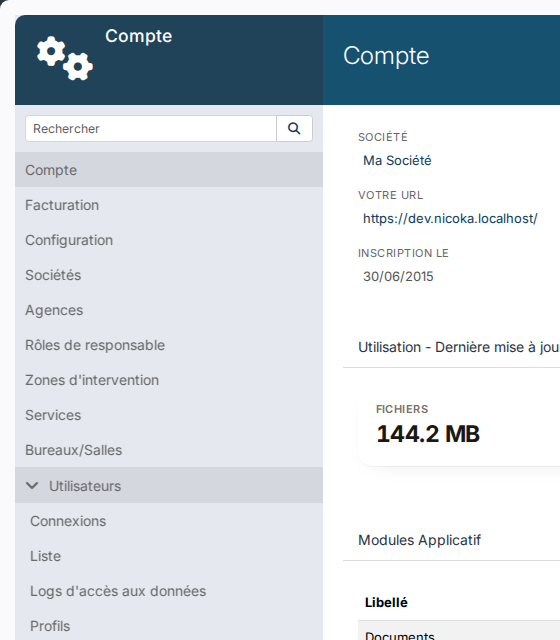
- Open Customizing > Admin.
- Expand Users in the left-hand menu, then click Connections.
The month-by-month summary
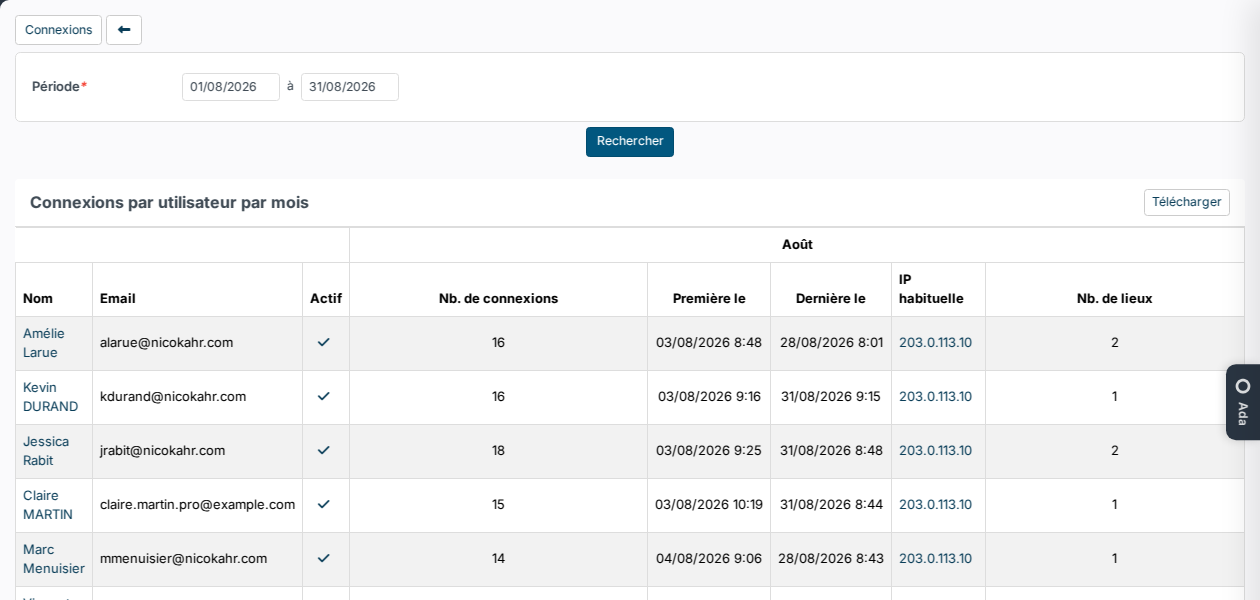
For the chosen period (the current month by default), the screen shows one row per user and one group of columns per month:
- Nb. of connections: the number of logins in the month;
- First Login On and Last Login On: the first and the last login of the month;
- Usual IP: the IP address used most often in the month;
- Nb. of locations: the number of distinct IP addresses.
Change the Period and click Search to go back in time. The Download button exports the table to Excel.
The logins of one user
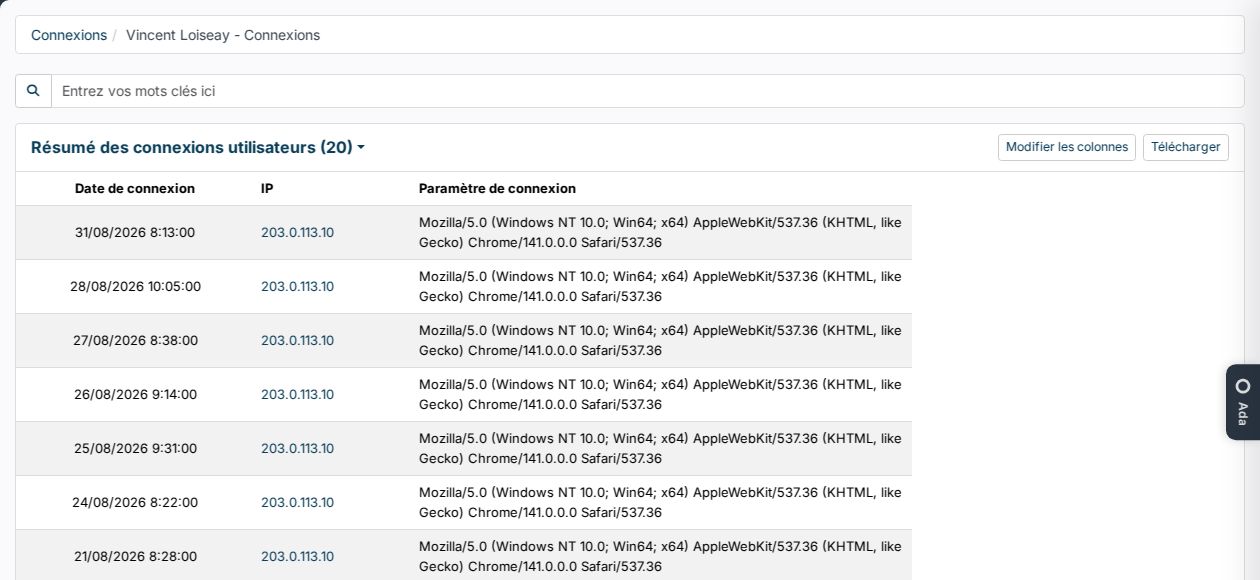
Click a user's name: all their logins are listed, most recent first, with the Login Date, the IP and the browser used (Device column). Clicking an IP address opens its approximate location on a geolocation website.
Search an IP address across all users
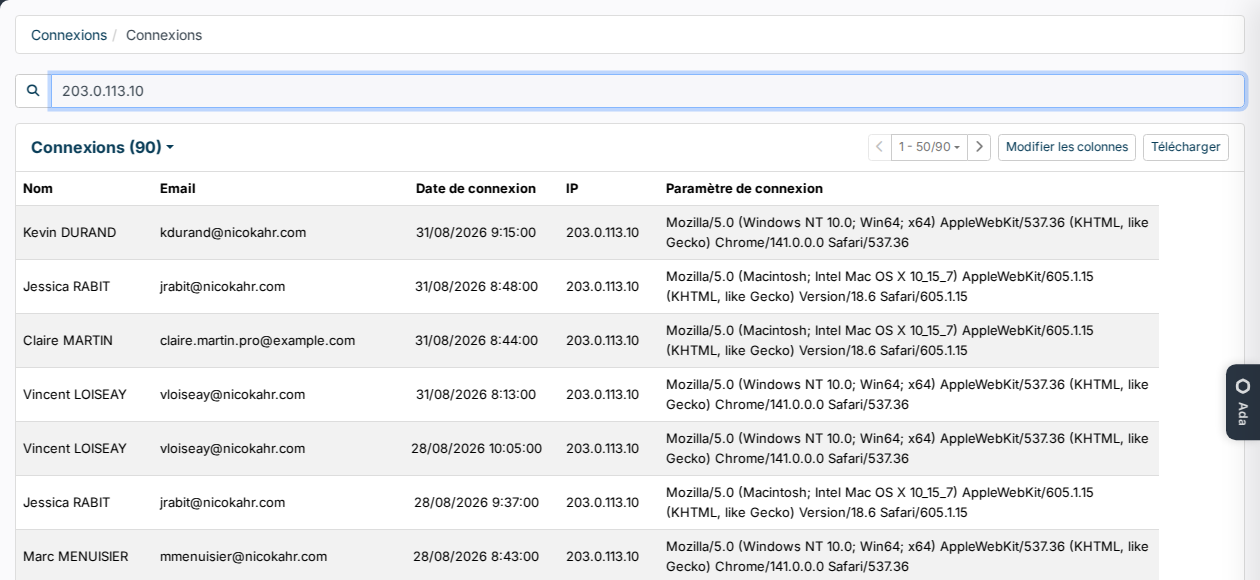
The Connections button, at the top of the summary screen, lists the logins of all users. Type an IP address, a name or an email in the search bar to find out who logged in from that address. The Download button exports the result.
Good to know
- One row is one session opening, not every page viewed.
- Logins of the Nicoka Support team, when it works on your workspace, appear under the support@nicoka.com account. The month-by-month summary does not show them.
- An IP address tells where the login came from (office, home, mobile network), not who opened it: colleagues in the same office often share the same address.