Importing payslips
Every month, your payroll software produces a single PDF containing all the payslips. Nicoka splits this file page by page, recognises the employee on each page and creates one payslip per person, available in their own space. This article covers the import, how to fix unrecognised pages, the generation of the payslips and the notifications.
Before the first import
- The right to import: the import is reserved to profiles with the create right on the PaySlip Import entity. Without it, the entry does not appear in the menu.
- Up-to-date employee records: Nicoka recognises a page first by the social security number. If the page does not carry that number, which happens with payroll software that no longer prints it, it is recognised only when it carries both the employee's name and employee code (at least 5 characters). For an employee without a social security number, Nicoka relies on the first and last name, the employee code, the postcode and the IBAN. Fill in the social security number in the personal data of each employee: it is the most reliable criterion.
- The notification templates: open Customizing > Modules, click Customizing on the Resources card, then Customizing points, and expand the PaySlips block. The Notification template after payslip import is used for the in-app notification, sent automatically at generation. The Email template after payslip import is required to notify employees by email. Leave the notification template empty to send nothing in the application.

1. Import the payroll file
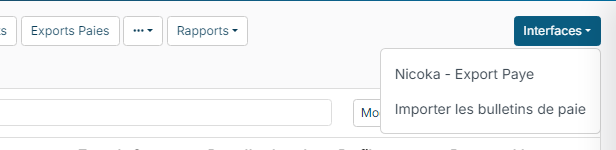
- Open the Resources menu (the employee list). At the top right of the list, open the Interfaces button and click Import PaySlips.
- Select the Company and the month in the Date field. Double-check the month: it names the generated payslips.
- Drop the file with Select a file. Only the PDF format is accepted.
- Click Next. The file is uploaded and the processing screen opens: it recalls the Company and the Month.
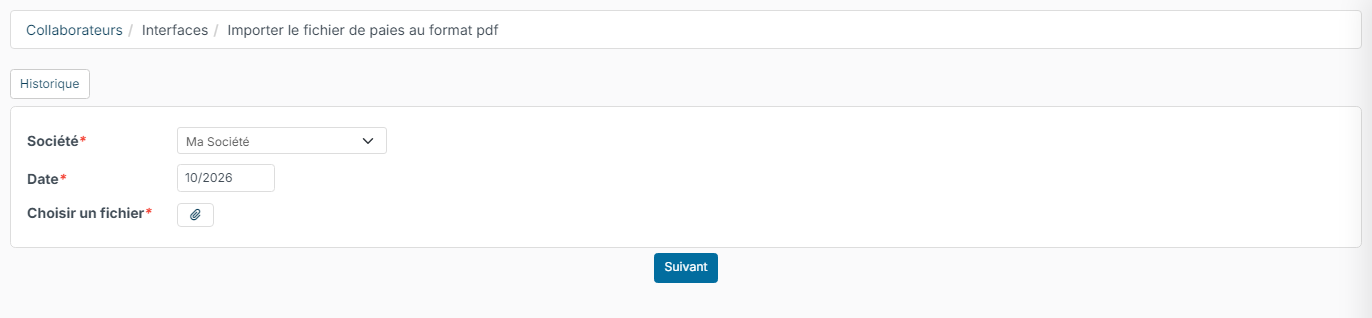
The History button of this screen opens the PaySlip Imports list: every import is kept there with its status, its author and its date. Click an import to reopen its analysis screen.
Wrong month or wrong file? Before generation, the Delete button of the processing screen deletes the import: start again with the right month.
Nicoka refuses a file that was already processed: if a validated import exists for the same company and the same month, or if this very file was already processed, the message This file has already been processed for … on … by … appears. An import of the same month that has not been generated yet is replaced by the new file.
2. Check the analysis of the file
On the processing screen, click Launch Analysis. For each page of the PDF, Nicoka looks for the social security number of an employee, failing that their name and employee code together, and for an employee without a social security number their name, employee code, postcode or IBAN. The pages of the same employee are grouped together: a two-page payslip gives a single payslip record.
The screen shows two tables:
- Errors: the unrecognised pages, with the page number and the reason. No Employee founded means that nothing on the page matches an employee record, for example a name spelled differently in Nicoka. Multiple Employee founded, followed by the names involved, means that the page could belong to several people: a summary listing all the employees, or two namesakes without a social security number.
- Payslips: the recognised pages, with the employee, the page numbers and a preview.
In the example below, page 7 is the payslip of an employee whose name is misspelled in Nicoka, and page 9 the transfer summary of the payroll. Marc MENUISIER's two-page payslip is grouped correctly (pages 4 and 5).
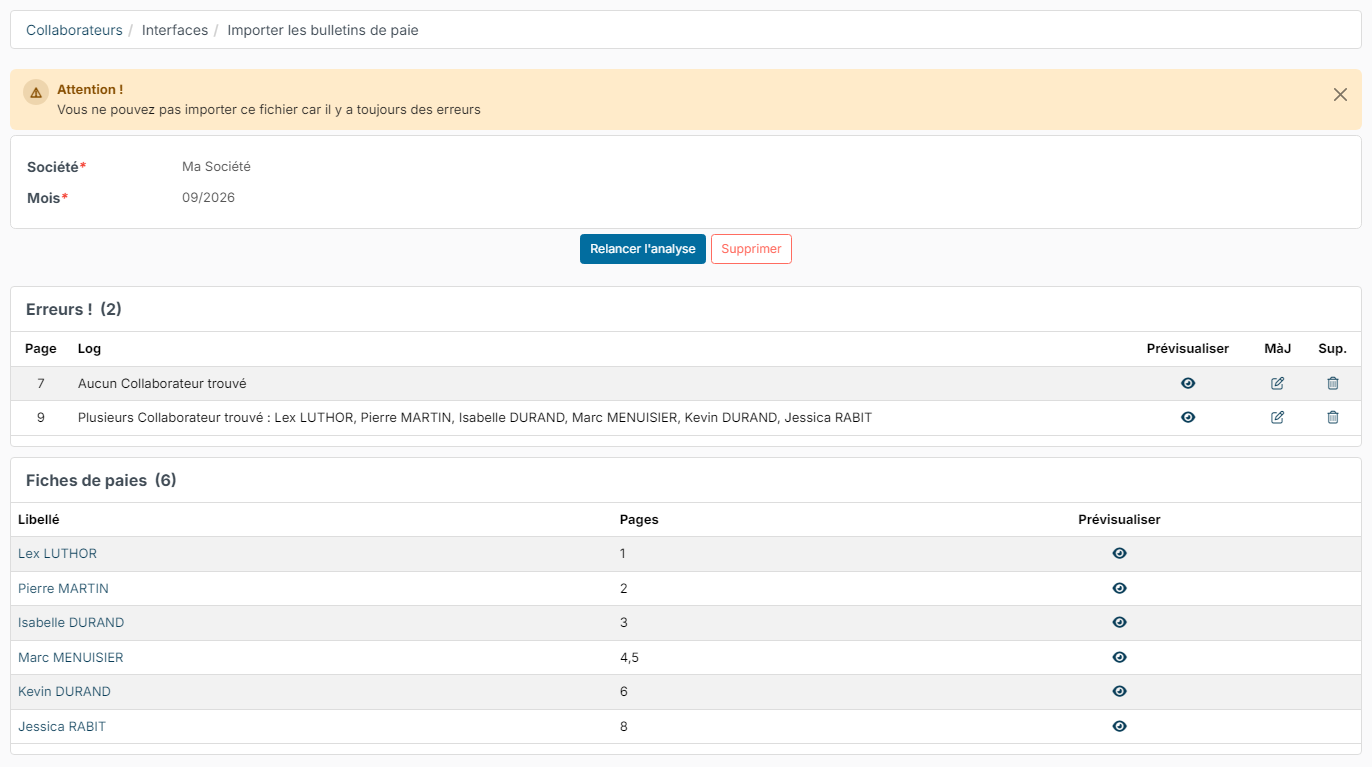
As long as errors remain, the message You can't import this file, there are still some errors is displayed and the generation is not offered. For each line in error, you have three actions:
- The eye (Preview column) displays the page so you can identify it.
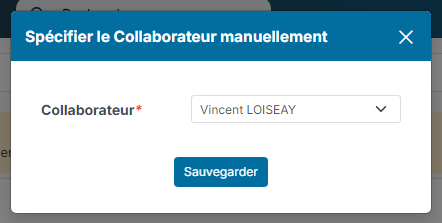
- The pencil opens the Specify Employee window. The list is pre-filled with the first employee in alphabetical order: pick the right person, then click Save. The page joins the payslips table.
- The bin removes the page from the import, for example a summary, a blank page or a separator. Confirm with Yes in the Remove Page window.
If the error comes from an incomplete employee record, complete it (social security number, employee code) then click Relaunch Analysis. Manual assignments are kept.
If the analysis stops with the message No available employee for the selected period or they don't have reference information, no employee active on that month has a usable social security number, employee code, name or IBAN: complete the records before relaunching.
3. Generate the payslips
Once every page is assigned or removed, the Errors table disappears and the button becomes Generate Documents.
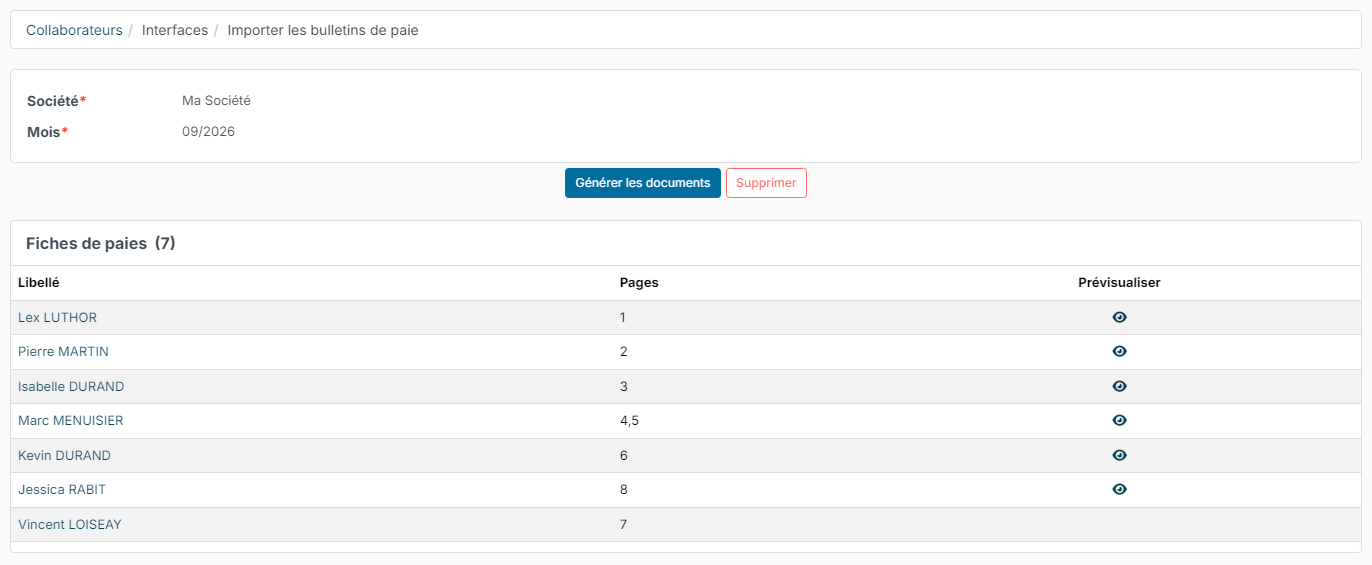
Click it: Nicoka creates, for each employee, a PDF containing only their pages, then confirms with the message N documents have been generated.
For each employee:
- a PaySlip for the month is created, visible in their space (see below);
- the PDF, named after the year and the month (for example 2026-9.pdf), is filed in the documents of their employee record, under the Payslips type;
- if they already had a payslip for that month, from a previous import, the document is replaced.
The import moves to the Validated status. It can no longer be relaunched: a new file for the same company and the same month is refused.
4. Notify the employees
In the application: at generation, the employees who have access to Nicoka automatically receive a notification, built on the Notification template after payslip import. The notification opens the payslip directly. If this customizing point is empty, no notification is sent.
By email: once the documents are generated, the Notify by email button appears on the import screen.
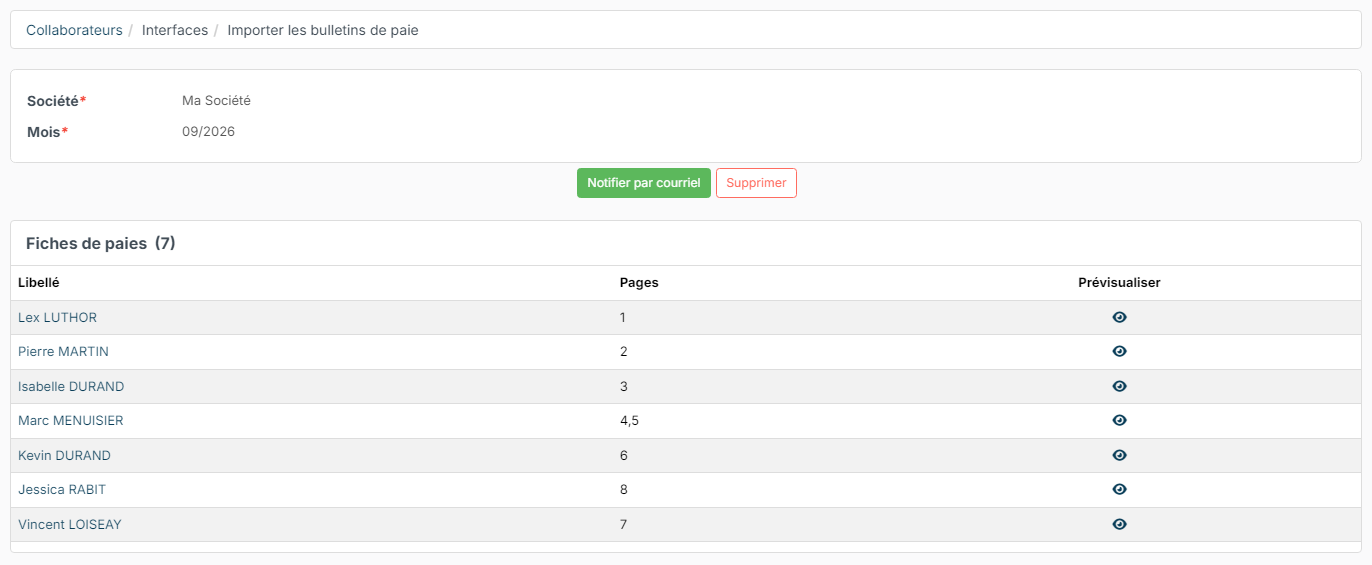
Nicoka shows the number of employees concerned and asks for confirmation with Yes or No, then sends the emails in the background to each employee's address, from the Email template after payslip import. The payslip is not attached to the email: the message invites the employee to open it in Nicoka. If the email template is not set, Nicoka says so and sends nothing.
5. What the employee sees
The notification opens the payslip directly. In My HR Space > My Remuneration, the Contracts and payslips tab shows their Latest payslips. The All my payslips button opens the PaySlips list, month by month, with a preview. Clicking a payslip opens it in the document viewer.
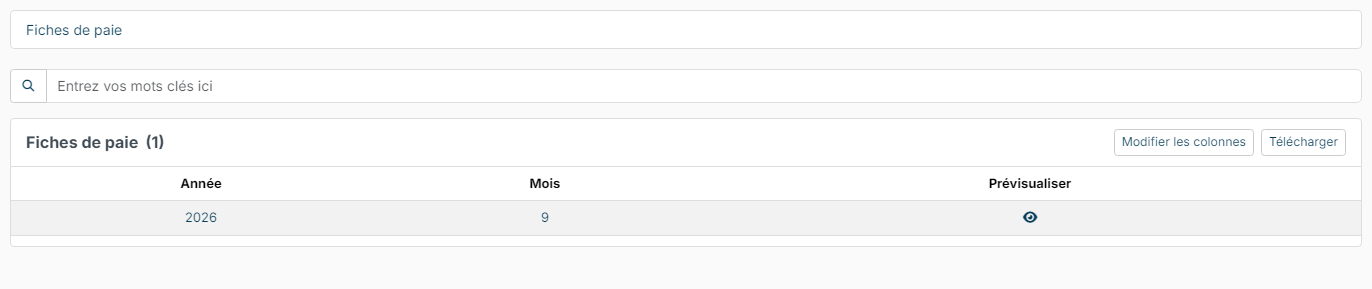
Each employee only sees their own payslips. The HR team finds them in the documents of the employee record.
Frequently asked questions
An employee who left last month is not recognised?
Employees without a leaving date, and those who left during the previous month or the imported month, are taken into account. An employee who left earlier is not: assign their page by hand with the pencil.
Every page comes out in error?
Check that the PDF contains selectable text. A scanned file, made of images, cannot be analysed: ask your payroll software for a text PDF export.
Two employees have the same name?
Fill in their social security number or their employee code: Nicoka decides with these. Otherwise the page comes out with the reason Multiple employees found and you pick the right employee with the pencil.
Can another format than PDF be imported?
No. Only a PDF file is accepted, one file per company and per month.