The customer portal: Desk projects and tickets
The customer portal is a space dedicated to your customers, separate from your Nicoka application. Each contact of a customer account logs in with their own credentials and only sees what concerns their company: its information, documents, invoices, positions and, if you use the Desk module, its projects and tickets. Your customers no longer need access to your main application.
What a customer sees on the portal
- Their company, contacts, documents, invoices and positions: the original scope of the portal.
- Projects: the projects of their account in which they take part. By clicking a project, they open the public view of the project with its Tickets, Documents and Stakeholders tabs.
- Tickets: all the tickets of the projects they have access to, with the usual filters and variants.
- A ticket record: they can view it, add a comment or a note, attach a document, add participants, move the ticket forward in the workflow, copy it, view its history and print it.
The Projects and Tickets menus appear automatically as soon as the Desk module is enabled on your instance. They carry the names you gave to these entities in your settings.
Before you start
- The Desk module must be enabled on your instance.
- The customer portal must be enabled (see step 1 below).
- The configuration is done with an administrator profile.
- The portal address is https://your-instance.nicoka.com/portal/.
1. Enabling and customizing the portal
- In the side menu, open Customizing > Store. On the CRM card, click Customize.
- In the left-hand menu, expand Customer portal and click Customizing Points.
- In the Customer portal access block, check Enable the customer portal: this is what makes the customer portal application (Customer Help Desk) appear in the Application list of the contacts' access.
- Choose the Default Profile offered when an access is created and, if you wish, the Portal Access Notification Email sent to the contact.
- In the Customizing block, customize the portal login page: welcome title and subtitle, logo. If left empty, the name, description and logo of your application are shown.
- Click Save.
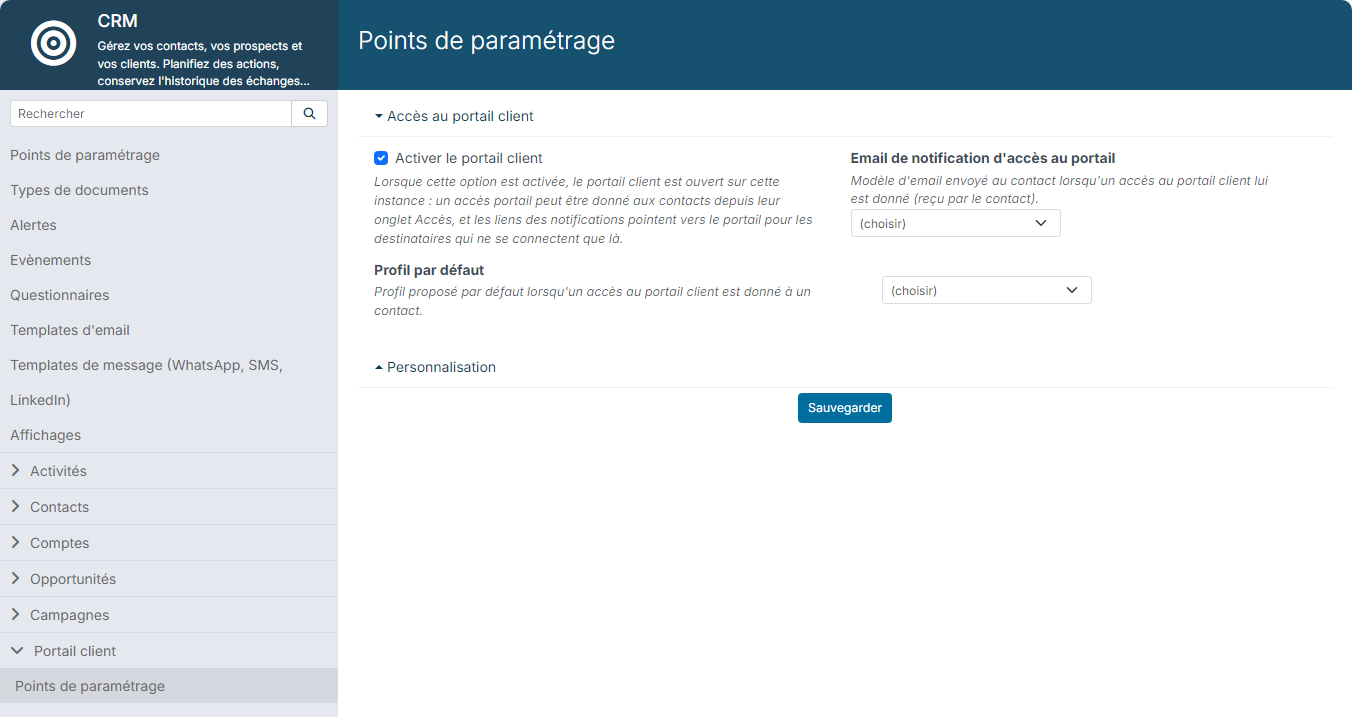
Unchecking Enable the customer portal closes the portal. Your customers can no longer log in, including those already logged in, whose session is ended, and a message tells them that the portal is not open. Nothing is lost: their accounts, profiles and rights are kept, and you just need to check the box again to reopen access. This is how to suspend the portal during maintenance or configuration.
2. Checking the rights of the contacts' profile
A contact logs in to the portal with a Contact-type profile. This profile must allow:
- reading Projects;
- reading and creating Tickets (add modification if your customers must move tickets forward in the workflow);
- reading and creating ticket Notes and Documents if your customers must comment or attach files.
- In the side menu, open Customizing > Admin, expand Users and click Profiles.
- Open the profile used by your customer contacts (by default Contact).
- In the Modules tab, set the rights above, then click Sauvegarder (save).
The profile record is described in detail in Define access profiles in Nicoka.
3. Opening projects to your customers
A customer only sees a project if they are a stakeholder in it. The role given to them on the project determines what they can do there.
- Open the project concerned.
- In the stakeholders tab, add the contact (or directly the customer account) with a customer role, for example Customer Member.
- Check in the project settings that ticketing is enabled: otherwise, the Tickets tab does not appear in the public view.
The standard "Customer Member" role lets customers view tickets, create them and comment on them, without changing the ticket header or accessing internal information (time entries, budget tracking, etc.).
4. Giving a contact access to the portal
- Open the contact's record.
- In the menu of the record, click Application Access.
- Check Has access.
- Check that the Application is the customer portal (the value offered by default), choose the contact's Profile and check their Email.
- Leave Send activation email checked, then click Save.
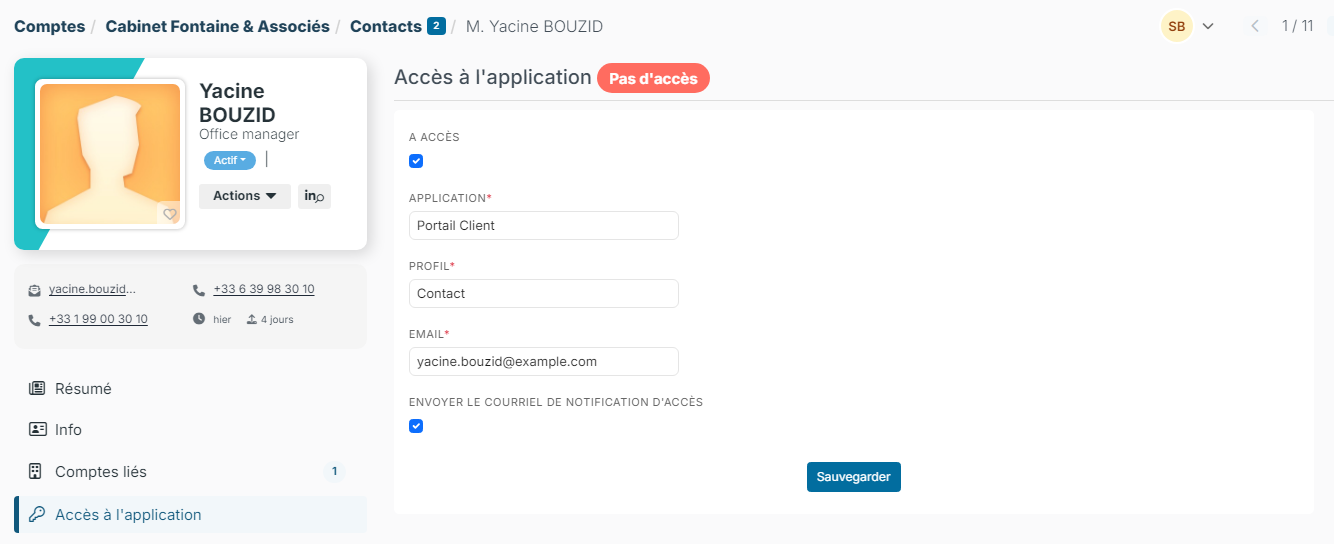
The contact receives an email that lets them set their password and log in to the portal.
If the contact already has access to your Nicoka application and you want to move them to the portal: create their portal access as above, then remove their access to the main application from the same screen. As long as both accesses coexist, the links they receive in notification emails keep pointing to the main application.
5. Notifications
When a ticket moves forward or a comment is added, the notification emails contain a link to the ticket. This link adapts automatically to each recipient:
- a contact with portal access receives a link to the portal;
- your employees, and contacts with access to the main application, receive a link to the main application.
No setting is needed on your side: the link follows the access of the recipient. If your customers receive links to the main application although they have no access to it, contact support so that your portal address is registered on your instance.
Good to know
- A customer never sees the projects or tickets of another customer account, even by changing a page address.
- The "Projects" and "Tickets" labels of the portal follow the vocabulary of your instance: if you renamed tickets "Requests", the portal menu shows "Requests".
- The portal is available in the languages of your instance; each contact sees it in the language of their profile.
- Actions reserved for your teams (reassigning a ticket, moving it, forwarding it by email, time entries, budget tracking) are not offered to customers: the stakeholder role and the profile hide them.