Match your candidates and your jobs
Matching compares a job with your candidate database and gives each candidate a match score, as a percentage. It relies on 10 criteria (profile relevance, job title, distance, compensation, skills…) whose weight you set. You can spot the profiles to put forward in a few seconds, then add them to the recruitment process.
Running the matching from a job
- Open the job.
- Click Add candidates at the top right, then Show candidates that match this Job.
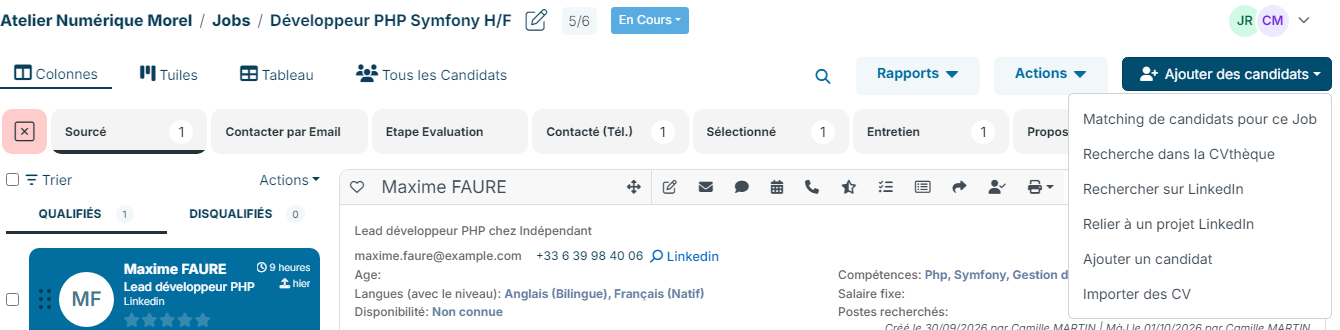
The matching window opens. After a few seconds of calculation, it lists the candidates from the most to the least relevant, with their score in the Relevance column: green for a high score, then orange and red as it drops. In the city and zip code columns, the straight-line distance between the candidate and the job location is shown in brackets.
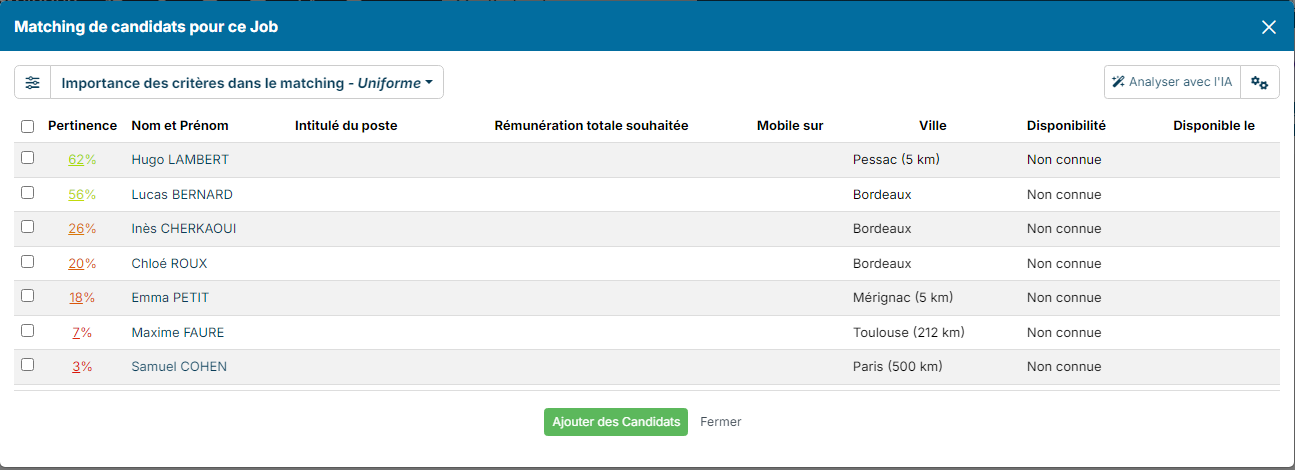
To add candidates to the job, tick them, then click Add Candidates at the bottom of the window. They land on the first stage of the process.
If the matching option does not appear, the recommendation engine is not enabled in the ATS customizing: contact your administrator.
The 10 matching criteria
Nicoka compares the job information with each candidate's on the following criteria:
- Job content/profile match: the job's keywords (description, requirements) against the candidate profile (headline, current and desired roles, summary, resume). Words that are rare in your database weigh more than common ones.
- Job title alignment: the title of the job to fill against the titles visible in the profile (function, job title, desired position).
- Geographic distance: the distance between the job location and the candidate's address or mobility areas.
- Total desired compensation: the compensation the candidate wants (or their current salary) against the range offered for the job.
- Remote work rhythm: the remote work the candidate wants against the one offered for the job.
- Contract type: the candidate's desired or current contract against the job's.
- Years of experience: the candidate's experience against the experience required.
- Availability: the candidate's availability (immediate, notice period…) against the expected start date.
- Skills: the skills required for the job, with their level, against the candidate's.
- Languages with level: the languages required for the job, with their level, against the candidate's.
Setting the weight of the criteria
- In the matching window, click the button to the left of Matching Criteria Weight.
- Move the slider of each criterion between Not important and Very important. A criterion set to Not important no longer counts in the score.
- If your workspace uses several candidate types, the Candidate type filter limits the result to the chosen types.
- Click Search to recalculate the scores.
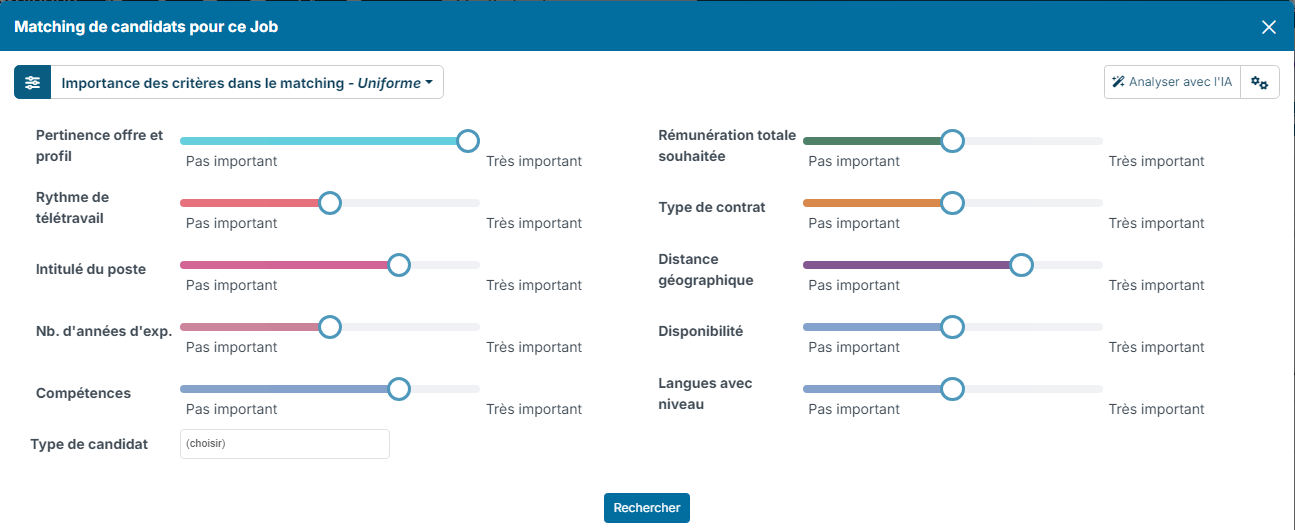
The settings are saved in variants. The standard variant is called Uniform weighting. Click the variant name to switch to another one, to change it (Update Variant) or to create your own (Add a Variant), for example a variant that favours distance for your field jobs.
Our advice: if your candidate records are well filled in, keep most criteria active. If they are not, give more weight to Job content/profile match: the resume content then makes up for the empty fields.
Understanding a candidate's score
Click a candidate's score to open the Matching breakdown window. The radar shows the level reached on each criterion, displayed clockwise from the highest score to the lowest.
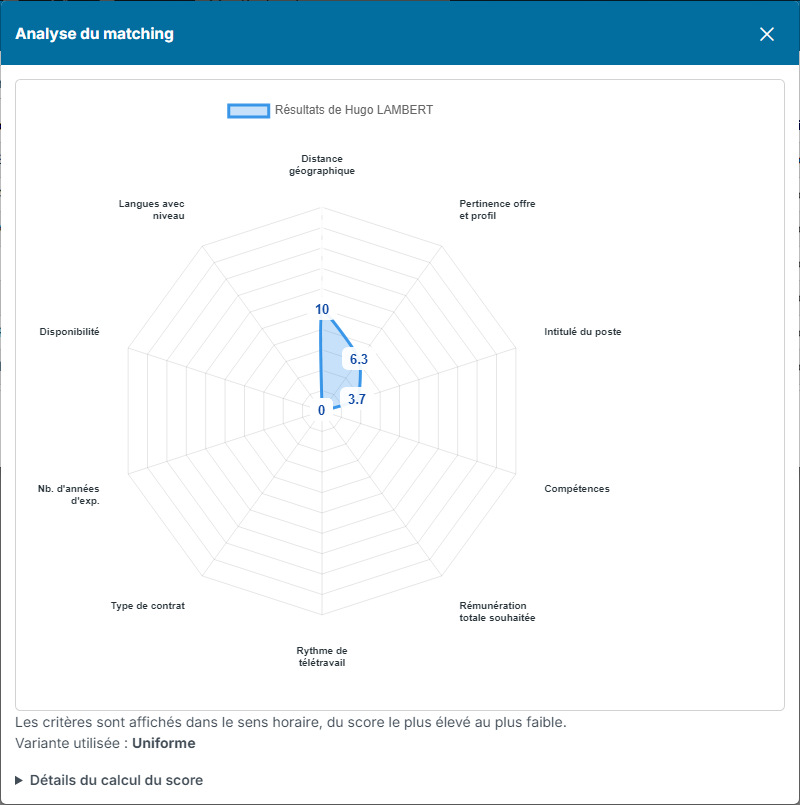
The Score calculation details section shows the points obtained on each criterion and its weight. The displayed score is the sum of the points obtained divided by the sum of the weights of the active criteria. It also lists the criteria ignored because of a zero weight or missing data.
The AI fingerprint of the job ad
To refine the ranking, you can have the job ad analysed by AI. In the matching window, click Analyse with AI at the top right. From the ad, the AI infers:
- Equivalent job titles, searched in addition to the ad title in the positions candidates hold and want;
- discriminating Keywords, which replace the ad description in the relevance criterion;
- Excluded job titles: a candidate holding one of these positions is dropped from the result, unless they are also looking for the position to fill.
The result is shown above the list, on the AI fingerprint line, with the date of the analysis. If the job has no job title filled in, the AI can also suggest one, which you apply to the job in one click: it then counts in the score. The button then becomes Re-run the AI analysis. If the ad has been changed since, Nicoka says so (The announce changed since this analysis.): run the analysis again so that the fingerprint reflects the current ad.
Computing the scores of the candidates of a stage
You can also compute the score of the candidates already in the job process:
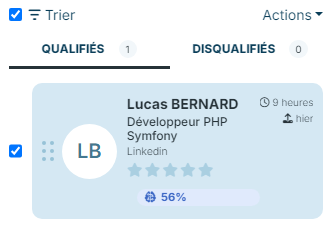
- On the job page, open the stage you want and tick the candidates.
- Click Actions, above the candidate list, then Compute application scores.
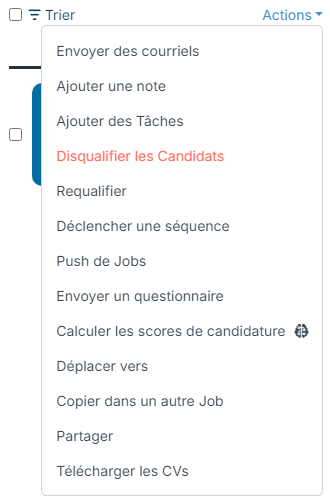
The score is then shown on each candidate's card. Click it to open the candidate's breakdown.
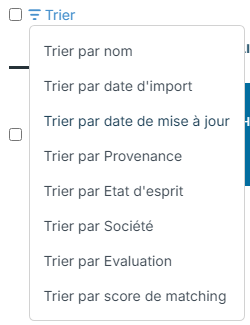
To rank the candidates of a stage by this score, click Sort, then Sort by matching score.
The score saved on the card is not updated by itself: compute it again after a significant change to the candidate record or to the job.
Best practices
- Fill in candidate records as much as possible (contract, skills, languages, location, availability…). AI resume parsing helps you complete them automatically.
- Be precise in the title, description and requirements of your jobs: they feed the relevance criterion.
- Adapt the weight of the criteria to the quality of your data and to the position, and save your settings in variants.
- Compute the scores again after any significant update.
Frequently asked questions
The scores seem low, what should I do?
Check that the candidate records and the job are well filled in, give more weight to Job content/profile match if your database is incomplete, then run the calculation again.
Do common words in the ad skew the score?
No. The least meaningful words of the ad are left out when keywords are analysed, to focus on the terms that set profiles apart.
Can I give priority to some criteria?
Yes, with the criteria weight sliders, saved in a variant.