The Training module: plan, requests, sessions and follow-up
The Nicoka Training module covers the whole cycle: the training plan, employees' requests, the organization of trainings in sessions with their attendees, then the follow-up of completed trainings and their renewals.
Where to find the module
- My Team > Trainings: the list of trainings, for managers and training managers. The buttons at the top of the list give access to Plan/Enter a training, Trainings per people, Requests, Training Plans, Catalog, Planning and the reports.
- My HR Space > My Trainings: each employee's space.

Build the training plan
- In Trainings, click Training Plans, then the button to create a new training plan. Enter its Label and its Date, then click Create.
- In the plan, click Add row for each planned training.
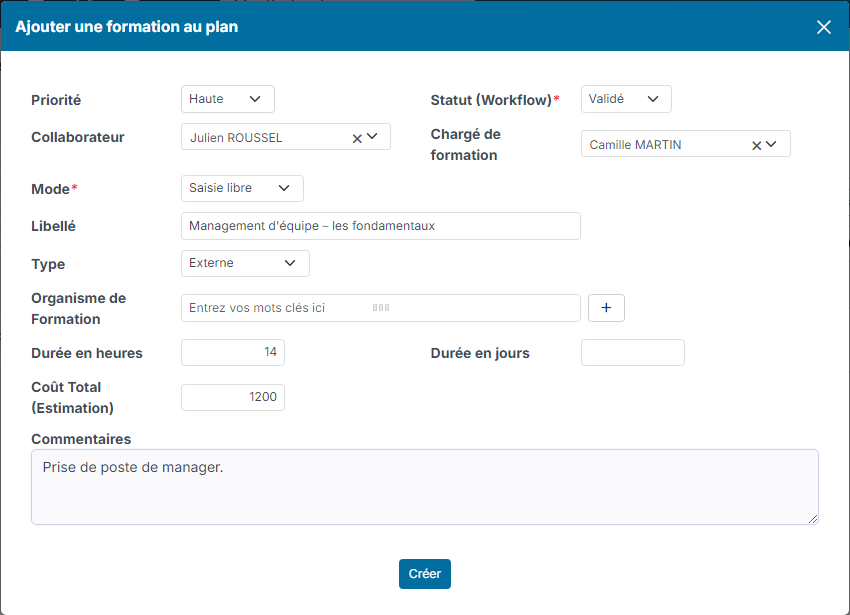
A plan line specifies the Priority, the status, the employee concerned, the Training manager, the training (chosen from the Catalog or as free entry), its type (internal, external or self-training), the Training Company, the duration in hours or days and the Estimated Total Cost.
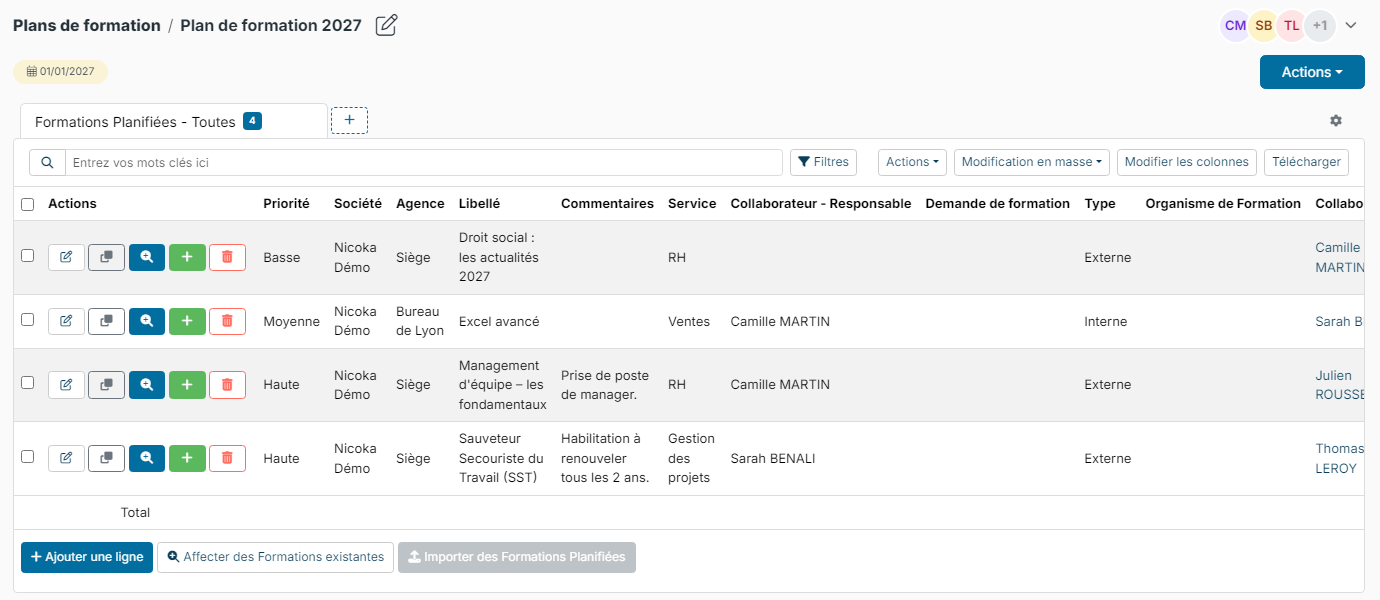
The plan is displayed as a list, with a total calculated on all lines, not page by page.
To save time:
- Duplicate the line (copy button of a line) opens the creation window prefilled with the original line;
- the bulk edit changes at once the training manager, the training company, the comments or the type of the ticked lines; the Actions menu also lets you move lines to another plan;
- the assign button links trainings already entered to the plan;
- the import button loads planned lines from a file (depending on your import rights).
Planned hours and costs are totalled on the plan. The salary cost of a line is taken from the salary cost entered on the employee's record.
Get the plan and the requests approved
Each plan line carries a status (New, Submitted, Approved, Refused, Postponed…) that the manager updates as decisions are made.
Employees can also request a training from My Trainings, with the Request a training button. These training requests follow the approval workflow defined in the module settings, on the same principle as leave requests. Without a workflow, a request is approved automatically.
Organize a training
From a plan line, Generate the training creates the training from the line's information. You can also use Plan/Enter a training from the list. A training's record has several tabs:
- Sessions: a training can take place in one or more sessions (dates, times, duration); click the button to add a session. A planning view shows them in a calendar.
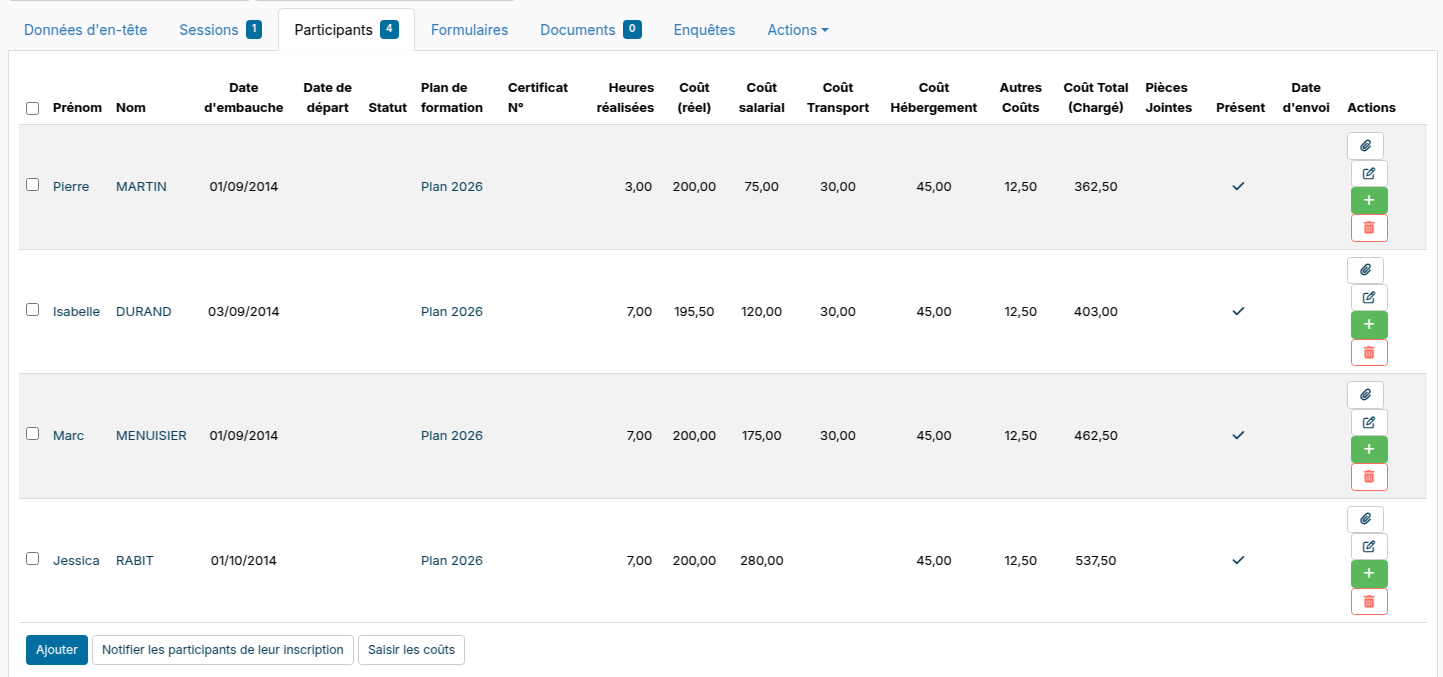
- Attendees: click Add to register employees, then Notify attendees of their registration to send them an email. The Present column shows who attended the training (one column per session if the training has several); the Hours completed and the attachments (a certificate for example) are entered per attendee. So are the costs: Real Cost, Salary Cost, Travel Cost, Accommodation Cost and Other Cost are typed right in the grid, in the attendee window (pencil), or for several checked attendees at once with Enter the costs (an amount per attendee, or a total split evenly). The salary cost is computed from the salary cost of the employee record and the hours completed (0 for an absentee); a typed amount replaces it, clearing the cell computes it again.
- Documents: the training's attachments, which you can preview.
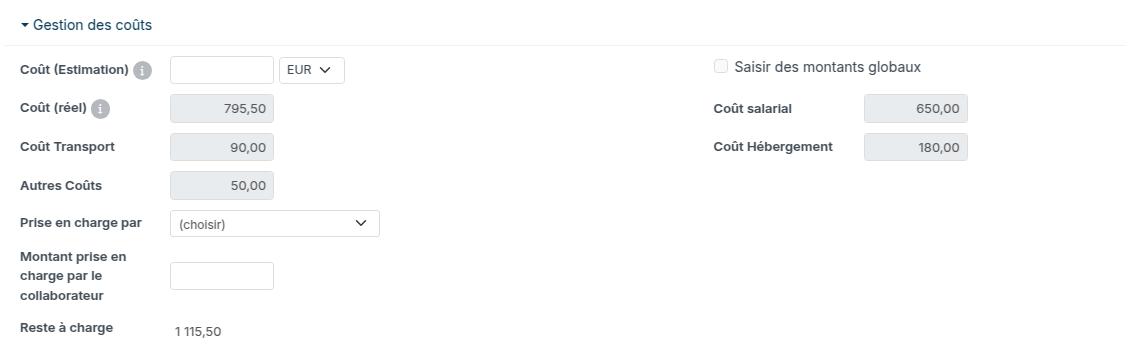
On the Header tab, the Costs management block shows, for every cost at least one attendee carries, the sum of the attendees (greyed field); the other amounts stay editable. To enter amounts for the whole group, tick Enter global amounts: the training then keeps your amounts, and the per-attendee entries stay visible on the Attendees tab. An amount typed before the attendees carry any cost is never overwritten: the box ticks itself, untick it to take the sums again.
The training plan lines feed the attendees when a training is generated or linked (the Training Cost of the line becomes the Real Cost of the attendee), then each record evolves on its own: the plan stays the forecast, the training the actual.
The Actions menu of the record offers Copy, to offer a training again without retyping everything, and Renew.
Follow renewals
A training can have an expiry date (Expires on), calculated according to the expiry date calculation setting. For a qualification to be refreshed, use the Renew action on the training: Nicoka creates a new training from the previous one, whose label and catalog training you can change. Reminders can warn about the deadlines.
The My Trainings space
Each employee finds in My Trainings their key figures (trainings attended, next session, requests in progress) and the My Planning, Sessions attended, Sessions I run and My requests tabs. The status of each session is shown as a tag (upcoming, done, renewed, expired). For qualifications, the validity tab shows only one line per qualification: the most recent one.

Set up the module
In Customizing, open Training: Customizing Points (expiry date calculation, timesheet ticked by default, email templates…), Workflows (approval workflow of training requests), Custom Fields, Domains, Categories, Priorities, Statuses, Third Parties (funders), Reminders, Events, Document Templates and Survey Models (end-of-training evaluations).