A candidate's number of years of experience
The Years of experiences field on the candidate record is not just a typed-in value: Nicoka estimates it from the candidate's experiences, then ages it every year. This page explains how the value is calculated, how to trigger it again and what to do when it looks wrong.
Where to find the number of years of experience
Open the candidate record, then the Edit Info tab. The Years of experiences field is followed by the date the value was set (Updated on …).
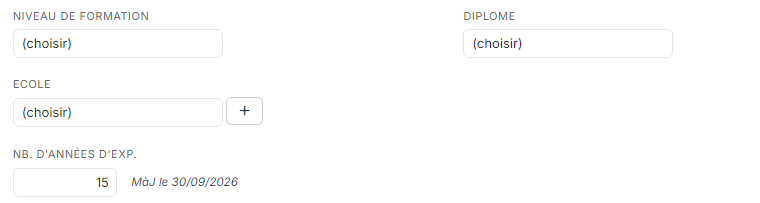
This value is also used elsewhere: in the candidate summary, in the candidate search filters and in the matching between a job and a candidate, which compares it with the years of experience the job requires. It is therefore a sorting criterion as much as a display field.
How the value is calculated
Nicoka derives the value from the work experiences saved on the record. It does not add up the durations: it combines the periods covered, so a period worked in two positions at the same time is only counted once. An experience with no end date is counted up to today.
Three channels fill the field:
- Resume parsing: the experiences in the resume are added to the record, and the number of years is derived from them.
- The Nicoka plugin for Chrome: when you import a profile (LinkedIn or a job board's resume database), the calculation uses the experiences retrieved by the plugin. Make sure the experiences are visible on screen before importing: without them, there is nothing to calculate.
- Manual entry: you can always fill in or correct the value in the Edit Info tab.
Automatic update, once a year
The value is stored with its update date. Once a year, on 1 January, an automatic process ages the counter: every record whose value is more than one year old gains the years elapsed since that date, and the update date moves forward accordingly. A candidate saved with 5 years of experience therefore shows 6 one year later, without any action on your part. This lets you source from your own database without going back to the resume.
This ageing applies to your whole candidate database.
Running the calculation again for a candidate
After a bulk import or a data migration, the field may remain empty. To trigger the calculation on a record, add, edit or delete one of the candidate's experiences, then save: Nicoka recalculates the estimate immediately.
Why a value looks too high
The calculation itself never counts the same period twice. Two situations can still push the value up:
- An experience with no end date. It is counted up to today: an old experience left open stretches the period covered up to the current date.
- An import from the plugin. The plugin may add up the raw durations of the experiences it retrieves, without taking overlaps into account. A profile with 19 years of experience can therefore come out at 28.
Correcting the experiences will not bring the counter down: the recalculation only ever raises the value, never lowers it. Filling in a missing end date corrects the career history, not the number displayed. To bring a value that is too high back to the right figure, edit the field manually.
Correcting a value manually
A manual entry replaces the calculated value, and the update date changes to the day of the entry. Clearly absurd values, such as 1,121 or 2,412 years, almost always come from a typing error.
The candidate record rejects values above 80 years: an error message is displayed and the value is not saved.
Turning off the import from the plugin
If you would rather have no value than an approximate one, you can stop the plugin from importing the number of years of experience. This setting requires access to the customizing area: if you do not have it, contact your company's Nicoka administrator.
- In the side menu, open Customizing > Store.
- On the ATS card, click Customize.
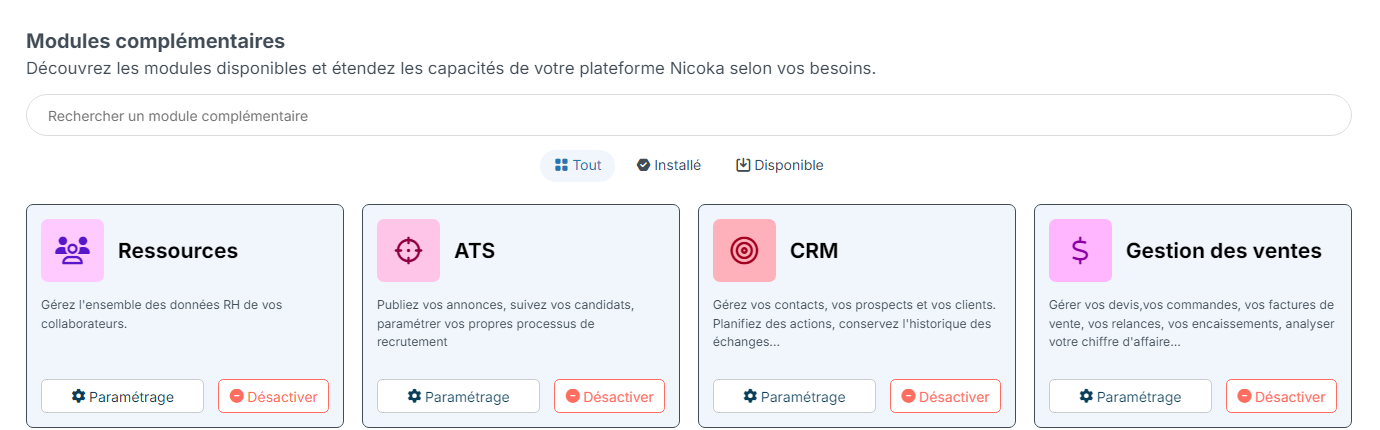
- In the left-hand menu, click Customizing Points.
- Expand the Nicoka Plugin section.
- Untick Get number of years of experience.
- Click Save at the bottom of the page.

Once the setting is saved, each user must refresh their plugin: open the plugin menu, then click Refresh parameters.
This setting only stops the import of the value calculated by the plugin. It does not empty the field: the imported experiences remain on the record, and Nicoka can still derive a value from them.
Good to know
- The field can be edited manually at any time: your correction takes precedence over the estimate.
- A value that looks wrong almost always comes from the candidate's experiences, not from the calculation: check the Experiences tab first.
- To install the plugin, see Step 4: Install the Chrome extension and import a candidate.