Booking pages: let candidates and contacts book a meeting with you
A booking page publishes your free slots: whoever receives the link picks a day and a time, leaves their details, and the meeting lands straight in your Nicoka agenda. No more back-and-forth emails to schedule an interview or a first call.
Nicoka only offers the slots where you are free: it takes into account your events, the meetings of your synchronised Outlook or Google agenda (recurring meetings included), your time off, even pending approval, and public holidays. The visitor never sees what is in your agenda, only the times offered.
Booking pages require the right to create events in the agenda. Everyone creates and manages their own pages.
Create a booking page
- At the top right, click your initials, then Booking pages.
- Click New booking page.
- Fill in the Label, shown as the title of the page (for example "Discovery call"), and the Duration of the meeting.
- Tick OnLine Meeting for a video meeting, or enter a Location.
- Under Availability, tick the days you take meetings and set the time ranges. The + adds a range within the day (morning and afternoon, for example), the copy icon copies a day's ranges to the other days.
- Click Save.
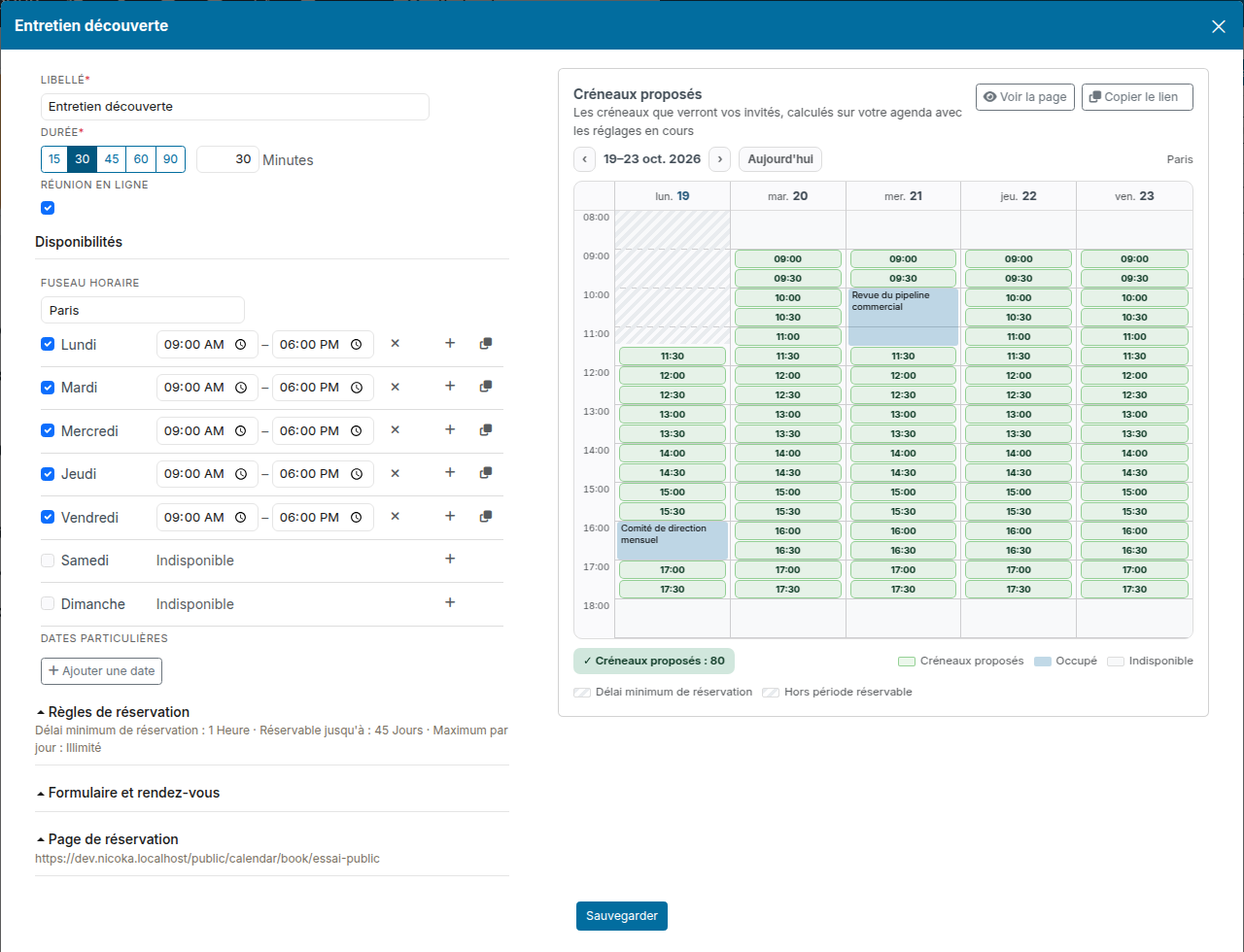
On the right, Slots offered shows the week as your invitees will see it, refreshed with every change: offered slots in green, meetings already booked in blue, hatched what falls before the minimum notice or beyond the bookable period. The arrows browse the weeks.
Other settings
- TimeZone: the zone your time ranges are read in. The visitor sees the slots in their own zone.
- Specific dates: a closed day (trade fair, training…) or different hours on that day.
- Booking rules: Minimum notice (4 hours by default, so that nobody books a meeting at the last minute), Bookable up to (60 days by default), Free time before and Free time after each meeting, One slot every (the meeting duration by default) and Maximum per day.
- Form and meeting: the Type of event created in your agenda, Phone number required, and Unknown invitee: create a candidate, a contact or nothing when the person is not in Nicoka yet.
- Booking page: the end of the page address, the welcome text shown to visitors (Description) and the Active box.
To avoid double bookings, connect your Outlook or Google agenda in your integrations: its meetings are then taken into account, and a video meeting gets its Teams or Google Meet link.
Share your pages
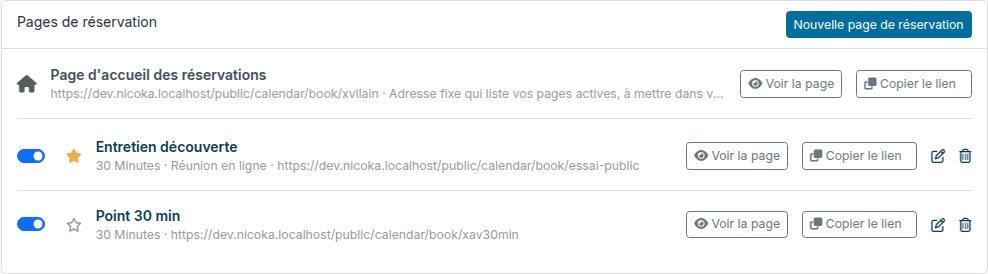
The Booking pages tab lists your pages with their address. View page opens it as your invitee will see it, Copy link copies its address, to paste in an email, a job ad or a LinkedIn message. The switch on the left pauses a page without deleting it: its link then says the page is no longer available.
Your booking home page
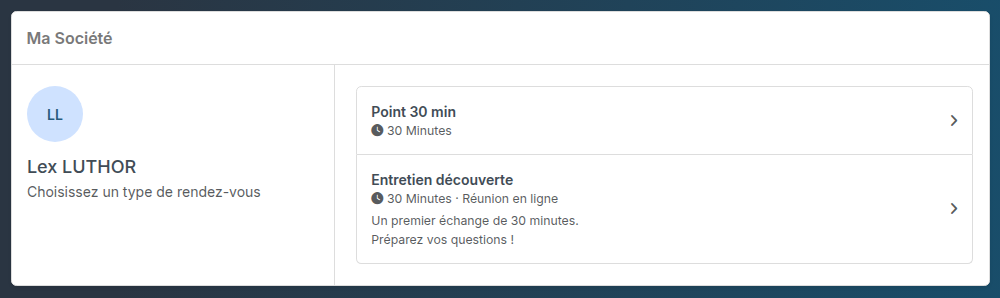
At the top of the list, the Booking home page has a fixed address built from your login: …/public/calendar/book/jsmith for jsmith@your-company.com. It lists all your active pages; the visitor picks the meeting type, then a slot. This address does not change when you rename, add or delete pages: it is the one to put in your email signature.
Your favorite page
Click the star of a page to make it your favorite page: it is the one the "My booking link" variable of email templates sends (see below). Only one page can be the favorite; click the star again to remove it. Without a favorite page, the variable sends your home page.
Send your link by email
From a new message
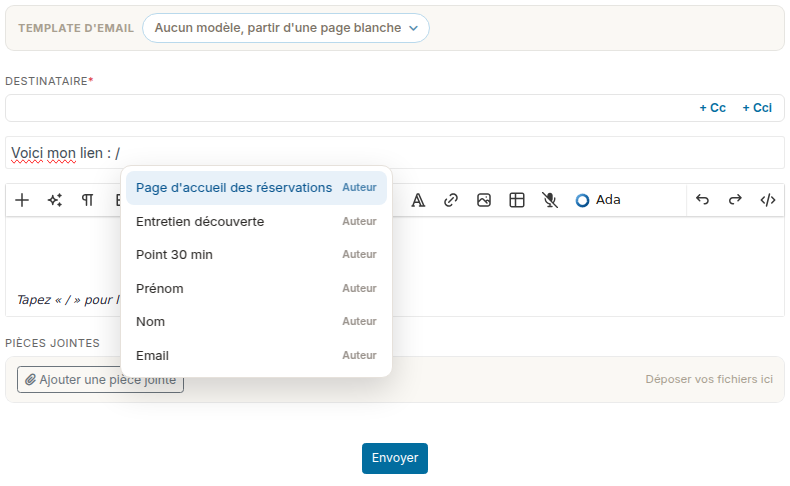
In the body of the message, type /: your home page and your active pages come first in the list. Pick one to insert its address.
In an email template
In a template sent to a candidate, an application or a contact, add the Booking pages: My booking link variable. When the email is sent, it becomes a "Choose a slot" button that opens the sender's favorite page, or else their home page.
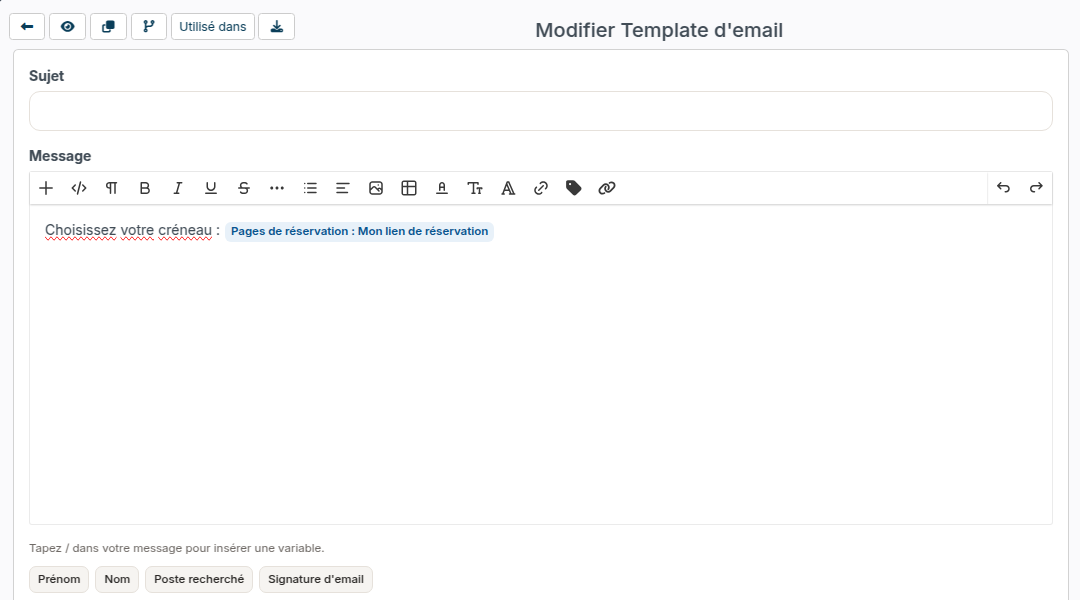
- The link is personal: it fills in the recipient's name and email, and the meeting is linked to their record even if they type another address. Sent from a job, the interview is filed under the application.
- The variable follows the sender: one template used by several recruiters sends each one's own page.
- If the sender has no active page, the button does not appear in the email.
In your signature
In a signature template, the My booking address variable inserts the address of your home page. You can also use it as the target of a link: select a text such as "Book a meeting", click the link icon and choose My booking address. In a signature typed by hand, simply paste the address copied from the tab.
On the invitee's side
- They open the link and pick a day, then a time. The slots are shown in their time zone, which they can change at the bottom of the page.
- They enter their first name, last name, email (and phone if you asked for it), add a message if they wish, accept the use of their information and click Confirm the appointment.
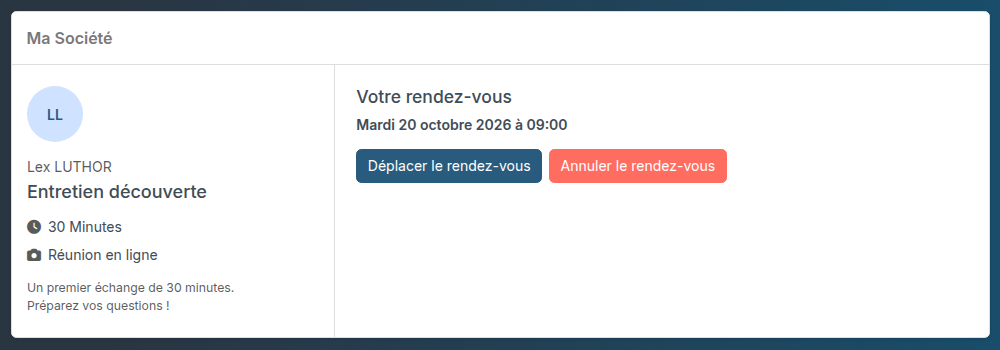
- They receive a "Meeting confirmed" email with the summary and a Move or cancel button, along with an invitation to add to their agenda.
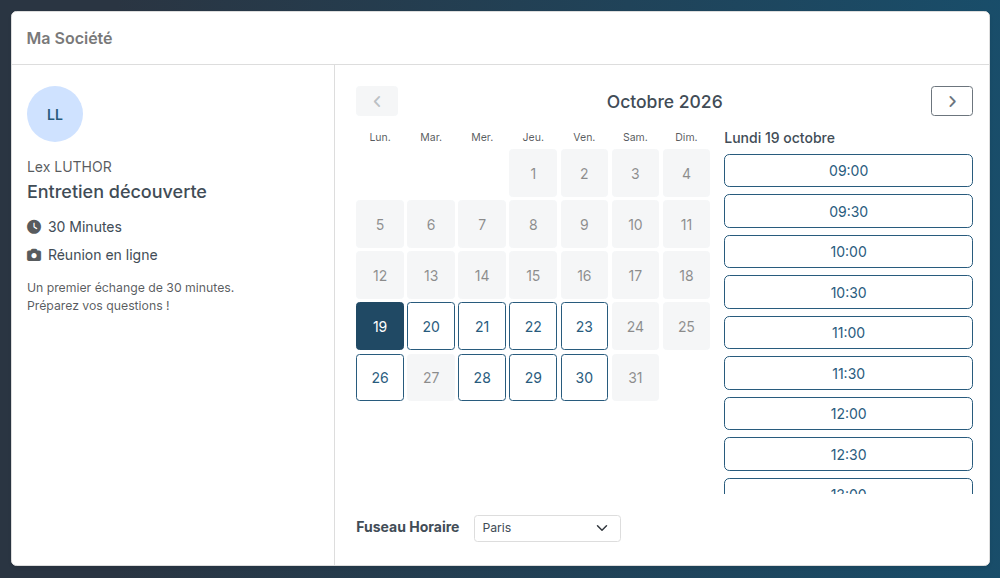
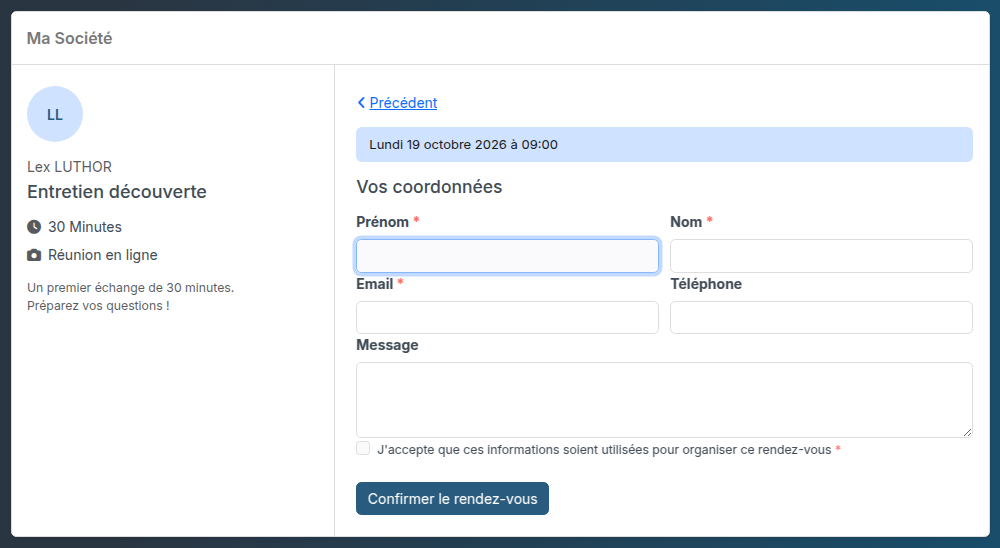
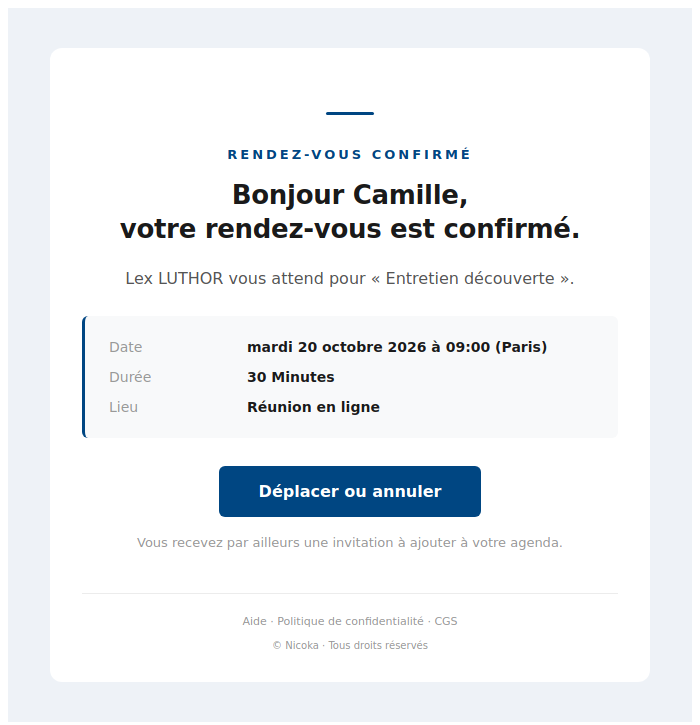
The Move or cancel button takes them back to the page: they pick another slot, or cancel and leave a word. You are told in both cases.
If two people aim at the same slot at the same moment, the second one is asked to choose another: a slot is never booked twice.
On the organiser's side
- The meeting is created in your agenda, with the person as attendee, and sent to your Outlook or Google agenda if it is synchronised. The phone number and message left by the invitee are in the event description.
- You receive a notification "… booked …", then another one if the invitee moves or cancels the meeting, with their reason.
- The person is matched by email among your candidates and contacts; if unknown, Nicoka creates the record chosen in Unknown invitee: create.
- If you move or delete the event in your agenda, the booking follows.
- A booked meeting is confirmed straight away: it goes through no event approval workflow, even if your instance uses one.