Share a candidate on Slack
Connect Slack to Nicoka to share candidates with your team: in a channel, or directly with a colleague as a private message. The connection is done once, by an administrator. Consultants then have nothing to set up.
What you need
- A Slack workspace.
- The right to install an app on this workspace. On some workspaces, the installation must be approved by a Slack administrator.
- Access to Customizing > Integrations in Nicoka.
You have nothing to create on the Slack side: the Nicoka app already exists, you simply authorize it on your workspace.
Step 1: connect your workspace
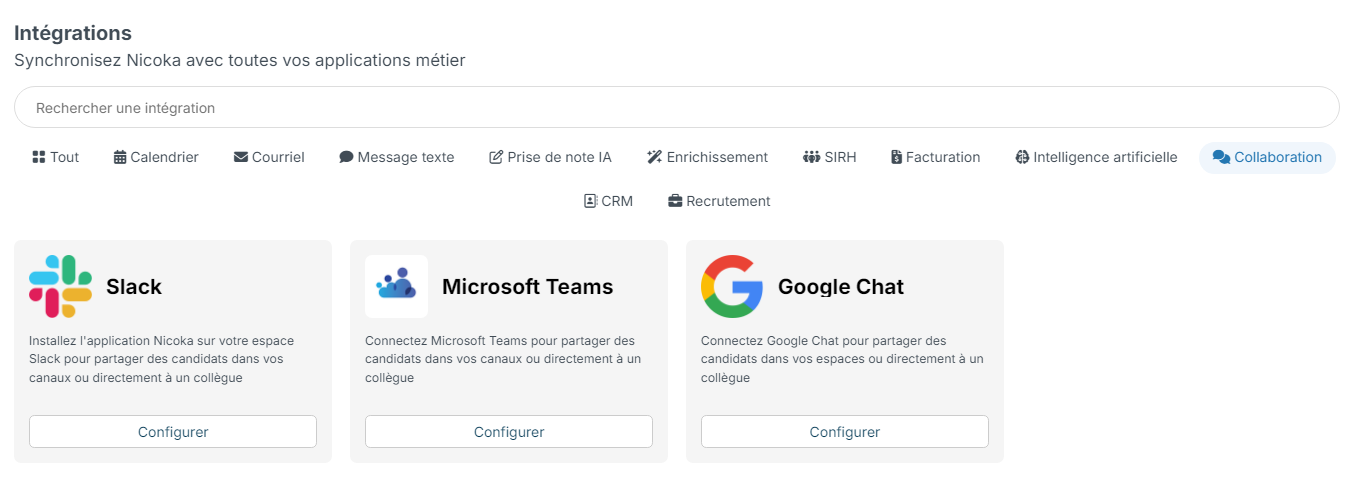
- In the side menu, open Customizing > Integrations. The Collaboration filter shows the available team chats.
- On the Slack card, click Configure.
- Click Connect Slack.

- Slack shows an authorization screen that sums up what the Nicoka app will be able to do. Accept.
- You return to Nicoka: your workspace now appears on the Slack page.
Step 2: choose the channels
- On the card of your workspace, click Configure.
- In Channels available for sharing, check the channels your consultants may use.
- Save.
A private channel only shows up in the list once the Nicoka app has been invited into it. To add it, open the channel in Slack and invite the Nicoka app (for example by typing /invite @Nicoka).
The same window offers the Also send a direct message to colleagues mentioned in a note option, enabled when you connect.
Share a candidate
- On a candidate record, open the … menu, then click Share on team chat.
- In Send to, choose the destination: a channel, or directly a colleague.
- Add a Comment if you wish, then click Send.
The message contains your name, the candidate's name as a link to their record, the job concerned and your comment. Sent to a colleague, it arrives as a private message from Nicoka.
Nicoka remembers the last destination you used for each job: if you always share the candidates of a job in the same channel, it is suggested automatically the next time.
Mention a channel or a colleague in a note
In a note (candidate, contact or employee), type @ followed by the first letters: the connected channels show up in the list, next to your colleagues, grouped under the name of your workspace.
Save the note: its content is posted in the mentioned channels, with the link to the record. The mentioned colleagues receive the same content as a private Slack message, if the step 2 option is still enabled.
Microsoft Teams and Google Chat
The Integrations screen also offers the Microsoft Teams and Google Chat cards. Once one of these team chats is connected, the same Share on team chat menu lets you share your candidates there.
Frequently asked questions
Do consultants have to set anything up?
No. Once the workspace is connected by an administrator, the whole team can share and mention.
How does Nicoka know who to send a private message to?
By email address: Nicoka looks for the Slack account with the same address as the employee. If a colleague uses another address on Slack, they cannot be reached by private message, and a message tells you so.
The share action does not show up on the record.
It is only offered when a team chat is connected. It does not show up on an anonymized candidate either.
A message does not arrive.
Check that the channel is checked in your workspace configuration, and that the Nicoka app was invited into the channel if it is private. If the problem persists, reconnect Slack from the same page.