Share candidates through an external share link
The client share link gives an external person (a client, a hiring manager) access to a job's candidate portal without creating a Nicoka account for them. The person simply enters their email address to access the portal. You stay in control: you choose who can access it, you can see who signed in and you can revoke the link whenever you want.
Before you start
- The job must be linked to a customer account and must not be closed.
- The link is managed from the job's Customers Access tab.
- The default settings (access policy, role, notification) are made in the ATS settings (administrator access).
1. Get the share link
Each job gets its share link as soon as it is created.
- Open the relevant job.
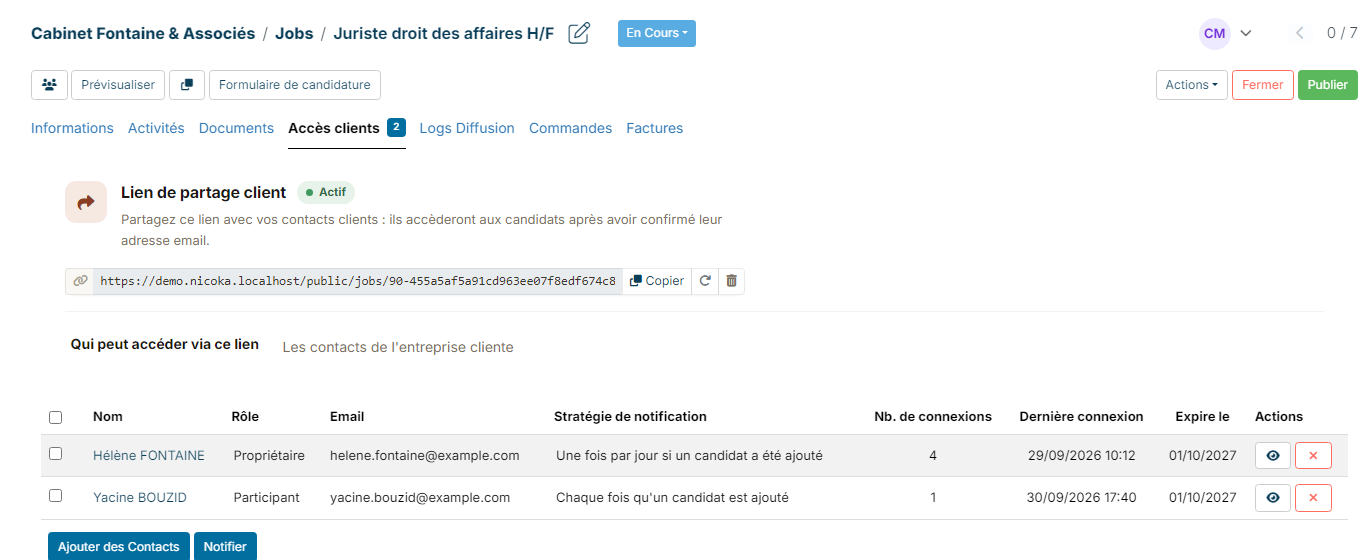
- Click the Customers Access tab. The Client share link card shows the link, with the Active badge.
- Click Copy, then send the link to your contact (by email, in a message…).
2. Insert the link into an email template
Rather than copying and pasting the link, you can insert it into the email templates you send to the client. In an email template linked to the job, add the job's Share link field where you want it: every email sent will automatically contain the link of the relevant job.
3. Choose who can access
The access policy defines who is allowed to enter their email on the link's home page. Three levels are available:
- The job contacts only: only people already registered as contacts of the job (main contact and secondary contacts) can access it. This is the most restrictive level, best for a controlled share.
- The client company contacts: any contact of the customer account can access it. An unknown address whose domain matches the company's is accepted, and the contact is created automatically.
- Anyone with the link: anyone holding the link can access it by entering their email; the contact is created automatically. Reserve this for the most open shares.
The default policy is set in the settings (see below). To change it on a single job, click the value shown next to Who can access through this link, in the Client share link card, and pick another level: it is saved at once, for this job only.
4. Track accesses
Below the card, the table lists the people who have access to this job's portal:
- Name and Email of the person;
- Role granted (for example Owner, Participant or Read Only);
- notification strategy applied;
- Nb. of connections and Last login on, to follow activity;
- Expires on: access expiry date;
- Actions: view or remove a person's access.
The role and the notification strategy can be changed directly in the table.
5. How your contact gains access
- They open the link you sent them.
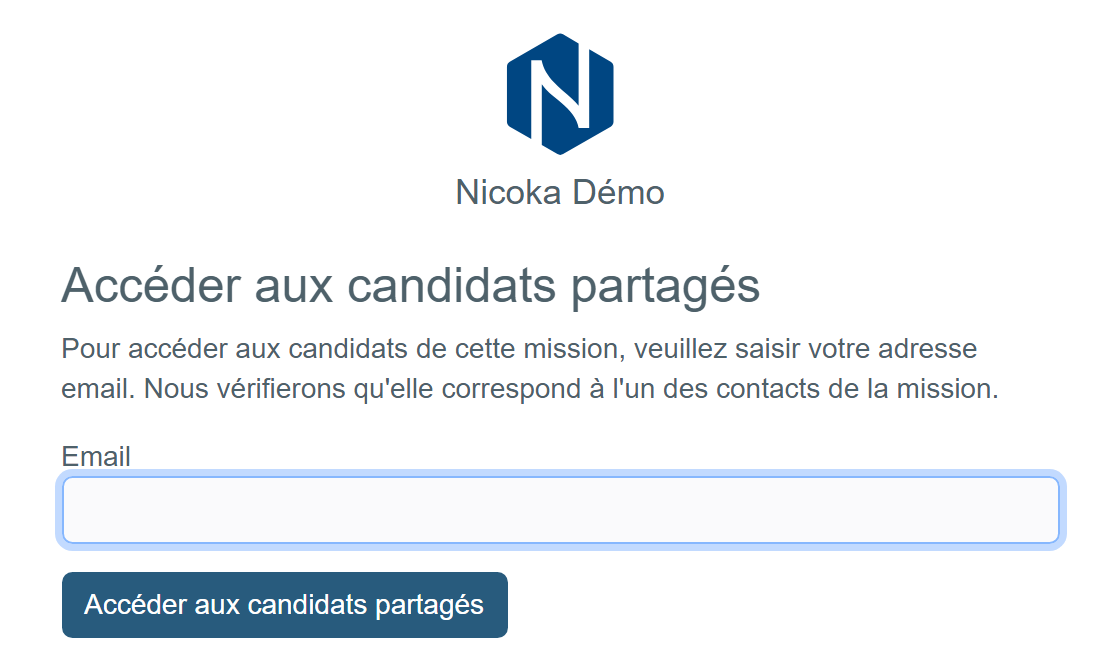
- The Access the shared candidates page invites them to enter their email address.
- If their email is allowed by the access policy, they go straight to the job's candidate portal.
The page shows your logo and your company name. No account or password is required from your contact.
6. Copy, revoke or regenerate the link
The buttons of the Client share link card, to the right of the link:
- Copy: copies the active link to share it.
- the circular arrow icon (Generate a new link): creates a fresh link and invalidates the old one. Useful if the old link was shared too widely; remember to send the new link to your contacts.
- the trash icon (Revoke link): immediately disables the link. Nobody can use it any more to access the portal. The Generate the share link button then lets you create a new one.
7. Share link settings
The default settings are in the ATS settings:
- In the side menu, open Customizing > Store.
- On the ATS card, click Customize. The Customizing Points screen opens.
- Expand the External Sharing Portal section.
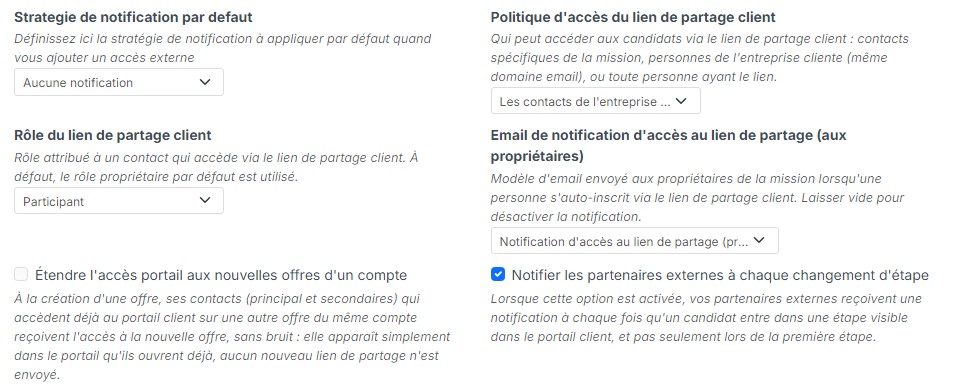
- Client share link access policy: the policy applied by default to all jobs (see step 3).
- Client share link role: the role given to a person who accesses through the link. When empty, the default owner role is used.
- Share link access notification email (to owners): see step 8.
- Extend the portal access to the new jobs of an account: when this box is ticked, on the creation of a job, its contacts who already reach the portal on another job of the same account are given access to the new job. It simply shows up in the portal they already open: no new link is sent.
8. Get notified of new accesses
You can be notified by email when someone signs in for the first time through the share link. The job owners then receive an email with the person's name, their email address and the job concerned, and a View the share portal button that opens the job's link directly.
- In the External Sharing Portal section of the settings, find Share link access notification email (to owners).
- Choose the email template to send. It can be customized like any Nicoka email template.
- To disable the notification, leave this setting empty: no email will be sent.
9. Secondary contacts in copy
When you share candidates from a job, the job's secondary contacts can be put in copy of the email automatically, in addition to the main contact as recipient. This prefill is on when the Prefill recipient with the main contact when sharing a candidate from a job setting is ticked (Sharing Customizing section of the customizing points). Then just fill in the secondary contacts on the job.
Frequently asked questions
Does my contact need to create an account?
No. They only enter their email address to access the portal.
How do I cut off access quickly?
Revoke the link from the Customers Access tab (trash icon), or remove a specific person's access from the Actions column of the table.
Can an unknown address get access?
It depends on the job's access policy: job contacts only, client company contacts, or anyone with the link.
Can I customize the home page?
The page automatically shows the logo and company name configured in Nicoka.