Word resume display issues
On a candidate record, the resume is displayed in the CV panel, to the right of the record: the CV tab on the right edge of the screen opens and closes it. A PDF resume is displayed directly by Nicoka. A Word resume (.doc, .docx) is displayed by Microsoft's online viewer: Nicoka sends the file to it through a temporary link, and Microsoft's service produces the preview.
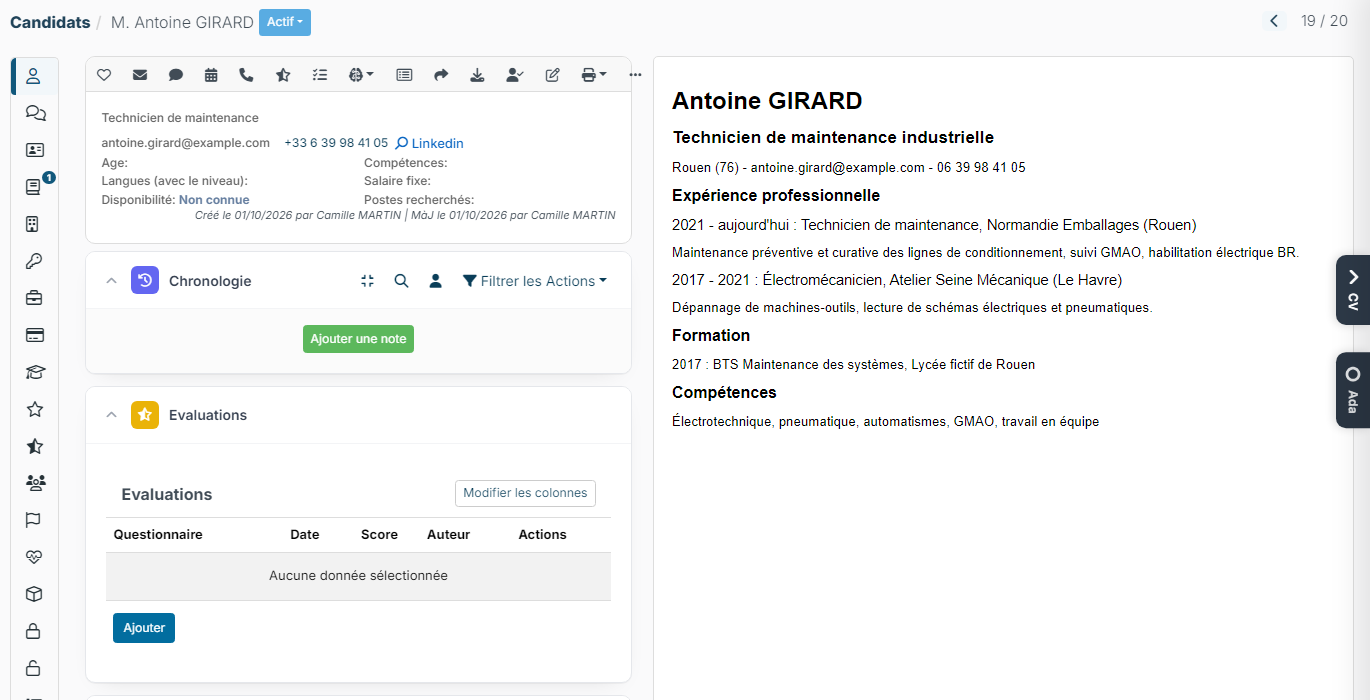
If the Word resume is not displayed
When the panel stays empty or shows a Microsoft error message, there are several possible causes:
- Microsoft's service is overloaded. Wait a few moments, then reload the page.
- Your computer cannot reach Microsoft's service. Open https://view.officeapps.live.com/op/ in your browser and check that no error message is displayed. If you have a Microsoft 365 account, the viewer may ask you to sign in again. If your company filters internet access, ask your IT department to allow this site.
- The Word document is corrupted or badly formatted. Download it, open it on your computer and save a new version, then add that version to the record (see below).
Viewing the resume anyway
The file remains available even when the preview does not display. In the Summary tab of the record, click the Download last resume icon (down arrow) in the action bar, then open the file on your computer.
Replacing a badly formatted resume
- Open the downloaded resume in Word and save it under a new name. You can also save it as a PDF: a PDF is displayed directly in Nicoka, without going through Microsoft's service.
- On the candidate record, open the Documents tab.
- Click Upload and add the new file.
The problem persists
If none of these cases applies, report it to support from the page where the document is not displayed: if the Support button is on your screen, use its Feedback tab. You can also write to support@nicoka.com, giving the candidate's name and the file name.