Create a purchase order from a sales order
When you subcontract all or part of a customer order (a consultant, an interim manager, a service bought from a partner), Nicoka creates the supplier's purchase order from the sales order. The lines, the period and the project activities are carried over, and you set the purchase price of each line when you create it.
Create the purchase order
- Open the sales order. Depending on your settings, it may be called Contract.
- Click Actions, then Create a new Purchase Order.
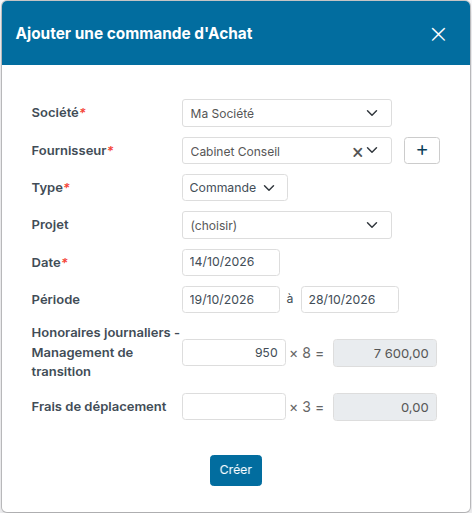
- Choose the Supplier and the Type. The Period is taken from the sales order.
- For each line of the sales order, enter the unit purchase price. The line amount (price × quantity) is computed as you type.
- Click Create.
Where the suggested price comes from
The sales price is never used as the purchase price. Nicoka suggests, in this order:
- for a line billed per day (unit Per Day or Per FTE) linked to a project activity: the Daily purchase rate of that activity, for instance the consultant's or manager's daily rate for this assignment;
- otherwise, the purchase price of the item at the chosen supplier (supplier catalog, item purchase price). Leave the field empty: this price is applied when you save.
When no price is known, the line is created without a price: complete it afterwards on the purchase order.
The Daily purchase rate is set on the activity: open the project, then edit the activity.
Result
The purchase order opens with its lines at their purchase price. Each line stays linked to the sales line and to the project activity, so you can follow the margin of the assignment.
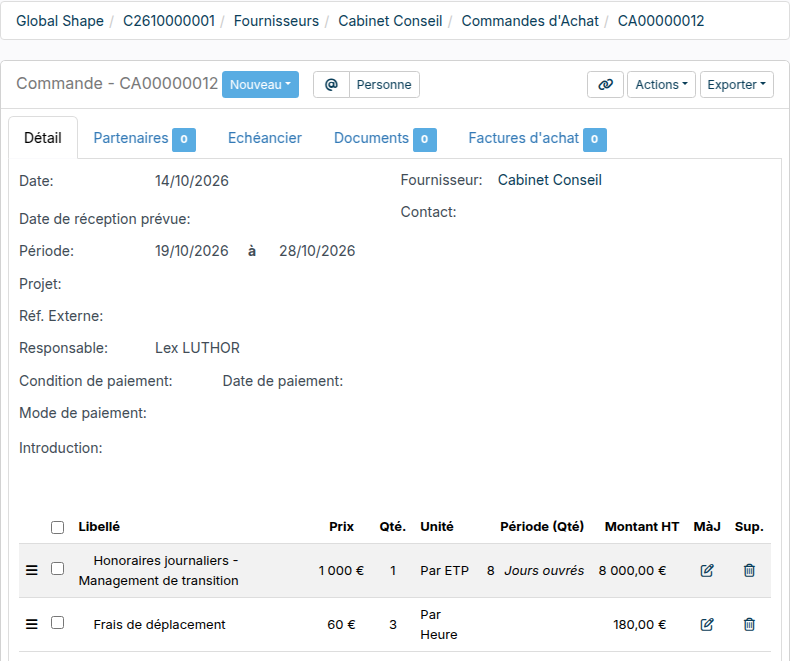
Rate lines (fees as a percentage), comments and expense lines keep the values of the sales order.