Create and Manage Candidate Questionnaires
Questionnaires let you collect structured information: a form sent to a candidate, a technical test, an evaluation grid after an interview, extra questions at application time… This article explains how to create them and build them, section by section.
1. Opening the list of questionnaires
- In the side menu, open Customizing > Store.
- On the ATS card, click Customize.
- In the left-hand menu, click Survey Models.
The list shows your questionnaires with their entity, their type, who can use them and whether they are active.
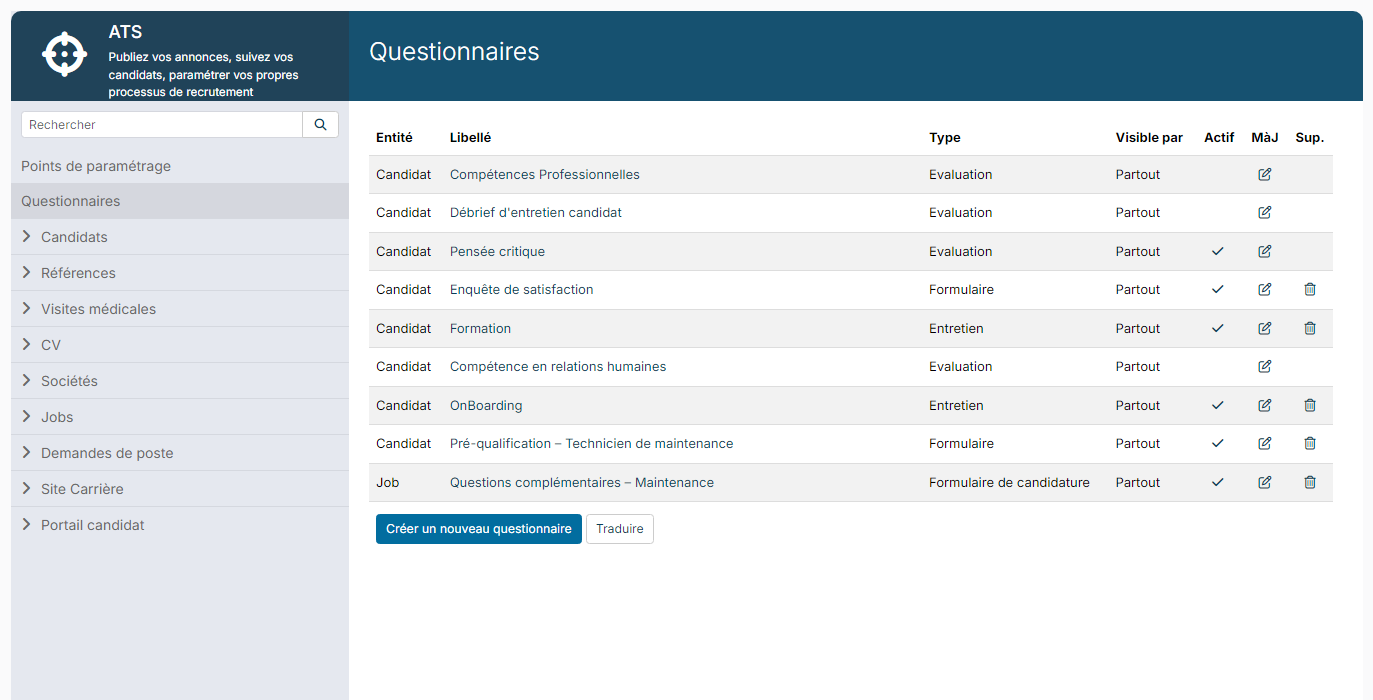
2. Creating a questionnaire
Click the creation button below the list, then fill in:
- Type: the kind of questionnaire (see below). The list shows a description of each type;
- Entity: the object the questionnaire is linked to, usually Candidate, or Job for an application form;
- Label: the name of the questionnaire.
Click Create: the questionnaire's edit page opens.
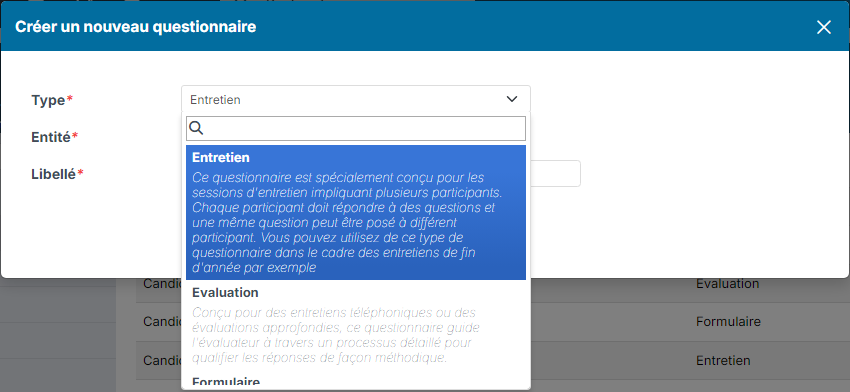
Questionnaire types
- Survey: an overview to fill out all the questions at once. Ideal for quick surveys or simple registrations. It can be sent by email.
- Test: questions are asked one by one, without being able to change previous answers. Ideal for technical tests.
- Interview: designed for interview sessions with several participants; each participant answers questions, and the same question can be asked to several participants.
- Apply Form: extra questions asked at application time, to gather targeted information and complete the candidate's record. It is created on the Job entity (see section 6).
- Evaluation: for phone interviews or in-depth evaluations; the questionnaire guides the evaluator step by step.
With the Candidate entity, the questionnaire is offered in the matching sub-menus of the candidate sheet (for example Evaluations for an Evaluation questionnaire).
3. Setting up the questionnaire
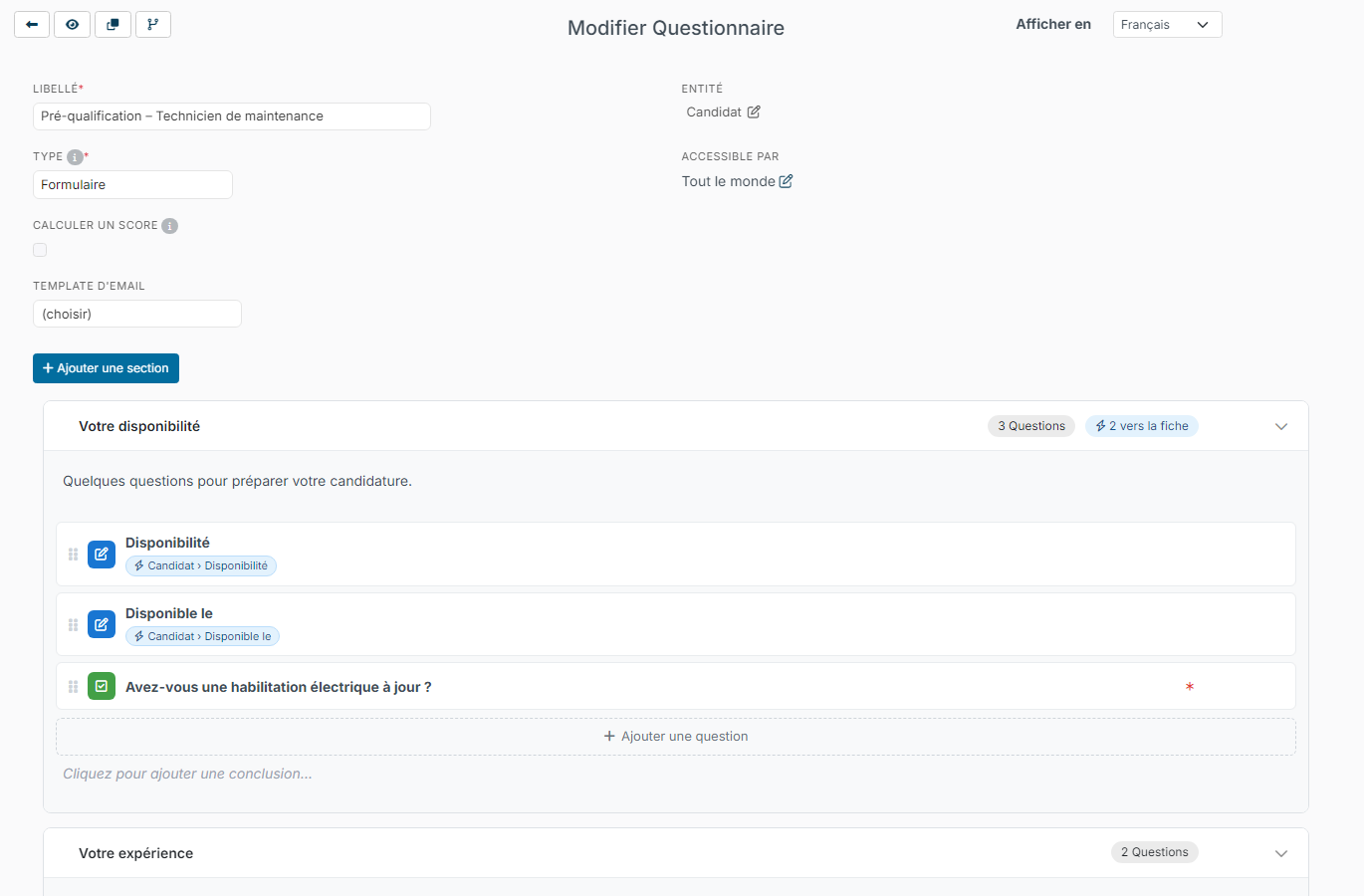
At the top of the edit page, you find the general settings:
- Label and Type: can be changed at any time;
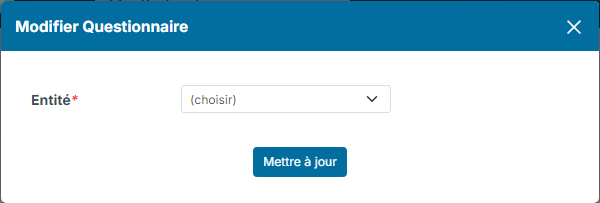
- Entity: to change it, click the pencil icon next to its value (Assignment Change), pick the new entity, then click Update;
- Compute a score: tick this box so that questions can have a correct answer; the activity timeline then shows the total score and its breakdown per section;
- email template: for a survey or a test, the email template used to send it;
- Available for: everyone by default. Click the pencil icon to restrict the questionnaire to some employees, departments or profiles.
Click Update, at the bottom of the page, to save these settings. The buttons at the top left let you go back to the list, Preview the questionnaire, Copy it and view its Change log. The Show in list lets you enter the texts in another language.
4. Adding sections
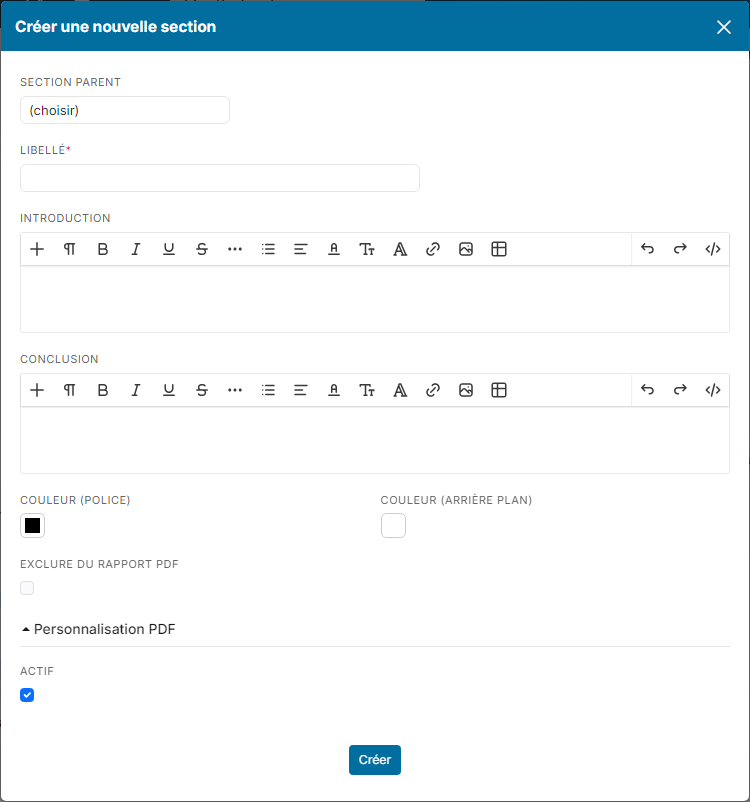
Questions are grouped in sections. Click the button to add a section. Only the Label is required; the rest can be filled in later:
- parent section: to nest the section in another one;
- introduction and Conclusion: texts shown before and after the questions of the section;
- font and Background Color: the color of the section title;
- Exclude from PDF output and PDF customization: how the section looks in the PDF report;
- Active: untick to hide the section.
Each section shows as a collapsible card. Its header shows the number of questions and, where relevant, how many answers update the record. Hover the header to show the pencil (edit) and trash (delete) icons. The introduction and conclusion can also be typed directly in the card.
5. Adding questions
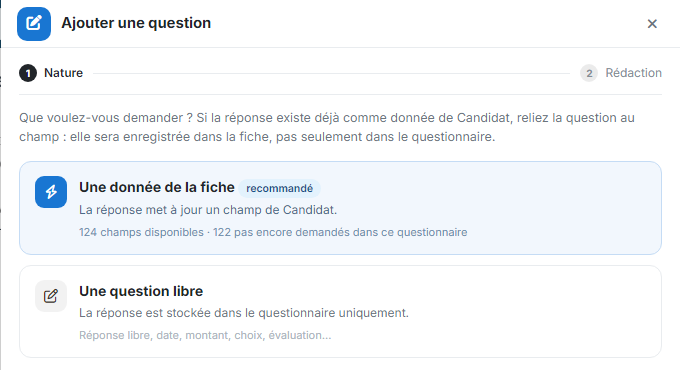
In a section, click the button to add a question. A panel opens on the right, in two steps.
Step 1: Nature
Choose what you want to ask:
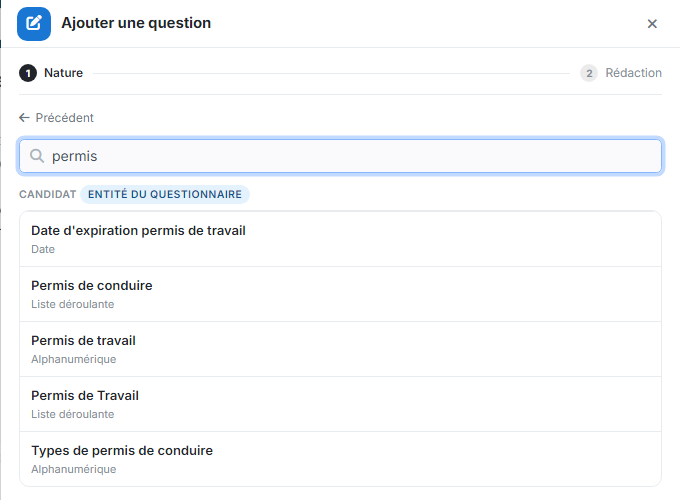
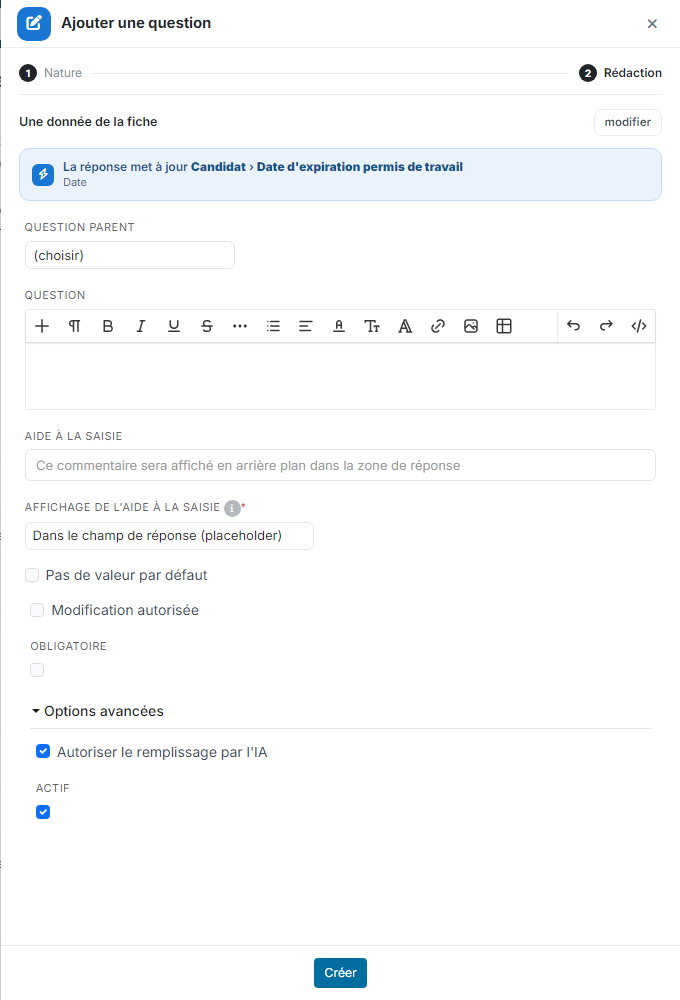
- A record data field (recommended): the answer updates a field of the record, for example the candidate's availability. It is therefore saved on the record, not only in the questionnaire. Search the field by name, then click it. Fields already asked in the questionnaire are greyed out.
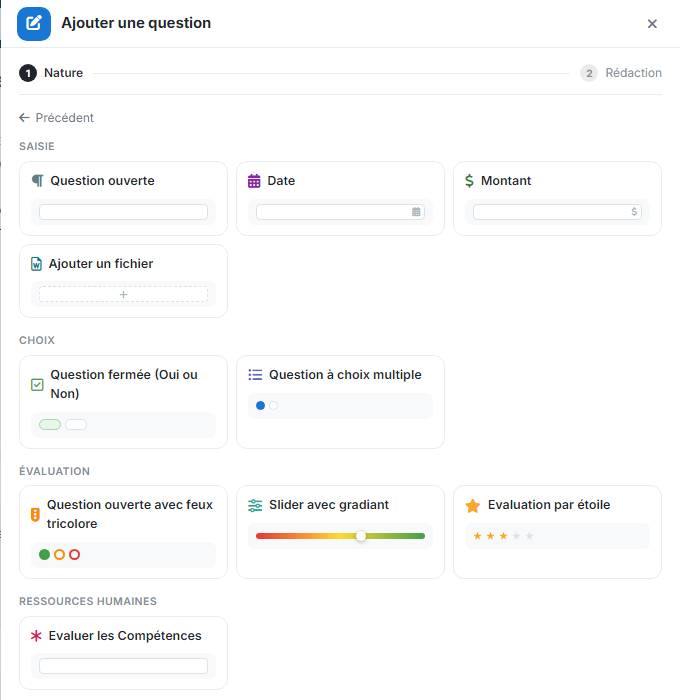
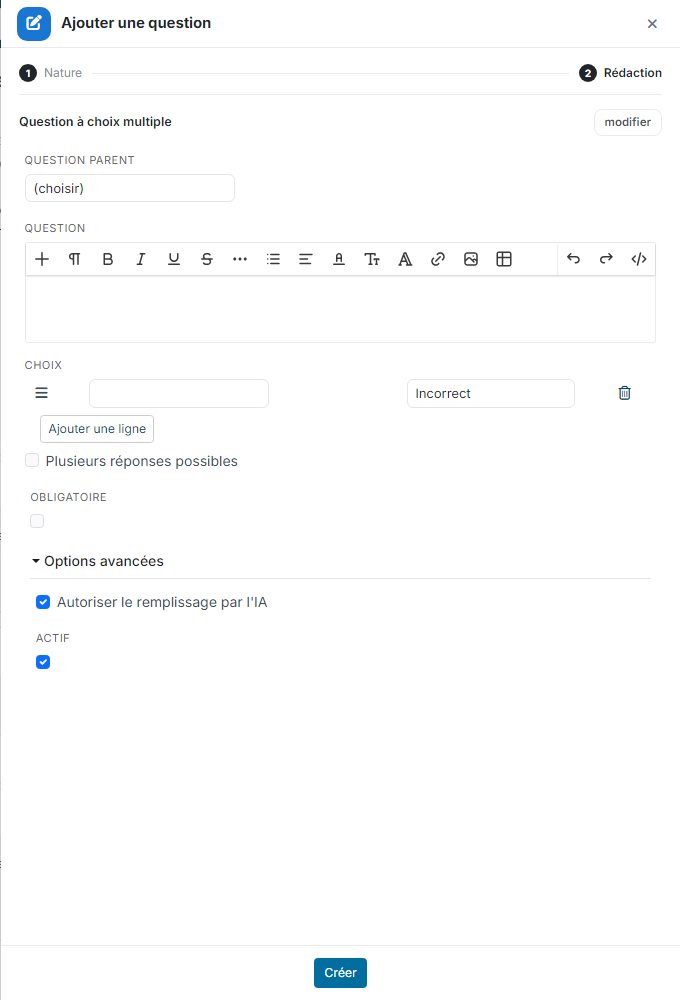
- A free question: the answer is stored in the questionnaire only. Then pick the question type: open question, date, amount, file upload, yes/no question, multiple choice, open question with traffic lights, gradient slider, star rating or skills evaluation. The types offered depend on the questionnaire type.
Step 2: Wording
The change button at the top takes you back to the step 1 choice. For a record data field, a banner recalls the field updated. Then fill in:
- the question text;
- Input Help: a help text shown in the answer area;
- depending on the type: the Choices of a multiple choice question (and Authorized multiple answers), or, for a record data field, No default value and Allow value edition;
- Required: the respondent must answer to submit the questionnaire;
- in Advanced options: Allow AI filling and Active.
Click Create. The question is added to the section; drag it by its left handle to change its order. Hovering a question shows icons to edit, copy or delete it.
Display conditions
A question can be shown only when the answer to a previous question calls for it: pick that question as the parent question, at the Wording step. The questionnaire then adapts to each respondent, instead of showing irrelevant questions. A condition on a date of birth can for instance restrict some questions to adult candidates.
6. The application form
Nicoka provides a standard application form. To ask extra questions on a job:
- Create a questionnaire of type Apply Form, on the Job entity, and build it as above.
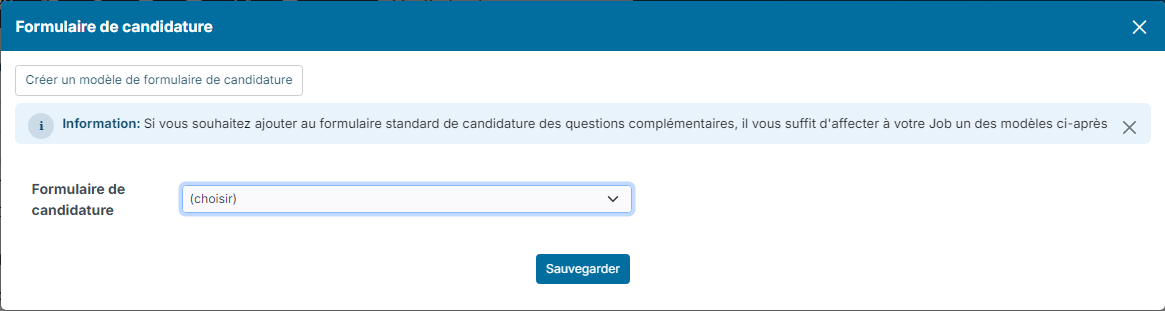
- Open the job sheet and click the Application Form button.
- Pick the questionnaire in the Application Form list, then save.
The Create a new application form model button of this window also lets you create the questionnaire straight from the job.
7. Updating a questionnaire
To change a questionnaire already in use, it is best to copy it and test your changes on the copy. Once your changes are validated, apply them to the original questionnaire. Questionnaires already filled in stay frozen; new ones use the new version.
8. Saving an evaluation as a candidate document
A completed evaluation can be saved directly as a document attached to the candidate's record. You no longer need to export the report and import it again.
- Open the candidate's sheet, then the Evaluations sub-menu.
- On the row of the evaluation, click the save icon of the Actions column.
- Choose the PDF / DOCX template, that is the layout of the generated document, and the Type under which the document will be filed.
- Click Update.
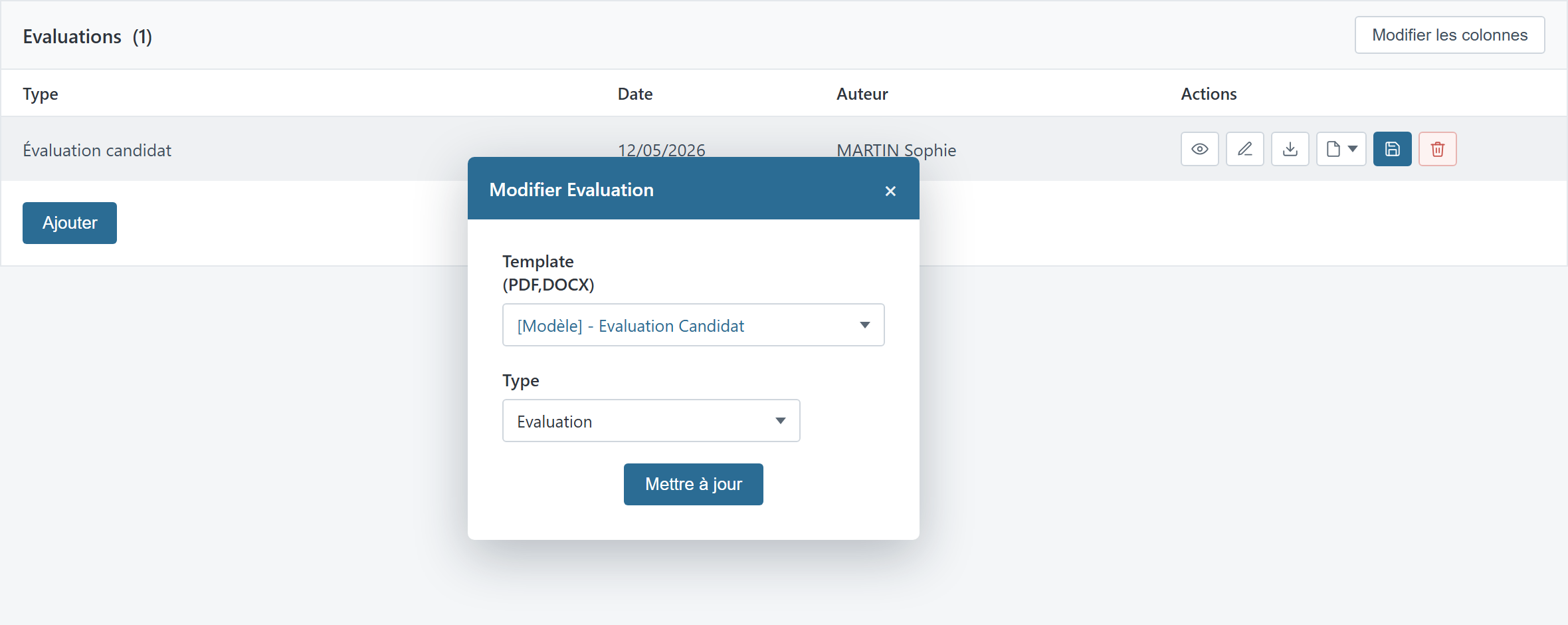
The document then shows in the Documents sub-menu of the candidate sheet, where it can be shared and archived like any other file.
9. Getting test results through the API
The results of Test questionnaires sent to candidates are available through the API, just like evaluations. A dedicated endpoint lets you retrieve them from your tools or integrations.