Searching candidates from a job: criteria and saved searches
From a job, the Add candidates > Search candidates button opens the search in your candidate pool. You build your criteria as pills, run the search when you are ready, and can save that search to reopen it in one click on any job.
Building the criteria
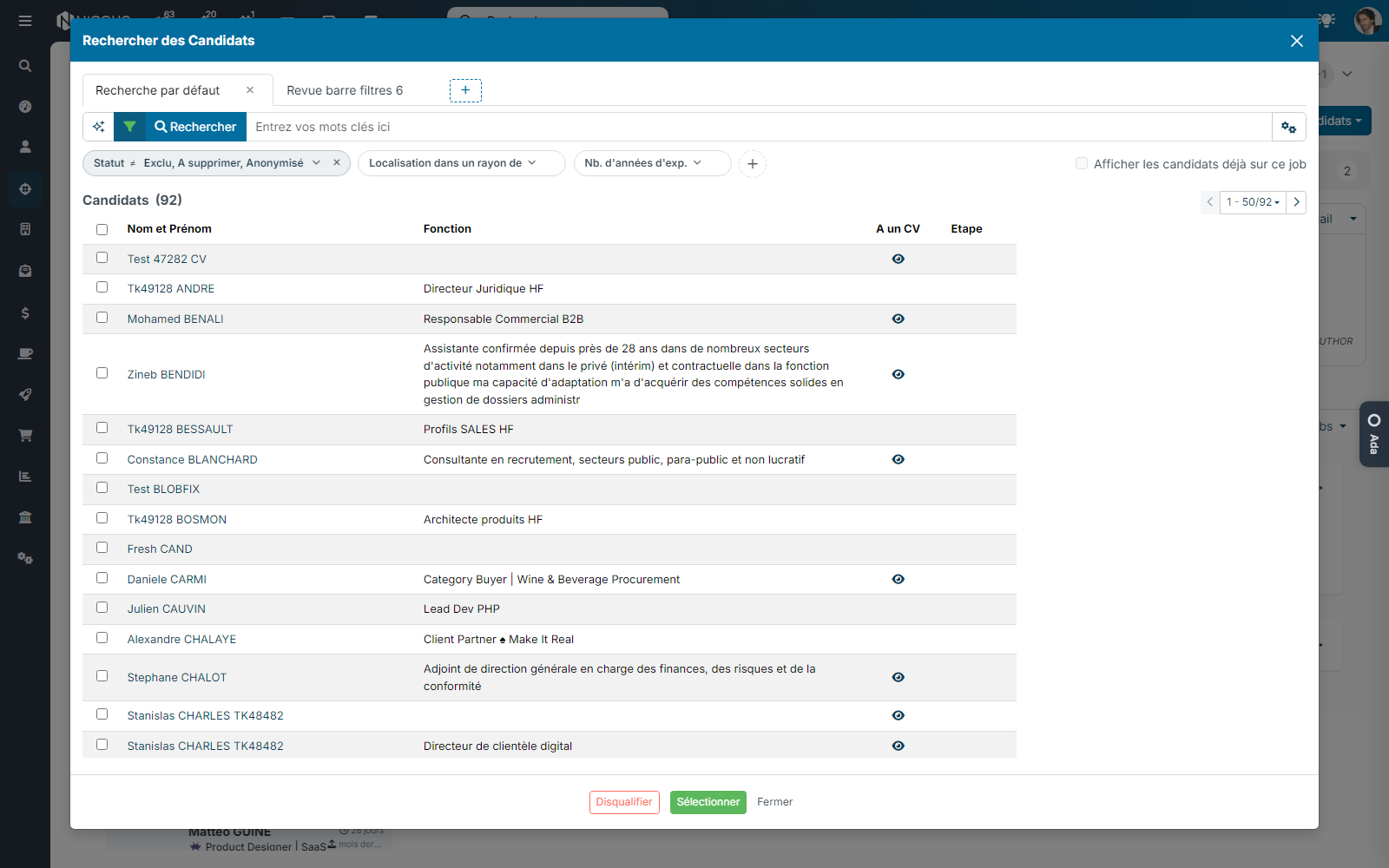
- The funnel button, left of Search, shows or hides the criteria row. It turns green as soon as a criterion carries a value. The criteria fold by themselves once the search runs.
- Each criterion is a pill: its name, then the chosen value. A pill without a value (for instance Location within a radius of) is shown but filters nothing until you fill it in.
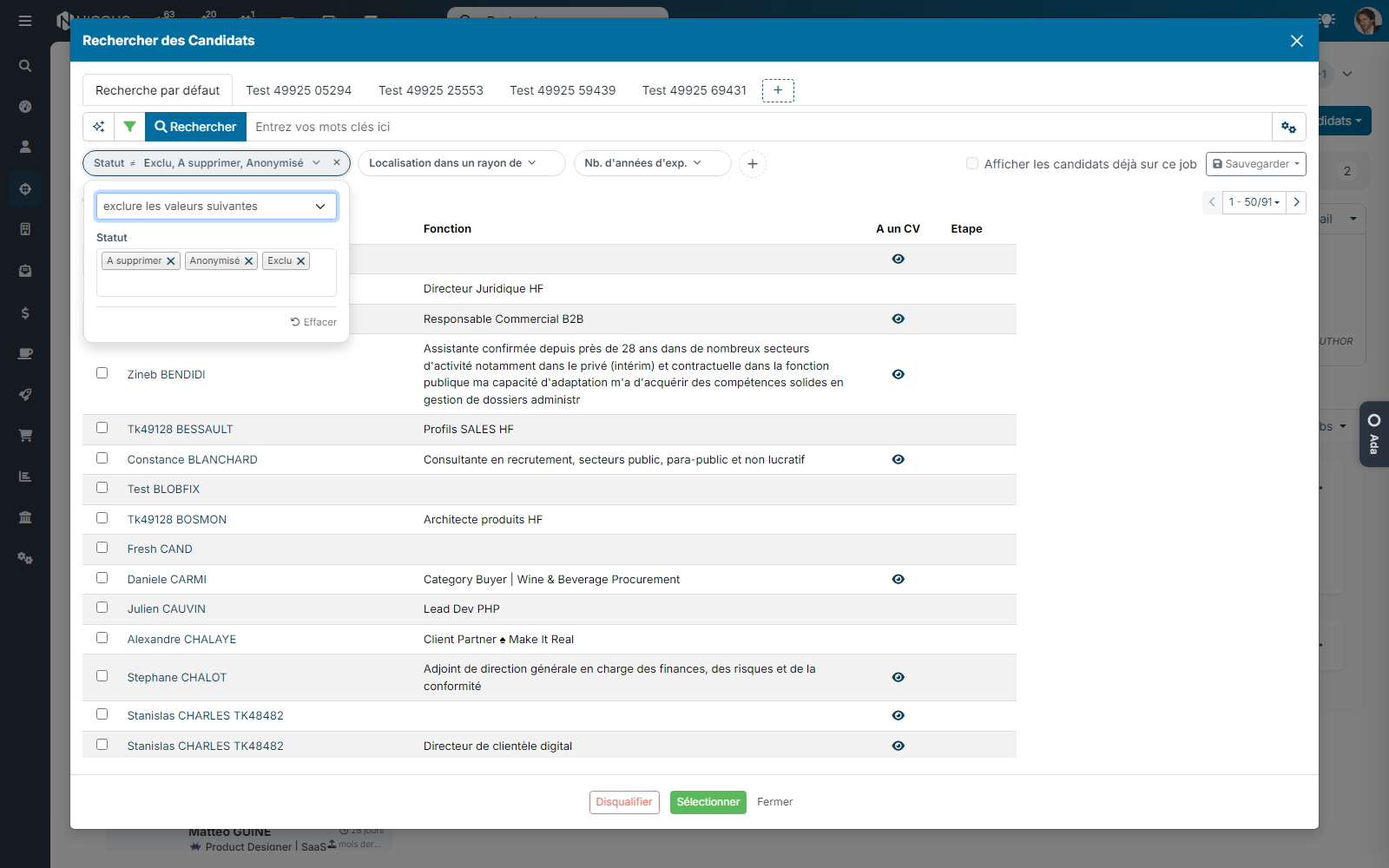
- Click a pill to open its panel: pick the operator (include, exclude, greater than, between…) and the value. Click anywhere else to close the panel: the value is kept and the pill updates. The Escape key closes the panel without keeping the change.
- The + button adds a criterion on any field of the candidate record, custom fields included. Type a few letters to find the field. The added criterion stays on screen, even without a value, and is remembered: it comes back, empty, the next time you open the search, on all your jobs. The Escape key cancels the addition.
- For Location within a radius of, pick the city from the suggested list and set the radius (30 km suggested): the panel stays open until both are filled in.
- Clear, at the bottom of the panel, empties the pill without removing it; the cross removes it. Removing an empty pill also removes it for the next times, including a criterion offered by default: to get it back, add it again with the +.
- By default the search leaves out closed candidates (excluded, to be deleted, anonymised): that is the Status ≠ pill, which you can change or remove.
Running the search
Type keywords if you wish, then click Search (or press Enter). Nothing runs until you ask for it: you can adjust several criteria in a row without waiting. Keywords accept the same operators as the candidate list (see Searching candidates by keywords).
Tick Show the candidates already on this job to see again the profiles already in the process; they are hidden by default.
Saving a search
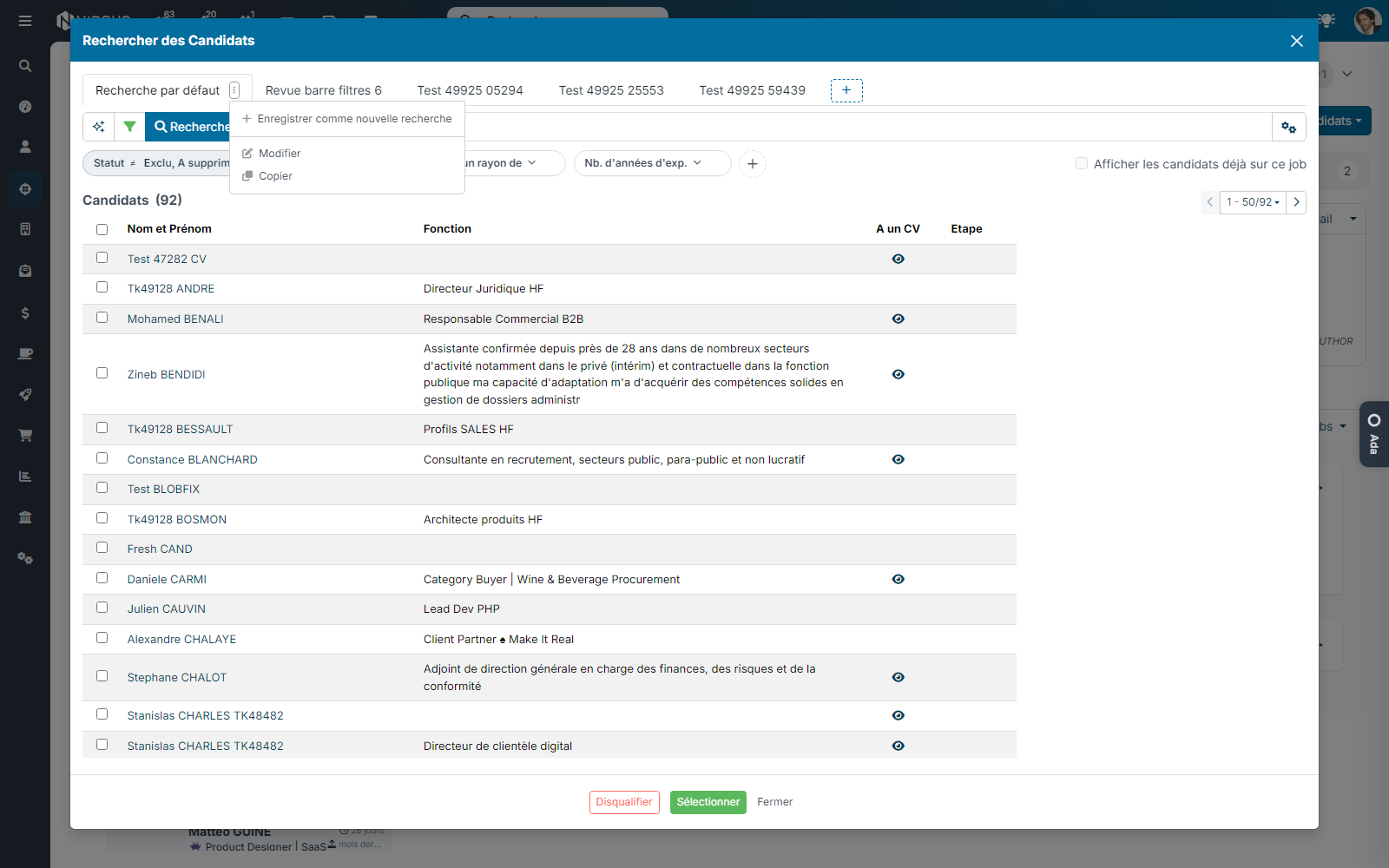
- Saved searches show as tabs above the keywords, as on the lists: you choose which ones appear there. The cross of a tab removes it from the row without deleting the search; the + on the right lists the searches to put back as a tab, then Save as a new search. Clicking a tab loads its criteria and keywords and runs the search. The chosen search is remembered: the window reopens on it next time, on all your jobs.
- As soon as you change a criterion or the keywords of a saved search, a dot appears on its tab.
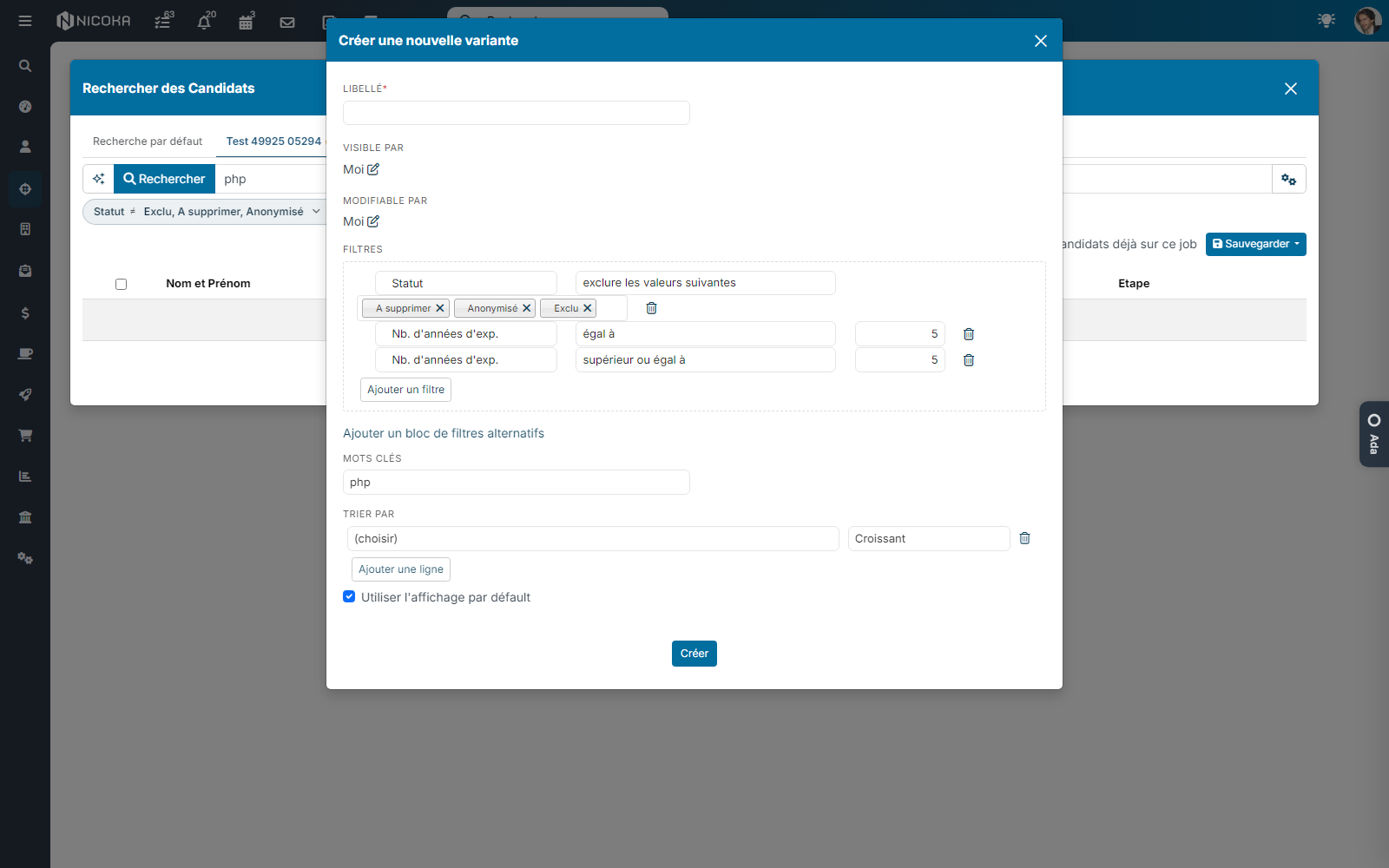
- The ⋮ menu of the current tab offers: Update “…” (replaces the criteria of the search with the ones displayed), Save as a new search (give it a name, choose who can see it and confirm), Edit (the full search screen: alternative conditions, sorting, displayed columns), Copy and Delete.
- The Default search ships with Nicoka: you can neither change nor delete it, but you can save it under another name after adjusting it.
Good to know
- Saved searches are Nicoka variants: you find them, with their sharing rights, as on the lists.
- The criteria offered by default (geographic radius, and those your administrator configured in Settings > Recruitment) always stay displayed, empty, ready to fill.
- To find a candidate already disqualified or already on the job, tick Show the candidates already on this job.
Were this information helpful?