Searching for profiles with Kalent
Kalent is a database of professional profiles you search by criteria or by simply describing the person you are looking for. Connected to Nicoka, it lets you search these profiles without leaving Nicoka, read their background, then add them as candidates or straight to your jobs.
Before you start
- A Kalent account and an API key of your workspace: in Kalent, open the workspace settings, API Keys section, then Create API Key.
- Kalent API credits: each profile a search displays uses one credit. Credits are bought in Kalent.
- Administration rights on Nicoka to connect the account.
1. Connect your Kalent account
- In the side menu, open Customizing > Integrations.
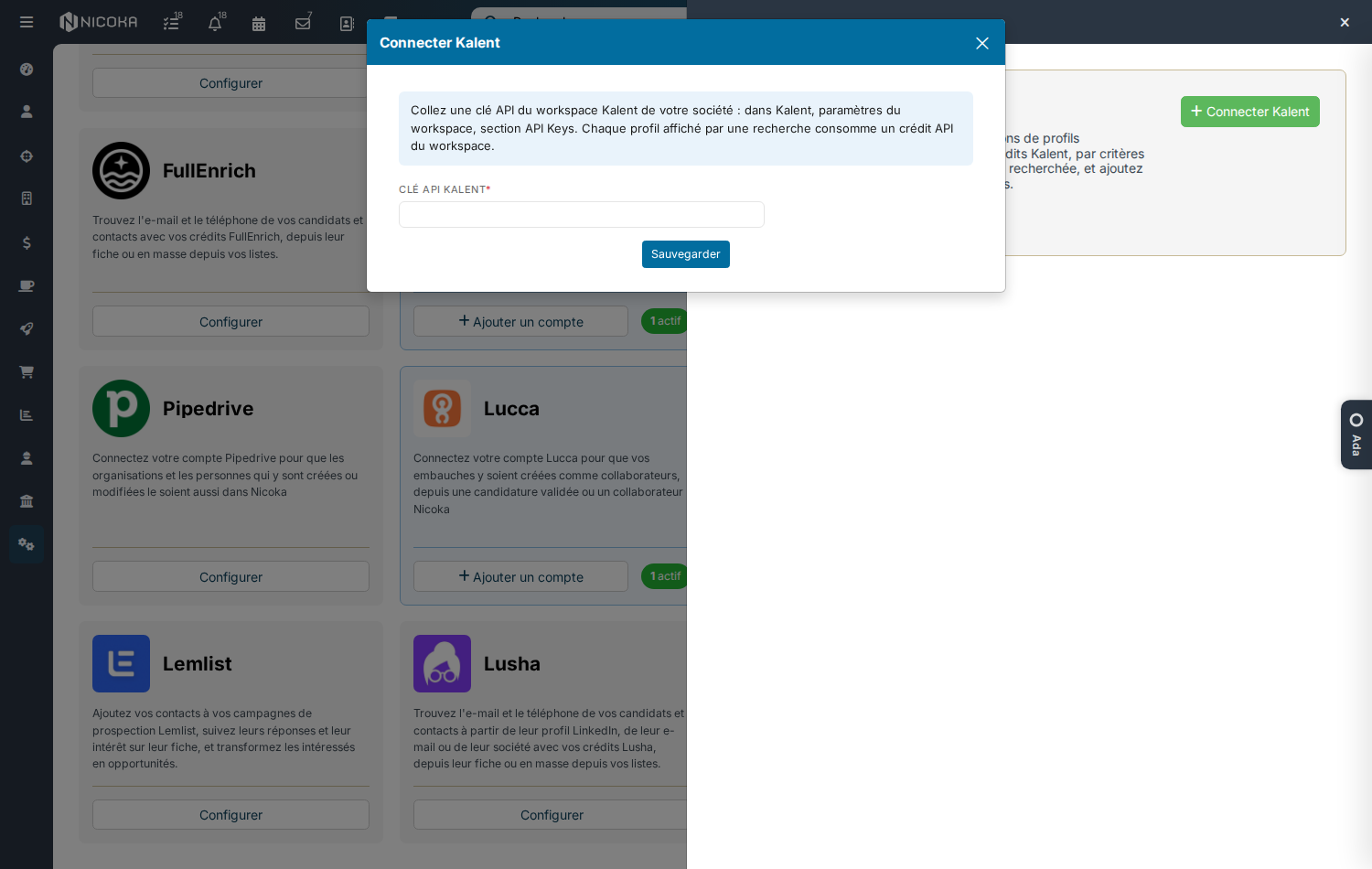
- On the Kalent tile (Recruitment category), click Configure, then Connect Kalent.
- Paste your API key into the Kalent API key field and click Save.
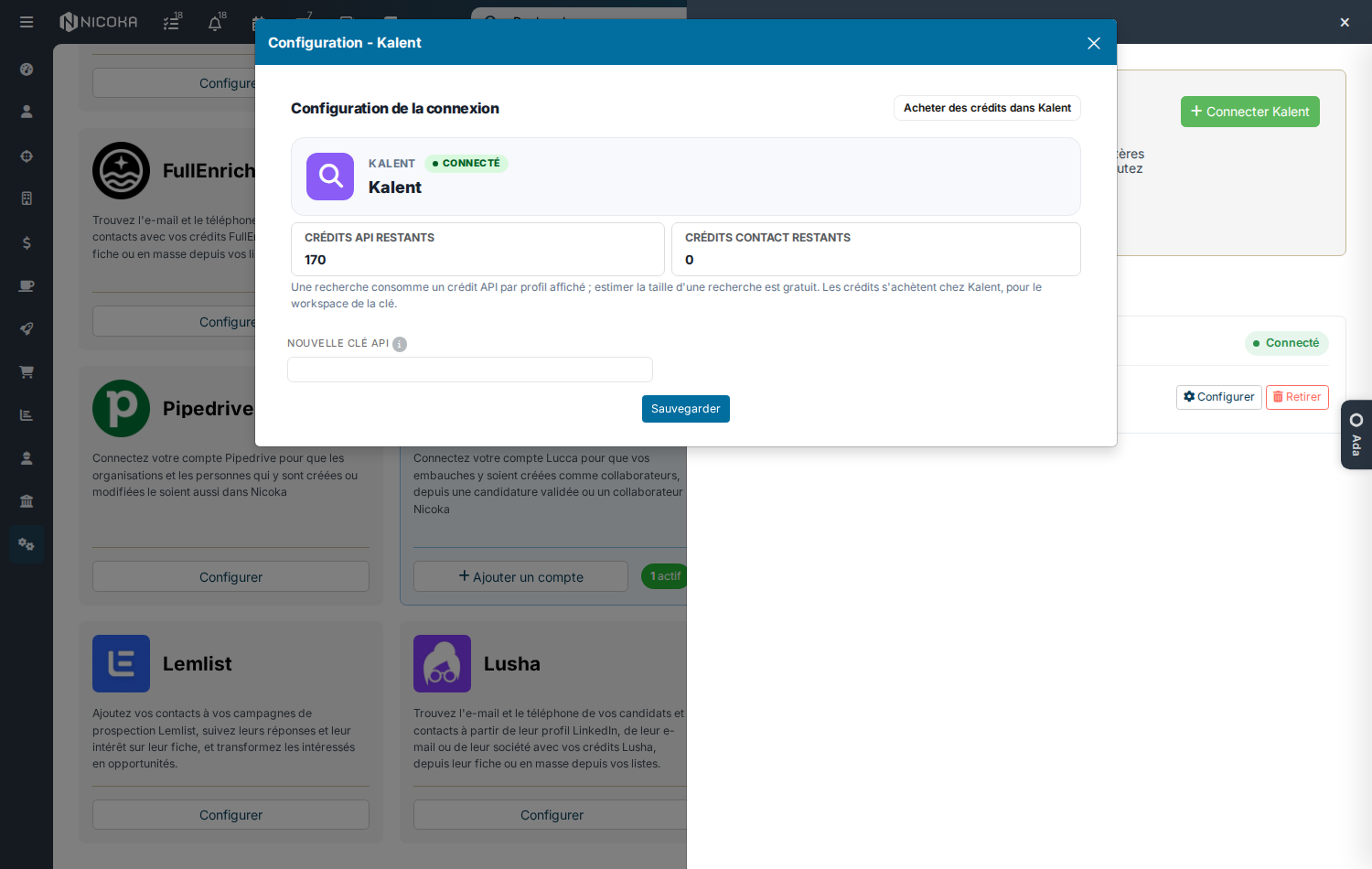
Nicoka checks the key with Kalent. The window then shows the account's configuration with your remaining API credits. To change the key later, enter it in New API key.
2. Open the Kalent search
- From the candidates list: Search on Kalent button.
- From a job: candidate add menu, Search on Kalent. The profiles you add are then also added to that job. The criteria are prefilled with the job's title, location and skills: adjust them before running the search.
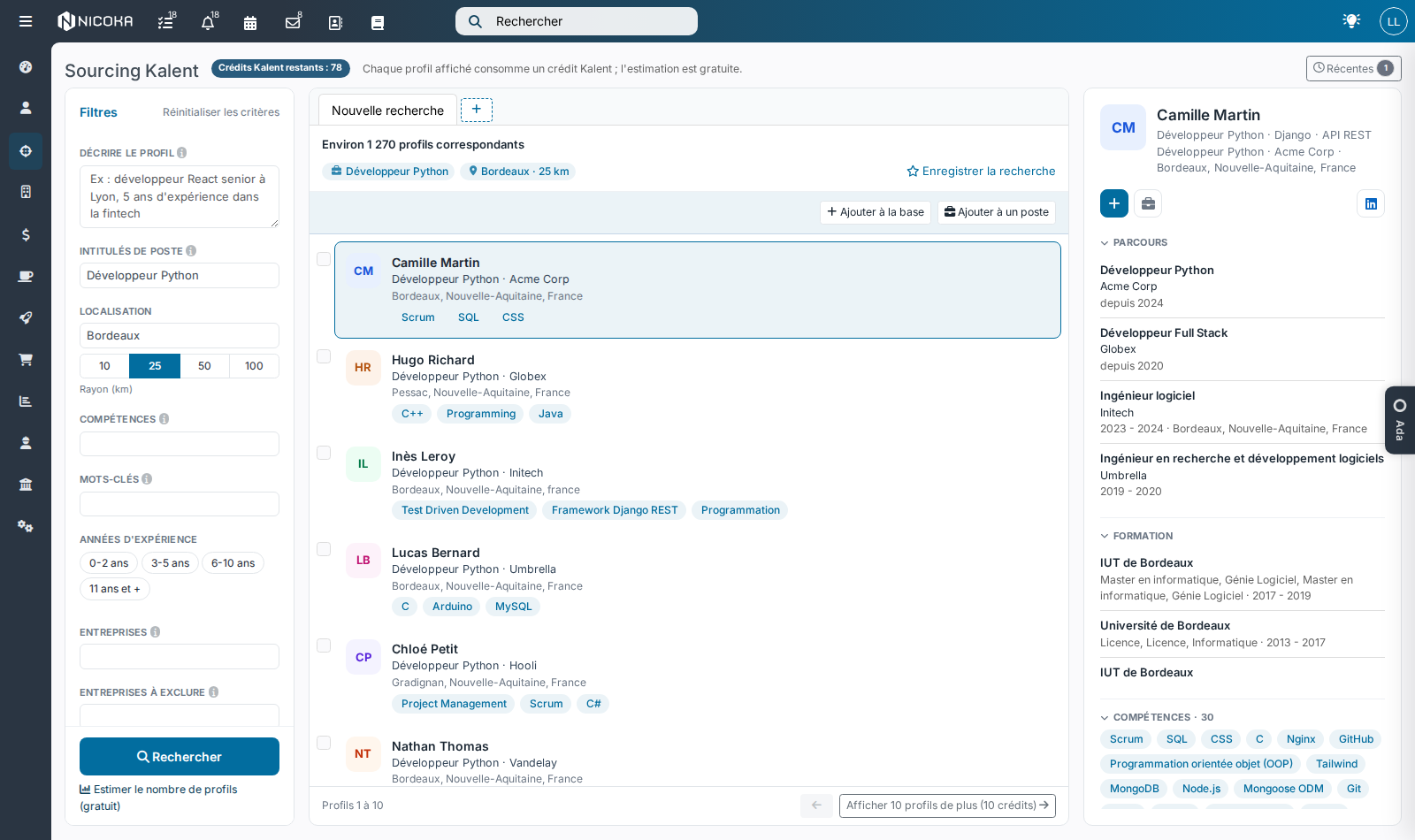
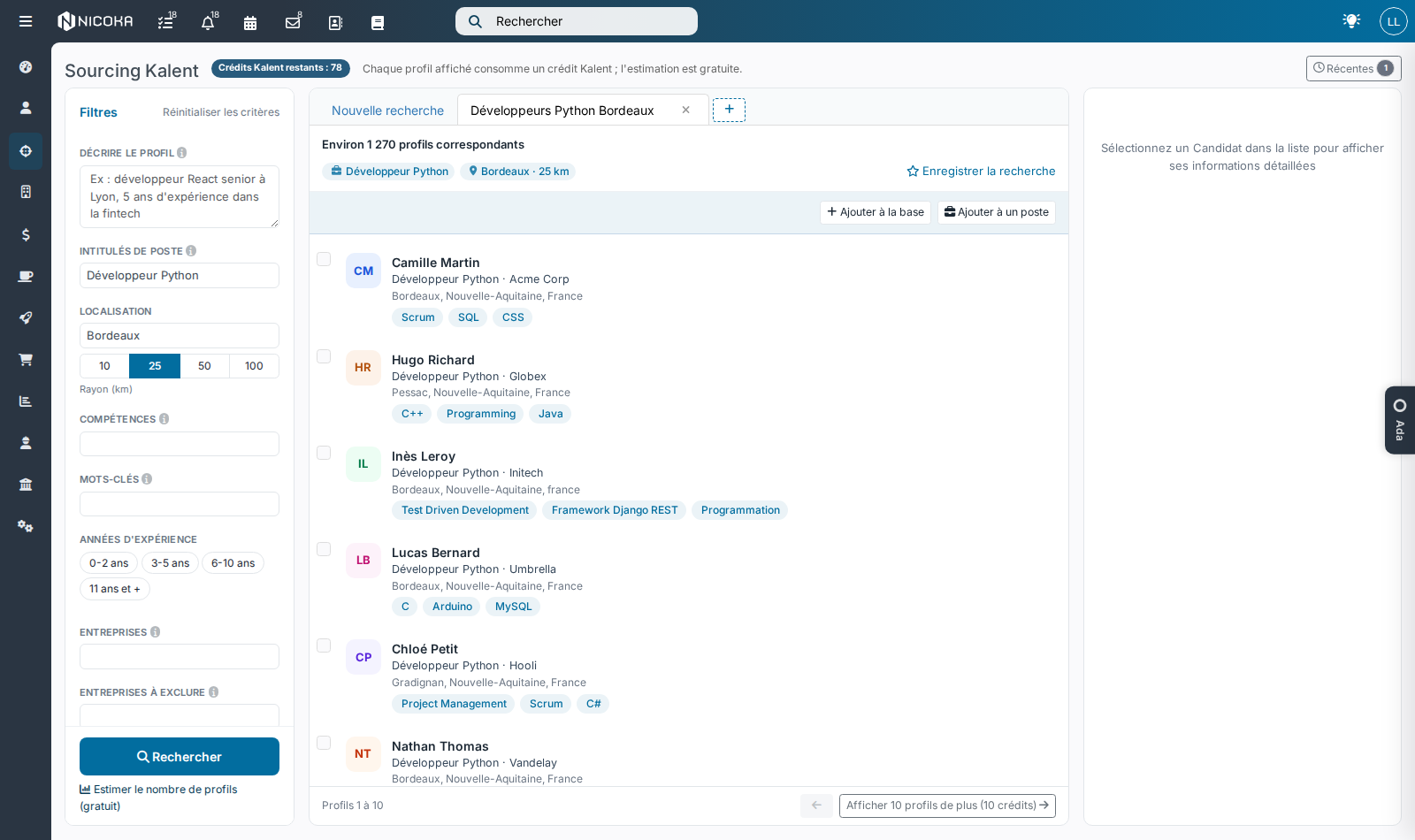
The page has three columns: your criteria on the left, the profiles found in the middle and the selected profile's detail on the right. Next to the title, the counter shows your remaining Kalent credits.
3. Search for profiles
- Describe the profile: describe the person you are looking for in one sentence ("senior React developer in Lyon, 5 years of fintech experience").
- Or combine criteria: Job titles, Skills, Keywords (several values separated by commas), Location and its radius, Years of experience, Companies to target or to exclude.
- Estimate the number of profiles gives the number of matching profiles, for free.
- Search shows the first 10 profiles (10 credits). Show 10 more profiles loads the next page, its price is shown on the button. Going back to a page already shown costs nothing.
4. Add profiles to Nicoka
- Click a profile to see its background, education, skills and languages.
- The + button adds it as a candidate, with its background. The briefcase icon adds it to a job of your choice.
- To add several, check them then use Add to the database or Add to a job.
- A profile already in your database shows Already in the database: its name opens the existing record, no duplicate is created.
- Opened from a job, the detail also offers an AI analysis of the profile against the job and a first message.
5. Save your searches
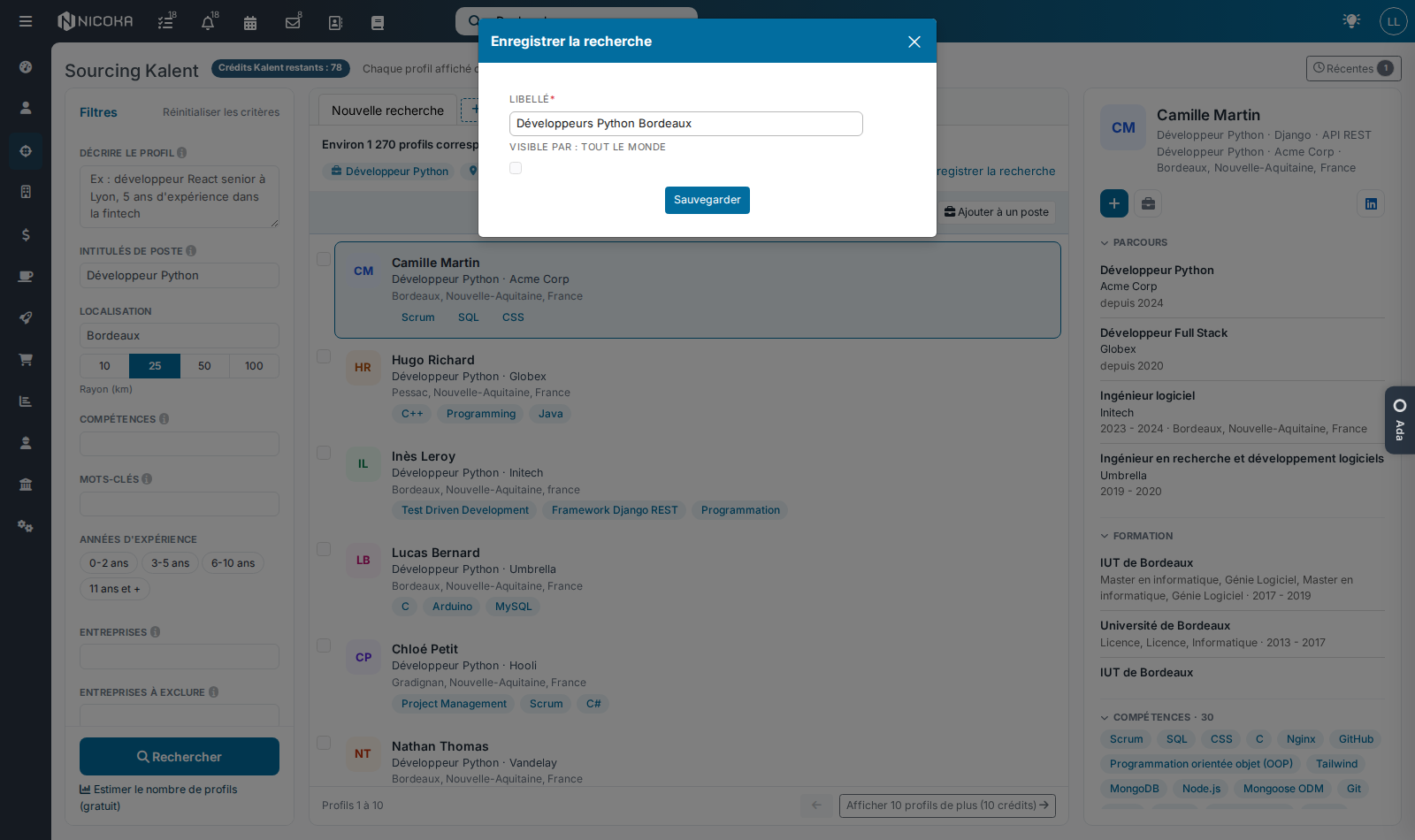
- Above the results, Save the search gives it a name; check Visible by: Everybody to share it.
- Each saved search becomes a tab: click it to reopen it. The ⋮ menu updates it, the cross removes it from the tabs, the + button reopens another saved search.
- At the top right, Recent lists your latest searches.
- A reopened search gets its criteria back. Its profiles show without spending credits again while they are still in memory, a few hours; otherwise, click Search.
With Ada and the MCP
Once the account is connected, the Kalent search is also available in natural language:
- In Ada, ask for example: "Find me 3 Kalent profiles of Python developers in Bordeaux, with their current position." Ada runs the search and shows you the profiles found.
- In your assistant connected to the Nicoka MCP (Claude, ChatGPT, Le Chat…): the
nicoka_kalent_search_talentstool searches from a description or criteria, brings back 10 profiles at most per call and the next ones on request. See What your AI assistant can do in Nicoka (MCP).
Each profile returned uses one credit, as on the page: say how many profiles you want. Nothing is added to Nicoka unless you ask: ask the assistant to add the profiles you keep as candidates or to a job, or do it from the Kalent page.