Remove a candidate from a job without disqualifying them
A candidate added to a job by mistake, or twice, can be removed from it without being disqualified: you delete their application on that job. Their profile stays in your database, along with their other applications.
Disqualify or delete?
- Disqualify: the candidate stays attached to the job, among the disqualified candidates, with the reason you chose. This is the option to use when the candidate is not a fit: the rejection stays on record and your reports take it into account.
- Delete the application: the candidate disappears from the job, together with their answers to the job's application form. A line in their timeline records the removal. This cannot be undone: to put the candidate back in the job, you have to add them again.
Delete an application from the candidate profile
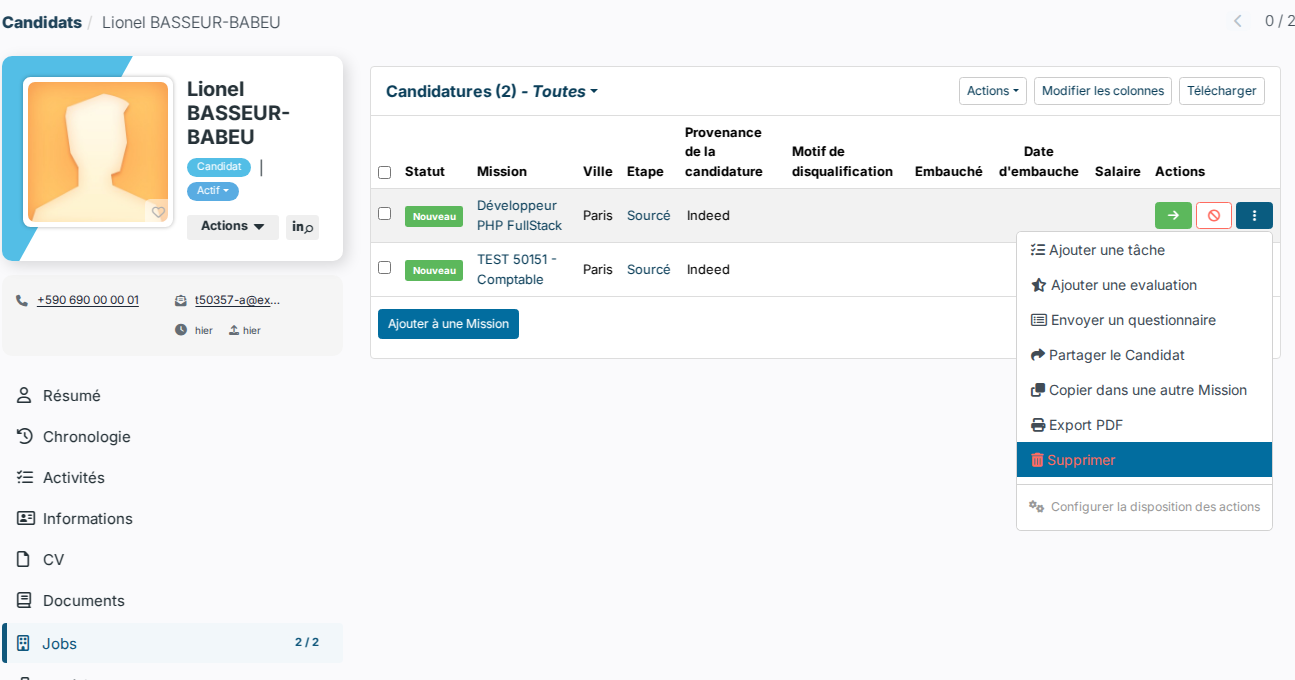
- Open the candidate profile, then the Jobs tab. Depending on your settings, this tab may have another name, such as Applications or Assignments.
- On the row of the job, click the ⋮ menu in the Actions column, then Delete.
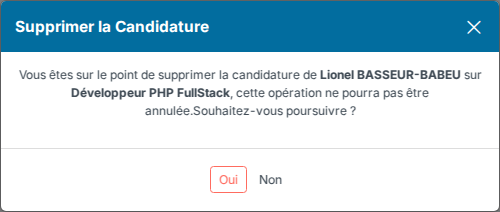
Confirm with Yes. The application disappears from the list.
Delete several applications at once
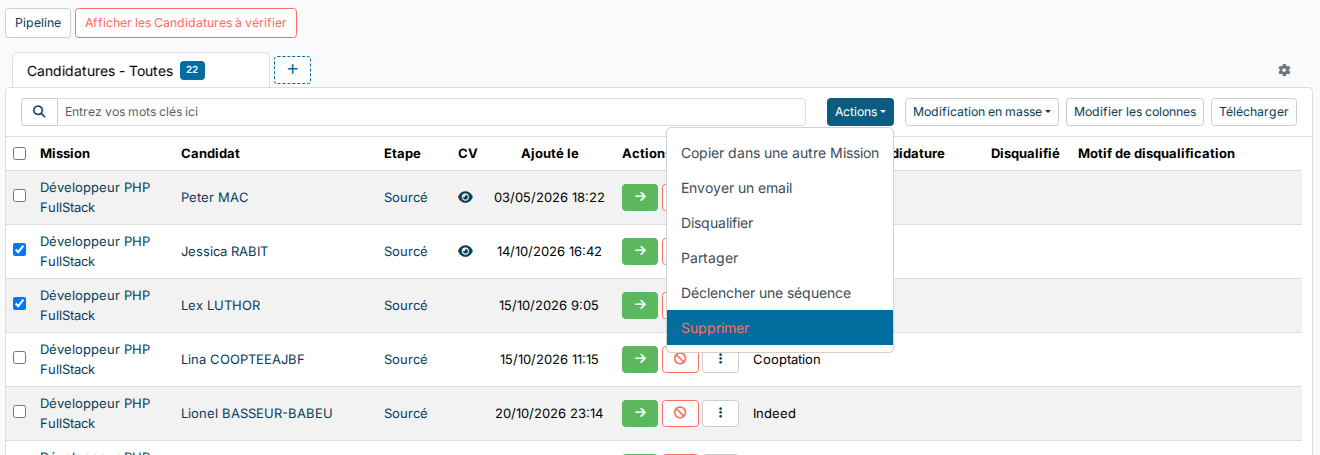
- Open the list of applications: Recruitment > Applications menu. Each row shows the job and the candidate.
- Tick the applications to delete.
- Click Actions > Delete.
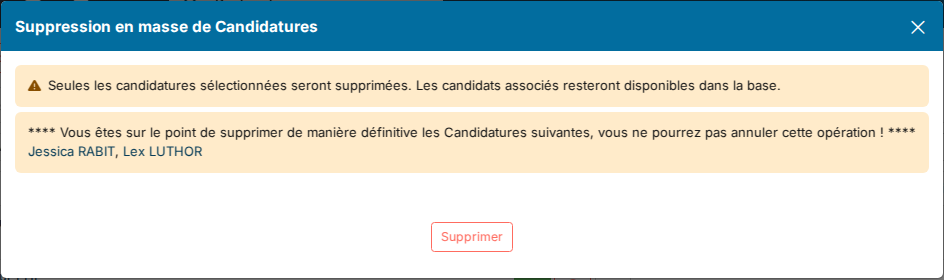
The window lists the candidates concerned. Click Delete, then confirm your identity: Nicoka asks for your password, or for a code sent by email if you sign in with SSO.
The same Actions menu is available in the Jobs tab of the candidate profile, to remove a candidate from several jobs at once.
Good to know
- Deletion is not offered in the job pipeline nor in the job's candidate report: go through the candidate profile or the list of applications.
- The Delete entry only appears if your profile is allowed to delete applications and your role on the job permits it. If in doubt, ask your Nicoka administrator.
Were this information helpful?