Remove access for several users at once
When several people leave the company or no longer need Nicoka, an administrator can cut off their access in a single operation from the user list, instead of going through each person's record.
Before you start
Your profile needs the right to create users and the right to bulk update them. The Administrator profile has both.
Remove access for several users
- Open Customizing > Admin.
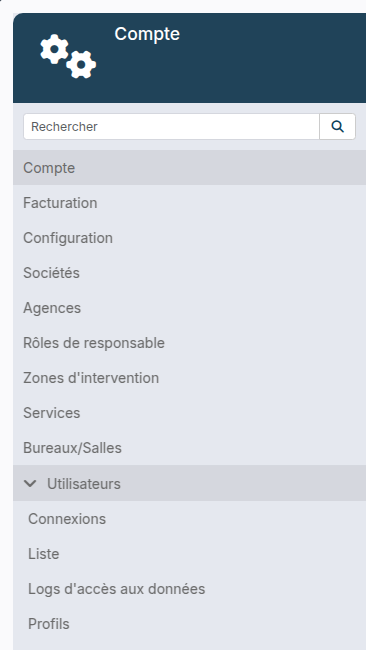
- Expand Users in the left menu, then click List.
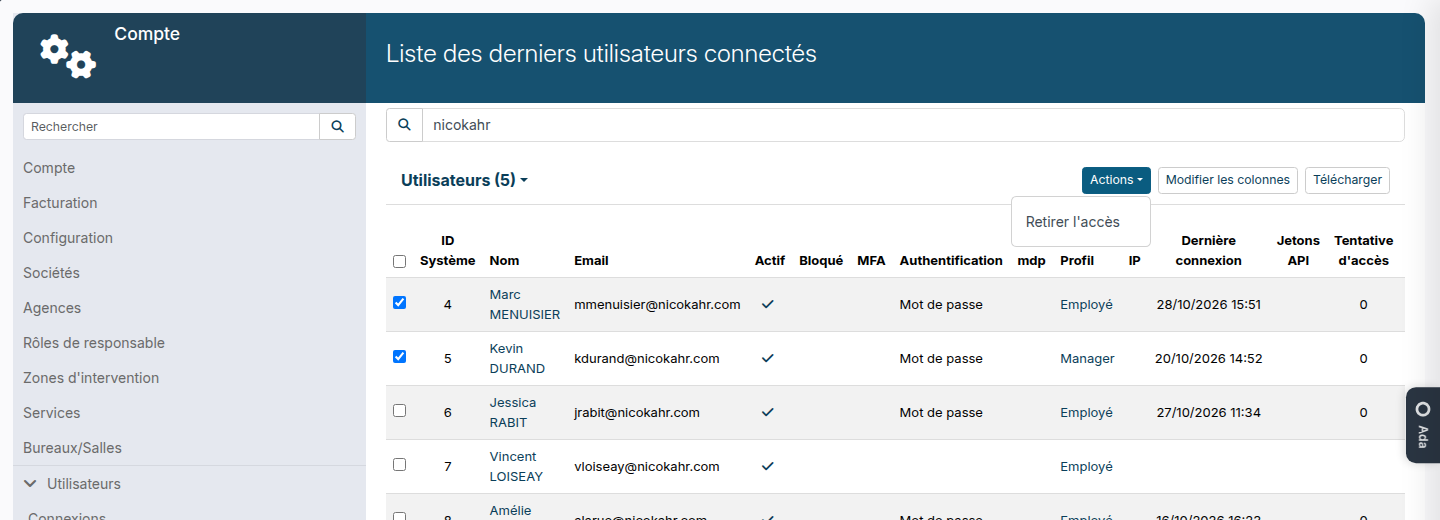
- Tick the users concerned. The search bar above the list finds them by name or email, and the header checkbox ticks every row displayed.
- Click Actions > Remove access.
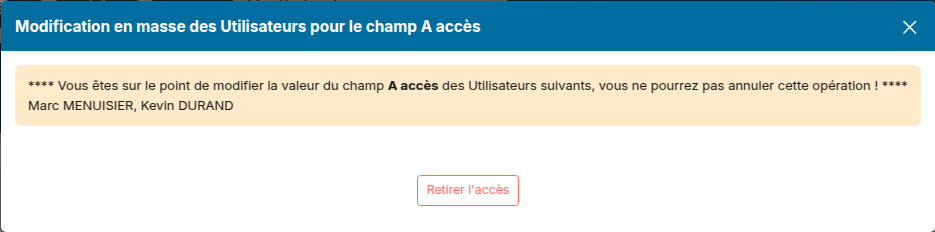
- The window that opens lists the names of the selected users. Check them, then click Remove access.
What changes for these accounts
- The users can no longer log in to Nicoka.
- Their records (employee, contact…) are kept with their full history: only the access is removed.
- Your own account is never affected, even if it is ticked.
Restore access removed by mistake
The confirmation window warns that the operation cannot be undone: there is no bulk rollback. Access is restored one record at a time. On the employee record, click Application Access, tick Give access, check the profile, then save.
Good to know
An employee whose status changes to Quit loses access automatically the following night: no need to remove it by hand. See Manage an employee's departure.
Were this information helpful?