Find an exchange in a candidate's timeline
A candidate's timeline gathers everything that happened with them: notes, calls, emails sent and received, WhatsApp and LinkedIn messages, stage changes, evaluations. On a candidate followed for a long time, its filters bring an exchange back in a few clicks.
Log a call
Rather than copying a call into the candidate's comments, log it in their timeline: click the phone icon (Log a phone call) in the timeline's action bar, fill in the window that opens, then save. The call takes its place, dated and signed, among the other exchanges.
Filter the timeline
The icons at the top right of the timeline filter what it shows:
- Search (magnifier): the activities whose text contains the words you type.
- Authors (person): tick one or more users, the timeline keeps only their activities. The emails received from the candidate follow the personal mailbox that received them: picking a recruiter also shows the candidate's replies to their emails. When Me alone is ticked, Nicoka remembers it for the next candidates you open.
- Period (calendar): a start date, an end date, or both. Both days are included.
- Activity types (funnel): the types to hide, stage changes for instance. This choice is remembered.
- Jobs (building): the activities of one or more of the candidate's jobs.
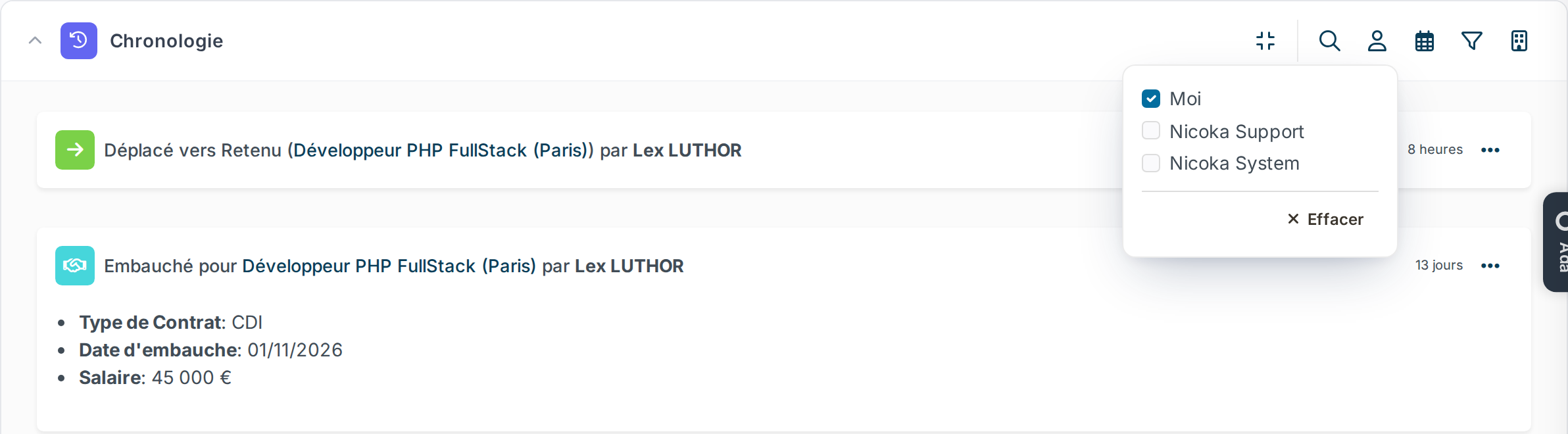
A filter applies when you close its list, and Clear empties it in one click. A coloured icon shows an active filter. Filters add up, and the … button at the bottom of the timeline loads the next activities while keeping them.
The same filters are in the Timeline box of the candidate's summary and in their Timeline tab.