Silae - API - Renewal of access keys
Nicoka exchanges data with Silae using three Silae API access keys: Client ID, ClientSecret and Ocp-Apim-Subscription-Key. The ClientSecret has an expiry date: once it has expired, exchanges with Silae fail. This article explains how to generate new keys in Silae, then how to save them in Nicoka.
These keys are confidential: never send them by email or in a ticket, and do not share them as screenshots. Type them into Nicoka yourself.
1. Generate new keys in Silae
The keys are managed on the Silae API portal, api-portal.silae.fr. The screens of this portal belong to Silae and may change: if in doubt, check the Silae help or contact Silae.
- Log in to the Silae API portal and open the API account used by Nicoka.
- Open the ClientSecret management of the account. If the ClientSecret is shown as expired, regenerate it and confirm.
- Copy the new ClientSecret as soon as it is displayed.
- If Nicoka reports an error on the subscription key (Subscription-Key), also regenerate the primary key of your subscription on the portal, then copy it.
2. Save the new keys in Nicoka
Depending on the Silae features you use, the keys are saved in one of these two places, or in both. Update every place where a Silae account is configured.
In Customizing > Integrations (Silae card)
This is the shared Silae account used in particular for comparing leave between Nicoka and Silae.
- In the side menu, open Customizing > Integrations.
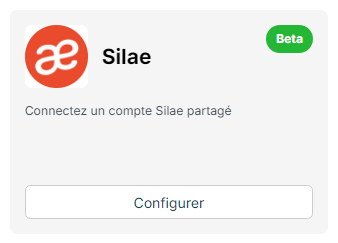
- On the Silae card, click Configure.
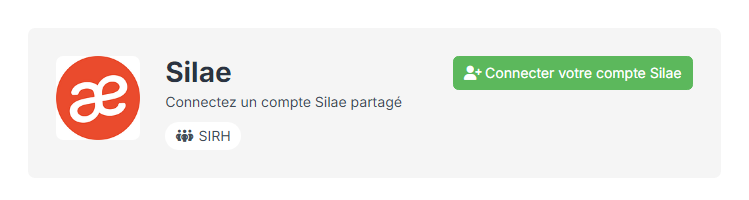
- In the panel that opens, click Connect your Silae account.
- In the Connect your Silae account window, type the three keys: Client ID, Client Secret and Ocp-Apim-Subscription-Key.
- Click Save.
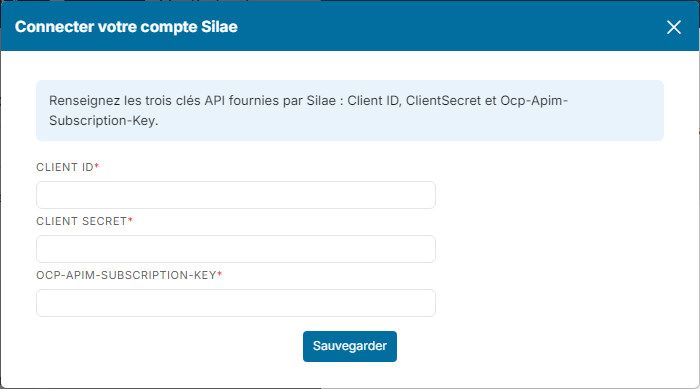
Nicoka checks the keys with Silae before saving them: if one of them is wrong, an error message is shown and nothing is changed. If a Silae account was already connected, the new keys replace the old ones.
In Customizing > Admin > Cross Application > Services
This is the historical configuration of the Silae services, used for example to send absence requests or to synchronise employees.
- In the side menu, open Customizing > Admin.
- In the Cross Application section, click Services.
- On the row of each Silae service, click the padlock icon.
- Replace the value of the ClientSecret field and, if you regenerated it, the Ocp-Apim-Subscription-Key field. The Client ID field does not change, unless Silae gave you a new one.
- Click Update.
If several Silae services use the same API account, update each of them.
Remember to note the expiry date of the new ClientSecret, to plan the next renewal.