Managing evaluations
An interview is a key moment of exchange between an employee and their manager or HR. The Evaluation & Performance module of Nicoka HRIS helps you prepare it, carry it out and keep a record of it: tailored survey models, a validation workflow, collective campaigns, a PDF report and the follow-up of mandatory interviews.
There are two families of interviews:
- mandatory interviews, linked to the career path under French law: first career path interview, career path interview (every 4 years since the reform of 24 October 2025), 8-year recapitulative review, mid-career interview, end-of-career interview, as well as the annual follow-up of a days-based working time agreement;
- optional interviews, very useful for the employee experience: annual review, end of probation period, exit interview…
We recommend reading this whole article before you start. The setup is done in this order: roles, survey model, workflow, PDF template, then type of evaluation. You can then launch a campaign.
Open the module customizing
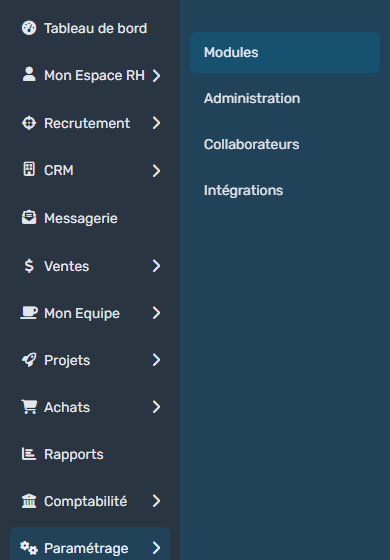
- In the side menu, open Customizing > Store.
- Click Customize on the Evaluation & Performance card.
The left menu of the customizing has two groups: Evaluations (Document Templates, Email Templates, Events, Reminders, Roles, Survey Models, Type of Evaluation, Workflows) and Goals (Categories, Goal Models). Goals are described in Managing individual goals.
1. Roles
Three roles are provided:
- Assessed: the employee who has the interview;
- Assessor: by default, the employee's direct manager;
- Validator: the person who validates the interview, for example a higher-level manager or someone from HR. This role is optional.
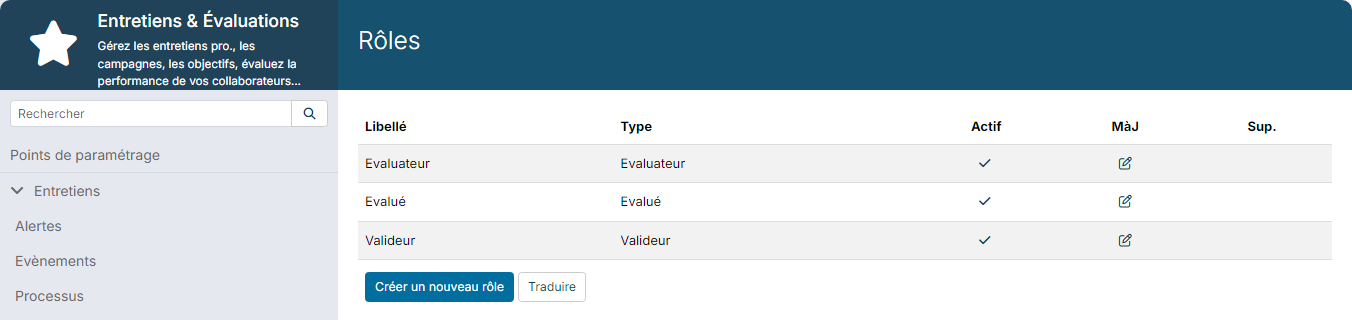
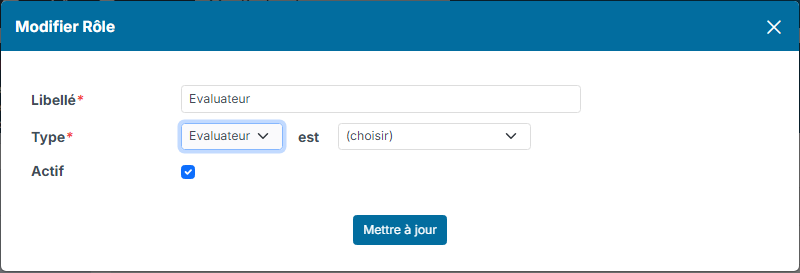
To choose who holds a role, click Roles, then the pencil icon of the role. In the Update Role window, the list to the right of is sets the person who holds the role. If you make no choice, the assessor is the direct manager.
Roles are then used everywhere: each section and each question of the survey model states which roles can see it and update it, and each workflow step is assigned to one or more roles.
2. Survey models
Click Survey Models. Nicoka provides template survey models you can use as a starting point:
- "[Model] - End of year interview", for the annual review;
- for the career path under the reform: "Premier Entretien de Parcours Professionnel", "Entretien de Parcours Professionnel", "Bilan Récapitulatif à 8 ans", "Entretien de Parcours Professionnel mi-carrière" and "Entretien de fin de carrière" (these models are written in French);
- other models: days-based working time follow-up, onboarding, exit interview, remote work follow-up…
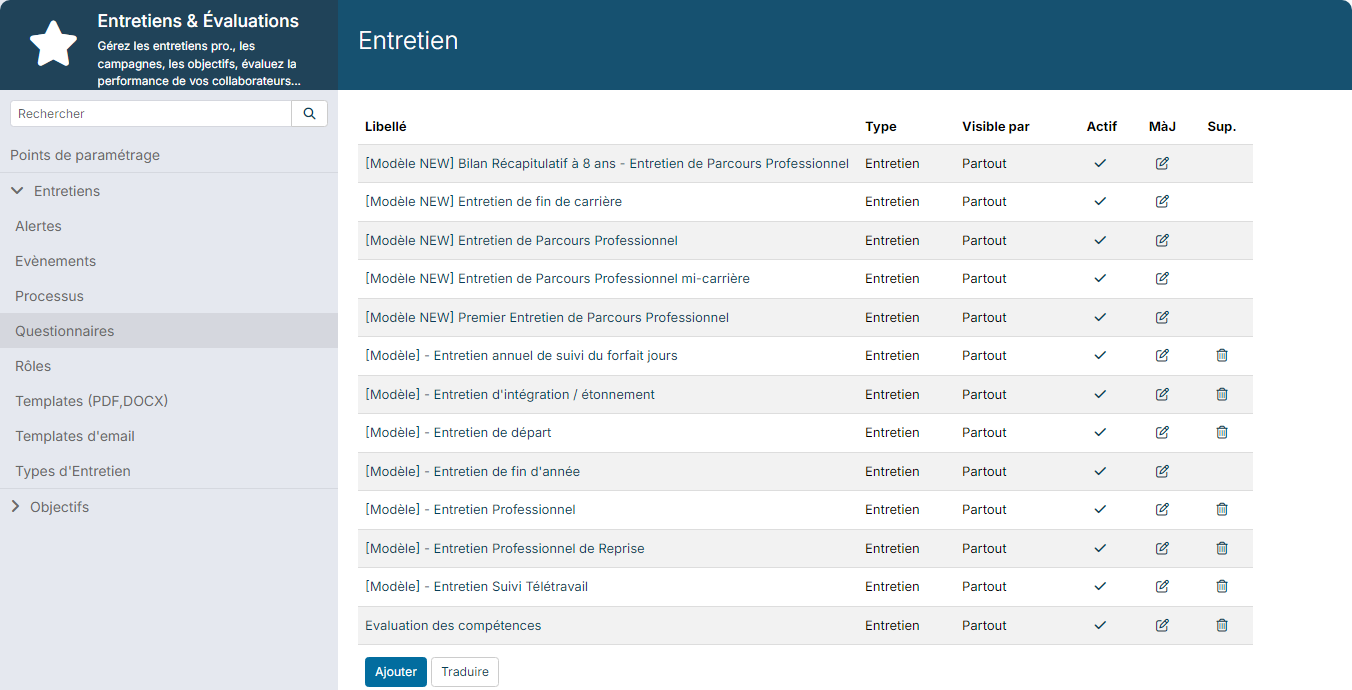
Click Add to start from a blank survey model, or open a template (pencil icon) and click the Copy button at the top of the screen to work on a copy. Then rename the copy in the Label field.
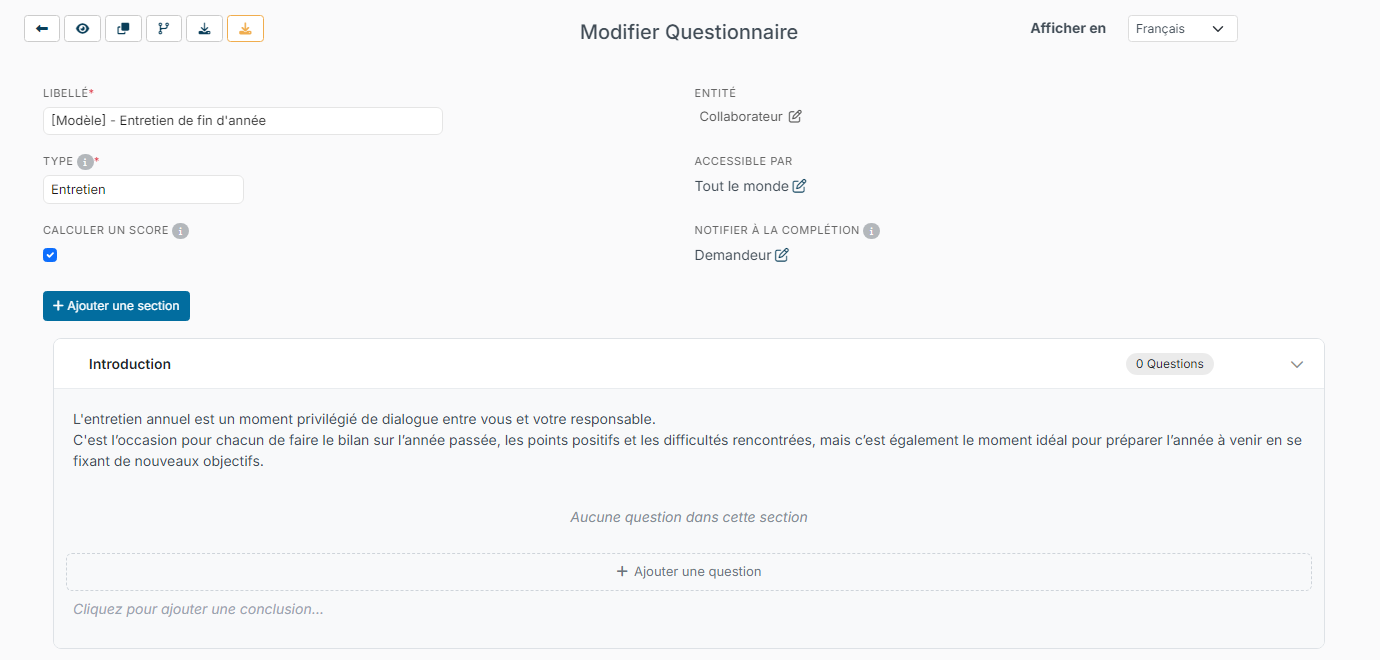
The buttons at the top left let you go back to the list, Preview the survey as participants will see it, Copy it, view the Change log, Download it and Export it.
Sections
A section is a part of the survey that groups questions. Click Add a section. Only the Label is required. You can also fill in:
- Introduction and Conclusion: a text shown before and after the questions of the section;
- Font color and Background Color of the title, to match your brand guidelines;
- Visible by and Updatable by: the roles concerned;
- Exclude from PDF output: the section will not appear in the PDF report.
On the survey screen, click the introduction or conclusion of a section to type it directly. Drag and drop sections and questions to change their order.
Questions
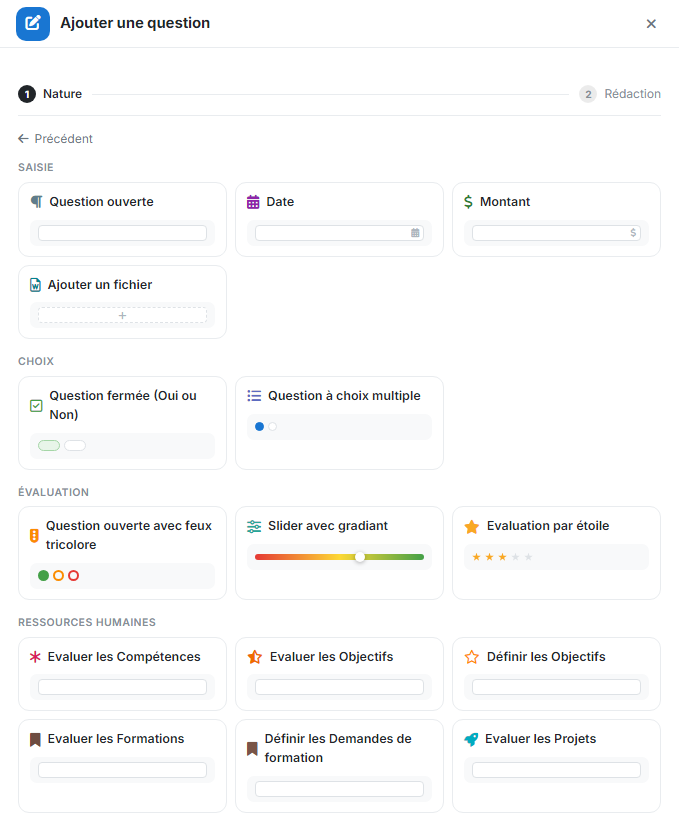
- In the section, click Add a question. A panel opens on the right.
- Choose the nature of the question:
- A record data field: the answer updates a field of the employee's record (job title, seniority date…). This is the recommended choice when the information already exists in Nicoka;
- A free question: the answer is only stored in the survey.
- For a free question, choose its type (see below).
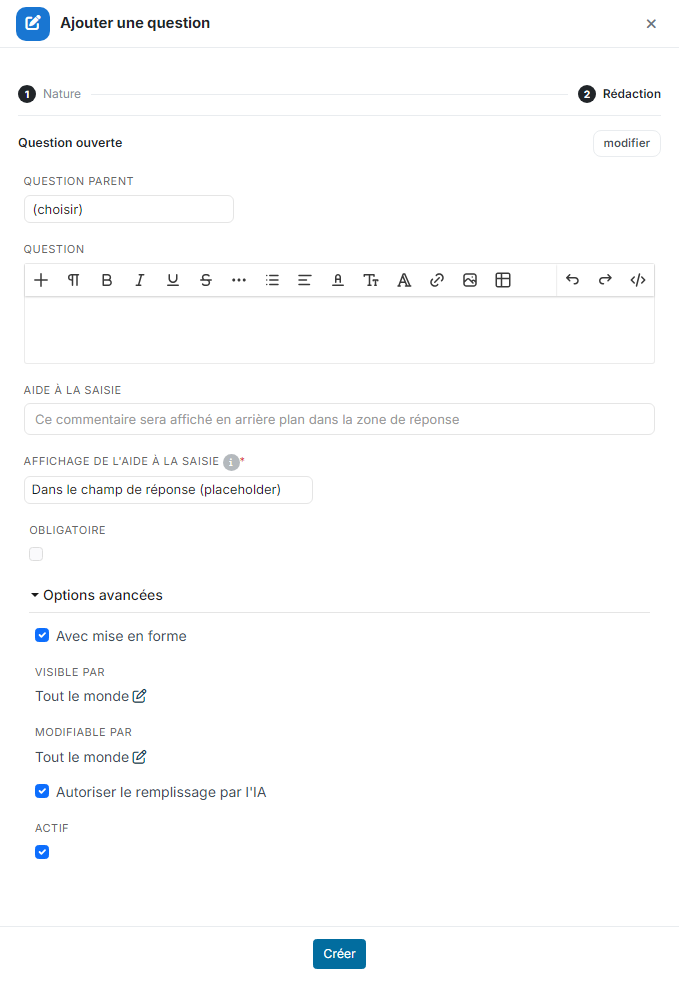
- Write the question and set its options:
- parent question: to show the question only depending on the answer to another question;
- Input Help: a text guiding the person who answers, displayed according to the Help text display setting;
- Required: an answer is needed to validate the survey;
- under Advanced options: With wysiwyg editor (bold, lists…), Visible by and Updatable by (the roles), Allow AI filling and Active.
- Click Create.
Question types
- Input: Free Text question, Date, Amount and Add a file (for example to attach a diploma).
- Choice: Yes/No Question and Multiple choice.
- Rating: Free text with traffic light (always with a comment), Slider with gradiant (a cursor to move along a scale) and Score (a scale of 2 to 10 stars, 5 by default).
- Human resources:
- Evaluate Skills;
- Evaluate Goals: brings up the individual goals of the period under review;
- Define Goals: sets the goals for the next period;
- Evaluate Trainings: a delayed evaluation of the trainings attended, with stars and a comment;
- Define Requests: the training needs expressed feed your skills development plan;
- Evaluate Projects, if you use time management.
Questions on goals, trainings and projects can only appear once per survey: once added, they disappear from the list of types.
Updating a survey from one year to the next
Do not change a survey that has already been used: copy it, rename the copy (for example with the year or a version number) and change the copy. This way you keep the history of the interviews already carried out. Then create a new type of evaluation that uses this survey.
3. The validation workflow
Click Workflows. The workflow provided is called "Interview with manager". You can change it or create your own with Create a new workflow. Click the label of a workflow to see its steps.
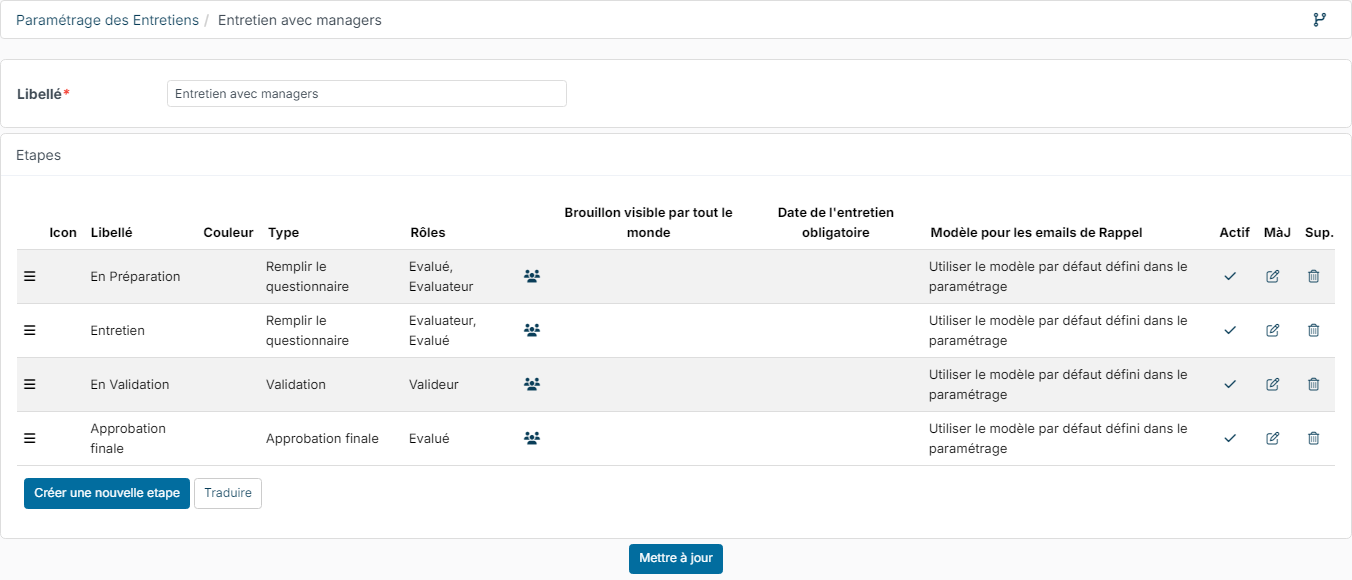
Each step only starts once the previous one is finished. For each step, you choose the label, icon, color, the Roles that must act and the Type of action expected:
- Fill Survey: people answer the questions open to them;
- Validation: a review and approval step. The validator can only change the questions open to them;
- Final approval: the person approves an attestation text, with a handwritten signature and a final comment if needed.
Drag and drop the steps to change their order. Once the last step is done, the interview is finished.
4. The PDF template
At the end of the interview, Nicoka produces a PDF report with the questions and answers. It is saved in the employee's documents, and the employee can view it in My HR Space > My Documents.
The template provided is called "Compte Rendu d'évaluation". To customize it, click Document Templates, open it and copy it, then change the copy.
5. Types of evaluation
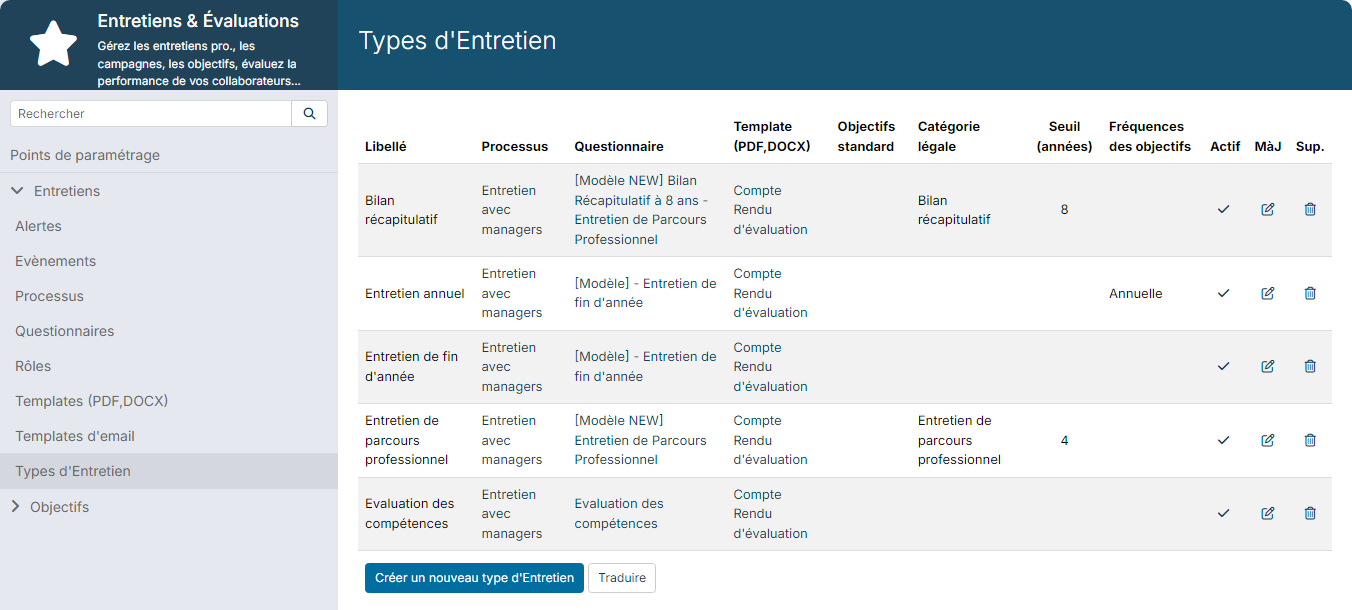
The type of evaluation brings together the workflow, the survey model and the PDF template. It is the last step of the setup, and it is required: without an active type of evaluation, you cannot launch a campaign.
- Click Type of Evaluation.
- Click Create a new type of Evaluation, or the pencil icon of an existing type.
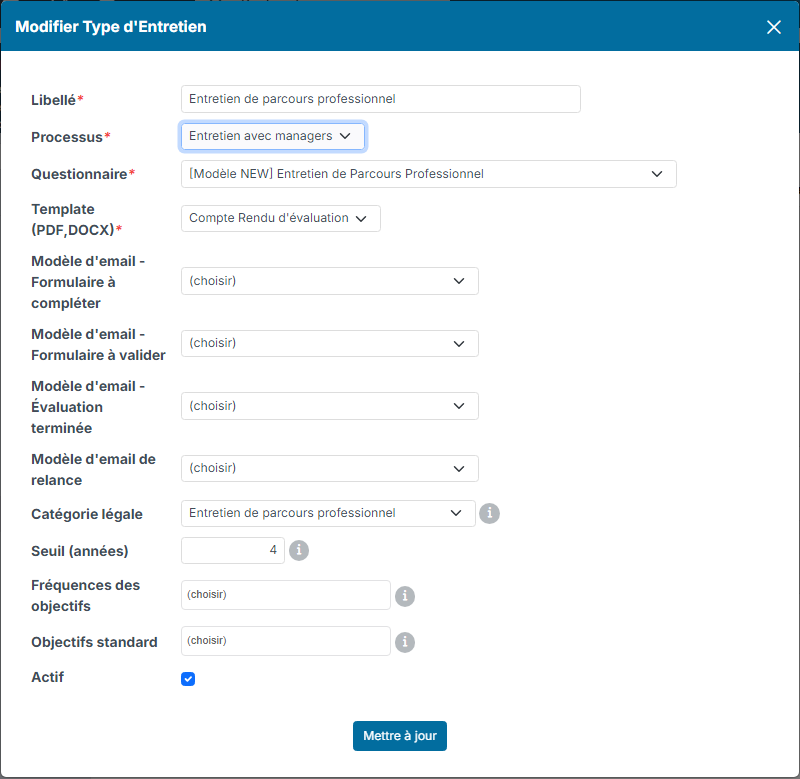
- Fill in the fields:
- Label, Workflow, Survey Model and Document Template (required);
- Email template - Form to fill, Email template - Form to validate, Email template - Evaluation completed and Reminder email template: only fill them in if this type must use other emails than the ones set in the customizing points;
- Legal category and Threshold (years): for the follow-up of mandatory interviews (see below);
- Goals frequencies: the goal evaluation frequencies offered during the interview (annually, biannually…);
- Standard goals: goal models created for each employee assessed with this type;
- Active: only active types are offered.
- Click Create (or Update).
Check your types before each campaign. If you created a new survey model, create a new type rather than changing the old one.
Follow mandatory interviews
So that Nicoka spots the employees who must have a mandatory interview, set on each type concerned its Legal category and its Threshold (years). The threshold is read against the category:
- First career path interview: the seniority, in years, at which it is due (for example 1);
- Career path interview: its recurrence, in years (4 since the reform);
- Recapitulative review: the length of the cycle, in years (8 since the reform);
- Mid-career interview and End-of-career interview: the age, in years, at which it is due (for example 45 for mid-career).
Leave Not tracked for the other types, such as the annual review. No threshold is pre-filled: you set them according to the rules that apply to your company.
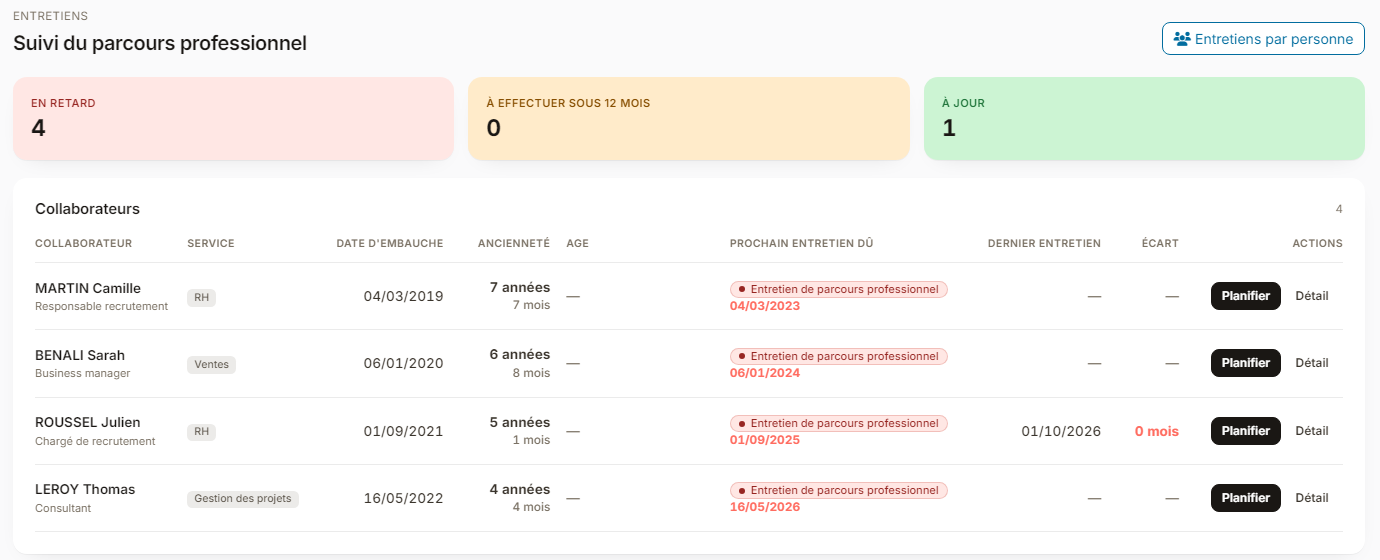
As soon as a type has a category and a threshold, the Career path follow-up button appears in My Team > Evaluations. This screen counts the employees who are Overdue, those whose interview is To be held within 12 months and those who are Up to date. For each of them, it shows the hire date, seniority, age, next interview due and last interview. The Plan button creates the interview with the right type already selected. Remember to fill in the employees' hire date, and their birth date if you follow mid-career or end-of-career interviews.
6. Launch an evaluation campaign
A campaign lets you announce interviews to a whole group of employees and follow their progress.
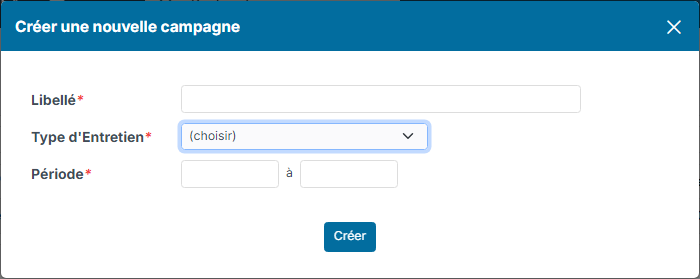
- In the side menu, open My Team > Evaluation Campaigns, then click Create a new campaign.
- Fill in:
- Label: it is used in the campaign emails;
- Type of Evaluation;
- Period: the period under review. It is used to bring up the trainings, goals and time spent on projects during that period.
- Click Create.
- In the campaign, click Add Participants and select the employees concerned.
- If needed, add other people to the campaign with the arrow next to the initials, at the top right: for example your HR colleagues, with the Owner role. The other roles are Contributor and Read Only.
- Before the launch, you can change the assessor or validator: tick the participants, click Bulk Updates, choose Assessor or Validator, then the person.
- Click Start Campaign. The window that opens shows the number of participants who will receive the announcement email: check it, adapt the text if needed, then send.
At each step of the workflow, the people concerned receive an email. The interviews are then available:
- for managers, in My Team > Evaluations;
- for employees, in My HR Space > My Evaluations.
Check beforehand that the user profiles have access to these menus.
7. Follow a campaign
Open My Team > Evaluation Campaigns and click the label of the campaign. The top of the screen counts the participants at each step of the workflow: click a step to show only its participants.
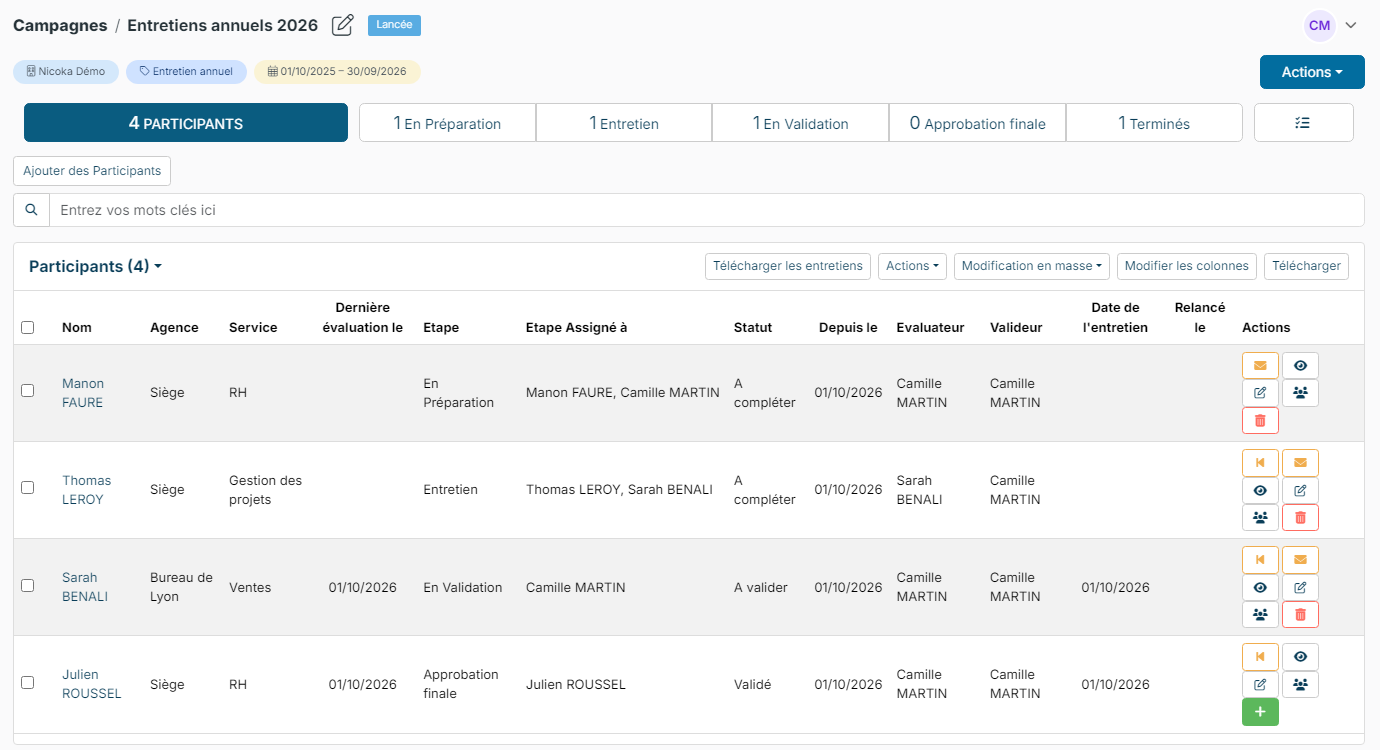
For each participant, the buttons of the Actions column let you, among other things, remind the person expected, view the interview, update it or go back to the previous step. The Download interviews button retrieves the interviews of the campaign.
The button to the right of the steps (Compare Answers) shows the answers of all participants, question by question, and can download them in Excel format: you quickly spot strengths and areas for improvement.
8. Generate the reports and close the campaign
Once the interviews are finished, generate their PDF report:
- Click the Done step.
- Tick the participants, then choose Actions > Generate PDF file. You can also use the green button on a participant's row.
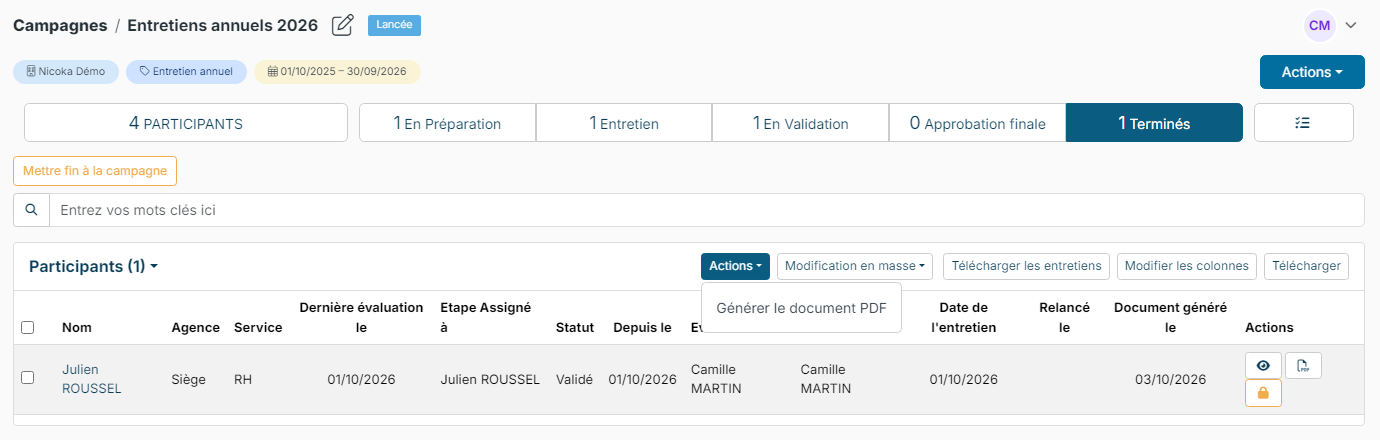
The Document Generated On column then shows the date of the PDF. The document is locked: the padlock on the row lets you unlock it if you need to generate it again.
To close the campaign for good, click Actions at the top right, then End campaign, and confirm.
9. Create an interview outside a campaign
For a one-off interview (end of probation period, return from leave…):
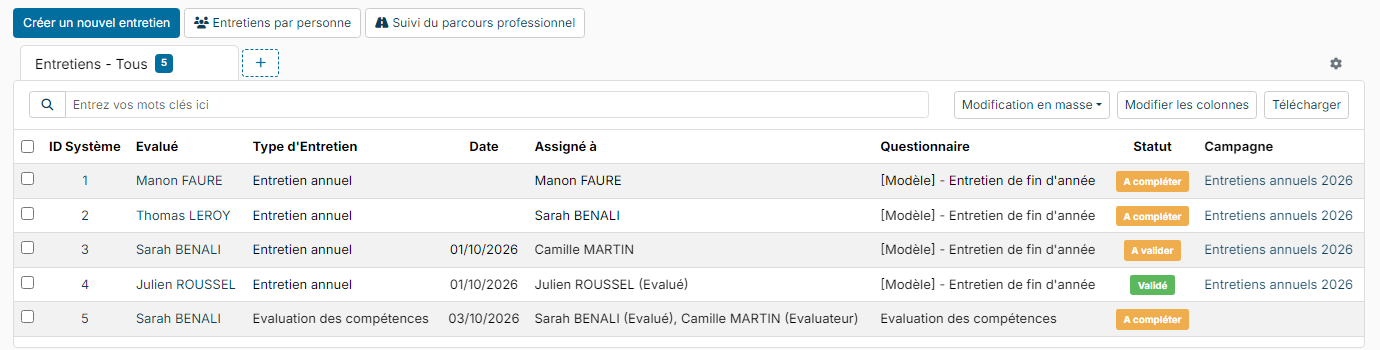
- Open My Team > Evaluations, then click Create a new evaluation.
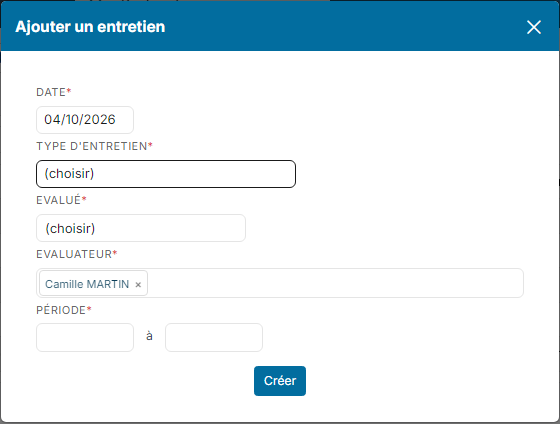
- Fill in the Date, the Type of Evaluation, the Assessed employee, the Assessor and the Period under review, then click Create.
The Evaluations per people button shows, for each employee, the dates of their interviews by type.
10. Emails and notifications
In the module customizing, the Customizing Points section sets which email template is sent when an evaluation is created, to fill in the form and for the validation steps. It also lets you choose who may delete evaluations and hide some goal frequencies.
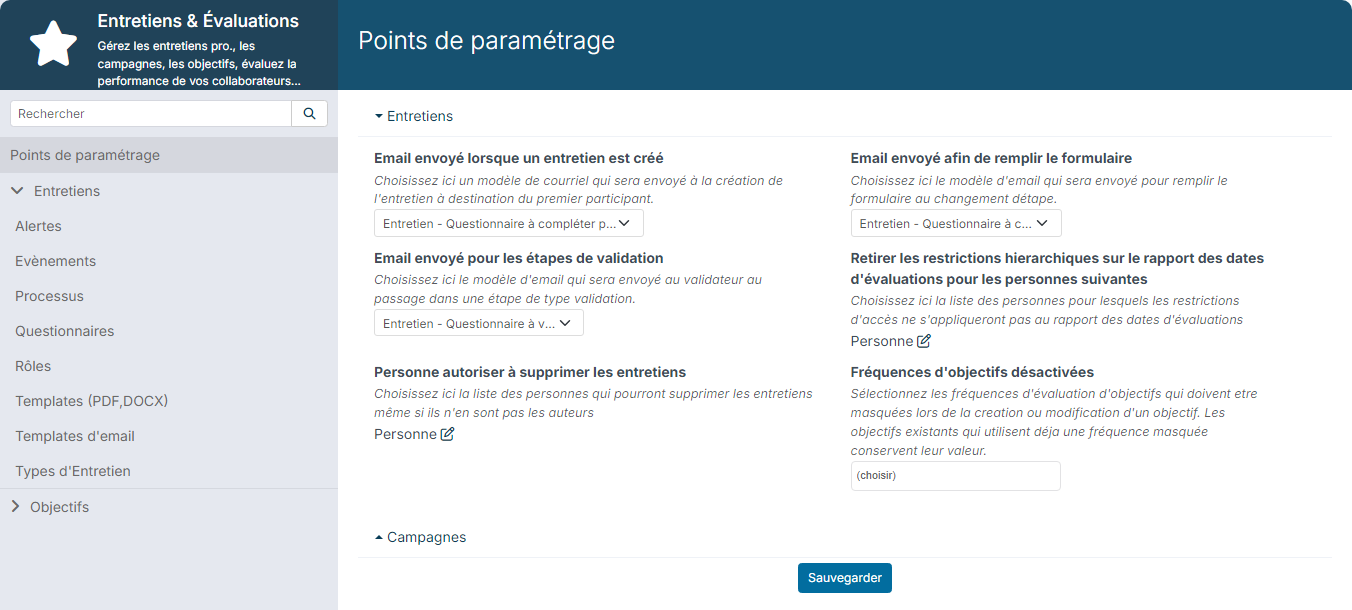
To customize the text of the emails, click Email Templates. Copy the original template, rename the copy (for example by adding your company name), change its content, then select the copy in the Customizing Points. You can then deactivate the original template.