Synchronise LinkedIn job slots with Nicoka
LinkedIn Job Wrapping automatically posts on LinkedIn the job offers you publish from Nicoka, and links them to your job slots. You no longer have to publish and update each posting on LinkedIn by hand.
The setup has two parts: declare Nicoka as a job source in LinkedIn Recruiter, then enter the identifier of your LinkedIn company page in Nicoka. The LinkedIn screenshots below show the French version of LinkedIn Recruiter.
Prerequisites
You must be an administrator of the LinkedIn page of the company that will be linked to your job slots.
1. Open your LinkedIn account preferences
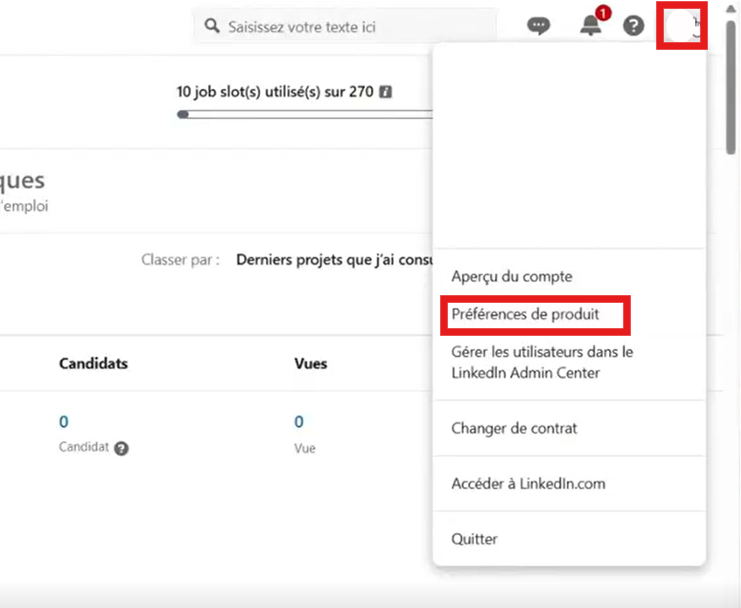
In LinkedIn Recruiter, click your profile photo at the top right, then open the product preferences.
2. Declare Nicoka as a job source
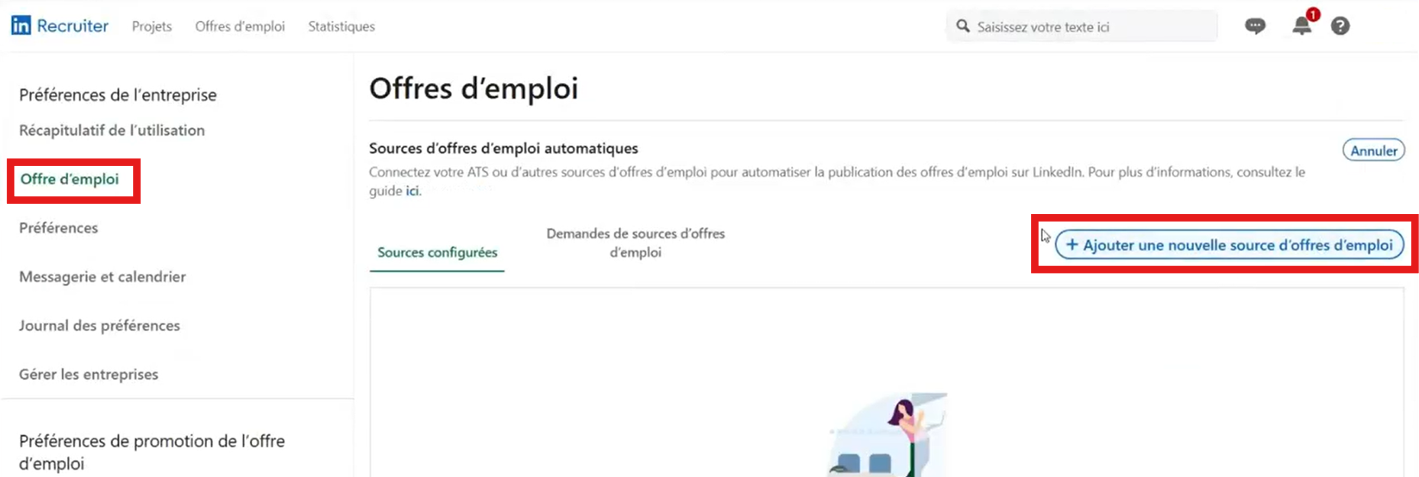
- In the left-hand menu, open the job postings tab.
- In the automated job sources section, click the button to add a new job source.
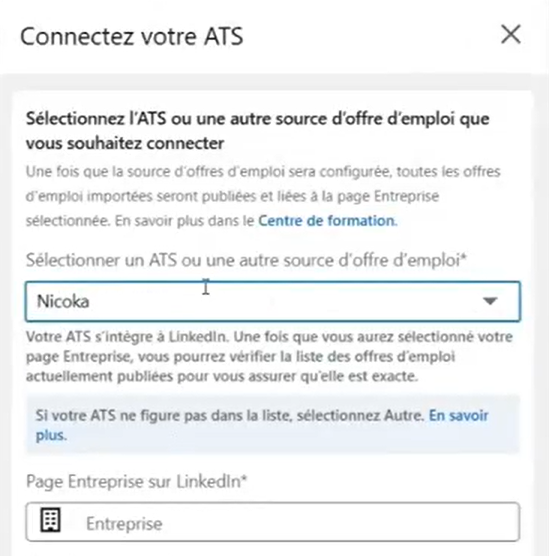
- In the field used to select an ATS or another job source, search for and select Nicoka.
- In the LinkedIn company page field, select your company page to link to the postings.
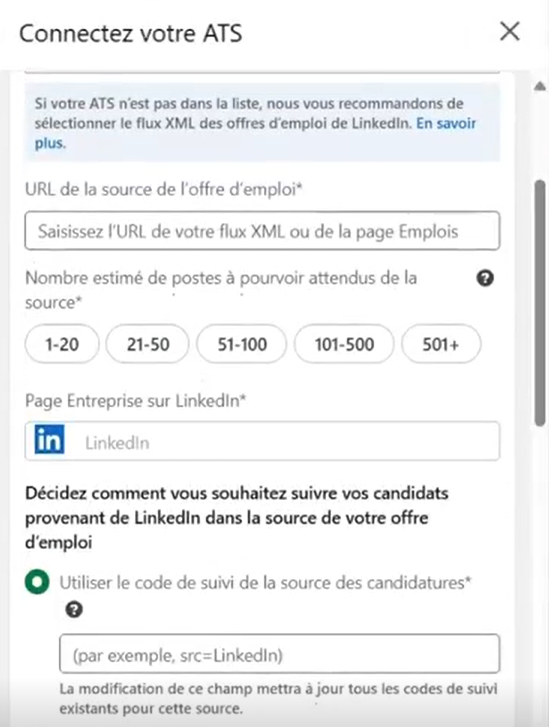
- In the job source URL field, enter the following address, replacing {domain} with the name of your Nicoka account:
https://master.nicoka.com/jobboards/linkedin/{domain}.xml
For example, if your account is domain.nicoka.com, enter https://master.nicoka.com/jobboards/linkedin/domain.xml. This is the feed LinkedIn uses to retrieve the job offers you post from Nicoka. - Choose the range matching the number of open positions you will post through this source.
- In the section about tracking candidates coming from LinkedIn, select the option to use an application source tracking code, then enter the following value:
?source=linkedin%20sponsored
Nicoka then recognises the applications coming from your sponsored postings on LinkedIn.
3. Wait for LinkedIn's approval
Once the form is sent, LinkedIn must approve the source, which can take a few hours. You can follow its status in the job source requests tab. Once approved, the source appears among the configured sources.
Important: post a first job offer on LinkedIn sponsored from Nicoka soon after sending your request. LinkedIn must find job offers in the feed to approve it: a feed that is empty at the time of the check may be rejected.
4. Get the identifier of your LinkedIn company page
Open the admin dashboard of your LinkedIn company page. Its address looks like:
https://www.linkedin.com/company/123456789/admin/dashboard/
The identifier is the series of digits between company/ and /admin, here 123456789. Copy it.
5. Finish the setup in Nicoka
- In the side menu, open Customizing > Store, click Customize on the ATS card, then open the jobs section > MultiPosting Configs.
- If there is no LinkedIn sponsored line yet, click Create a new MultiPosting Config, choose the Linkedin sponsored job board and save. If it is not in the list, write to support@nicoka.com.
- On the configuration line, click the icon in the Customize column.
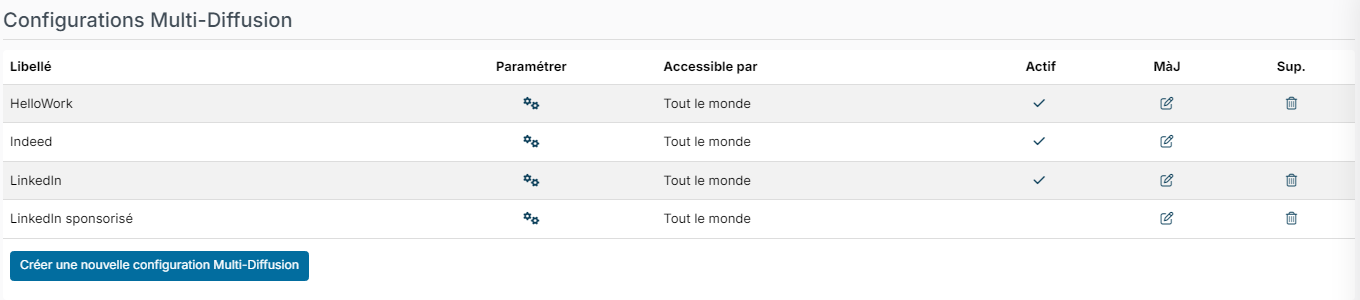
- At the Required identifier step, fill in:
- ID followed by the name of your configuration: the identifier of your company page, digits only. This field is mandatory.
- Sponsorship tag (optional): text added at the end of the description of each job offer sent to LinkedIn. It is only useful if you manage the allocation of your LinkedIn job slots with a tag.
- Company (optional): the company name shown on the postings. If left empty, Nicoka uses the job's company.
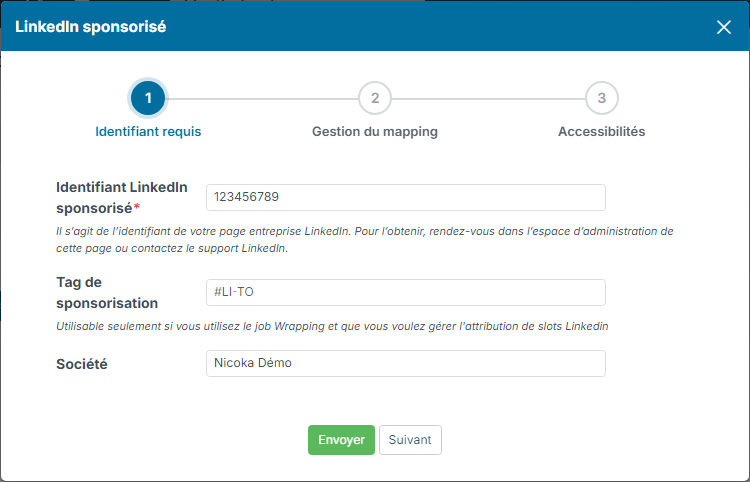
- Click Next to go through the Mapping management step (matching your employment types, salary units, education levels and business sectors with LinkedIn's) and the Access settings step, then click Send to save.
- Activate the configuration in the active column.
You can then post your job offers on LinkedIn sponsored from the multiposting of your jobs.