Dashboard - Customization
Your dashboard is the home page of Nicoka. It is made up of widgets: lists, indicators or charts. You can choose the widgets displayed, arrange them and create several dashboards, for example one for recruitment and one for invoicing.
Switching from one dashboard to another
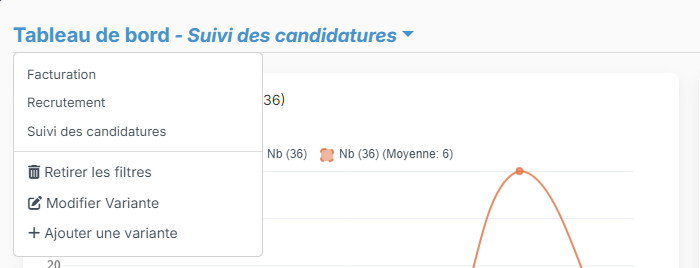
The page title shows the dashboard displayed, for example Dashboard - Recrutement. Click this title to:
- choose another dashboard in the list;
- Remove filters that are applied;
- Update Variant: change the name, visibility or widgets of the dashboard displayed;
- Add a variant: create a new dashboard (see below).
Dashboards are variants: they work like list variants. To find out more, see Display and Variants.
Adding or removing widgets
- Click the Customizing button (cogs) at the top right of the dashboard. The Show/Hide columns window opens.
- Under Available Widgets, widgets are sorted by category. Type a word in Search a Widget to filter them, then click a widget: it moves to the Widgets selected.
- To remove a widget, click its cross in the Widgets selected.
- Click Save. The Preferences saved message is displayed.
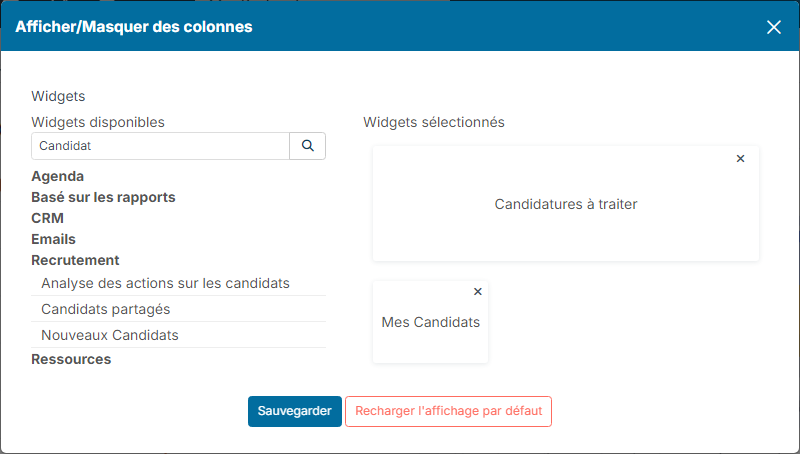
This choice only applies to you. The Reset to default button goes back to the widgets set for this dashboard.
The widgets offered depend on your profile: an administrator can allow them or not per profile (see "Access rights to widgets" below).
The buttons of a widget
Hover over the header of a widget to show its buttons:
- the ⓘ icon: hover over it to read the description of the widget;
- Customize (cogs), on some widgets: for example the variant used, the number of rows or the sort order;
- Remove (cross): removes the widget from the dashboard.

Depending on the widget, other buttons may be shown, such as Filters or Full Screen.
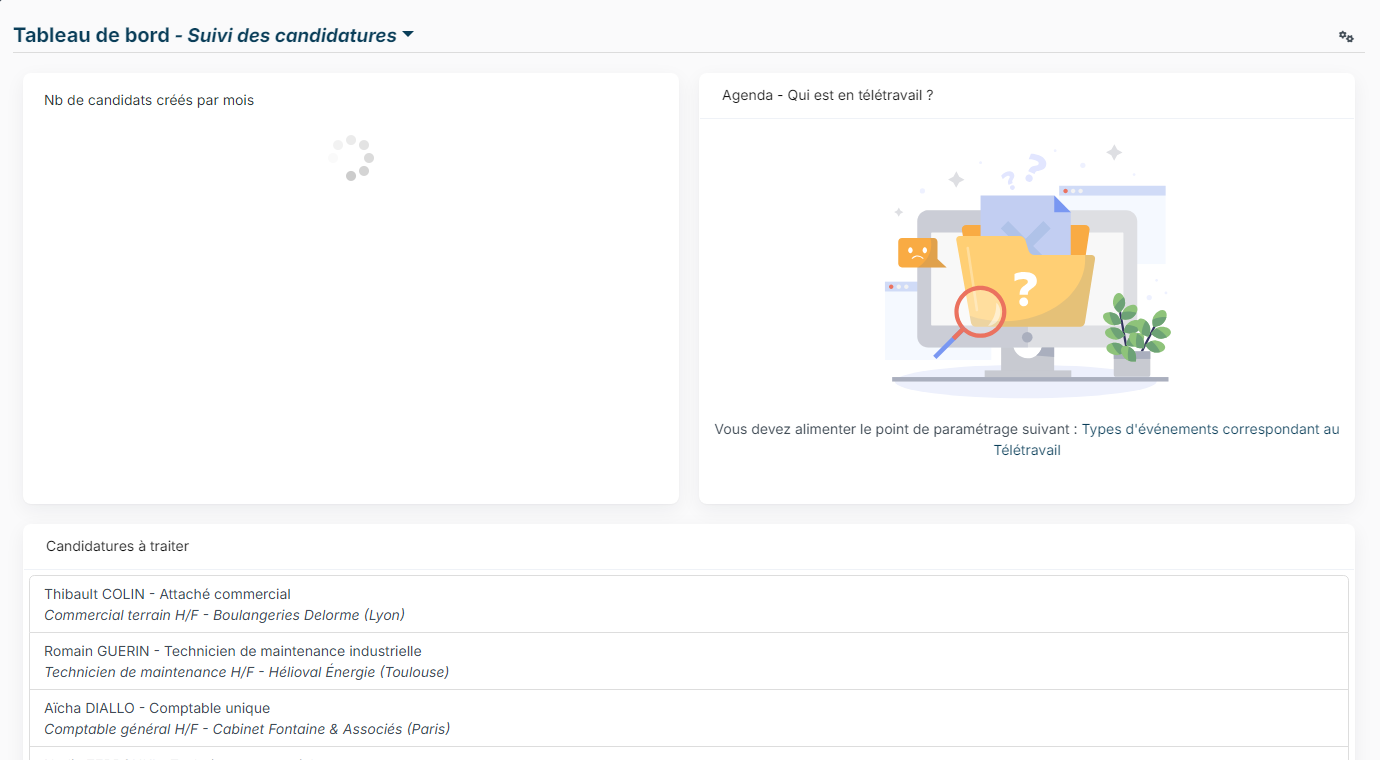
A widget that needs a setting
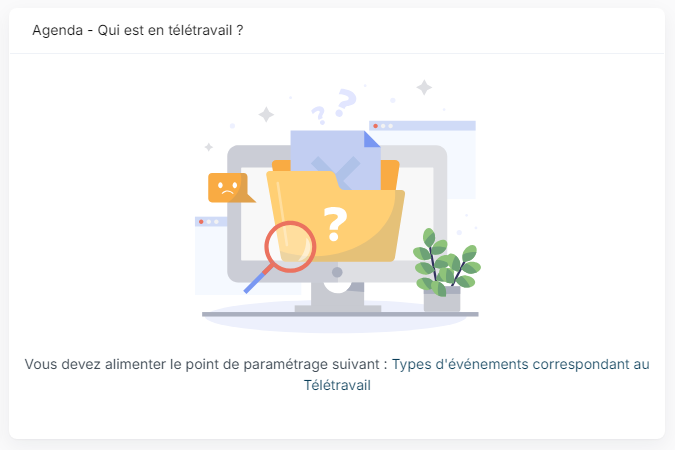
Some widgets need a setting before they can be displayed. In that case, the widget shows a message such as "You need to set the following customizing point: …". Click the link in the message to open the customizing point, fill it in, then click Save. This setting is reserved for people who have access to the settings.
Moving and resizing widgets
- Move: click the header of the widget and drag it where you want, then release.
- Resize: hover over the widget, then drag the small corner at the bottom right to enlarge or reduce it.
The new layout is saved automatically. Tip: give more room to charts and lists, and put the widgets you check most often at the top.
Creating another dashboard
- Click the dashboard title, then Add a variant.
- In Label, name the dashboard, for example "Suivi des candidatures".
- Set Visible by and Changeable by: only you, everybody or some colleagues (see below).
- Under Available Widgets, click the widgets to display: they move to the Widgets selected.
- Click Create.
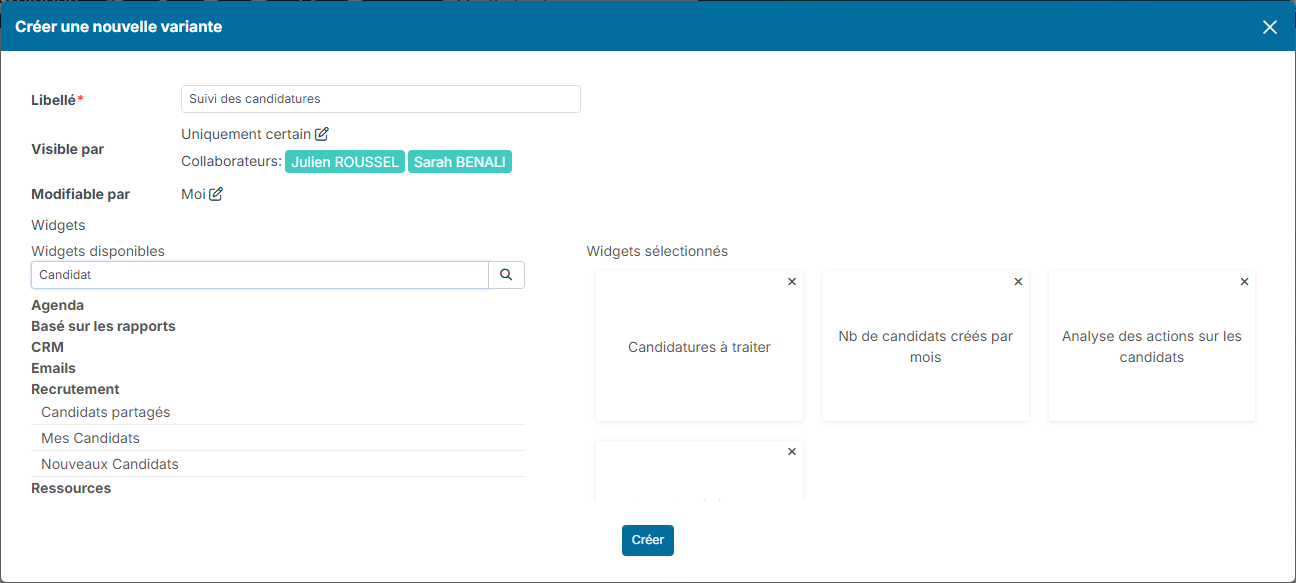
The new dashboard is displayed straight away. You can then move and resize its widgets.
Sharing a dashboard
In the dashboard window (when creating it or with Update Variant), click the pencil icon next to Visible by, choose Only some people, check the employees, departments or profiles concerned, then click Update. The people chosen find the dashboard in the title menu. Changeable by sets who can change it.
An administrator can also set a Default dashboard for a profile: it is shown to users of this profile as long as they have not customized their own. See Define access profiles in Nicoka.
Access rights to widgets
The widgets offered to each user depend on their profile:
- In the side menu, open Customizing > Admin.
- In the left-hand menu, expand Users and click Profiles, then the profile you want.
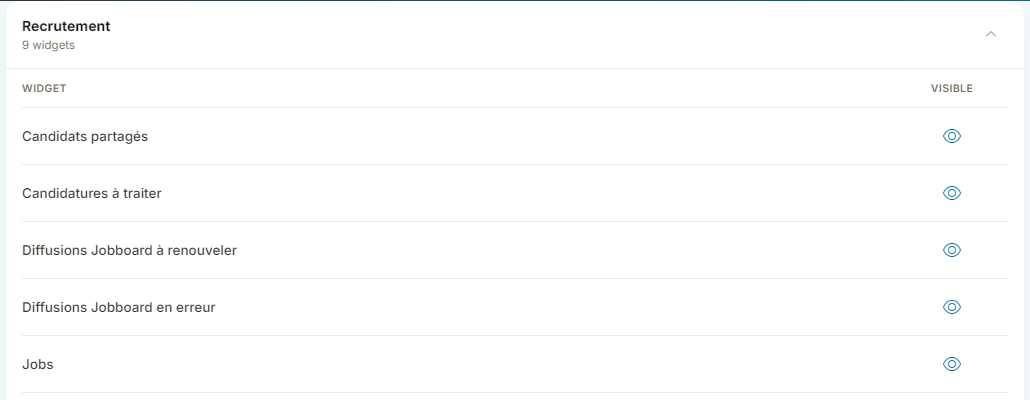
- Open the Widgets tab, expand a category and click the eye of a widget to offer it or not to users of the profile.
- Click Sauvegarder (save) in the bar that appears.