Document templates (PDF, DOCX)
Document templates (PDF, DOCX) are the document models Nicoka generates from a record: a candidate's resume or anonymous resume, an evaluation report, a contract, a quotation, an invoice… You build them in a visual editor, mixing fixed text and record information that changes with each document. Setting them up requires customizing rights on the module concerned.
Open the templates
- In the side menu, open Customizing > Store, then click Customize on the module concerned (for example ATS for candidates).
- In the customizing menu, choose the entity (for example Candidates), then Document Templates.
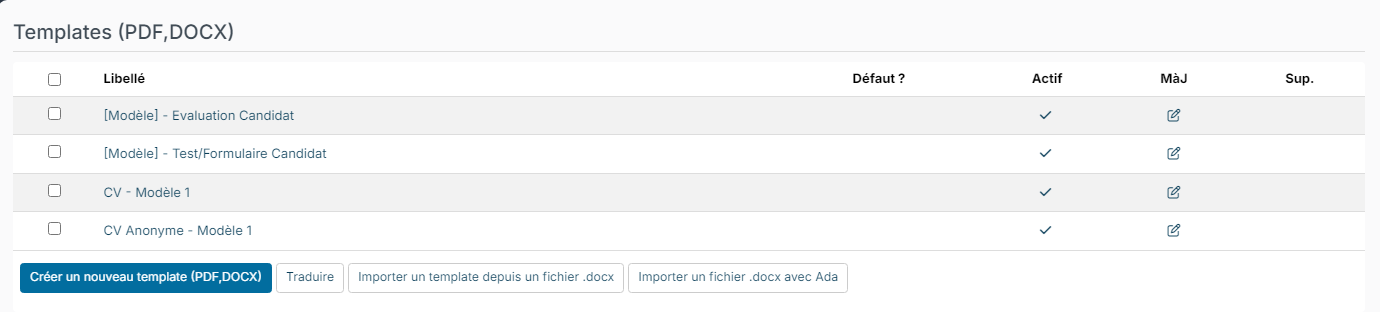
The list shows the templates of the entity:
- Default ?: the template preselected when a document is generated from a record. You can change it directly from the list.
- Active: an inactive template is no longer offered on records.
- Upd. opens the template and Del. deletes it (after confirmation).
Below the list, Import a template from a .docx file creates a template from an existing Word document. If Ada is enabled in your workspace, Import a .docx file with Ada also offers to spot the texts to replace with record information.
Create a template
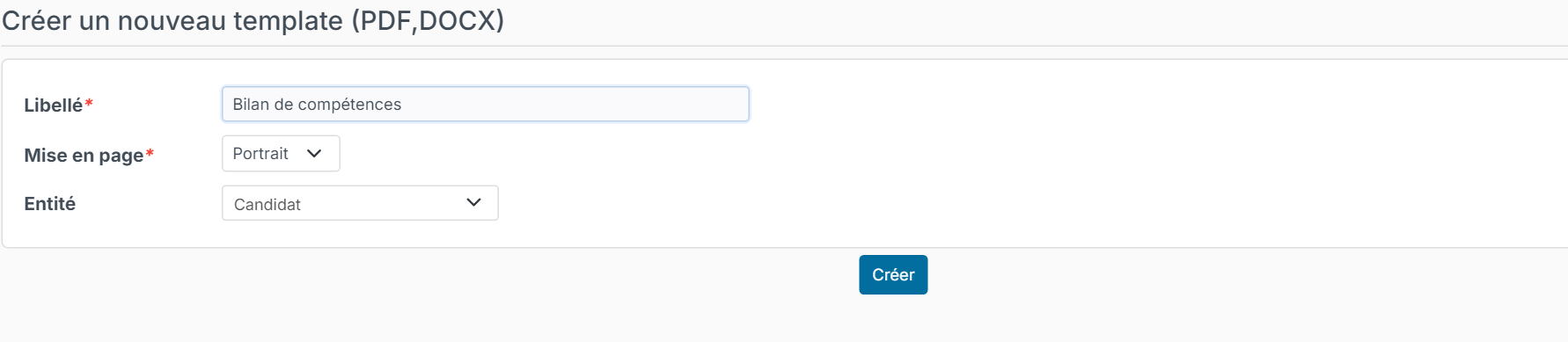
- Click Create a new document template.
- Enter the Label (the name shown to users), choose the Layout (Portrait or Landscape) and check the Entity.
- Click Create. The template editor opens.
The templates provided by Nicoka (such as CV - Modèle 1) cannot be modified: open one and click Copy, at the top left, to start from a copy you can adapt.
Template settings
The top of the template page groups the document settings:
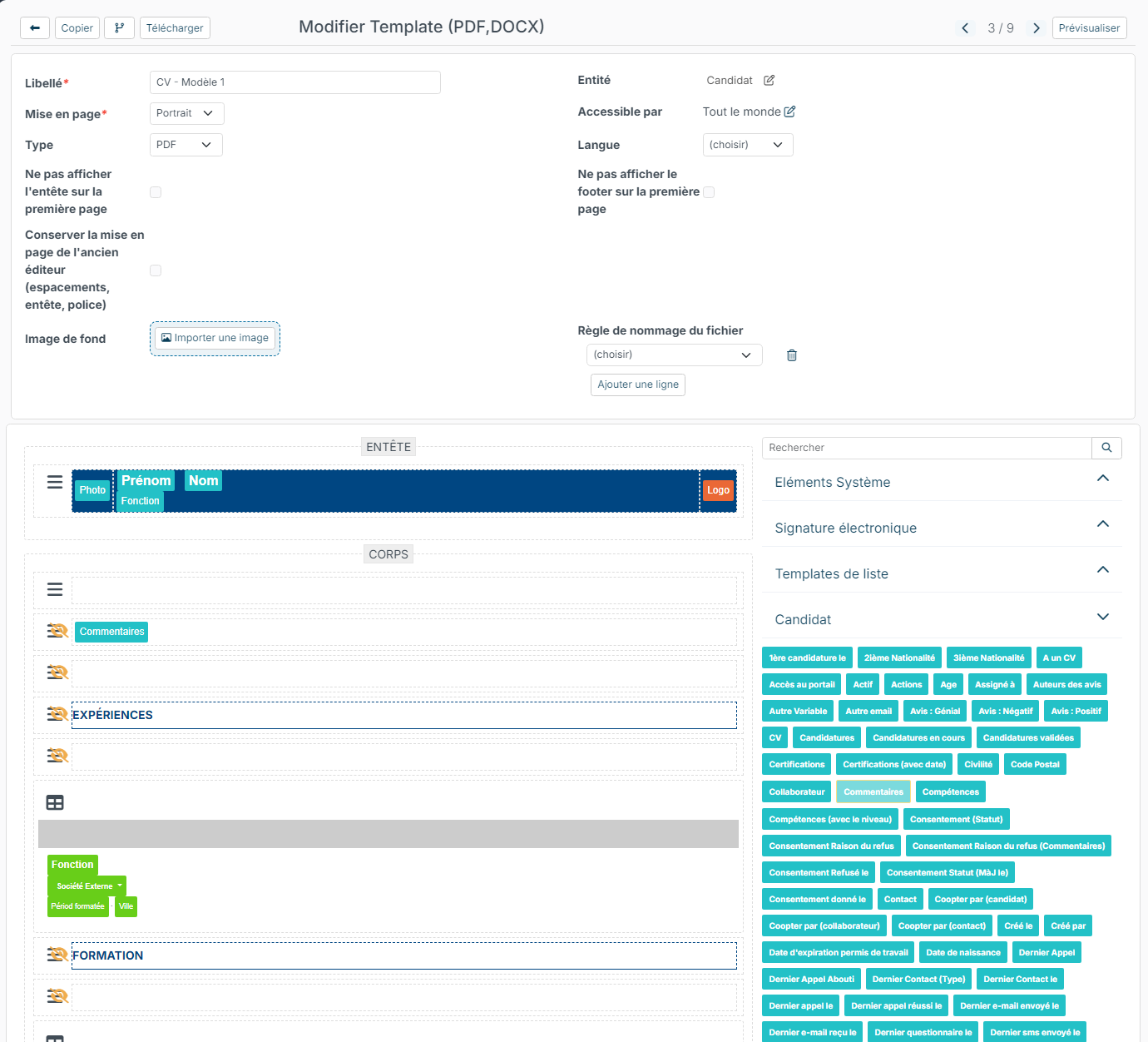
- Label, Layout and Entity;
- Type: PDF or Word document;
- Available for: click the pencil to restrict the template to some users instead of Everybody;
- Language: the language in which the document is generated;
- Don't display the header on the first page and Don't display the footer on the first page;
- Keep the previous editor's layout (spacing, header, font): useful for a template created with the previous editor, so that it keeps its look;
- Background image: an image placed behind the whole document (letterhead, for example);
- File naming rule: the name of the generated file, made of fixed values and record information.
At the top right, the arrows move to the previous or next template, and Preview generates a preview.
Build the document
The left part shows the document, in three areas: Header (repeated at the top of each page), Body and Footer (repeated at the bottom of each page). The right part lists the data you can insert: the fields of the entity (for example the candidate), the UI Components, the electronic signature fields and the list templates. Use the search field to find a field.
- To write fixed text (a title, a notice), click in a row and type.
- To insert record information, drag the field from the right part and drop it into a row. It is shown as a coloured tag, replaced by the record's value when the document is generated.
Add a row, a table or a page break
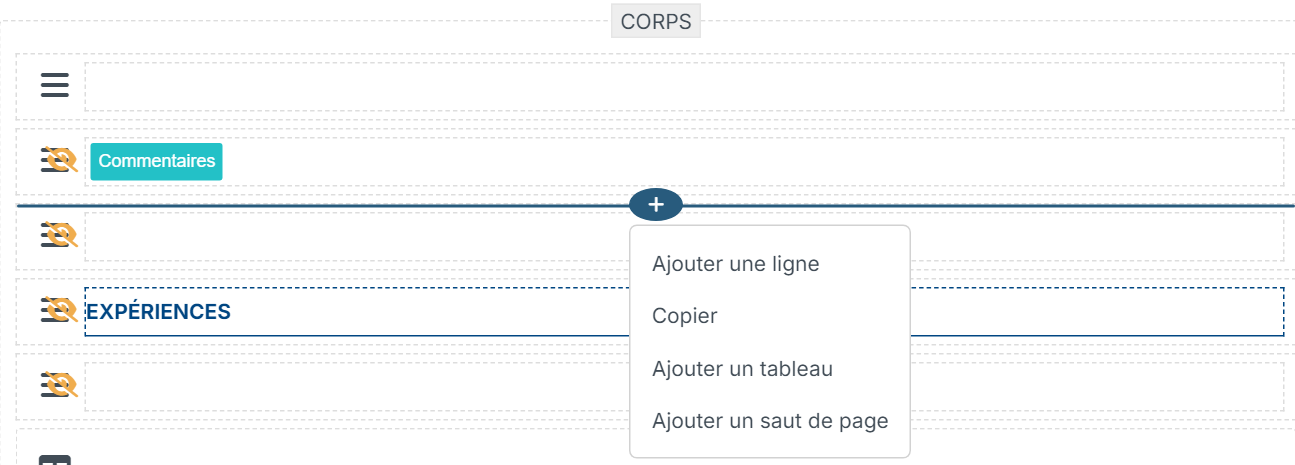
Hover over the limit between two rows: a + button appears. Click it to choose Add a new row, Add a table or Add a page break. The page break moves the rest of the body to a new page; the header and footer are repeated.
Format a row
Click in a row: a toolbar appears above it.

- text alignment (left, centre, right, justified);
- font size (from very small to XXL);
- bold, strikethrough, underline and italic, which you can combine;
- left, right, top and bottom borders, which you can combine;
- text colour, background colour and border colour;
- inserting an image;
- the number of columns, to split the row into several independent cells;
- the red bin, to delete the selected item.
The row menu
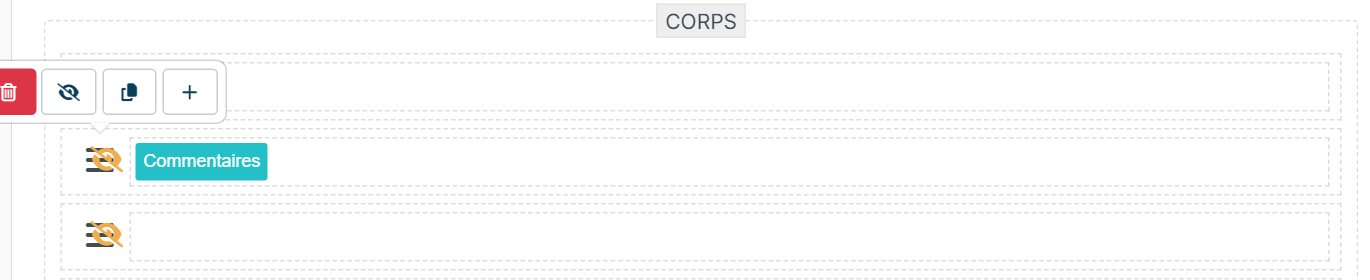
Click the icon to the left of a row to show its actions: delete the row, Display Rules, copy the row, or add an item below.
Add a table
A table lists the sub-items of the record: a candidate's experiences, skills or languages, the lines of an invoice…
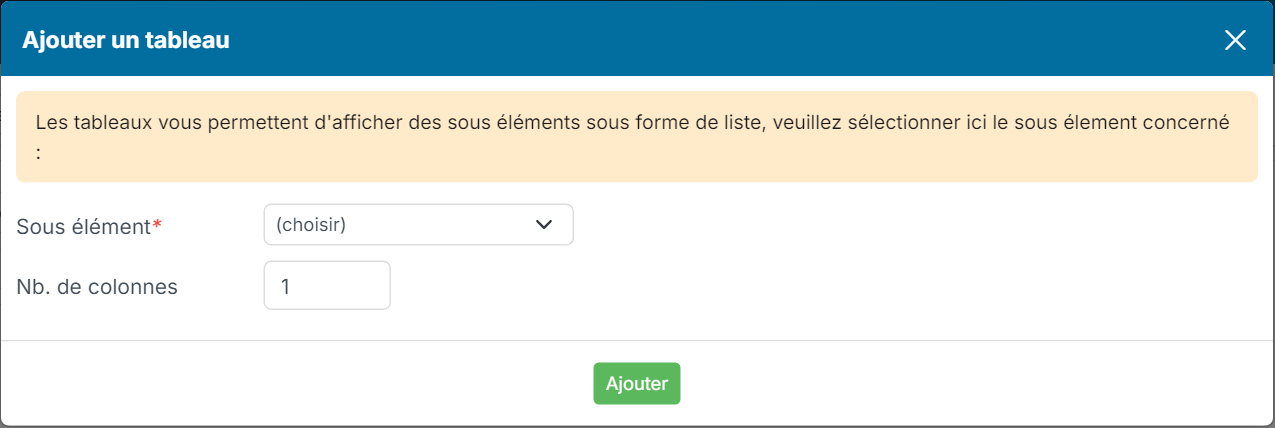
- Choose Add a table in the + menu.
- Choose the Sub element (for example the experiences) and the Nb of columns, then click Add.
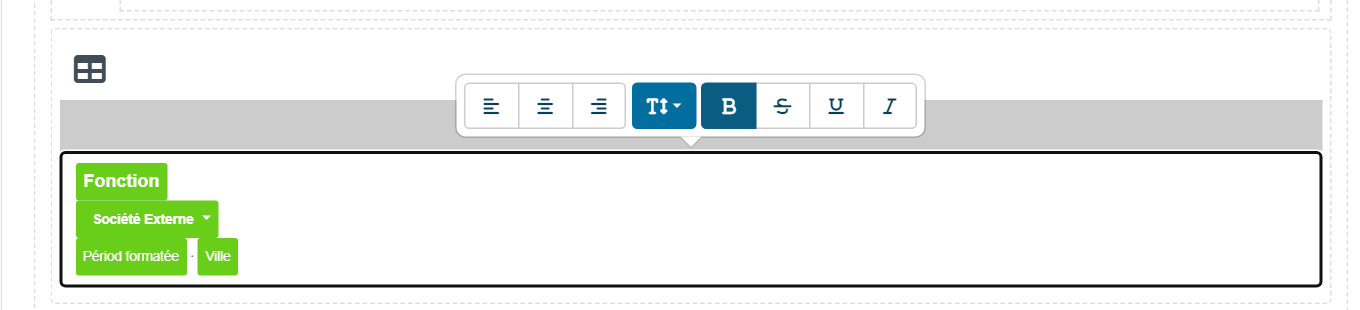
- In the right part, open the section of the sub-element and drag its fields into the columns of the table. The table will show one row per sub-item of the record.
- Click in a cell to set its alignment, size and style.
Show a part based on a condition
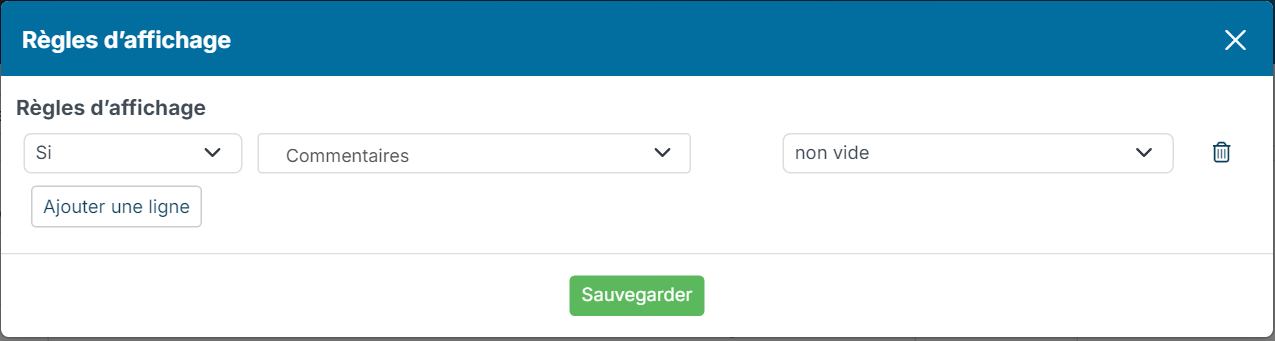
Display rules show a row only when a condition is met, for example hide the "Education" title when the candidate has no education.
- Click the icon to the left of the row, then the Display Rules icon (the crossed-out eye).
- In each rule row, choose If (or Else for the alternative to the previous rule), the field to test, then the condition: equal to, greater than, different from, empty, not empty, contains… Some conditions need a value.
- Click the button to add a row for another condition, or the bin to remove one.
- Click Save.
A row with a display rule is marked with an orange icon (the crossed-out eye) on its left.
Preview and use the template
Click Preview, at the top right of the editor: Nicoka generates the document with the most recently created record of the entity.
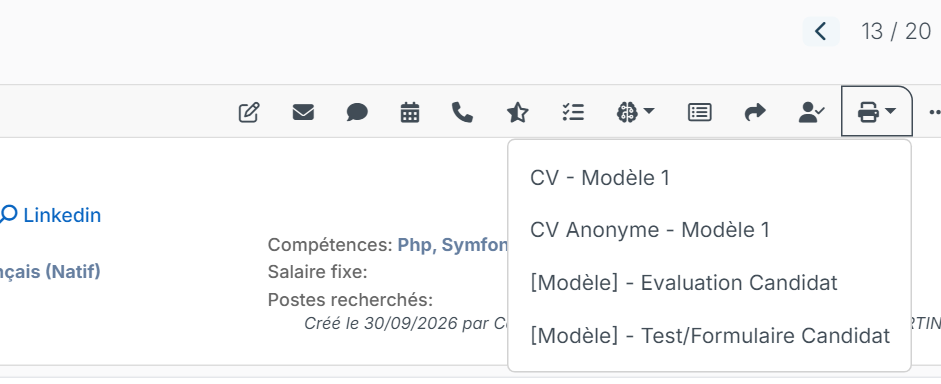
On a record, the print icon of the action bar lists the active templates: choose one to generate the document for that record.
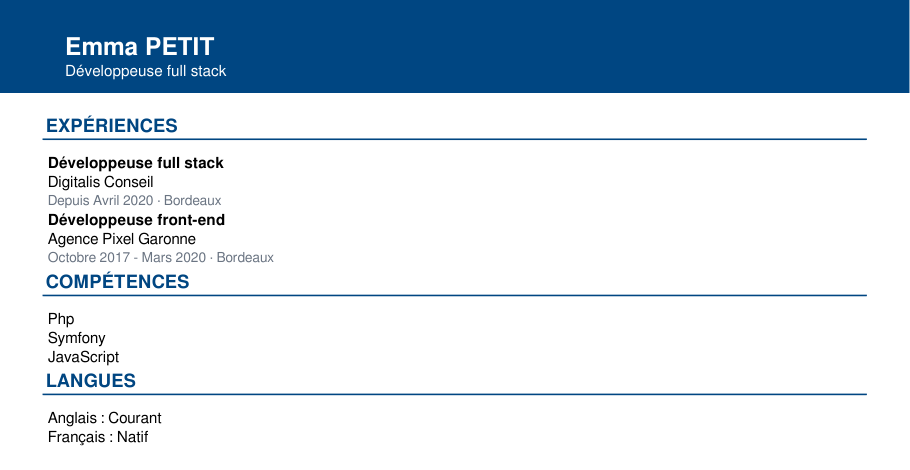
In this example, the candidate has no education: thanks to the display rules, the "Education" section does not appear.