Sort on multiple columns
In Nicoka lists (jobs, candidates, contacts, opportunities…), you can sort the rows on several columns at once: for example by account, then, for the same account, by assignee.
Sorting on one column
Click a column heading: the list is sorted on this column and a small arrow appears next to the heading. Click again to reverse the sort order.
Adding a second sort column
- Click the heading of the first column, for example the account column.
- Hold down the Ctrl key and click the heading of the second column, for example the assignee column. An arrow is shown next to both headings.
- Use Ctrl again to add more columns, or to reverse the order of a column that is already sorted.
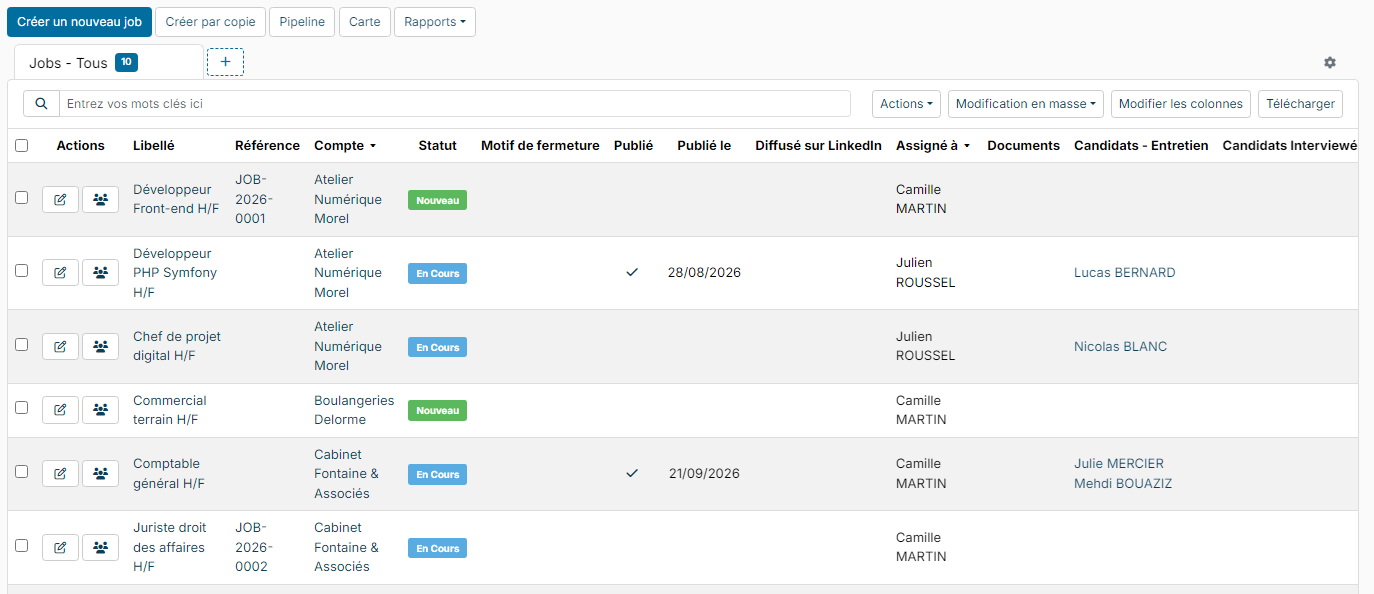
The columns are applied in the order in which they are displayed in the list, from left to right: the leftmost column is the first sort criterion.
A click without the Ctrl key cancels the multi-column sort and sorts on the clicked column only.
Saving the sort in a variant
To get the same sort every time, save it in a variant of the list: see Display and Variants.
Were this information helpful?